
Layers, groups and order
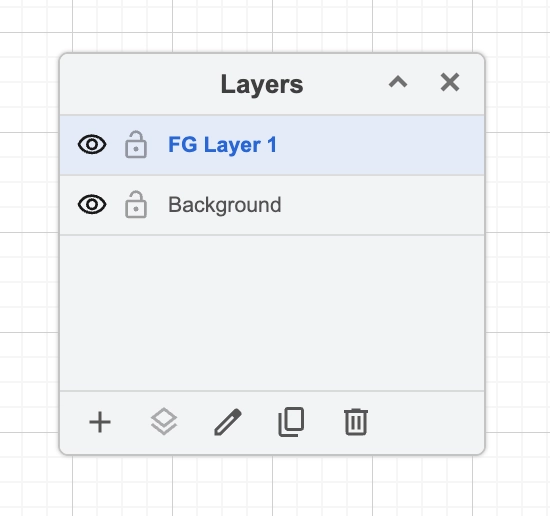
Layers are underused and genuinely useful: put annotations on their own layer and you can hide them for a clean export, or lock the background so you stop selecting it by accident.
Groups are lighter: a bundle of shapes that move together until you ungroup them.
#How to enable
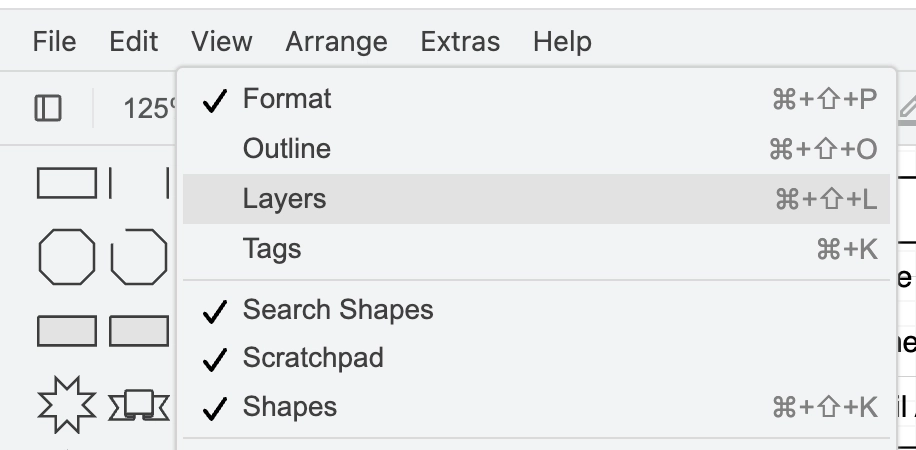
#1. Make the layers panel visible from the menu
#2. The layer panel is displayed
#What this is for
Complex diagrams where you keep selecting the wrong thing.
Diagrams with an annotation layer you want to hide sometimes.
Controlling which of two overlapping shapes is in front.
#How it works
Action | How |
|---|---|
Layers | Edit, Layers, or Ctrl+Shift+L. Add, rename, hide, lock and reorder. |
Move to a layer | Right-click a selection, Edit, Move to Layer. |
Group | Ctrl+G. Ungroup with Ctrl+Shift+U. |
Bring forward | Ctrl+Shift+F sends to front; Ctrl+Shift+B sends to back. |
Lock | Lock a layer to stop selecting anything on it. |
#A few things that catch people out
Locking the background layer is the fastest fix for a diagram where you keep dragging the wrong shape.
Hidden layers still export unless you hide them before exporting; check before sending.
Groups nest. Ungrouping once may leave you inside another group.
#Related
The canvas rewards ten minutes of learning.






















