
Import from Visio
Visio files import as editable draw.io diagrams. Shapes, connectors and text come across, so the diagram carries on being a diagram.
#How to
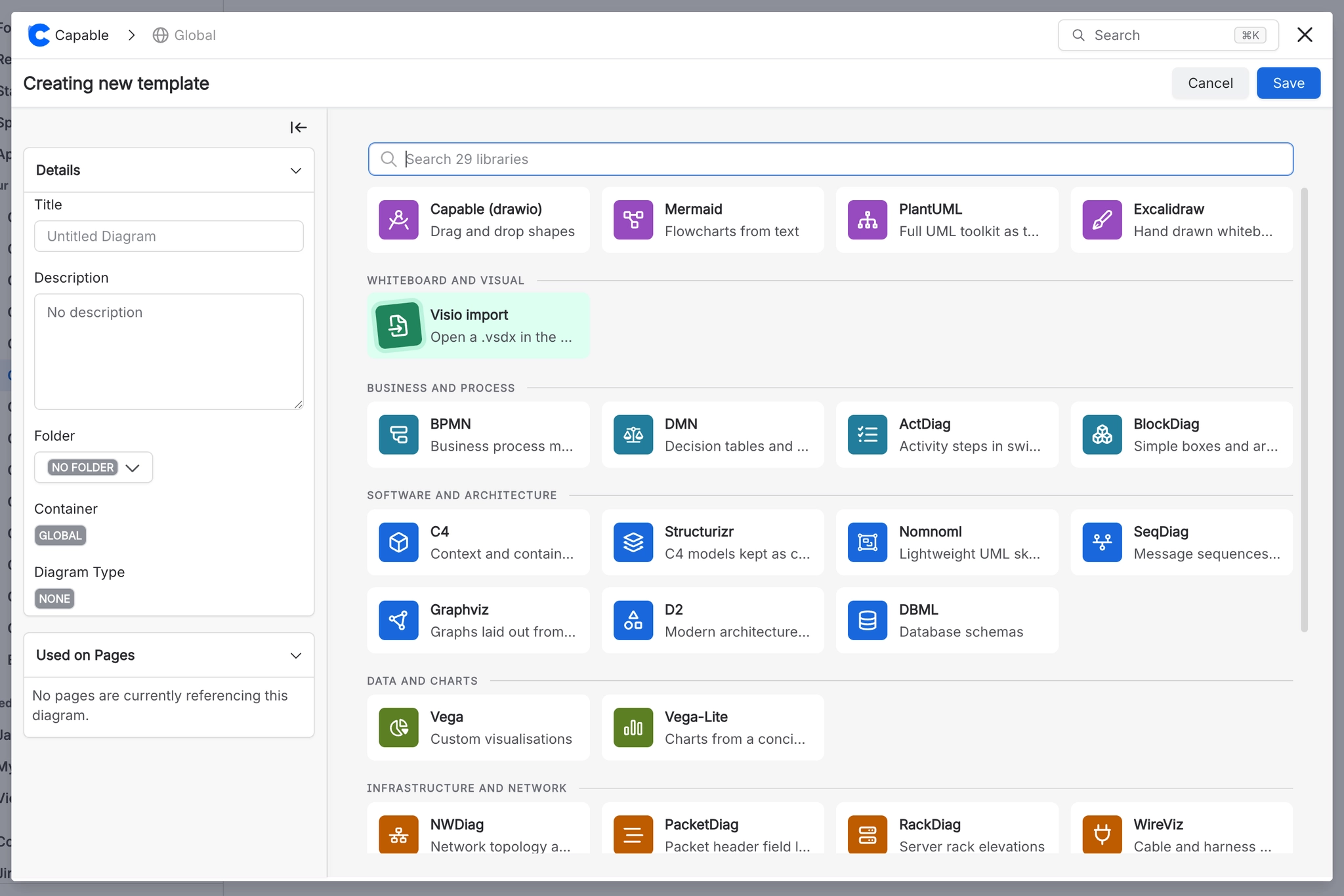
Step | What you do |
|---|---|
1 | Insert a diagram and choose the draw.io editor. |
2 | Use the import option and pick your .vsdx file. |
3 | Check the result, then save. |
#What comes across
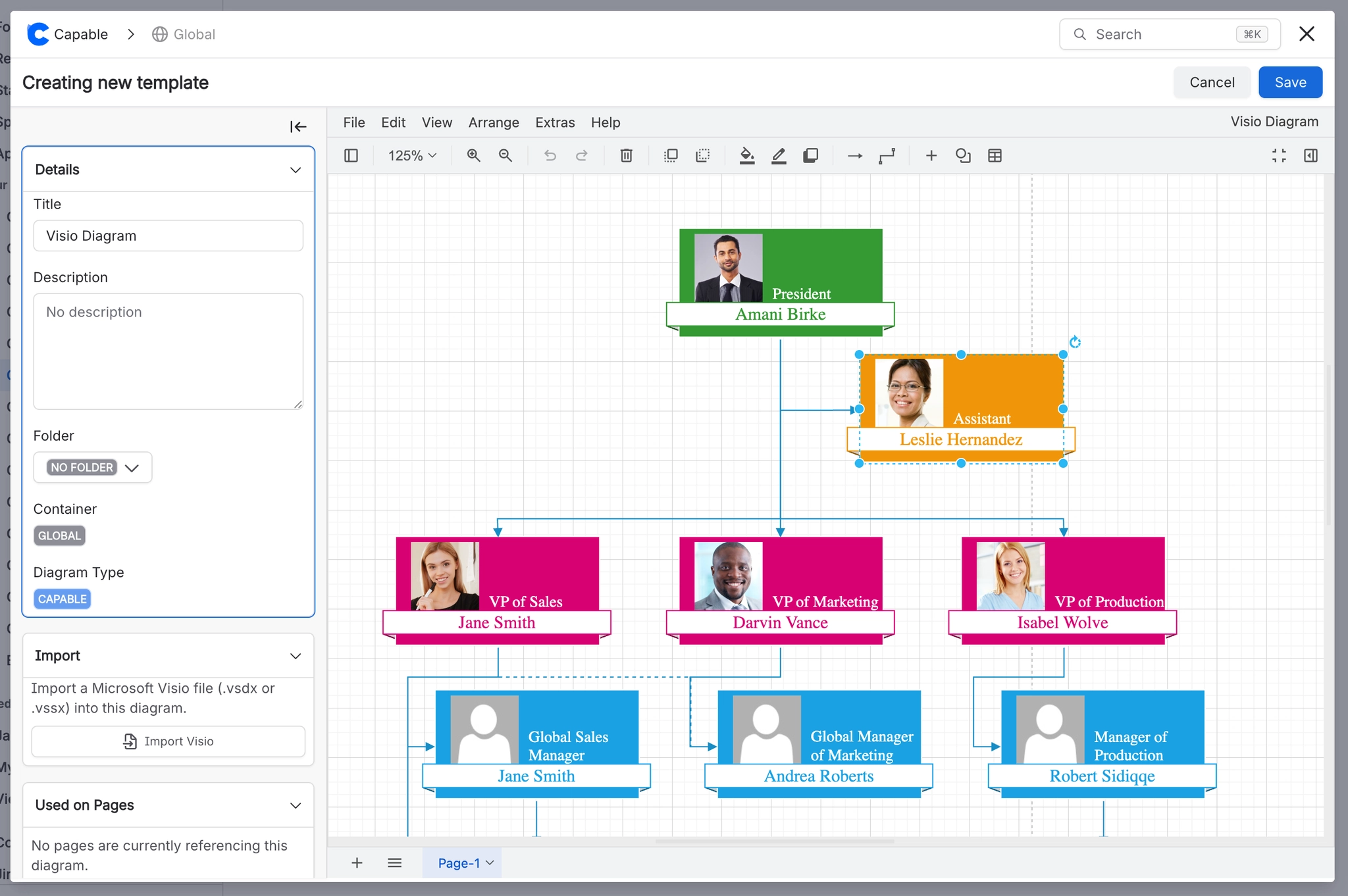
Element | Result |
|---|---|
Shapes and connectors | Converted to draw.io equivalents |
Text and labels | Preserved |
Standard Visio stencils | Mapped where an equivalent exists |
Custom or licensed stencils | May come across as plain shapes |
Macros and embedded data | Not supported |
#A few things that catch people out
Complex stencils can lose styling even when the structure survives. Check before deleting the original.
Very large Visio files take a while to convert; it is not stuck.
For bulk migration of many files, see Migrate to Capable Diagrams.
#Related
It arrives as a diagram, not a picture of one.






















