
Text and fonts in Excalidraw
Text is either free-floating or bound to a shape. Bound text stays centred in its shape and moves with it, which is almost always what you want.
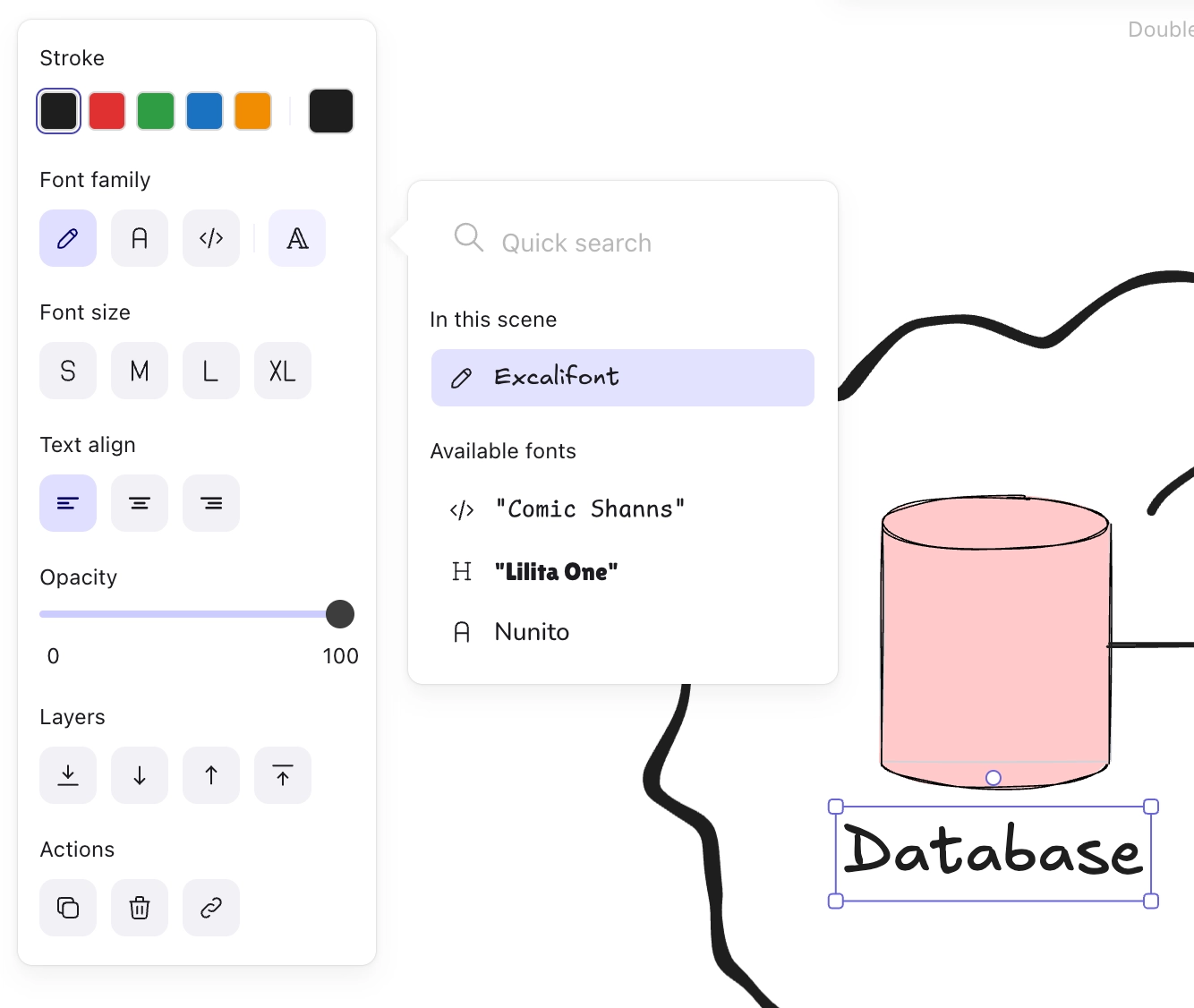
Capable ships eight font families with this editor, including Excalifont, the hand-drawn face that gives Excalidraw its look.
#What this is for
Labelling shapes so the labels follow them.
Choosing a font that matches how formal the diagram should feel.
Adding a block of text as a note.
#How it works
Action | How |
|---|---|
Add text | Press T or 8, then click. Or double-click a shape to bind text to it. |
Bound text | Created by double-clicking a shape. It centres and moves with the shape. |
Font family | Eight families ship with the editor, including Excalifont for the hand-drawn look. |
Font size | Small, medium, large or extra large. |
Alignment | Left, centre or right, in the left panel. |
Edit | Double-click any text, or press Enter with it selected. |
#A few things that catch people out
Bind text to shapes rather than placing it on top. Free text does not move with the shape.
A hand-drawn font signals a draft. Switch to a normal font if you want the diagram taken as final.
Long text in a small shape shrinks the text rather than growing the shape. Resize the shape.
#Related
Rough on purpose.






















