
Insert a diagram
The everyday route. Four clicks from an empty page to a diagram anyone on your team can edit.
#How to
Step | What you do |
|---|---|
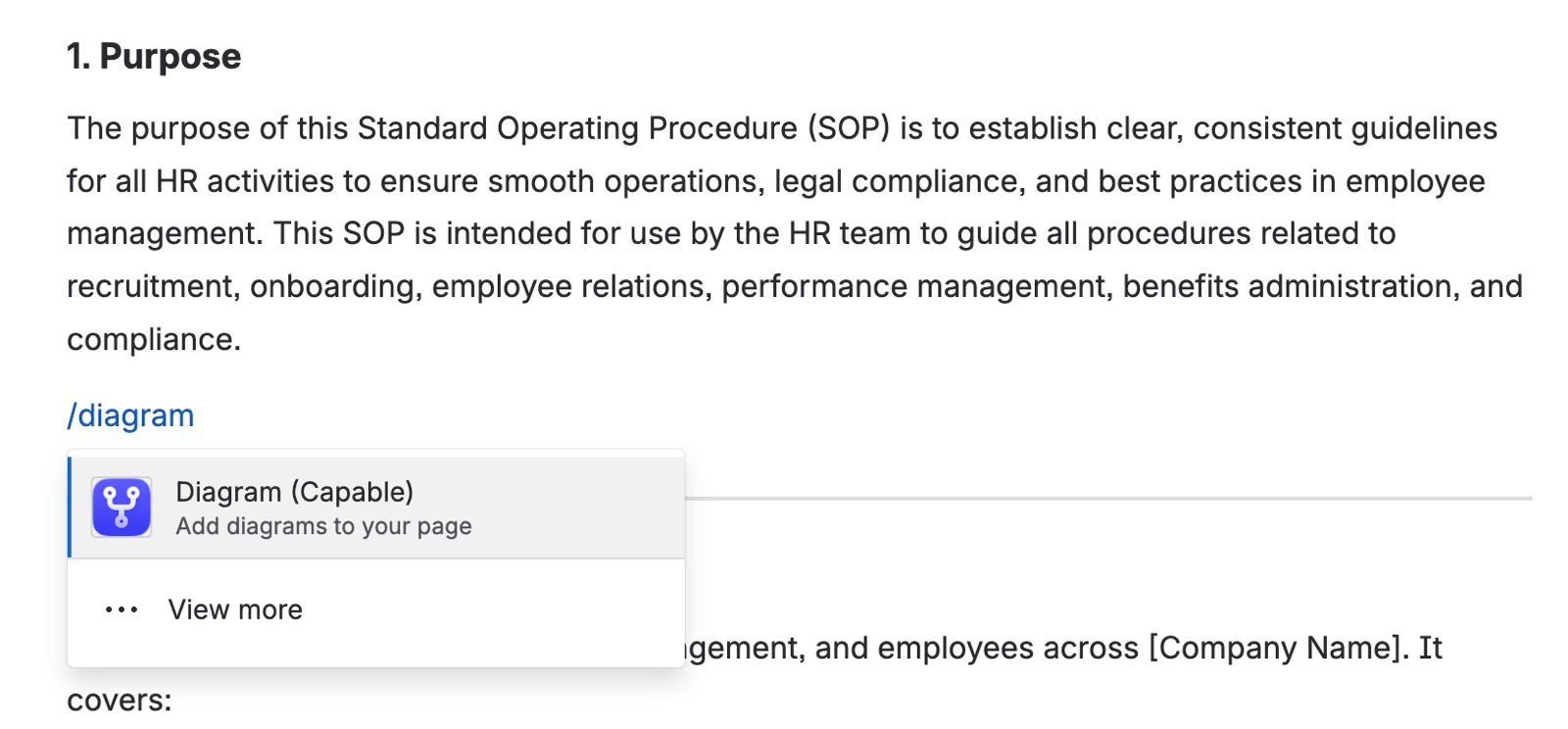
1 | Edit the page and type |
2 | Choose the editor or language you want. |
3 | Draw or write. The preview updates as you go. |
4 | Close the editor. The diagram saves with the page. |
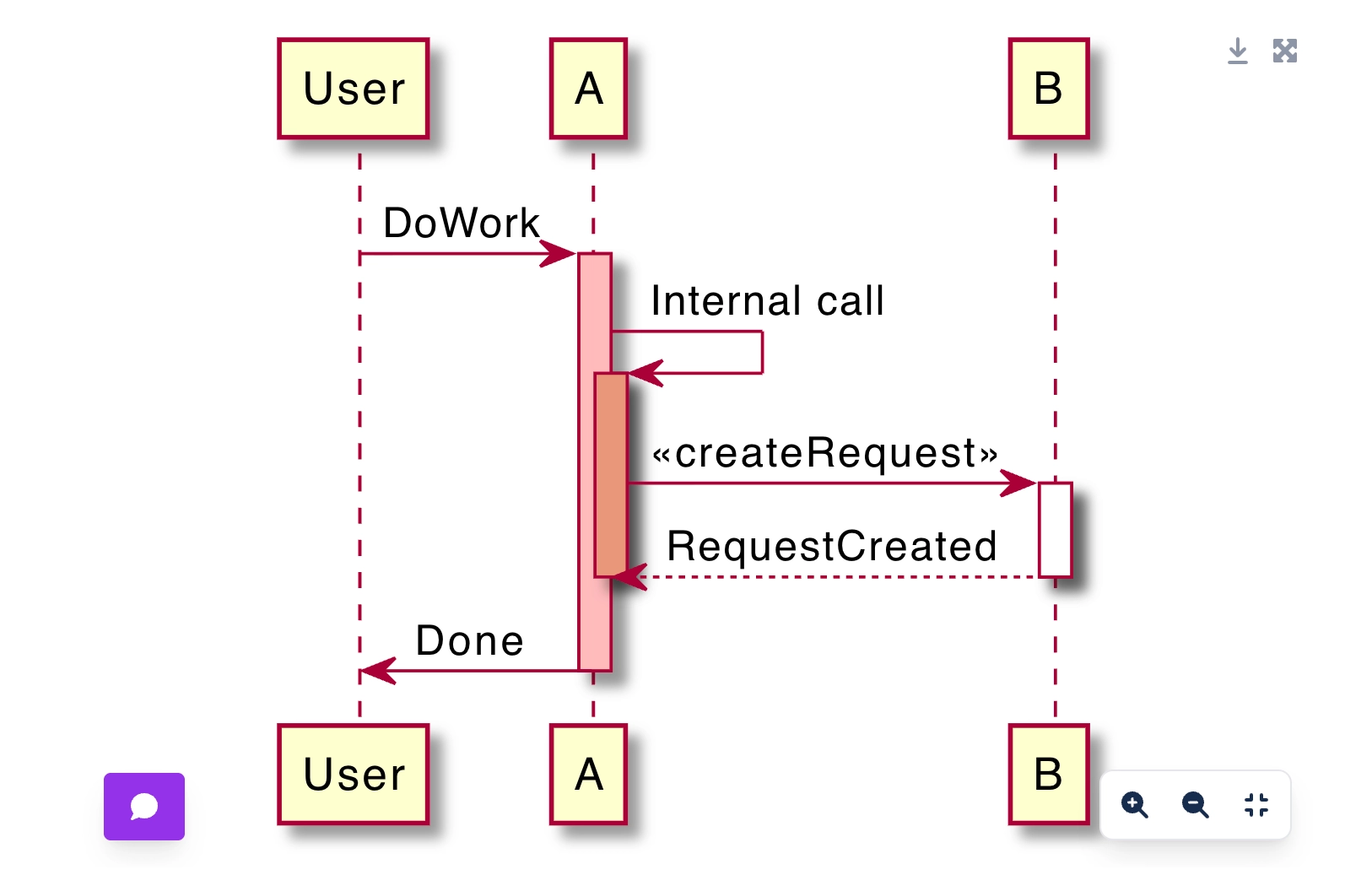
Step-by-step versions for the two most common languages: Insert a Mermaid diagram in Confluence and Insert a PlantUML diagram in Confluence.
#Start from the byline search
If you already know what you want, a Mermaid sequence diagram, your team's architecture template, a PlantUML class diagram, you can jump straight to it without editing the page first.
In the byline under the page title, select Capable.
Type what you are looking for in Search capabilities, for example
mermaid,sequenceor the name of one of your templates.Pick a result. Diagram libraries start a new diagram in that language from its starter diagram. Templates lists your space and global templates first, then the built-in ones.
The editor opens with that diagram, ready to insert. Change what you need and select Insert.
The search only lists languages your administrator has left on. Templates and starters for a language that is turned off are left out too. See Turn diagram languages on or off.
#Naming it
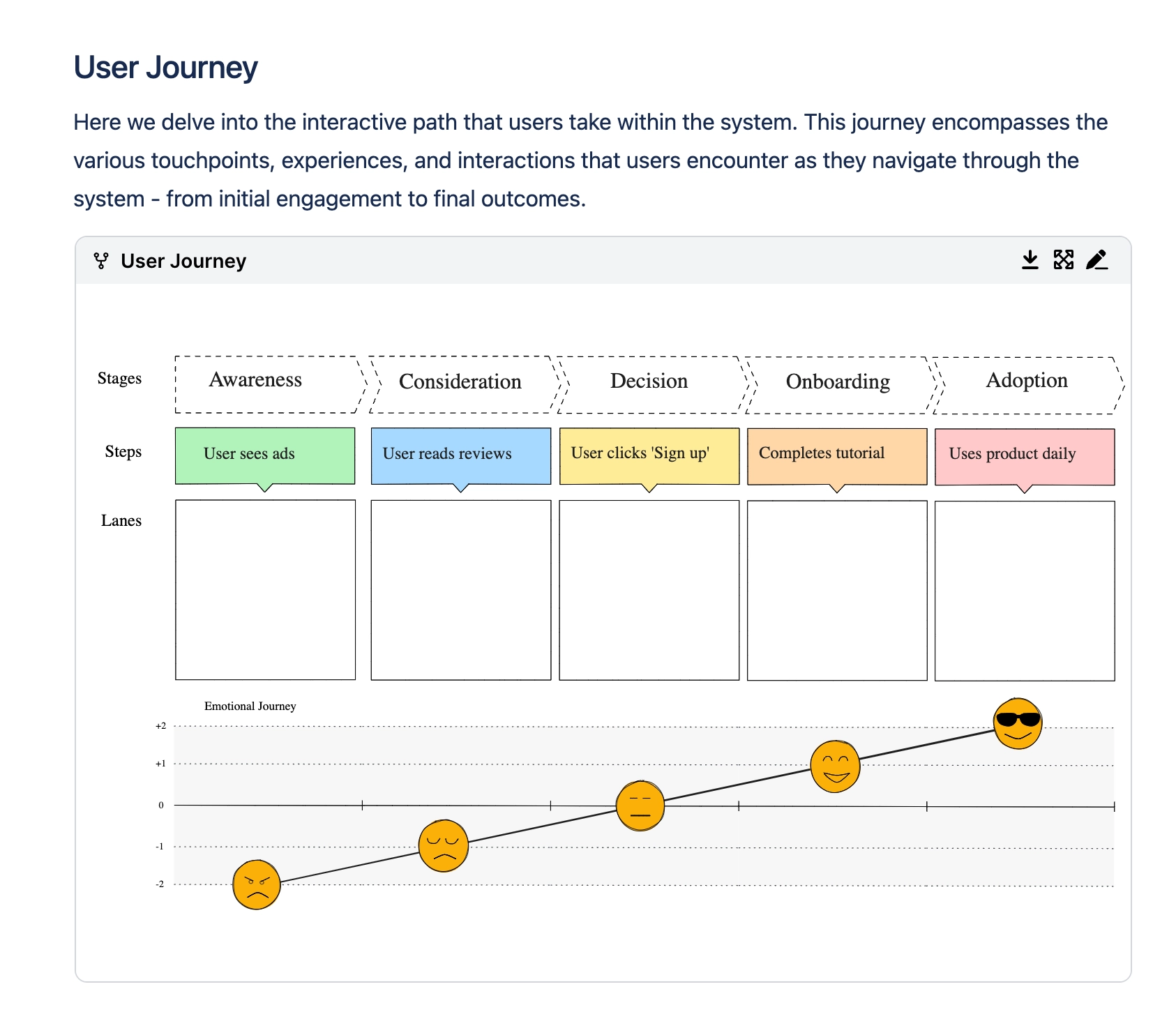
Give the diagram a title. It shows in search results, in the diagram library, and in the alt text used by exports, so a title like "Untitled" costs you later.
#A few things that catch people out
If /diagram does not appear, the app may not be installed for the space. See Troubleshooting.
A diagram inherits its display settings from the space, so it may look different from the editor preview.
Inserting from the byline cannot reach a page with view or edit restrictions that the app is not allowed through. You get Cannot insert diagram on restricted page; insert it from the page editor with
/diagraminstead.
#Related
Four clicks, and it is on the page.






















