
Draw and style elements
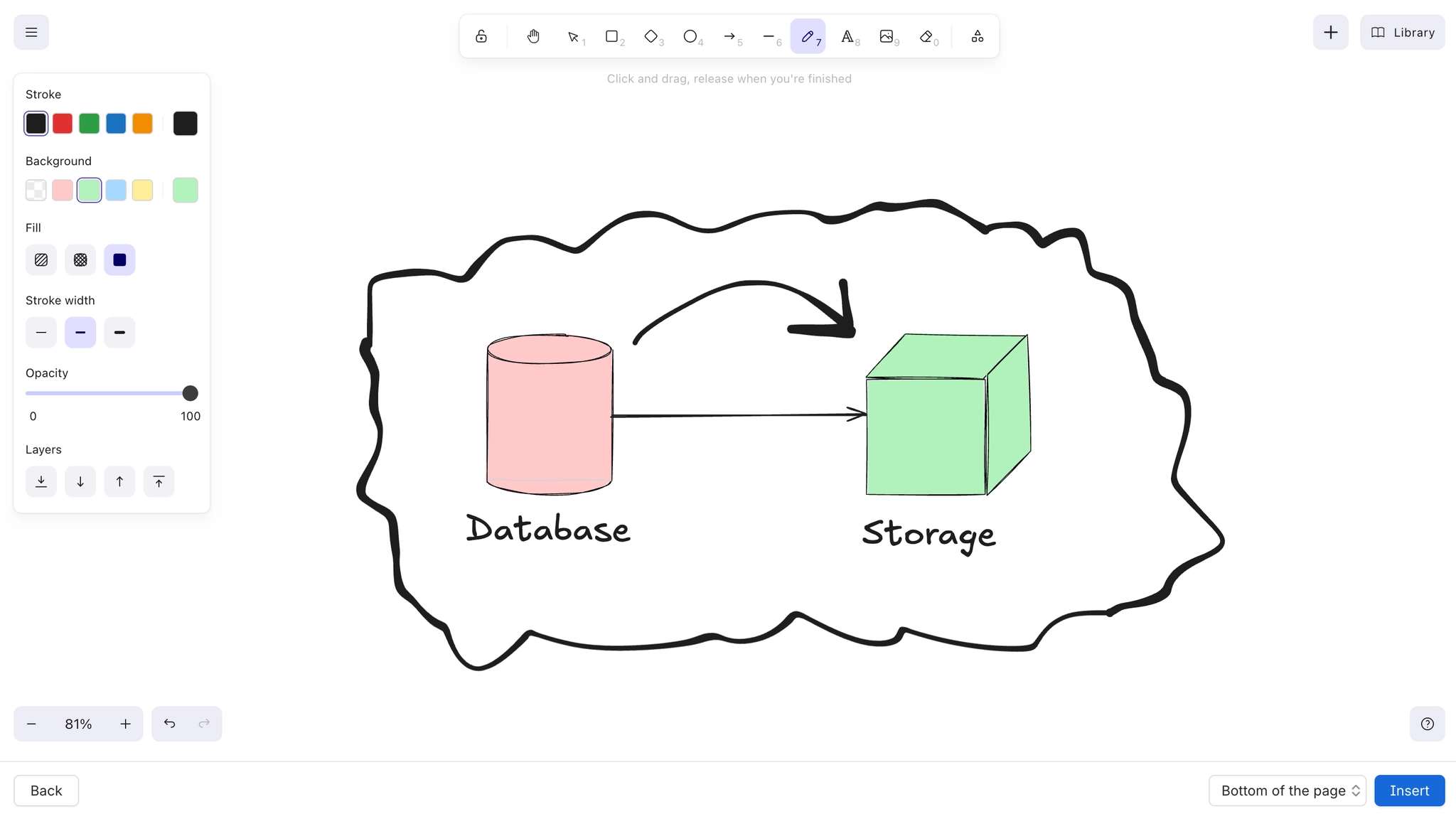
Excalidraw's styling options are few and well chosen. The two that matter most are sloppiness, which controls how hand-drawn it looks, and edges, which switches between sharp and rounded corners.
Set the style before drawing and it applies to everything you draw next.
#What this is for
Making a sketch look consistent.
Adjusting how rough or how neat a diagram appears.
Highlighting one element among many.
#How it works
Action | How |
|---|---|
Stroke colour | The left panel, with an element selected or nothing selected for the next one. |
Background | The fill colour, with hachure, cross-hatch or solid fill styles. |
Fill style | Hachure is the default sketchy fill; solid is the clean one. |
Stroke width and style | Thin to extra bold, solid, dashed or dotted. |
Sloppiness | Architect, artist or cartoonist: how hand-drawn the lines look. |
Edges | Sharp or round corners. |
Opacity | A slider, useful for backgrounds and de-emphasis. |
#A few things that catch people out
Styles set with nothing selected become the defaults for new elements, which is the fast way to work.
Sloppiness set to architect looks nearly clean, which is often the right compromise.
Opacity is the polite way to de-emphasise something without deleting it.
#Related
Rough on purpose.






















