
Connect shapes with connectors
The difference between a diagram that survives editing and one that falls apart is whether the connectors are actually attached. A line drawn near a shape is not attached to it.
Hover over a shape until the blue arrows appear, then drag from its edge. A green circle means a fixed point; a blue outline means a floating connection.
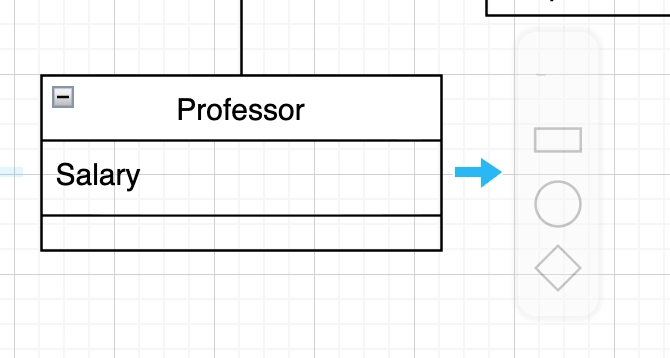
#What this is for
Drawing any diagram with relationships.
Fixing arrows that detach when shapes move.
Routing a connector around other shapes deliberately.
#How it works
Action | How |
|---|---|
Draw a connector | Hover a shape, then drag from the blue arrow or the edge. |
Floating connection | Blue highlight on the whole shape. The connector picks the best side as things move. |
Fixed connection | Green circle on a specific point. The connector always attaches there. |
Waypoint | Drag the middle of a connector to add a bend. |
Label an edge | Double-click the connector, or use the format panel to place labels near either end. |
Change the style | Right-click for straight, orthogonal or curved routing. |
#A few things that catch people out
Floating connections are the better default; fixed points are for when the side genuinely matters.
A connector that moves oddly when you drag a shape is usually attached to a fixed point you did not intend.
Right-click and clear waypoints to reset a connector that has become a tangle.
#Related
The canvas rewards ten minutes of learning.






















