
Add and arrange shapes
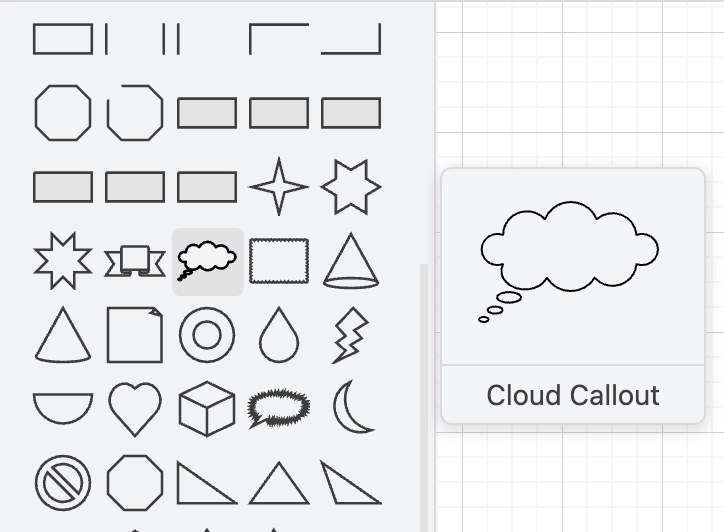
Shapes come from the library panel on the left, from the shape search box, or by copying one you already have. Copying is usually fastest, because it keeps the styling.
Containers are the part people miss: a shape can hold other shapes, which then move with it.
#What this is for
Building any diagram from scratch.
Rearranging an existing diagram without breaking connections.
Grouping related shapes so they move together.
#How it works
Action | How |
|---|---|
Add a shape | Drag from the library, or double-click the canvas to search. |
Duplicate | Ctrl+D, or hold Ctrl and drag an existing shape. |
Resize | Drag a handle. Hold Shift to keep the aspect ratio. |
Rotate | Drag the rotation handle, or set the angle in the format panel. |
Flip | Flip horizontal or vertical in the Arrange tab. |
Container | Drop a shape onto a container shape; it becomes a child and moves with it. |
#A few things that catch people out
A container is not a group. Containers hold children permanently; groups are a temporary bundle.
Copying a styled shape is faster than styling a new one, and keeps the diagram consistent.
Shapes dropped onto an edge split it automatically, which is either delightful or infuriating.
#Related
The canvas rewards ten minutes of learning.






















