
Write Mermaid in the text editor
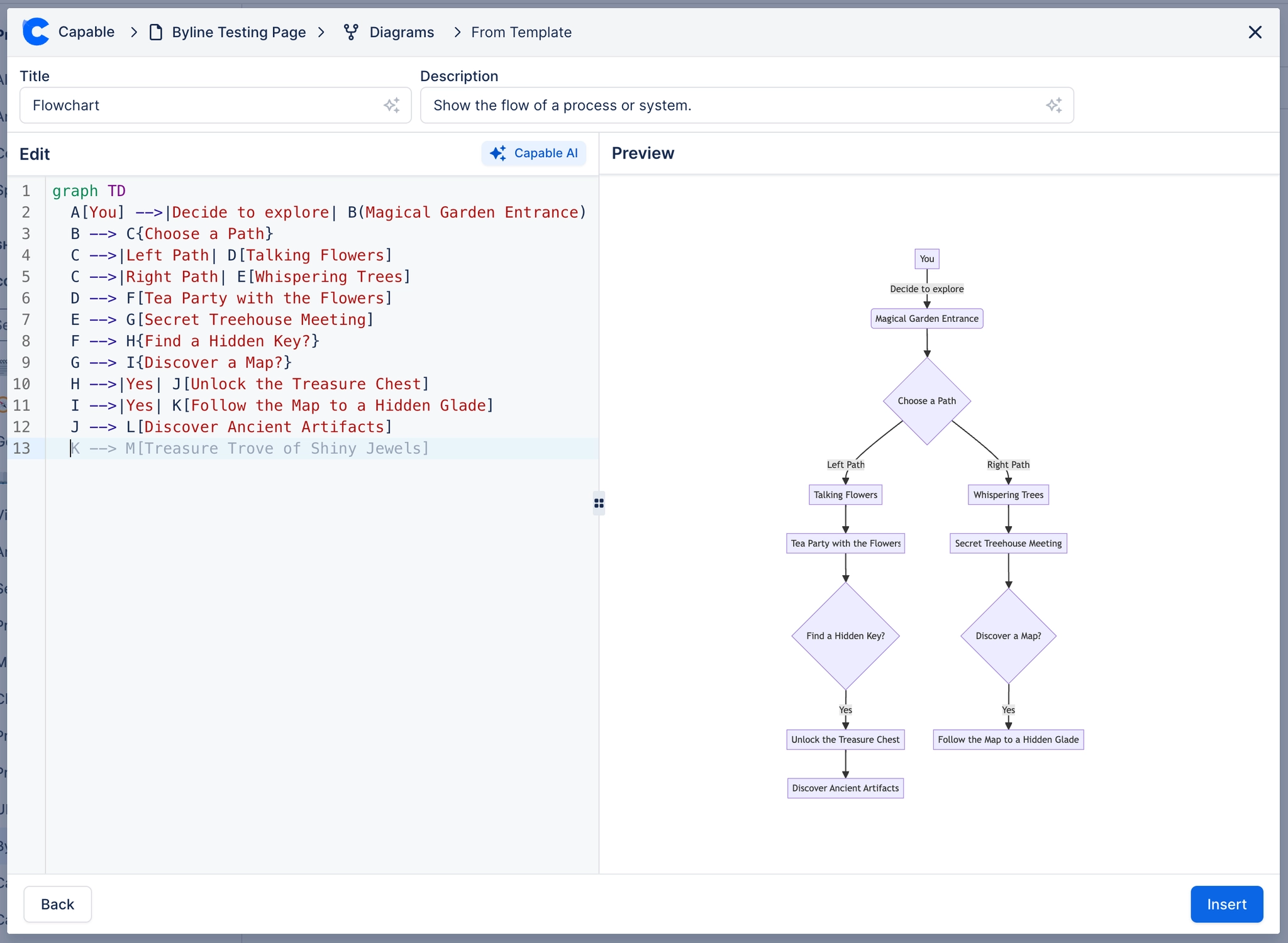
The fastest way to understand the text editor is to build one diagram in it. This is that run through, using Mermaid because it is the language most people start with.
Five minutes here saves reading three other pages.
#What this is for
Your first text diagram.
Showing somebody else how the editor works.
Checking your understanding of the workflow.
#How it works
Action | How |
|---|---|
1 | Insert a diagram and choose the text editor, with Mermaid as the language. |
2 | Load the template if you want a working starting point. |
3 | Type the source. The preview updates as you go. |
4 | Fix any error; the message names the line. |
5 | Title the diagram, which makes it findable later. |
6 | Save. The diagram appears on the page. |
#A worked example
The diagram this run through builds:

The source, which you can paste into a new diagram and edit:
#A few things that catch people out
Title the diagram. It costs ten seconds and it is what makes search work.
The preview uses the same renderer as the page, so there are no surprises after saving.
Save explicitly. Closing the editor discards the session.
#Related
The source is right there. Read it.






















