
draw.io canvas, grid and pages
Before drawing anything it is worth two minutes on the canvas itself: how to move around it, whether the grid is helping, and what page size you are drawing onto.
Most people never change the page settings, and most people should, because the default page is a printed page rather than a screen.
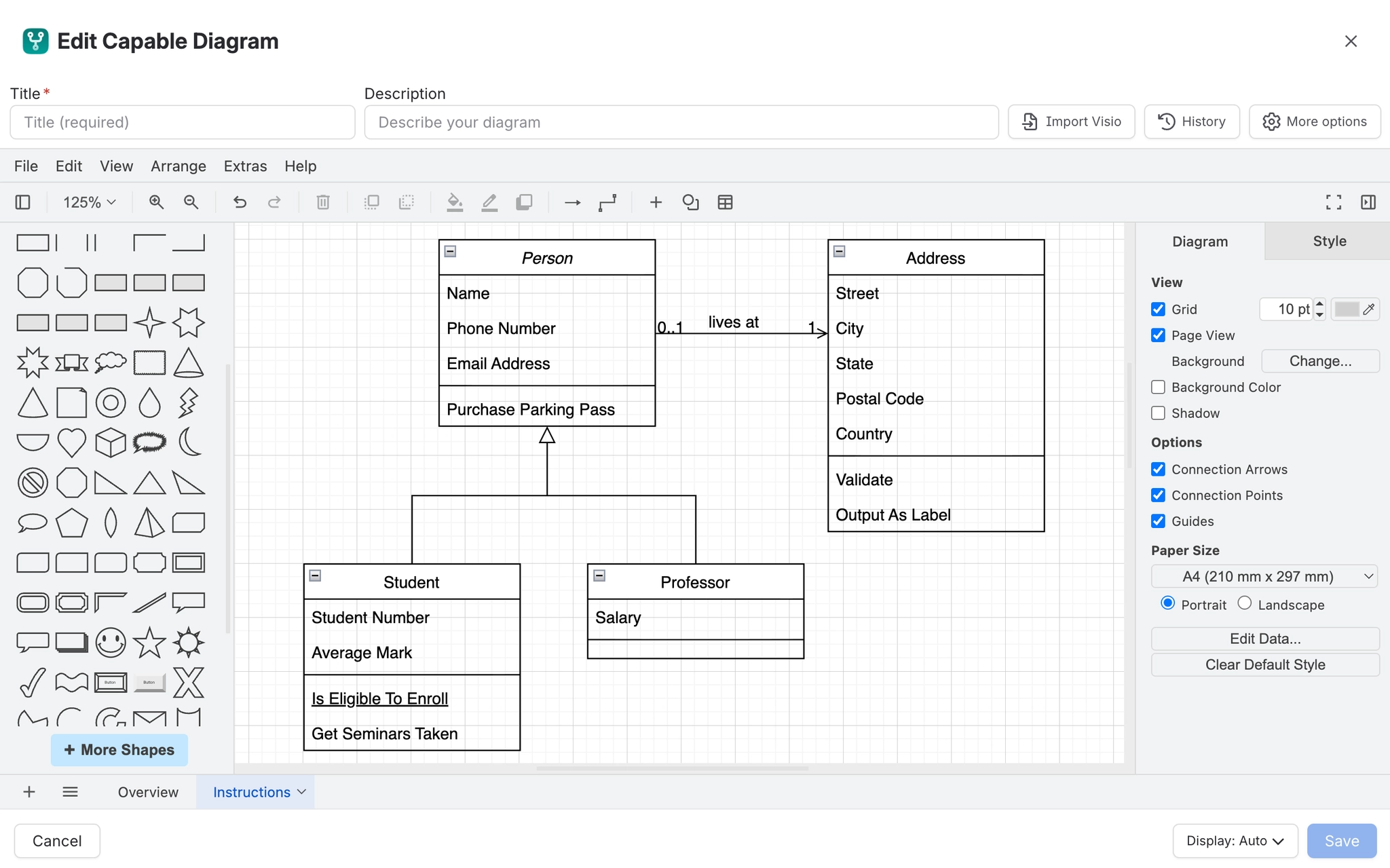
#What this is for
Setting up a diagram that will be exported or printed.
A canvas that keeps snapping shapes somewhere you did not want.
Finding your way back after zooming into a large diagram.
#How it works
Action | How |
|---|---|
Pan | Hold space and drag, or drag with the middle mouse button. |
Zoom | Ctrl and scroll, or the zoom controls in the toolbar. |
Fit the diagram | Ctrl+Shift+H fits everything into view. The single most useful shortcut here. |
Grid | Toggle it in the view options, and set its size in the format panel. |
Guides and snapping | Toggle in view options. Turn them off for freehand-style layouts. |
Page size and scale | In the format panel with nothing selected, under the Diagram tab. |
#A few things that catch people out
Ctrl+Shift+H is worth memorising before anything else; it rescues you from any zoom.
Snapping fights you when placing shapes deliberately off-grid. Turn it off rather than fighting it.
Page size affects export and print, not how the diagram appears on the Confluence page.
#Related
The canvas rewards ten minutes of learning.






















