
draw.io shape libraries
There are more shapes available than any menu could show, which is why search is the primary way in. Type what the thing is, not what it looks like.
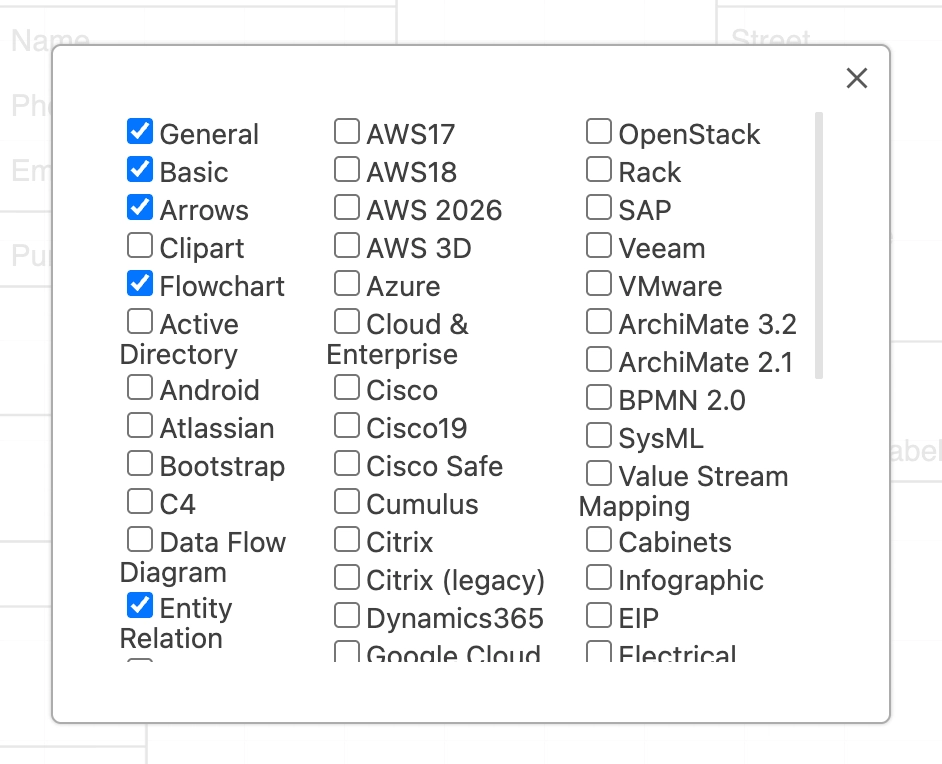
Beyond the default set, whole library groups can be switched on, and this editor also includes the Capable icon set.
#What this is for
Looking for a specific vendor or notation shape.
Turning on AWS, Azure, network or floorplan libraries.
Standardising on a set of shapes across a team.
#How it works
Action | How |
|---|---|
Search shapes | The search box above the library panel searches every library, enabled or not. |
Enable more libraries | More Shapes at the bottom of the panel, then tick the sets you want. |
Scratchpad | Drag a styled shape into the scratchpad to reuse it in this diagram and later ones. |
Capable icons | A built-in set specific to this editor. |
Custom libraries | Uploaded site-wide by an administrator. See Administration. |
#A few things that catch people out
Search finds shapes in libraries that are switched off, which is usually what you want.
The scratchpad is per browser, not per diagram. It follows you rather than the document.
Turning on twenty libraries makes the panel unusable. Turn on the two you need.
#Related
The canvas rewards ten minutes of learning.






















