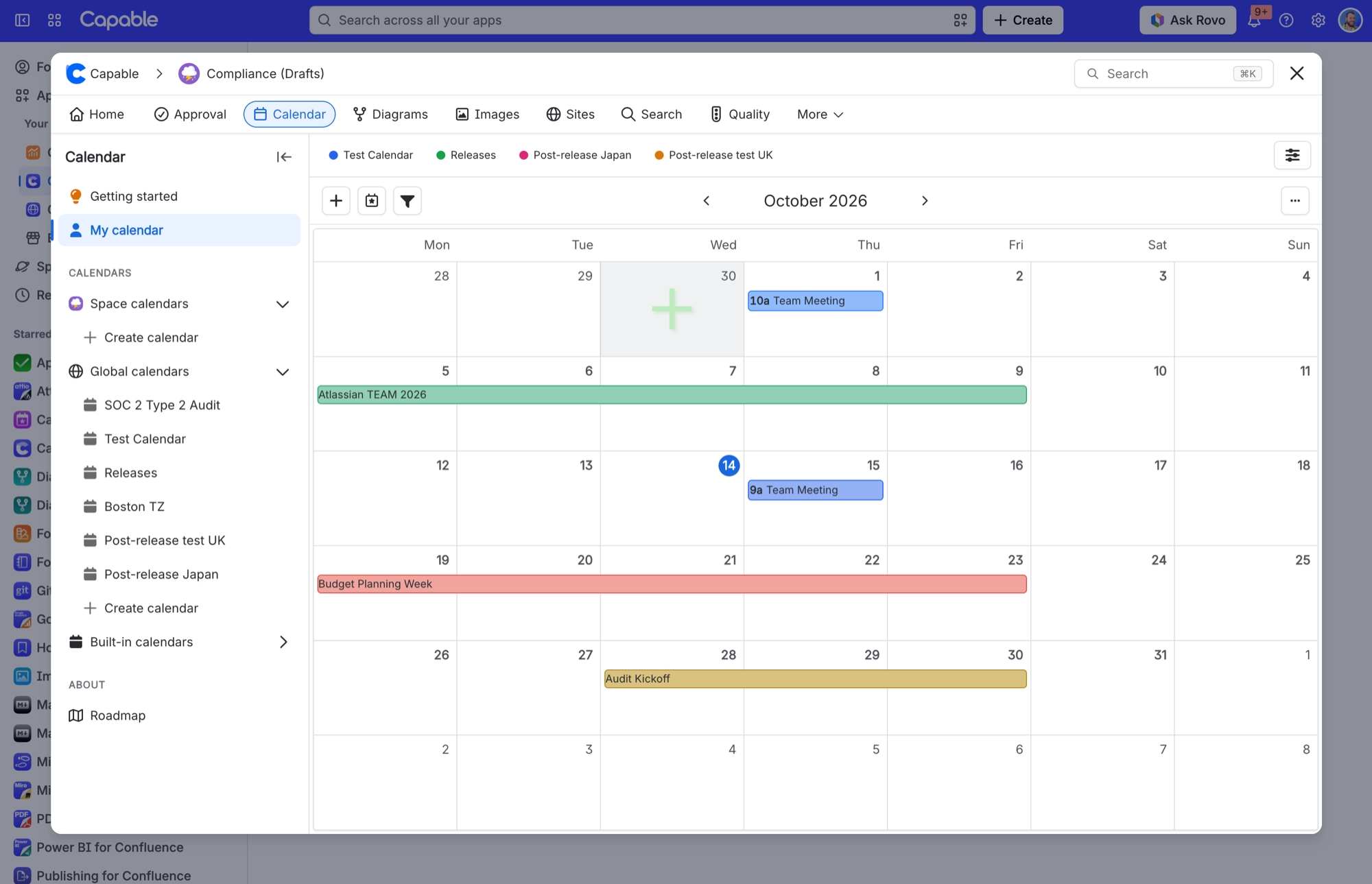
My calendar
My Calendar is your personal view in Capable Calendar. It brings together events you are assigned to, plus any team calendars you choose, in a single place - without opening each calendar separately.
Your My Calendar settings are private to you. Other people cannot see which calendars you have added, and your setup does not change anyone else's calendars.

#Where to find it
Open the Capable app in Confluence.
Go to Calendar.
In the sidebar, select My calendar (near the top of the list).
#What you see
#Events assigned to you
When you first open My Calendar, it already shows events you are assigned to - across every Capable calendar you have permission to view. You do not need to configure anything for this to work.
These are events where you appear as a participant (for example, you were added as an attendee or owner).
#Calendars you add
You can overlay up to five calendars on top of that view - for example, a team roadmap, a company holidays calendar, or a space calendar you follow. Events from those calendars appear alongside your assigned events.
Each added calendar gets a colour chip in the filter bar. Events are tinted to match the calendar they came from, so you can tell them apart at a glance.
#How to add calendars
Open My calendar.
Click the Manage calendars button (sliders icon) in the filter bar at the top.
Choose calendars from:
Global calendars - organisation-wide calendars
This space's calendars - calendars in the space you are currently viewing
Click Save.
You can add up to five calendars. If you hit the limit, remove one before adding another.
Only calendars you already have permission to view will appear in the list.
#Show or hide a calendar temporarily
After you add calendars, each one appears as a chip in the filter bar above the grid.
Click a chip to hide that calendar's events.
Click it again to show them.
This is temporary - it does not remove the calendar from your setup. Hiding a chip is useful when you want a cleaner view for a particular week or month.
Events assigned to you are always shown; there is no chip to turn those off.
#Creating events
To create a new event from My Calendar, you need at least one calendar added to your sources.
Click Create (or click a date on the grid).
If you have several source calendars, pick which calendar the event should be saved to.
Fill in the event details and save.
The event is created on the calendar you selected - not on a separate "My Calendar" calendar. My Calendar is a view, not a calendar of its own.
#Tips
Start with assigned events - even with no calendars added, My Calendar is useful for seeing everything you are involved in.
Add calendars you check often - team schedules, release calendars, or room bookings you need alongside your own assignments.
Use chips to focus - hide calendars you do not need right now without removing them from your setup.
Open a calendar directly - if you need full calendar settings, subscribe links, or admin options, open that calendar from Space calendars or Global calendars in the sidebar instead.
#Frequently asked questions
#Is My Calendar shared with my team?
No. Which calendars you overlay and your filter choices are stored for your account only.
#Does adding a calendar here change the original calendar?
No. You are only choosing what to display in your personal view. The underlying calendar is unchanged.
#Why is My Calendar empty?
You may have no assigned events in the current date range, and no source calendars added (or they are hidden via the chips). Try navigating to a different month, adding a calendar, or checking that your assigned events fall within the visible range.
#Can I add more than five calendars?
Not at the same time - the limit is five overlaid source calendars. You can swap calendars in and out via Manage calendars whenever you like.
#Is My Calendar the same as subscribing in Outlook or Google Calendar?
No. My Calendar is a view inside Capable. To subscribe to a Capable calendar in an external app, open that calendar directly and use its subscription or export options.