
Get started
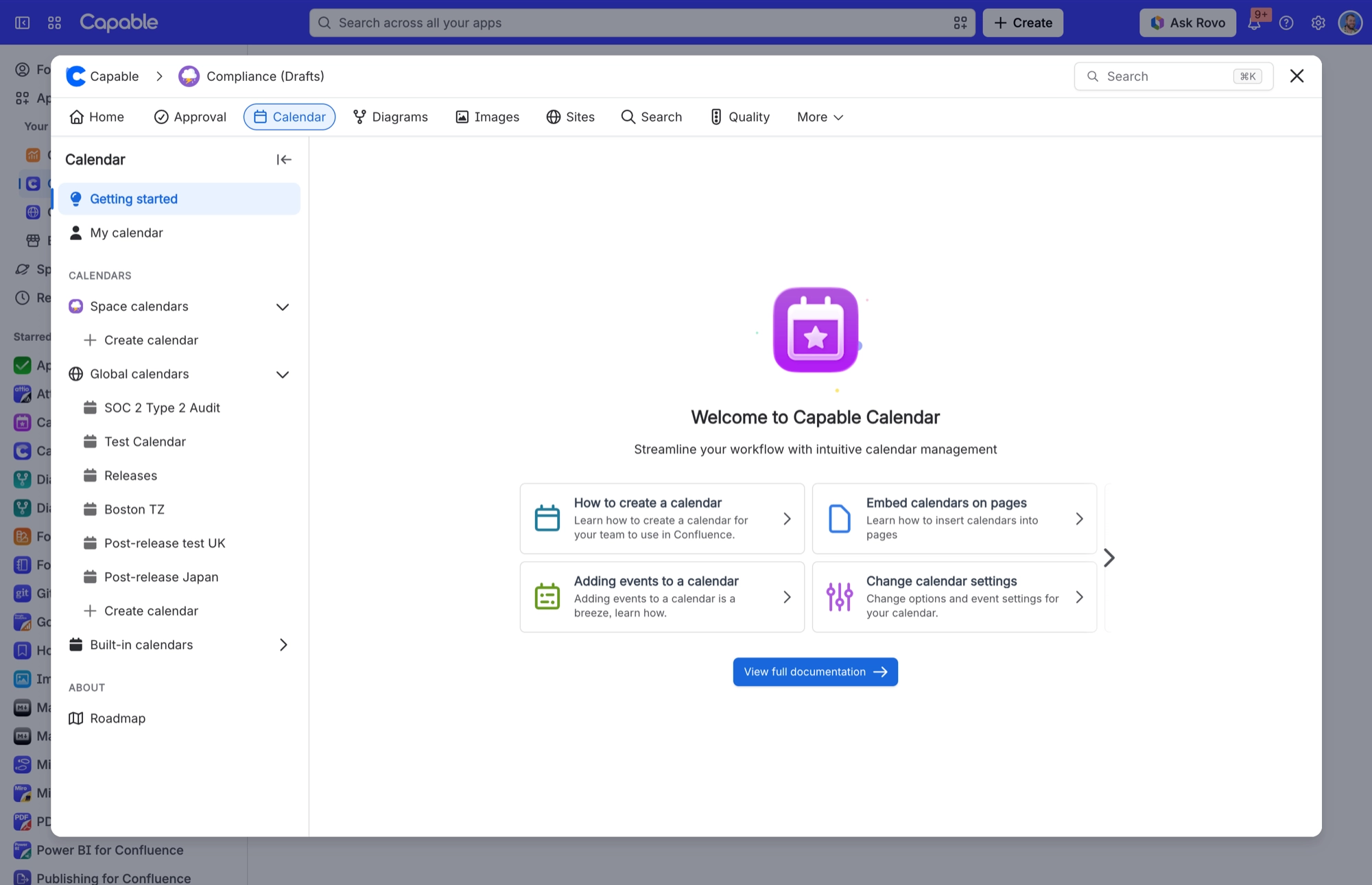
Welcome to Capable Calendar for Confluence. This guide gets you tracking events and deadlines across your Confluence pages, all in clear, visual calendar views.
Key features
Shared team calendars: create calendars for everyone, or just for one space.
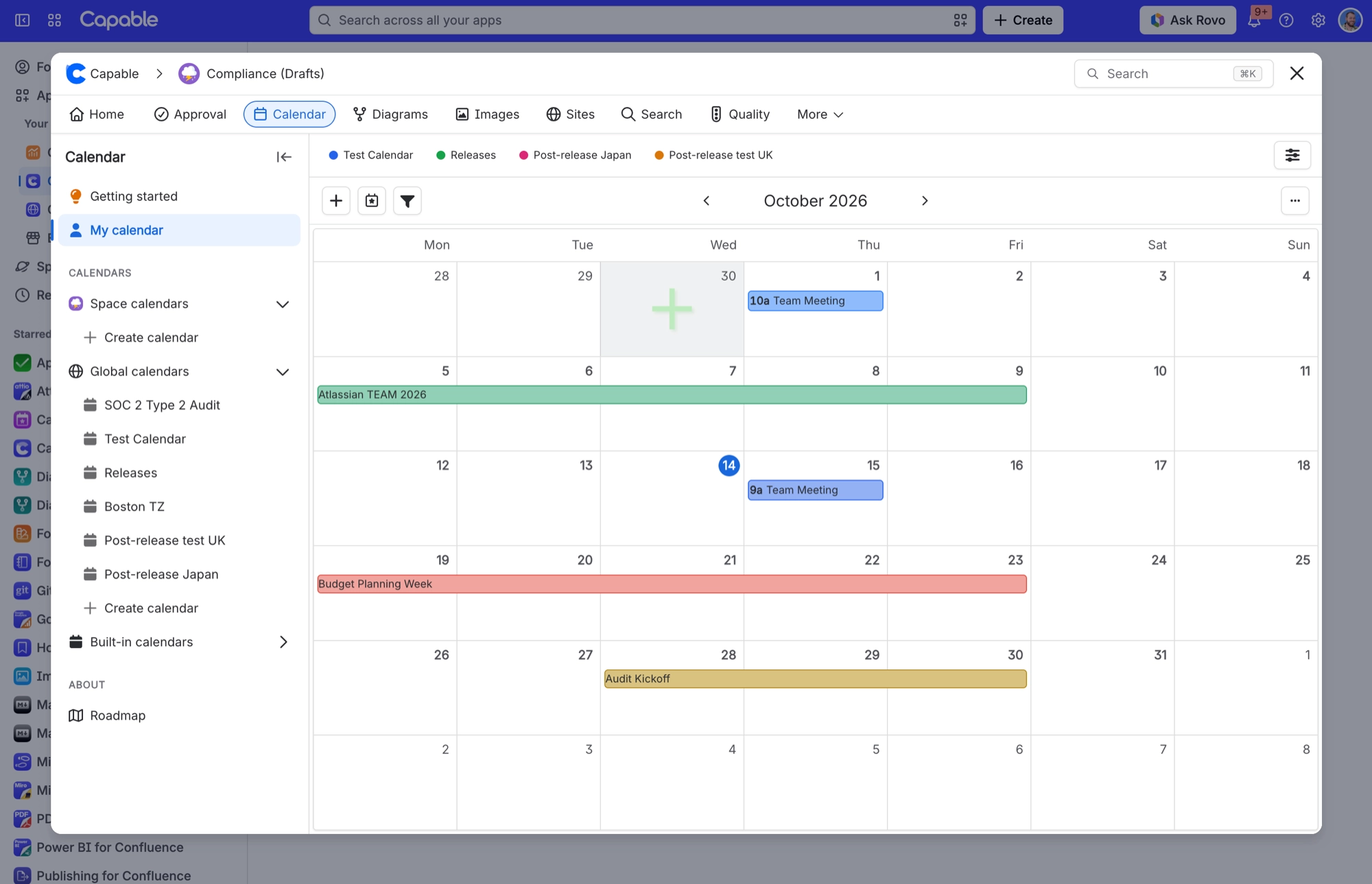
Click or drag to create events: add new events straight onto the calendar.
All your events in one place: see and manage everything from a single view.
Works with your pages: dates on your existing Confluence pages can show up on your calendars.
Views to suit you: pick the calendar view that fits the job.
Time zone aware: built for teams spread across the world.
#1. Create Shared Team Calendars in Confluence
Create a calendar for everyone who can use Confluence (a global calendar), or just for the people who can see a particular space (a space calendar). Either way, your important events reach the right people and nobody else.
#2. Click or drag to create Events
Click a date or time slot in Capable Calendar to open the create event panel. It is the quickest way to add an event straight onto the calendar and share it with your teammates.
#3. Provide more details about events
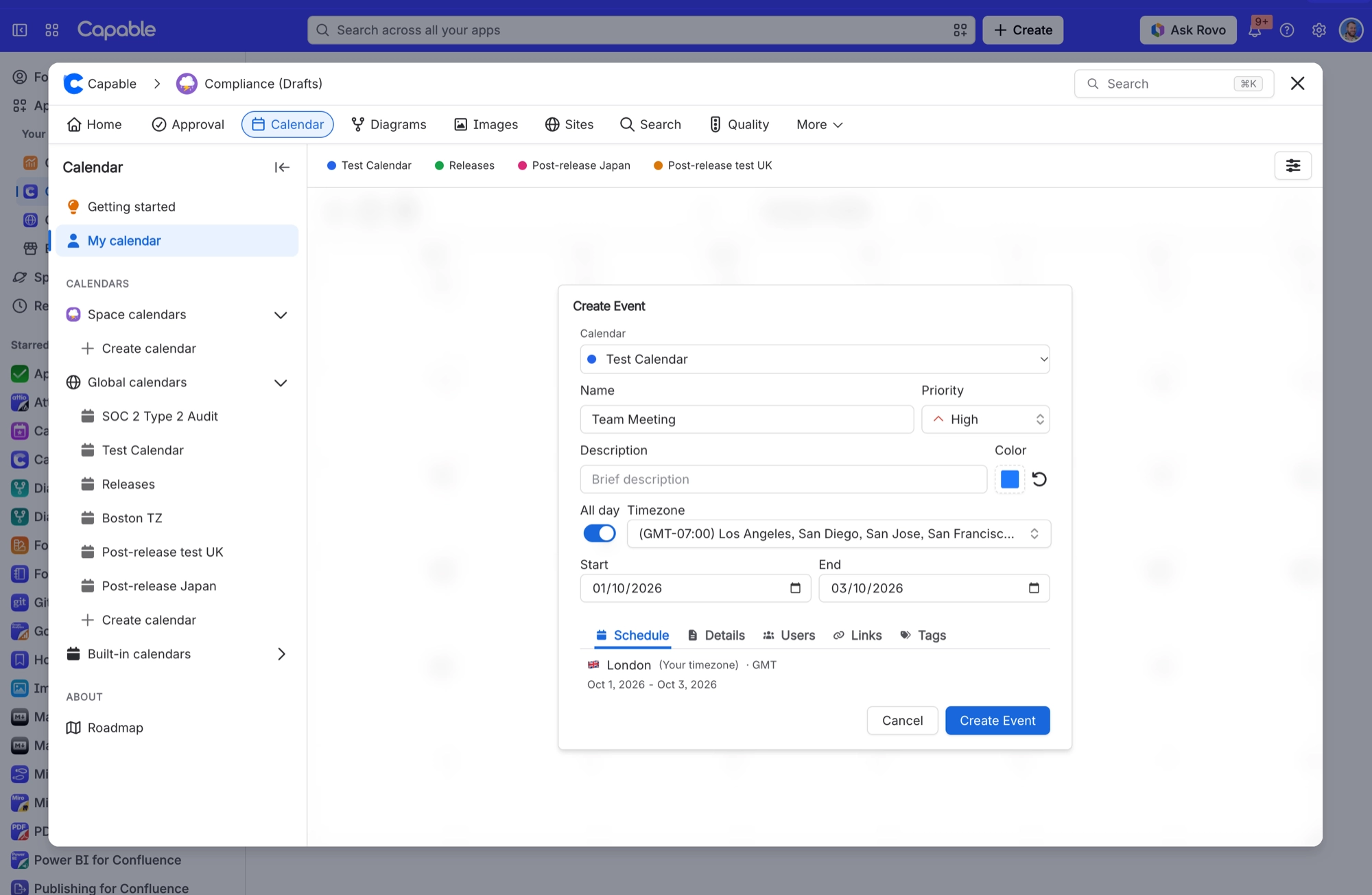
Capture the full picture on each event, right in the calendar. The list of supported fields keeps growing.
Some of the fields you can fill in on each event:
Name
Description
Priority
Date and time
Timezone
Additional information
Attendees/recipients
#4. Show events from Confluence Pages or Tables
Type // on a Confluence page to add a date, and it can appear on your calendar. Need a start and end date? Type /event to use the Capable Event macro instead. Quick dates for simple milestones, full event details when you need them.
#5. View centralized calendar
See all your team’s events in one place, across multiple projects and spaces. Filter the view so you only see what is relevant to you. With everyone looking at the same calendar, it is much easier to spot a scheduling clash before it happens.
#6. Using the event macro
The Event macro puts a single event on a Confluence page, with a start and end time, an assignee, a time zone and more, so it is easy to keep track of.
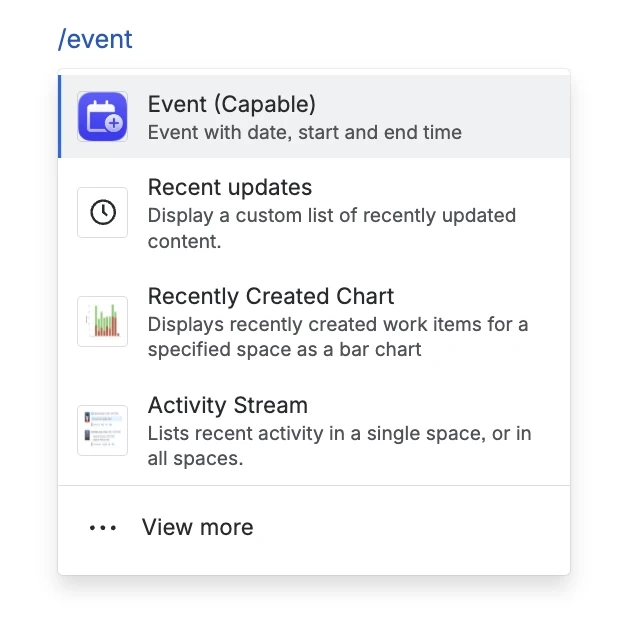
/event and choose Event (Capable) from the menu.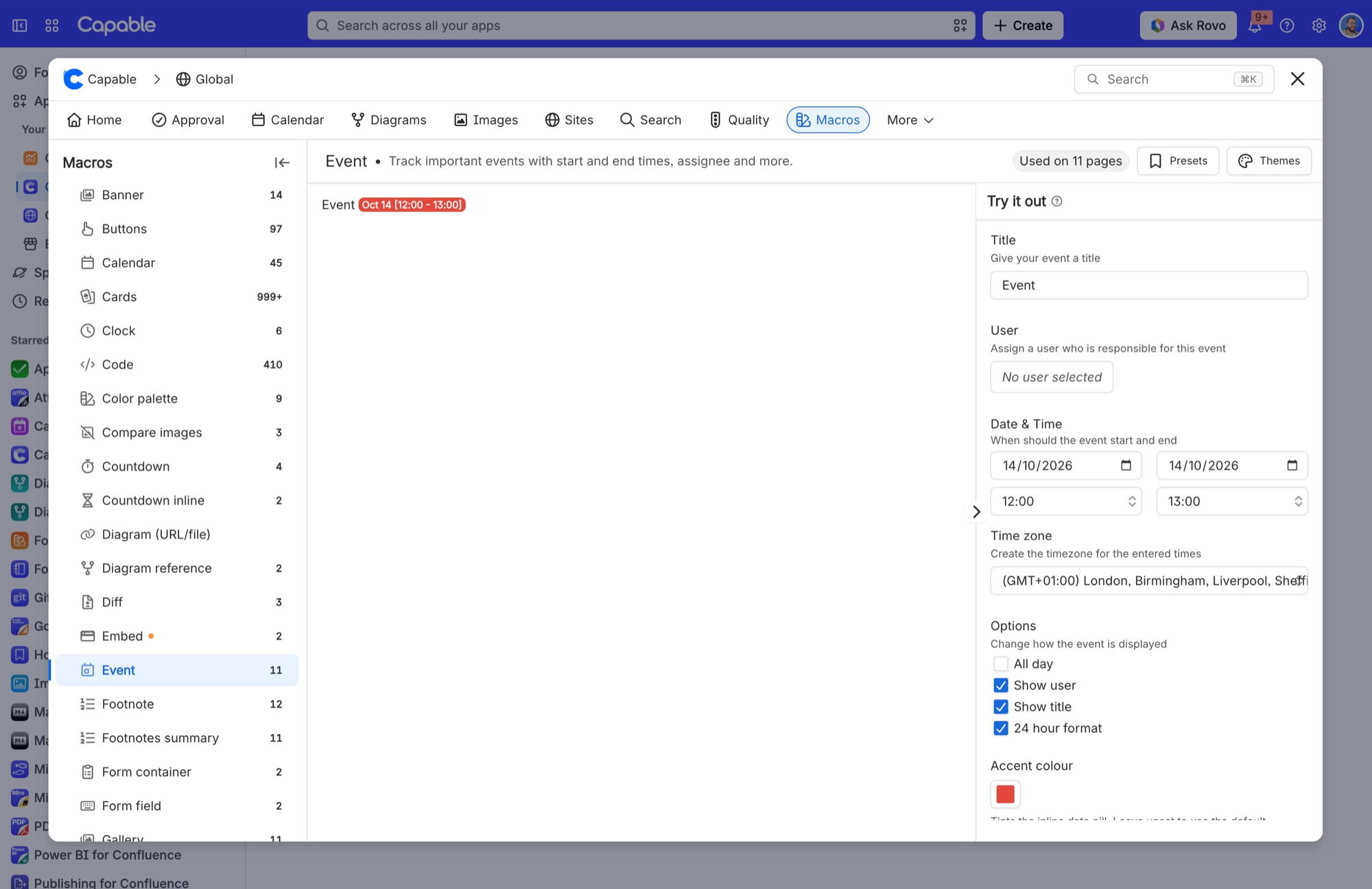
#7. Using the calendar macro
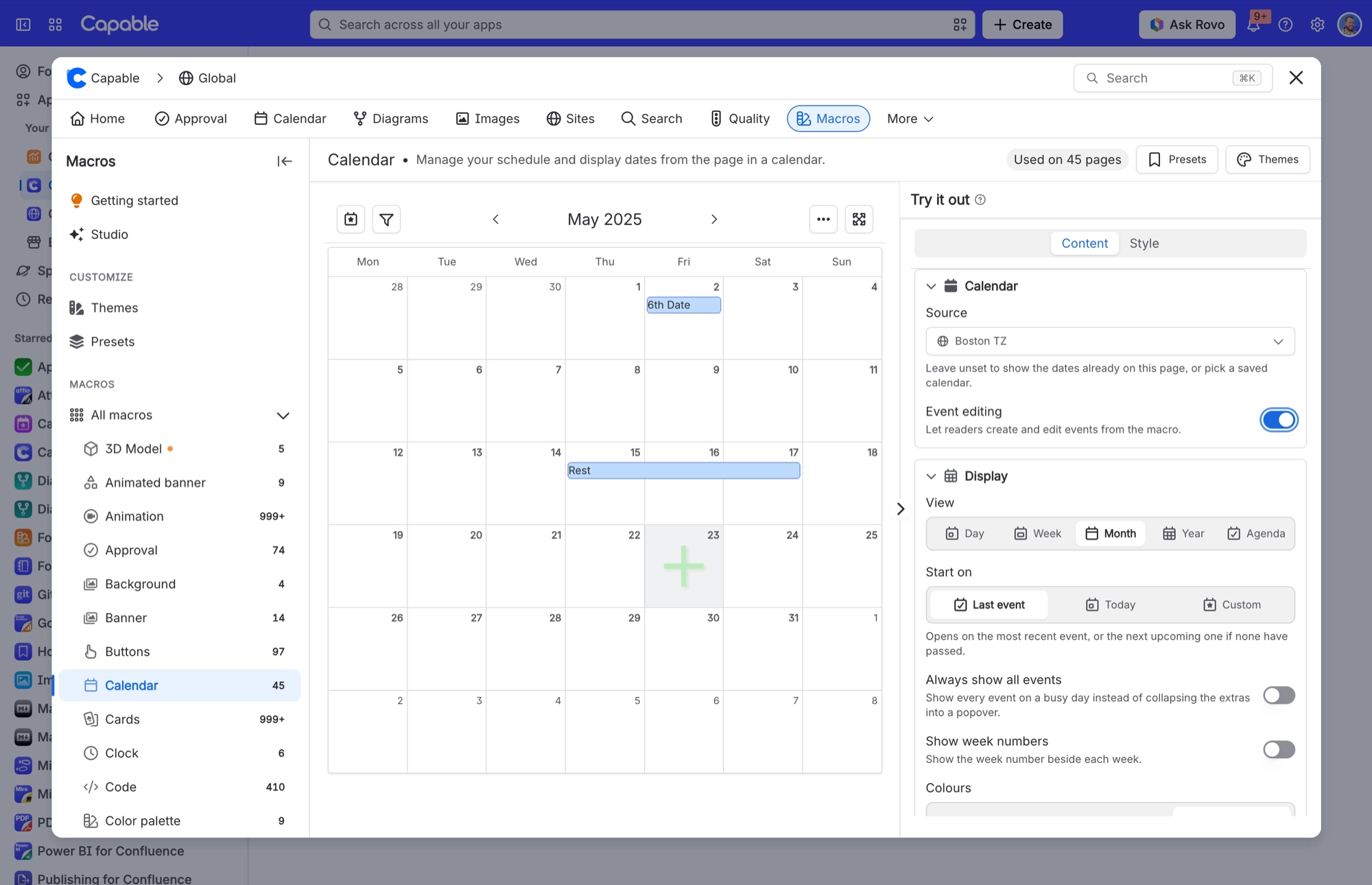
The Calendar macro embeds a calendar right on a Confluence page. Add one to your project docs or team space so everyone can see what is coming up without leaving the page.
#8. Using the time zone macro
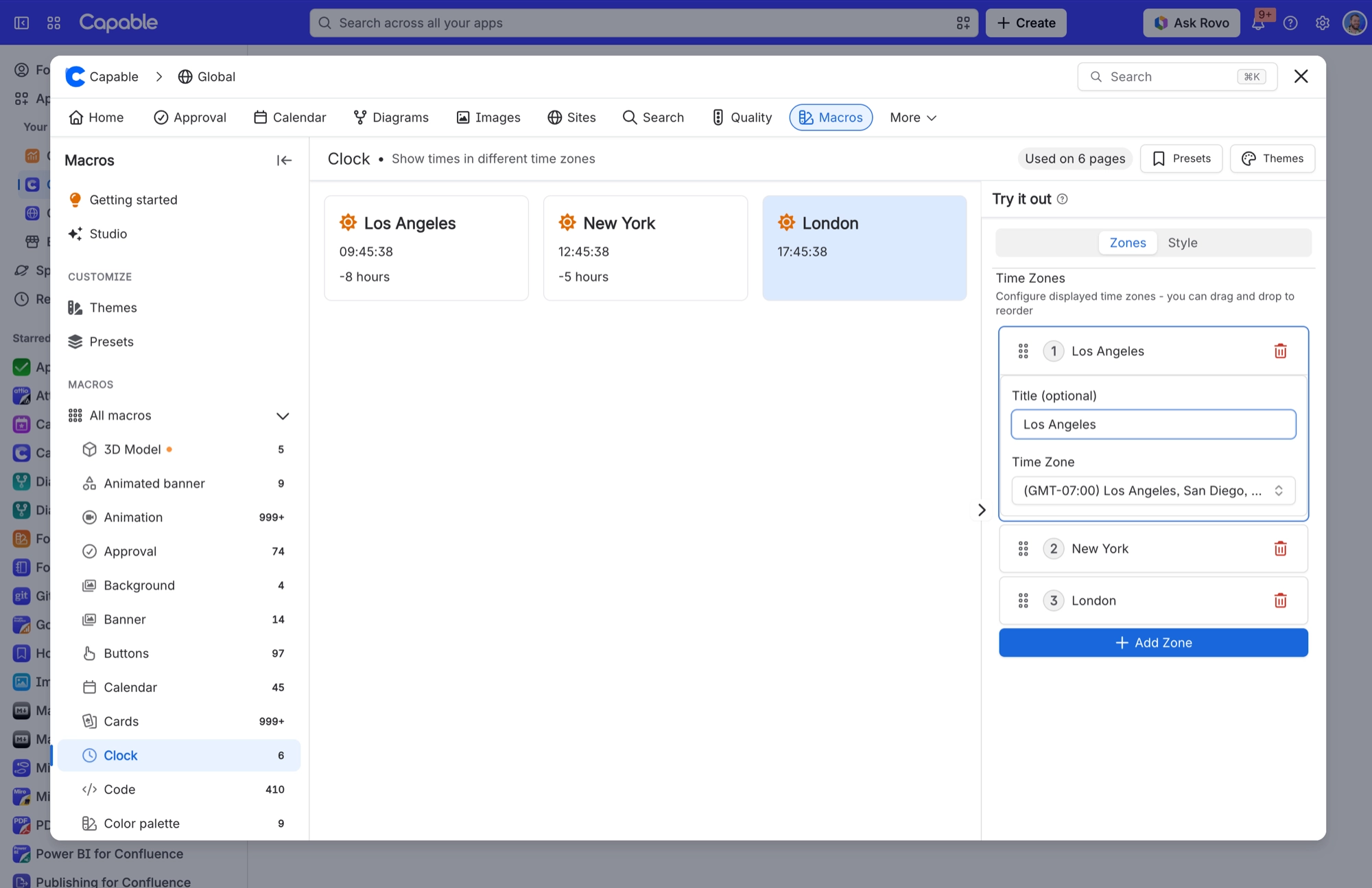
Working across time zones? The time zone macro shows a world clock you can set up for your team, so you always know what time it is for your teammates. Handy for checking who is around, or finding a meeting time that suits everyone.
#Related
Start from the task.






















