
Your first site
Your first site is five short steps away: name it, choose your spaces, give it a look, decide who can see it, and create. It takes a few minutes, and nothing goes live until you press Promote.
Almost everything you choose here can be changed later. Two choices deserve a moment’s thought: the web address in step 1, which is permanent, and your spaces and their URL slugs in step 2, which shape your navigation and your links.
#Before you start
You need to be a Confluence admin to create a site.
To begin, open Capable, choose Sites, then Create site.
If you have reached the number of sites your edition allows, the button to create a site is still there but relabelled, rather than hidden.
#The five steps
Step | What you decide |
|---|---|
1. Overview | Site name, web address, and a description used for search and social previews |
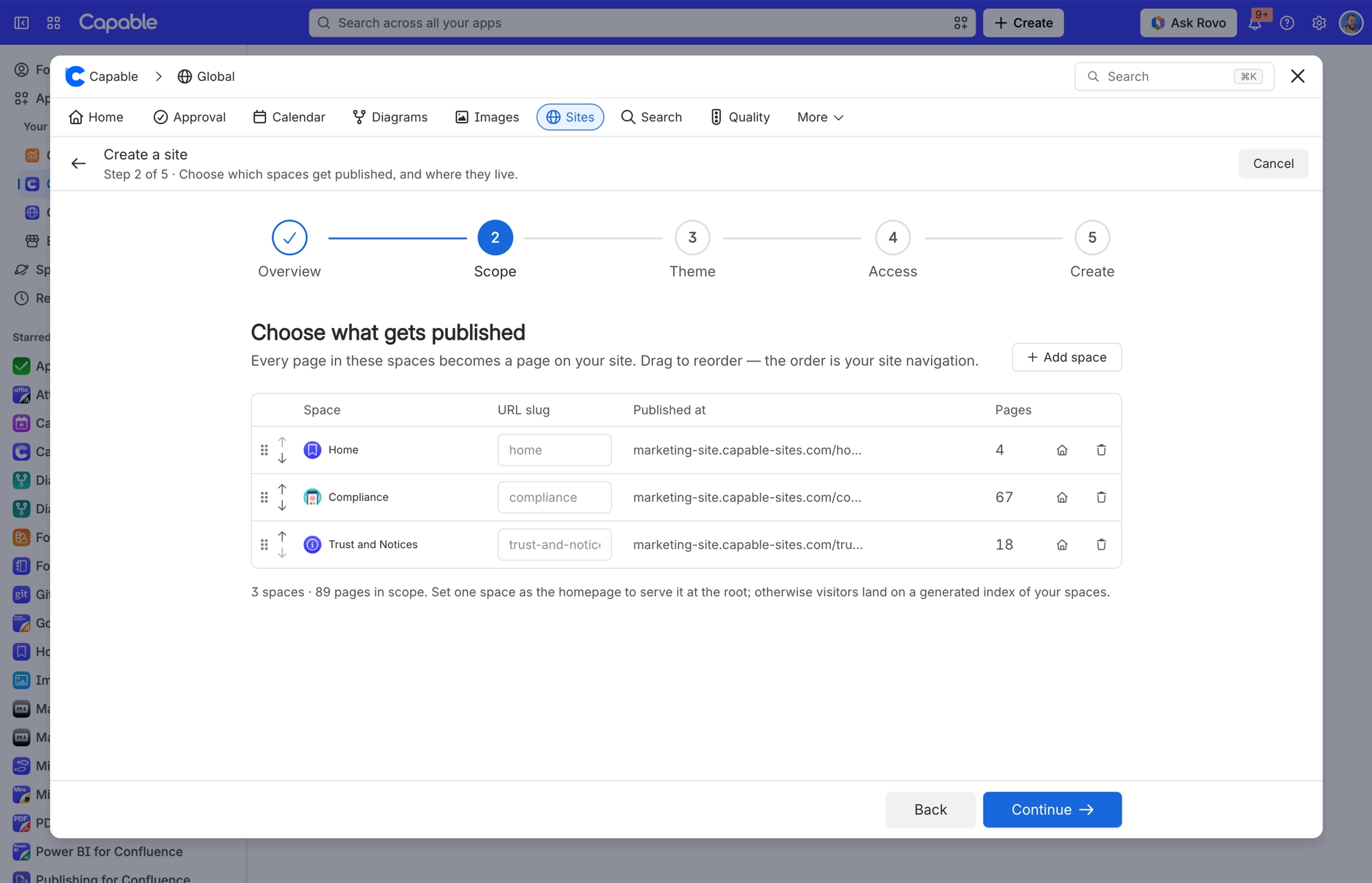
2. Scope | Which spaces, in which order, with a URL slug each, and which is the homepage |
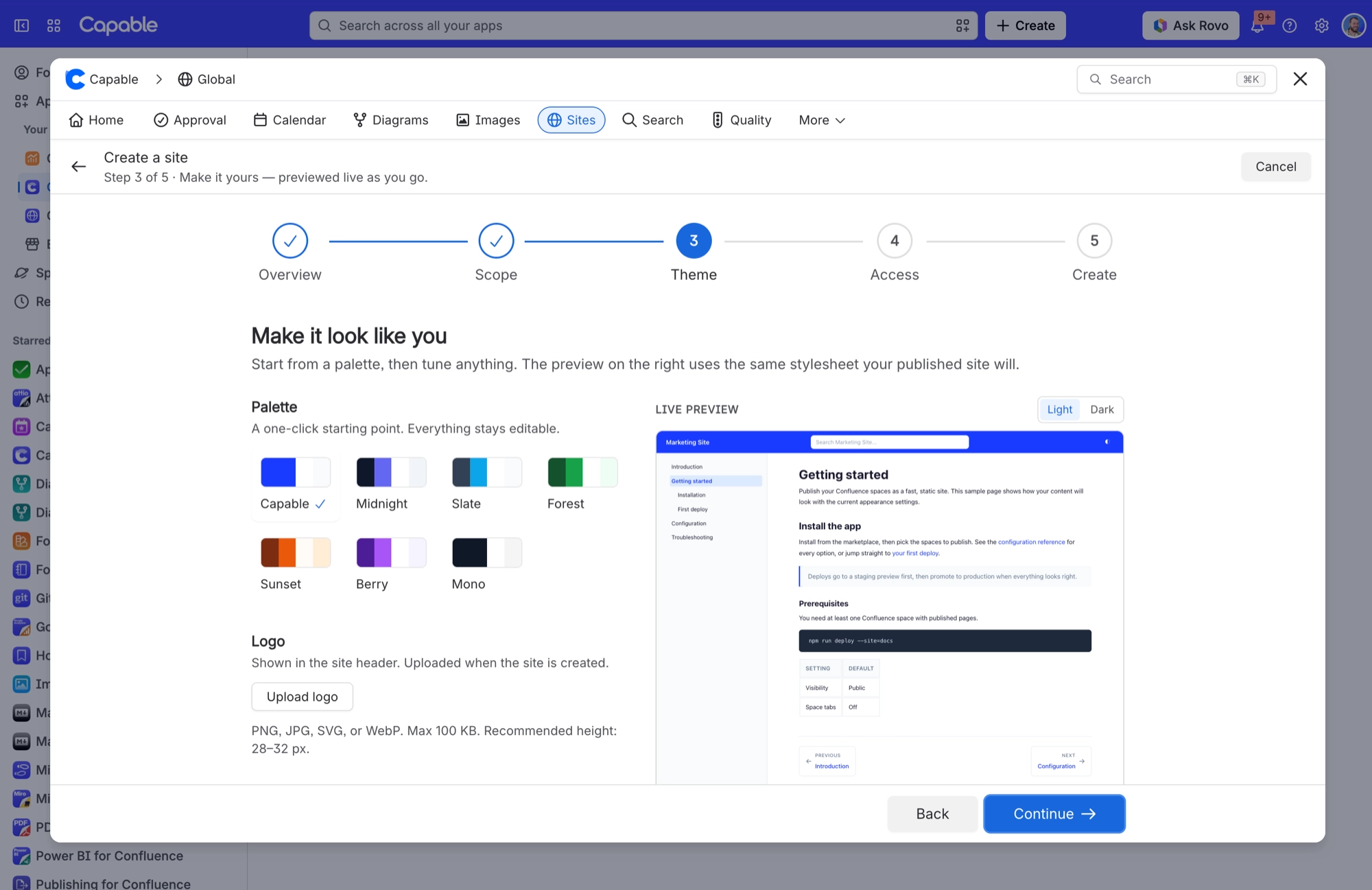
3. Theme | A palette, a logo, a font, seven colours, and three display switches |
4. Access | Public, password protected, or login with Atlassian |
5. Create | Review, and optionally publish straight away |
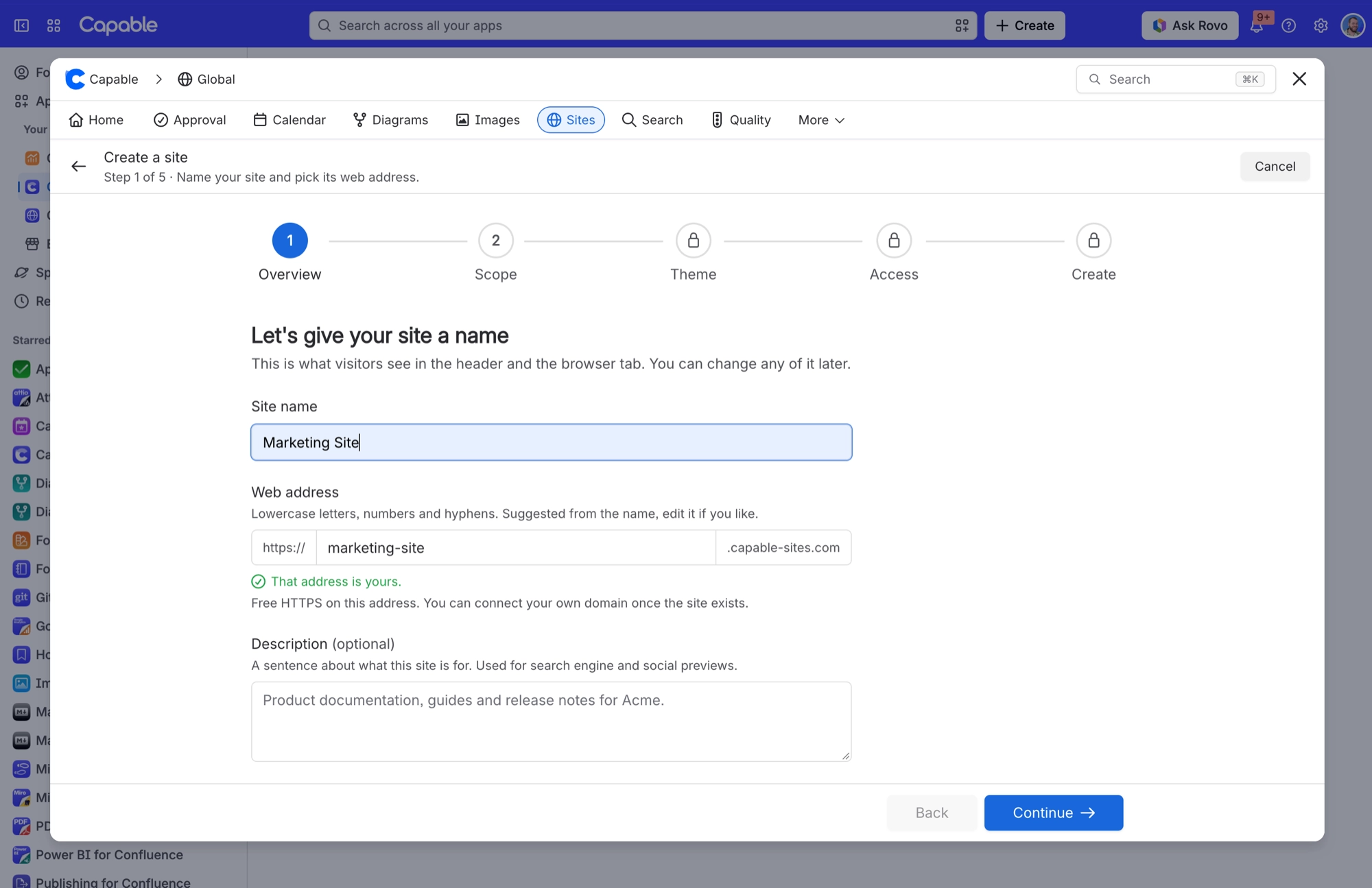
You can’t change the web address once the site exists. Settings shows it, but won’t let you edit it, so choose it as carefully as you would a domain name. If you would rather use your own domain, such as docs.yourcompany.com, you can connect one in Settings later, and the original address keeps working too.
#Step 2 decides your navigation
The order you put your spaces in is the order they appear in your site’s navigation. Drag them into place, or use the up and down arrows.
Each space gets its own URL slug, and no two spaces can share one. Use the house icon to make one space the homepage. If you don’t choose one, visitors land on a simple index of your spaces instead.
#Step 3 previews as you go
Pick a palette as a starting point, then adjust anything you like. The live preview on the right shows your choices as visitors will see them, in light or dark mode. If you have a logo, have it ready: PNG, JPG, SVG or WebP, up to 100 KB, ideally 28–32 px tall.
#What Create actually does
Step 5 puts everything on one screen so you can check it before anything is built. Each section has an Edit link that takes you straight back to that step.
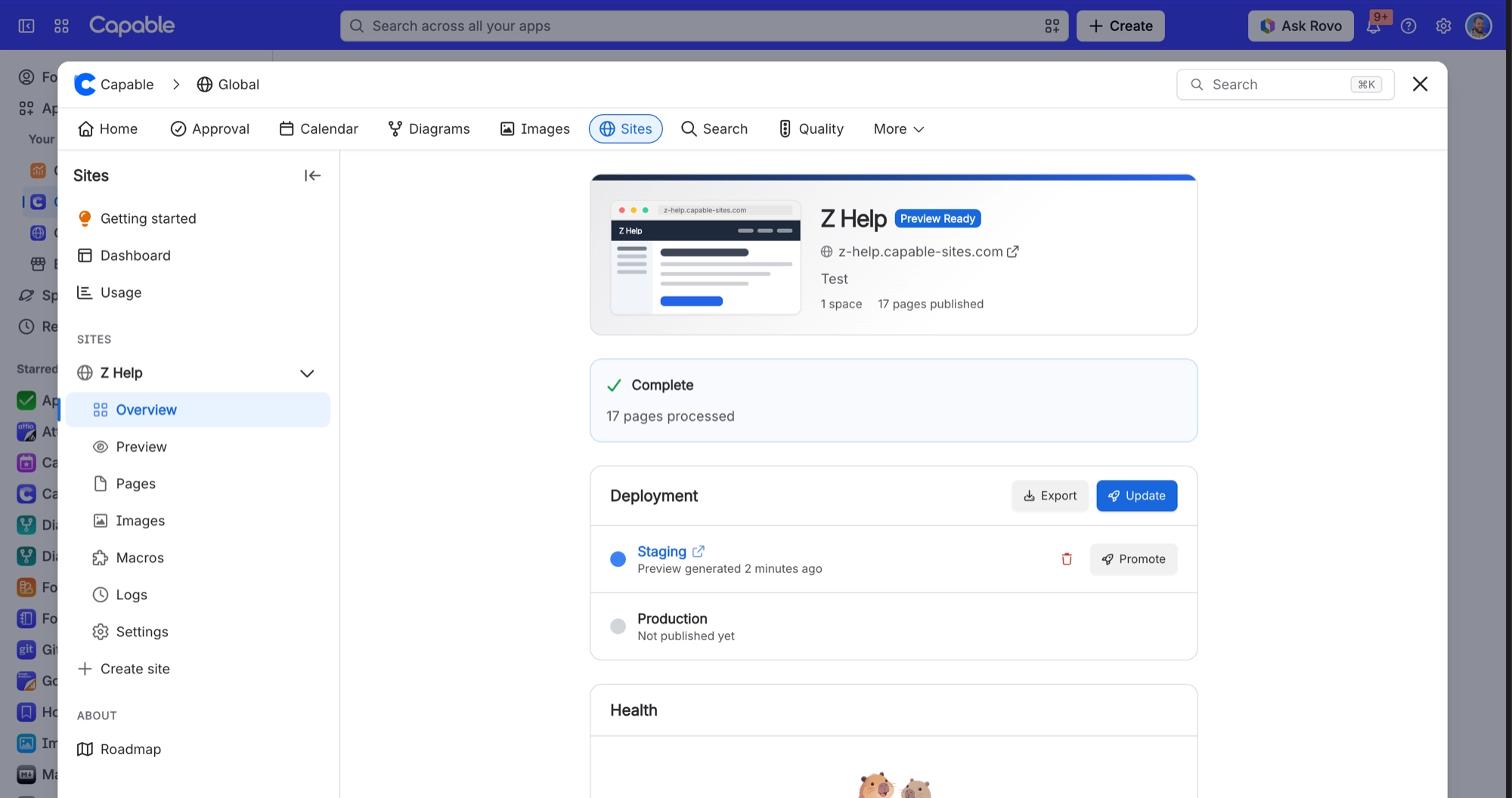
When you press Create site, you will see a checklist work through each part: create the site, upload your logo, apply the theme and URLs, switch on password protection or Atlassian sign-in, and, if you ticked the box, start the first publish.
Ticking "Publish it right away" doesn’t put your site live on its own. It starts the first Update, which builds a staging preview for you to check. Your live address starts working when you press Promote.
#A few things worth knowing
The address is checked as you type. A few addresses are refused by a safety check, so if yours is, simply pick another.
A site can hold up to 100 spaces, though your navigation will feel crowded long before that.
#Related
Five steps. The address is the one you cannot undo.






















