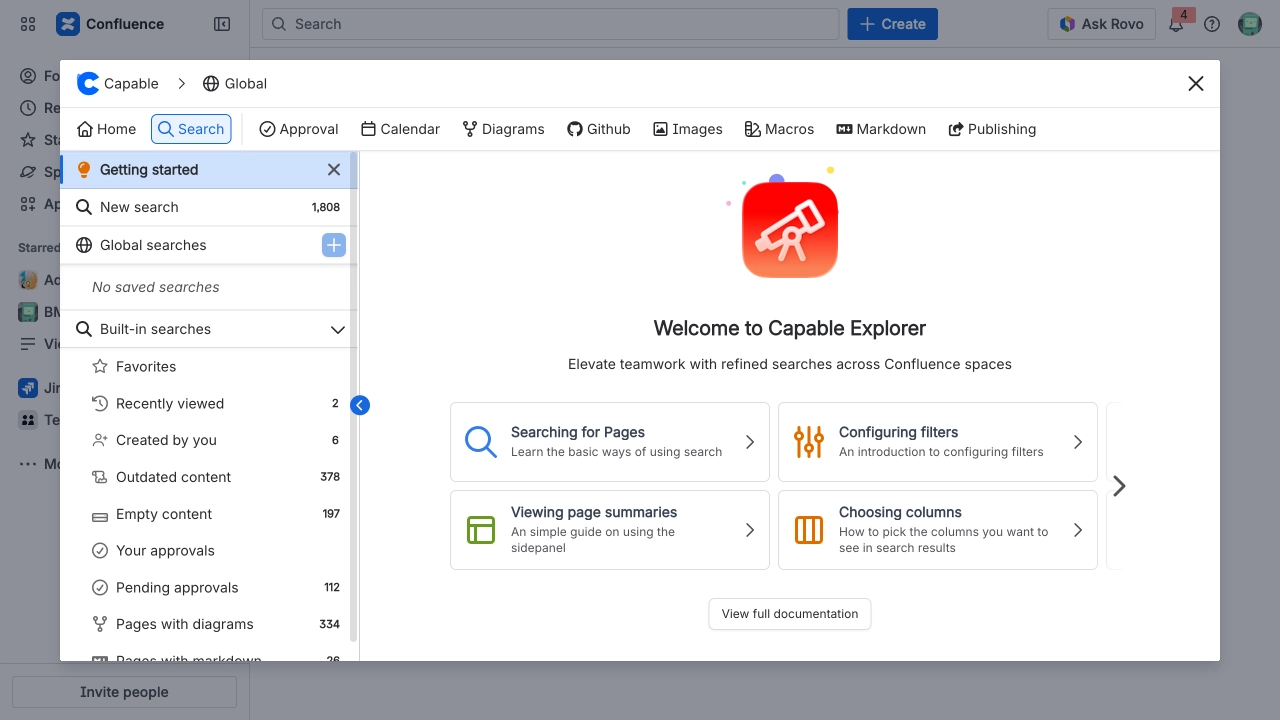
Capable Images
Capable Sites publishes every kind of image on your pages: images you drag onto a page, and images you embed or reference from the Images capability in Capable for Confluence or Capable Images for Confluence.
With Capable Images, you keep a shared image library organised into folders, so the right image is always easy to find. Reference an image on as many pages as you like. When you update it in the library, every page that uses it updates too, so your documentation stays consistent.
You can also edit or annotate an image before you add it to a page, adding notes that make it clearer, without leaving Confluence. Your site's images stay organised, up to date and in step with your content. The examples below show each kind of image as it appears on a published site.
#Image
An image uploaded to the Confluence page via drag and drop.
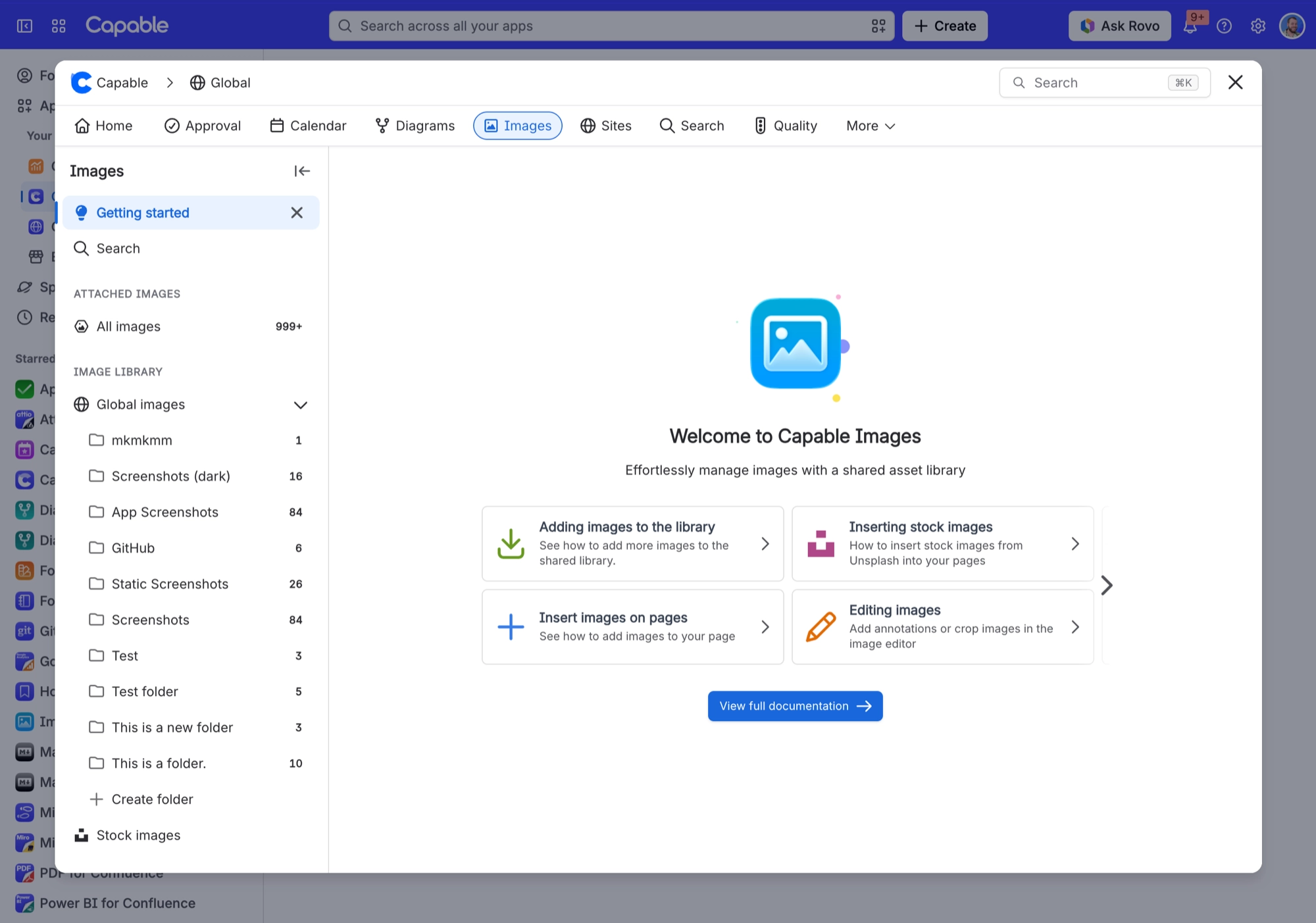
#Image (edited)
This image was annotated in the image editor built into Capable Images before it was added to the page.
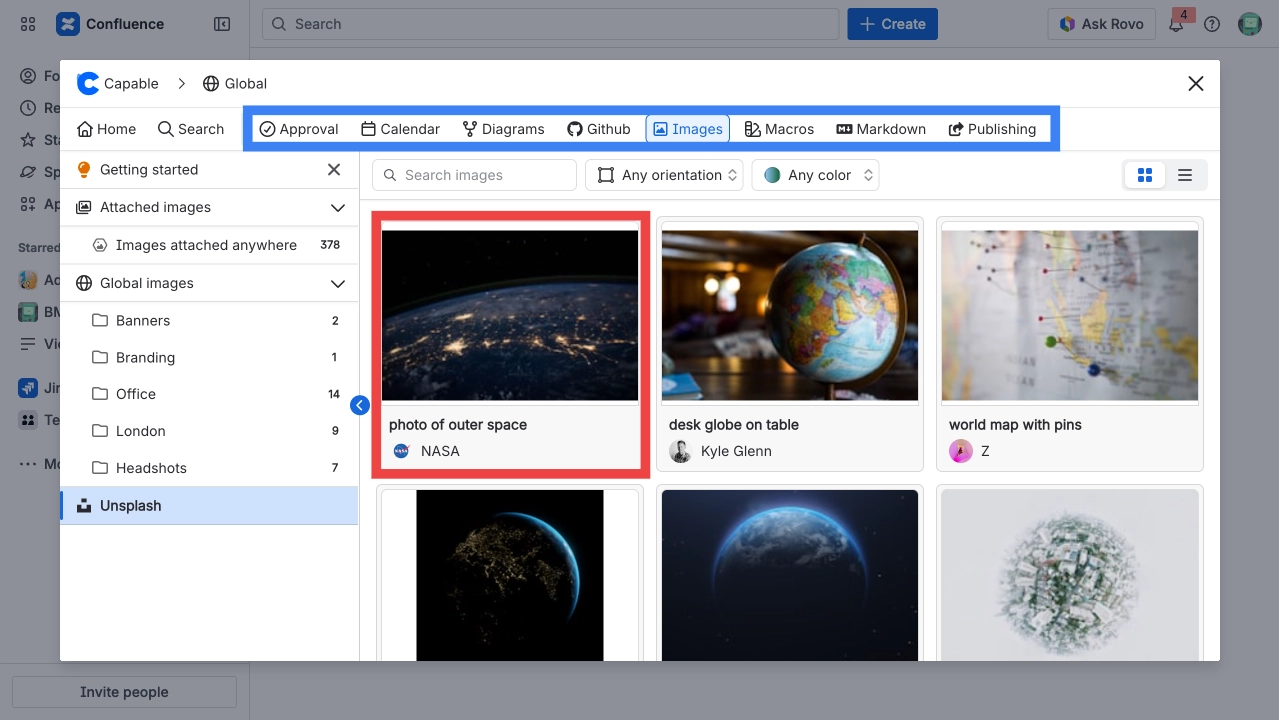
#Image reference
This image is referenced from a central image library, so it is managed in one place.
When the image is updated in the library, the change automatically appears everywhere it is used across the site.