
Spaces, URLs and navigation
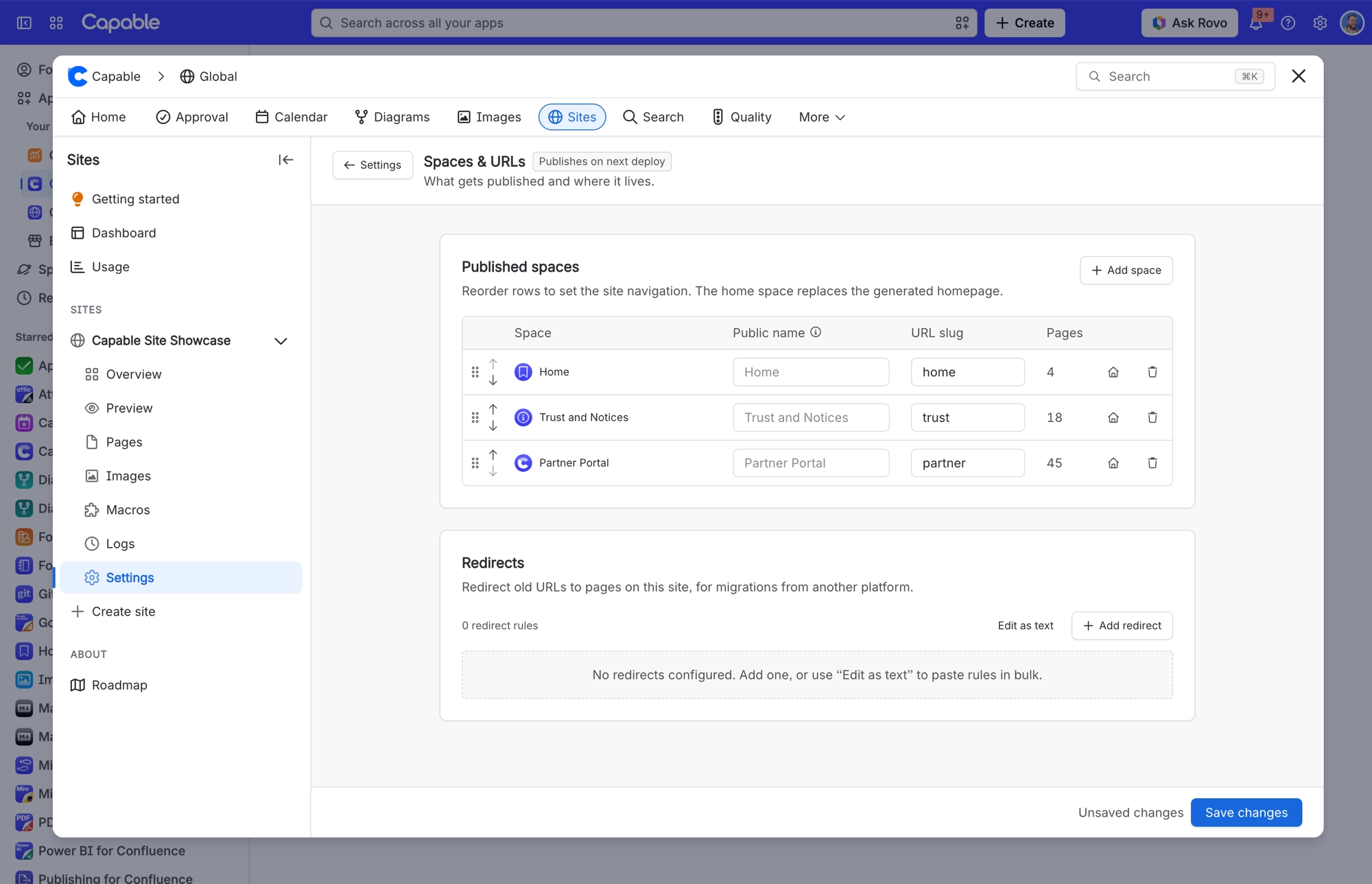
A site publishes whole spaces. The order you put them in is the navigation order, each gets a URL slug, and one of them is the homepage.
That's most of your site's structure decided in one step.
#What you control
You set these up in step 2 of creating a site, and can change them later under Settings > Spaces & URLs. Only Confluence admins can change them. Collaborators see the list read-only.
Control | What it does |
|---|---|
Space order | Drag, or use the up and down buttons. This is the navigation order. |
URL slug | The path each space publishes under. Two spaces can't share one. |
Homepage | One space is the site root, chosen with the house button. |
Published at preview | Shows the resulting URL live as you type. |
You can publish up to 100 spaces per site, though the navigation gets unwieldy long before that.
Two spaces can't share a slug. If they try, you can't continue until you change one. The message names both spaces: "X and Y both want the /slug URL".
#Navigation between spaces
How visitors move between spaces is set on its own Navigation card under Settings. Changes there publish with your next Update and Promote, like other settings. For a step-by-step guide, see Publish several Confluence spaces as one site.
Control | What it does |
|---|---|
Style: Switcher | A space menu in the site header. Best for a handful of spaces. |
Style: Tabs | A horizontal bar of spaces under the header. Best when every space should be visible at once. |
Style: Sidebar picker | A space card pinned above the page tree that opens a searchable list. Best for a large number of spaces. |
Space avatars | Shows each space's Confluence icon in navigation. Spaces without an icon get a coloured chip of their initials. Off unless you turn it on. |
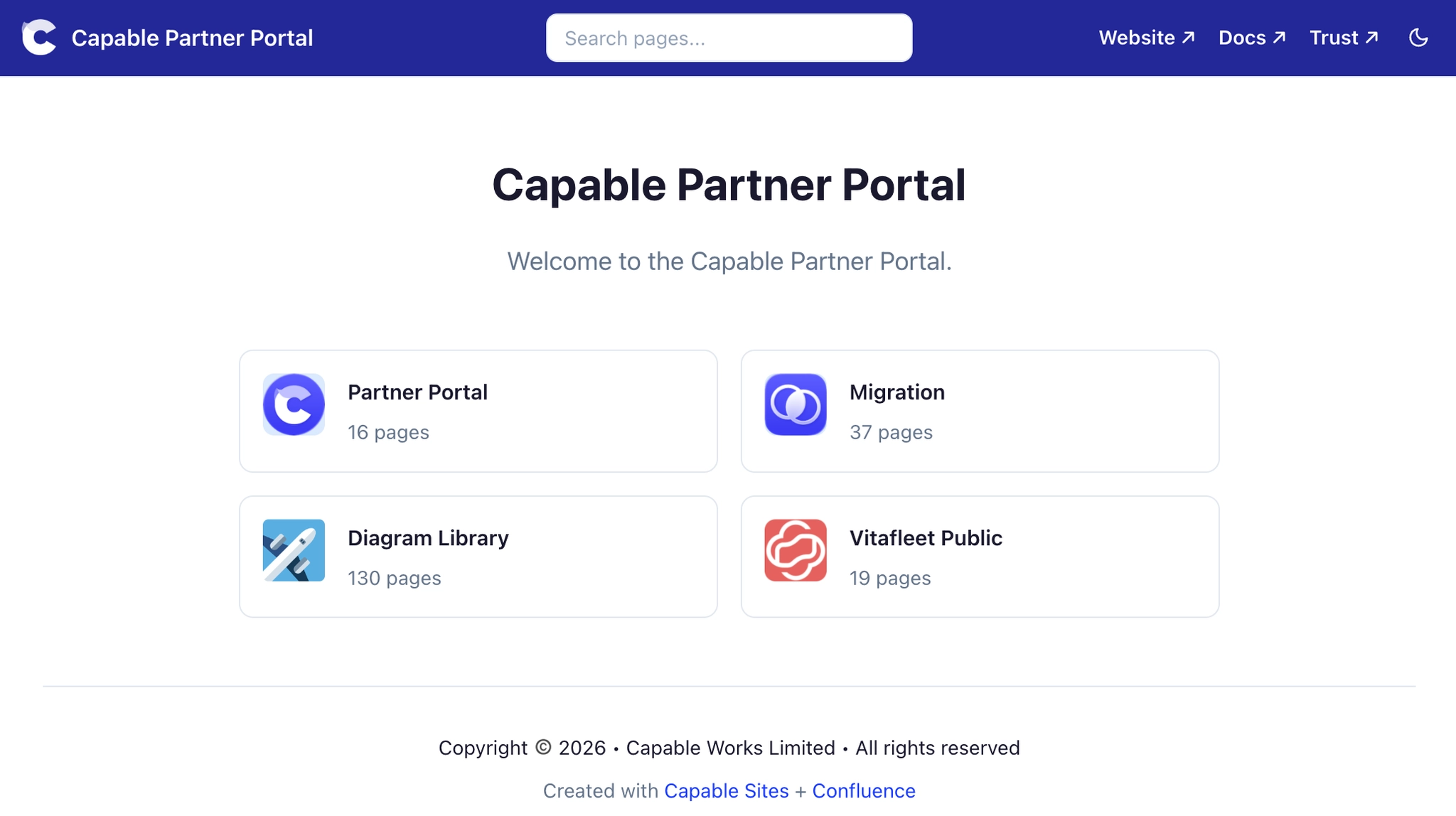
Categories | Optional. Select Add category, name it, and drag spaces into it to group them under a heading such as "Content". Categories are headings only: they have no page of their own and never nest. Under the board, Order on the site previews the result. |
A site uses Switcher until you pick another style. Sites that showed space tabs before this setting existed keep Tabs.
Spaces in no category are listed first, in the order set under Spaces & URLs, then each category with its spaces. A category with no name is not published. Collaborators can change the style and categories, but only Confluence admins can re-sort the spaces that are not in a category.
#Space addresses
A space with the slug docs lives at /docs/, and its pages sit directly under it, such as /docs/getting-started. Visitors who type /docs without the trailing slash are sent to /docs/ as well. Earlier, that address showed a page not found error. The fix arrives with each site's next Update and Promote.
If one of your own redirect rules uses the same address, your rule wins.
#Redirects have their own page
Redirect rules used to sit at the bottom of Spaces & URLs. They now have their own Redirects card in Settings, which collaborators can edit too. See Redirects.
#Page order within a space
Page order follows the Confluence page tree. Reorder pages in Confluence and the site follows on the next publish.
#A few things worth knowing
Changing scope or order is a settings change, so it needs an Update and a Promote like any other change.
Removing a space from a site removes its pages on the next publish, and they come off the live site when you promote.
Once a site has 100 spaces, the space picker greys out the rest.
Changing a space's slug moves every page in it. Add redirects from the old addresses if people link to them.
#Related
Order the spaces. That is your navigation.






















