
Chat widget / marketing tag / third-party script does not run on the published site
What you are seeing
Your chat widget, marketing tag or other third-party script does not run on the published site.
#Why it happens
There are two usual reasons.
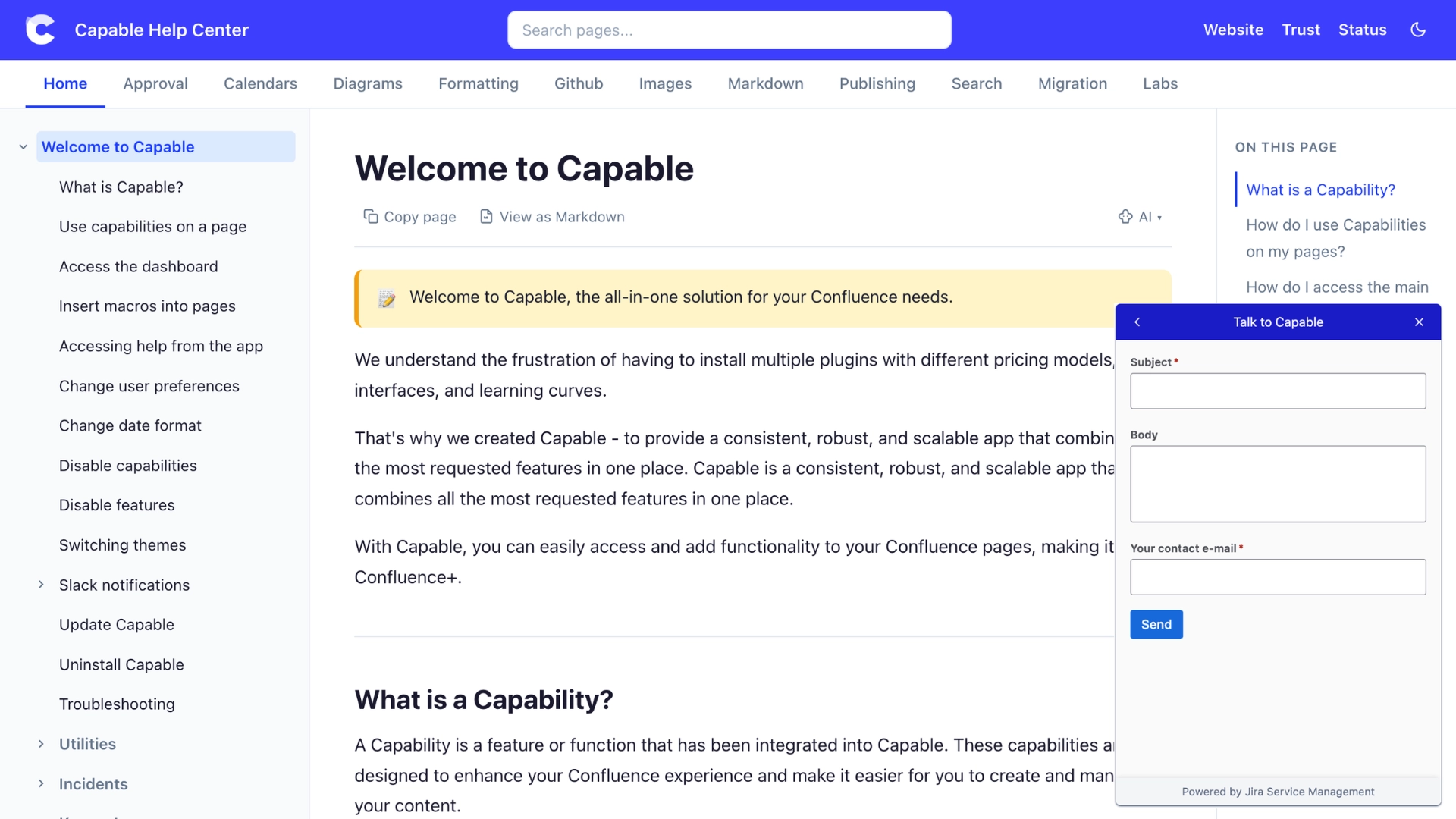
The script is not from an allowed source. To keep your site safe, published sites only allow scripts from a short list of trusted sources: Capable, Google Tag Manager, Google Analytics, Released, the Jira Service Management widget, Statuspage and the draw.io viewer. Anything else is blocked quietly, so you will not see an error. That includes tags inside your Tag Manager container that load scripts from providers other than Google. JavaScript you add in the HTML macro also needs an admin to switch it on before it runs.
The visitor has not allowed it yet. With Cookie consent popup turned on, built-in integrations wait for the visitor's choice. Google Analytics waits for Analytics. The Jira Service Management and Released widgets wait for Functional. Statuspage always loads. A Tag Manager container waits until the visitor selects Accept all, unless you turn on Tag Manager handles consent. If you are testing in a browser where you selected Reject all, nothing in those categories will run.
#What to do
If your tool is on the list, add it through the built-in integration rather than pasting its script.
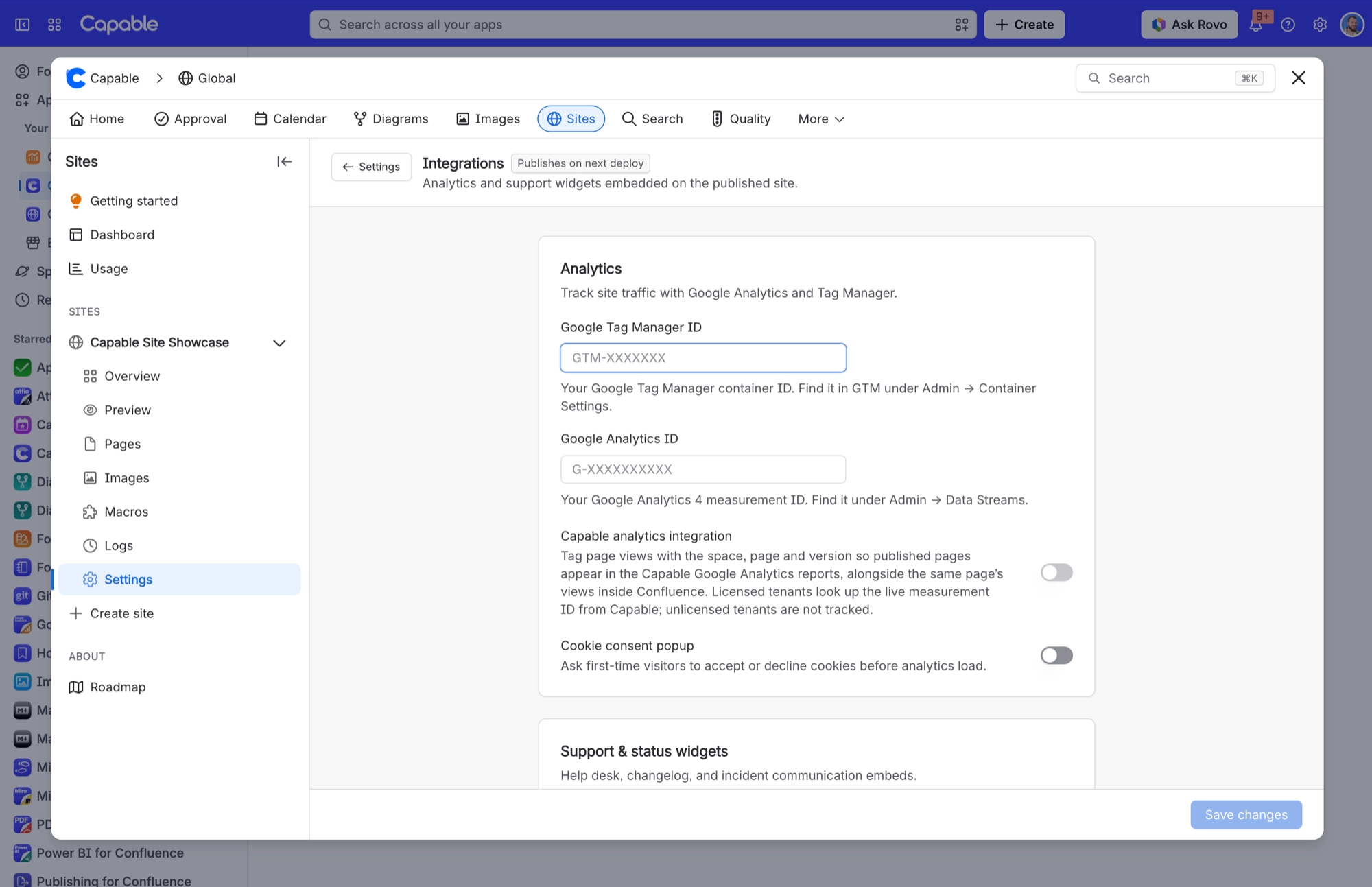
Open your site in Capable Sites and go to Settings > Integrations.
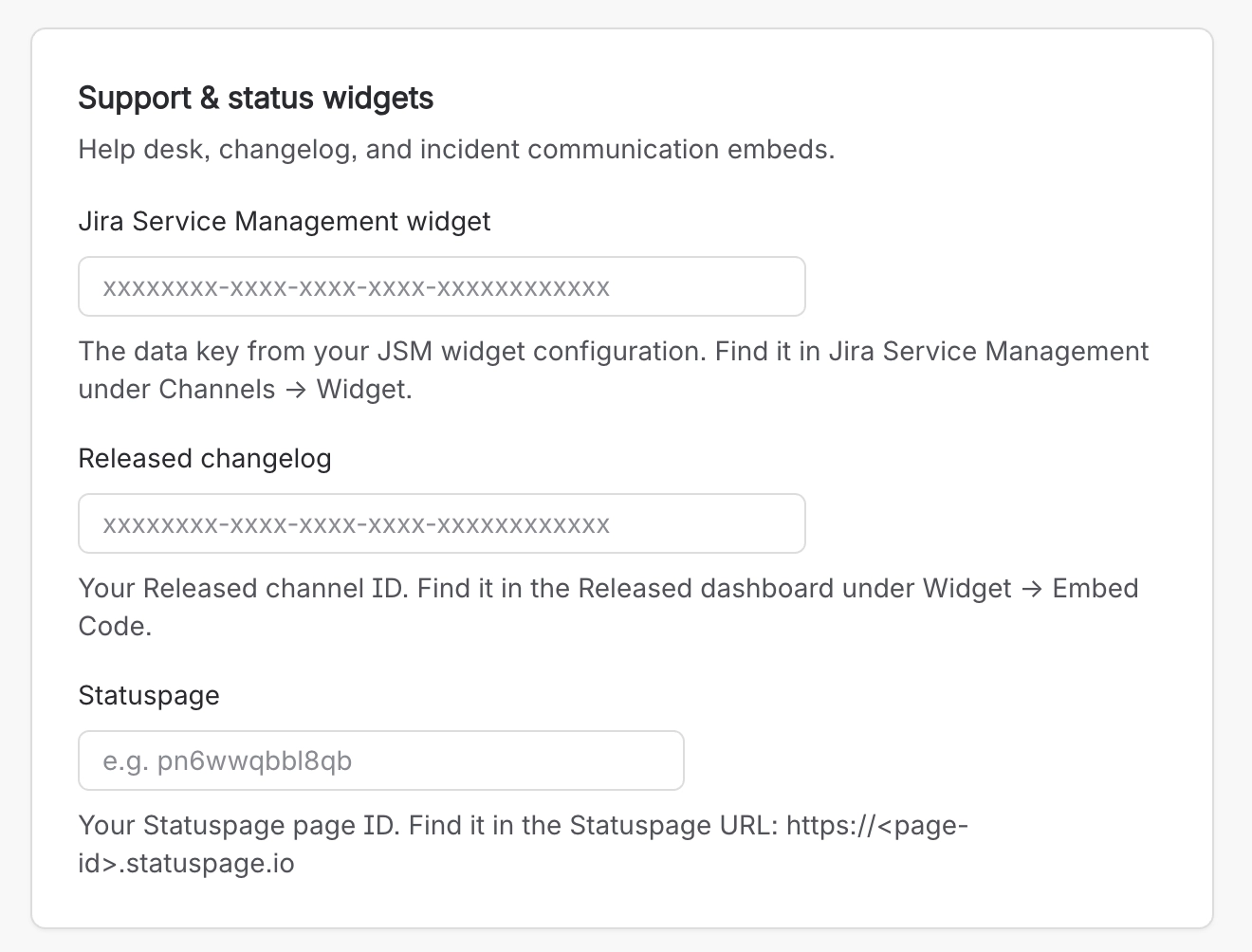
Enter the ID or key for your tool. Google Tag Manager and Google Analytics sit under Analytics. Jira Service Management, Released and Statuspage sit under Support & status widgets.
Select Save changes. The change goes live the next time your site publishes.
If your tool is not on the list, its script cannot be added to a published site. Contact Capable support if you need a provider allowed.
If the cookie banner is holding it back, open the site in a private window and select Accept all to check it runs. To change a choice you already made, select Cookie settings in the site footer.
#Related
Found it? Good.






















