
Table
Wraps a table you write in the page and turns it into an interactive data grid with sorting, filtering, paging and (in the suite) grouping, pivots and charts.
You write an ordinary Confluence table inside the macro body, and readers see a proper grid: sortable columns, filters, pagination and column resizing, without your data moving anywhere. Because the source is still an ordinary Confluence table, everyone edits it the normal way and nothing is locked away in a separate store.
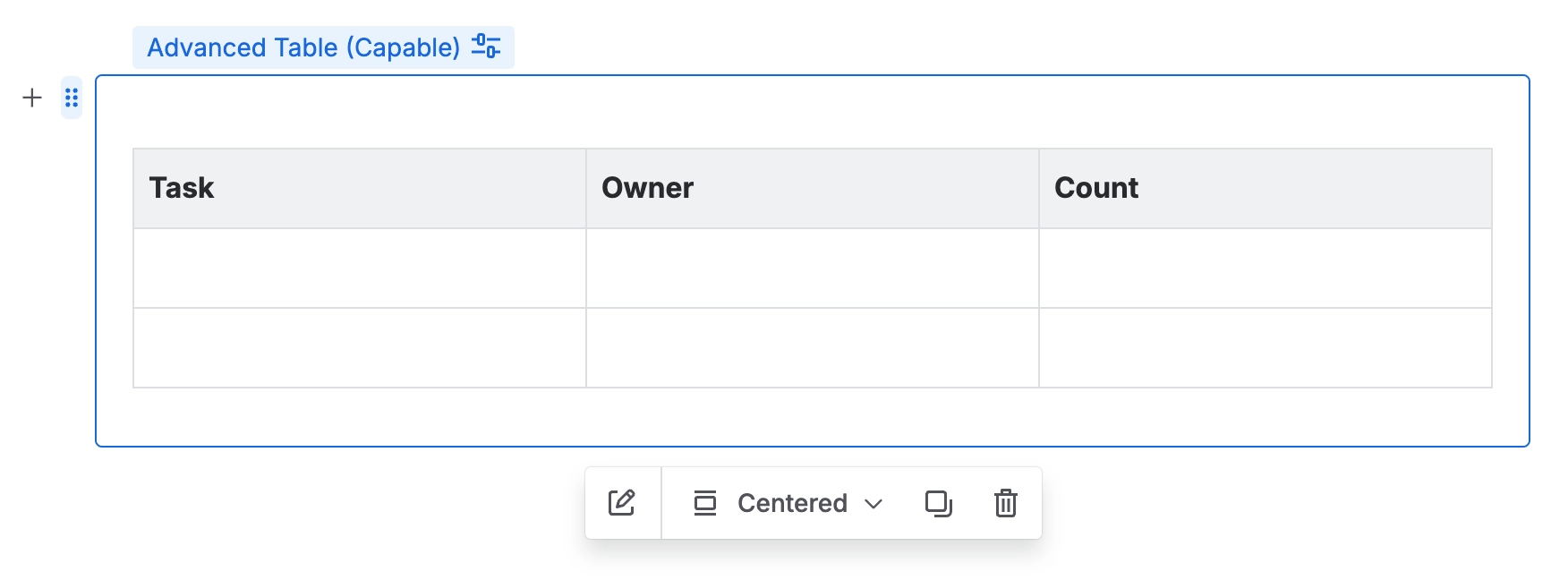
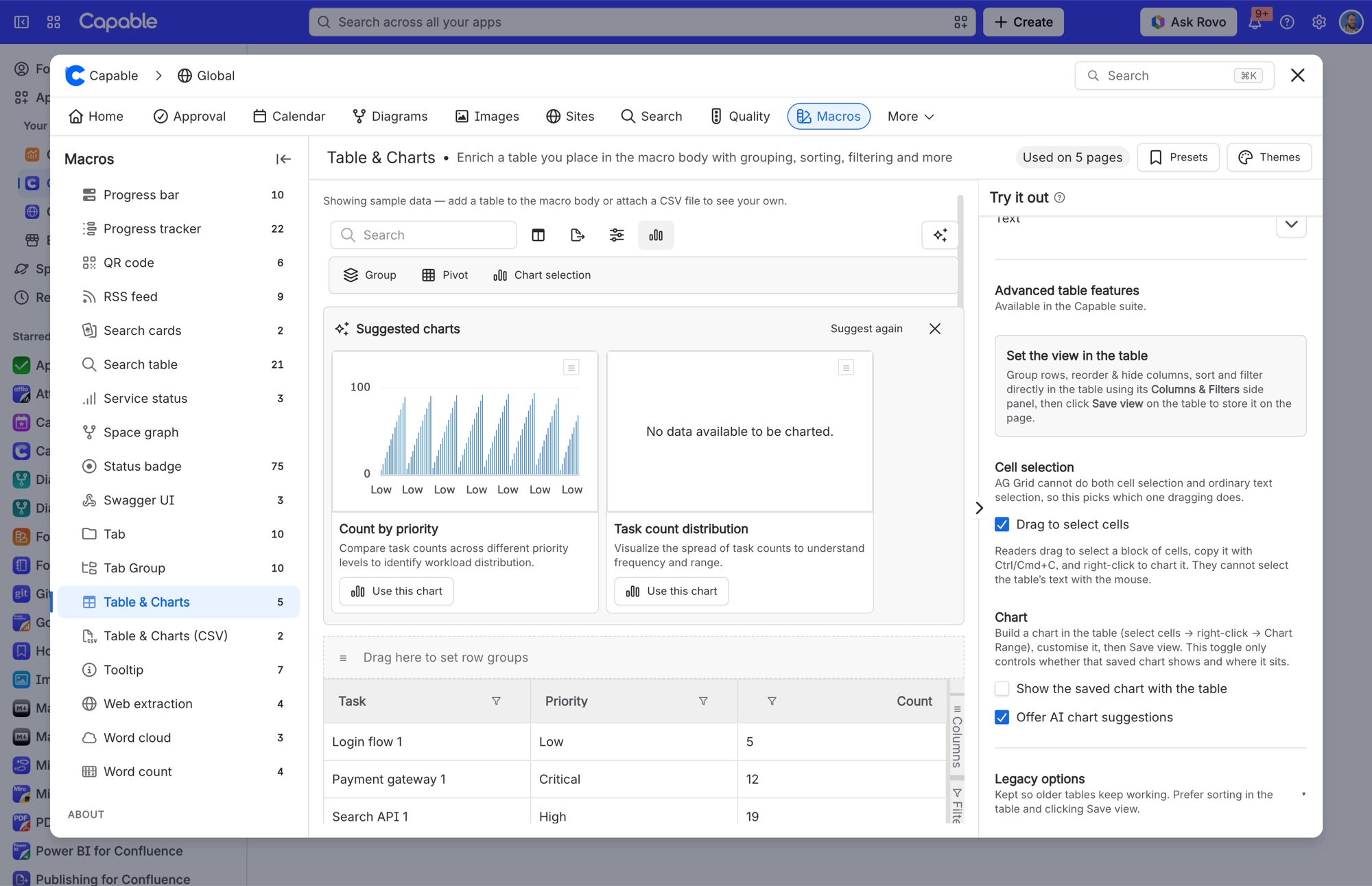
In the Capable suite it goes considerably further: row grouping, pivots, a Columns & Filters side panel, cell-range selection and charts built from a selection. A Save view button then keeps whatever arrangement you have made on the page for every later reader. Charts live here too, so there is no separate chart macro.
#See it
The example below is a real macro on this page, not a screenshot, and its configuration comes from a page somebody actually built. Open this page in the editor to see how it is set up.
#14px
Task | Priority | Score |
|---|---|---|
Login flow 1 | Low | 5 |
Payment gateway 1 | Critical | 12 |
Search API 1 | High | 19 |
Dashboard UI 1 | Medium | 26 |
Notifications 1 | Low | 33 |
Onboarding 1 | Critical | 40 |
Billing export 1 | High | 47 |
Audit log 1 | Medium | 54 |
Rate limiter 1 | Low | 61 |
Webhook retries 1 | Critical | 68 |
Login flow 2 | High | 75 |
Payment gateway 2 | Medium | 82 |
Search API 2 | Low | 89 |
Dashboard UI 2 | Critical | 6 |
Notifications 2 | High | 13 |
Onboarding 2 | Medium | 20 |
Billing export 2 | Low | 27 |
Audit log 2 | Critical | 34 |
Rate limiter 2 | High | 41 |
Webhook retries 2 | Medium | 48 |
#Settings
Setting | Values | What it changes |
|---|---|---|
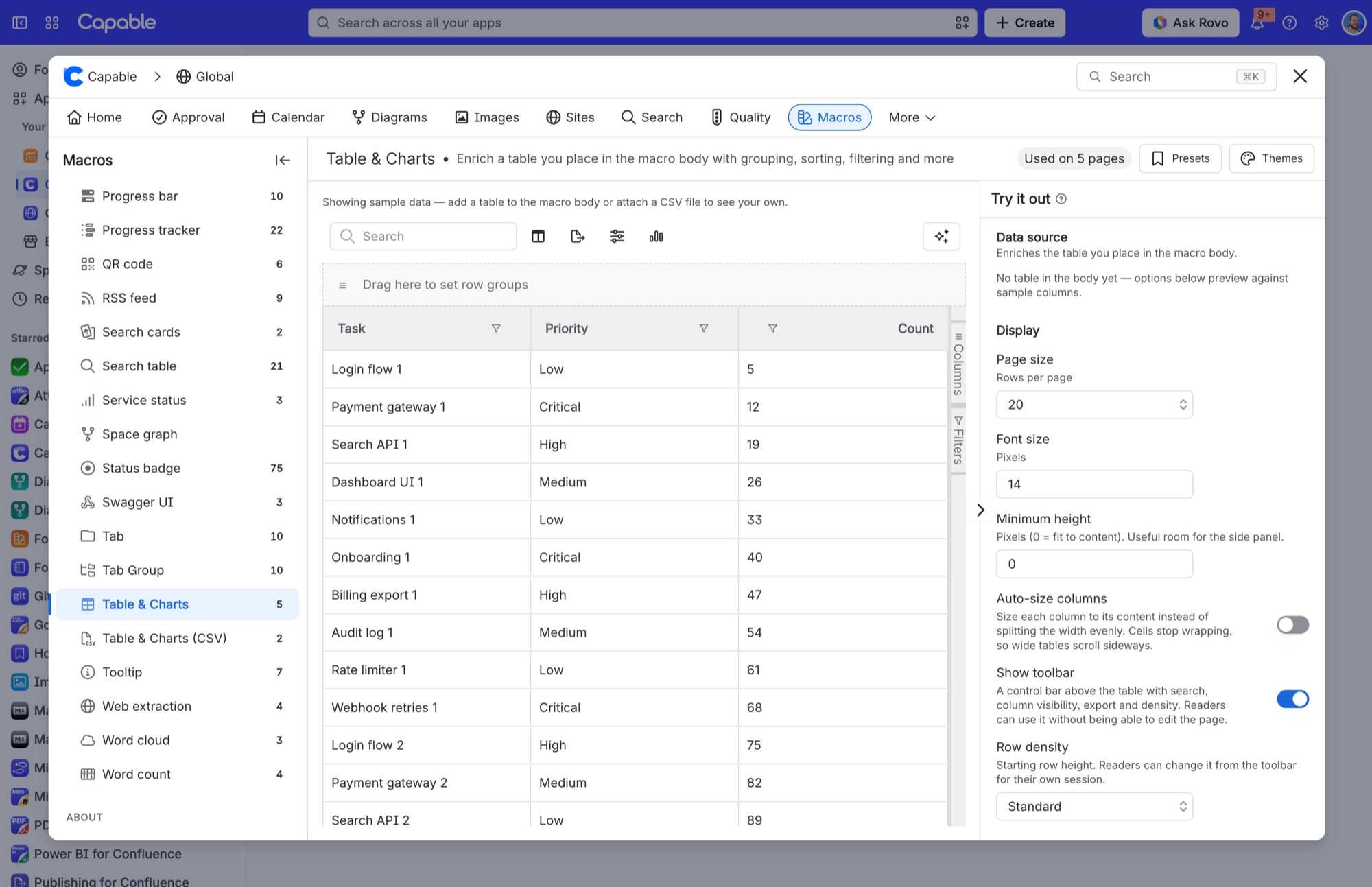
Page size | 10, 20, 50, 100, 250 or 500. Default 20. A macro that already uses another value keeps it. | Rows per page. Paging switches off when the view is grouped or pivoted. |
Font size | Pixels, from 8 to 24. Default 14. Older macros can go up to 48. | Text size across the whole table. Each table keeps its own setting, so several tables on one page can differ. |
Minimum height | Pixels, from 0 to 2000 in steps of 40. Default 0. | 0 lets the table grow to fit its content. Any other value fixes the table's height, which helps when the side panel is open or the table is short. |
Auto-size columns | On or off. Default off. | Sizes columns to their content instead of stretching them to fill the width. |
Background (under "Header colours") | A background colour from your brand scheme, a custom colour, or none | Background colour of the column headers. Only the header cells change, never menus or the paging bar. |
Text (under "Header colours") | A text colour from your brand scheme, a custom colour, or none | Text and icon colour in the column headers. Again, only the header cells change. |
#Related
The largest family, and the most precise.






















