
3D Model
Turns a 3D model file attached to the page into an interactive viewer readers can spin, zoom and (optionally) download.
You have a product model, a printable part, an architectural massing or a scanned object, and a screenshot loses everything a reader needs - the back, the underside, the proportions. This macro embeds the actual model file from the page's attachments and gives readers a real 3D viewer: drag to orbit, shift+scroll to zoom, and a control bar with play/pause, zoom and fit-to-view. Reach for it when a static image of a shape genuinely does not answer the question people keep asking. It is deliberately attachment-based rather than URL-based: the file lives with the page, so permissions, versioning and cleanup all follow the page. It is currently flagged as beta in the Capable macro catalogue.
Type | Stands on its own |
|---|---|
PDF and Word export | See below |
Published Capable Site | Supported |
Name in the picker | 3D Model (Capable) in the suite. The standalone app usually adds the word macro |
#See it
Every example below is a real macro on this page, not a screenshot, and each one is a configuration taken from a page somebody actually built. Open this page in the editor to see how any of them is set up.
#Perspective
#Perspective (2)
#Settings
Setting | Values | What it changes |
|---|---|---|
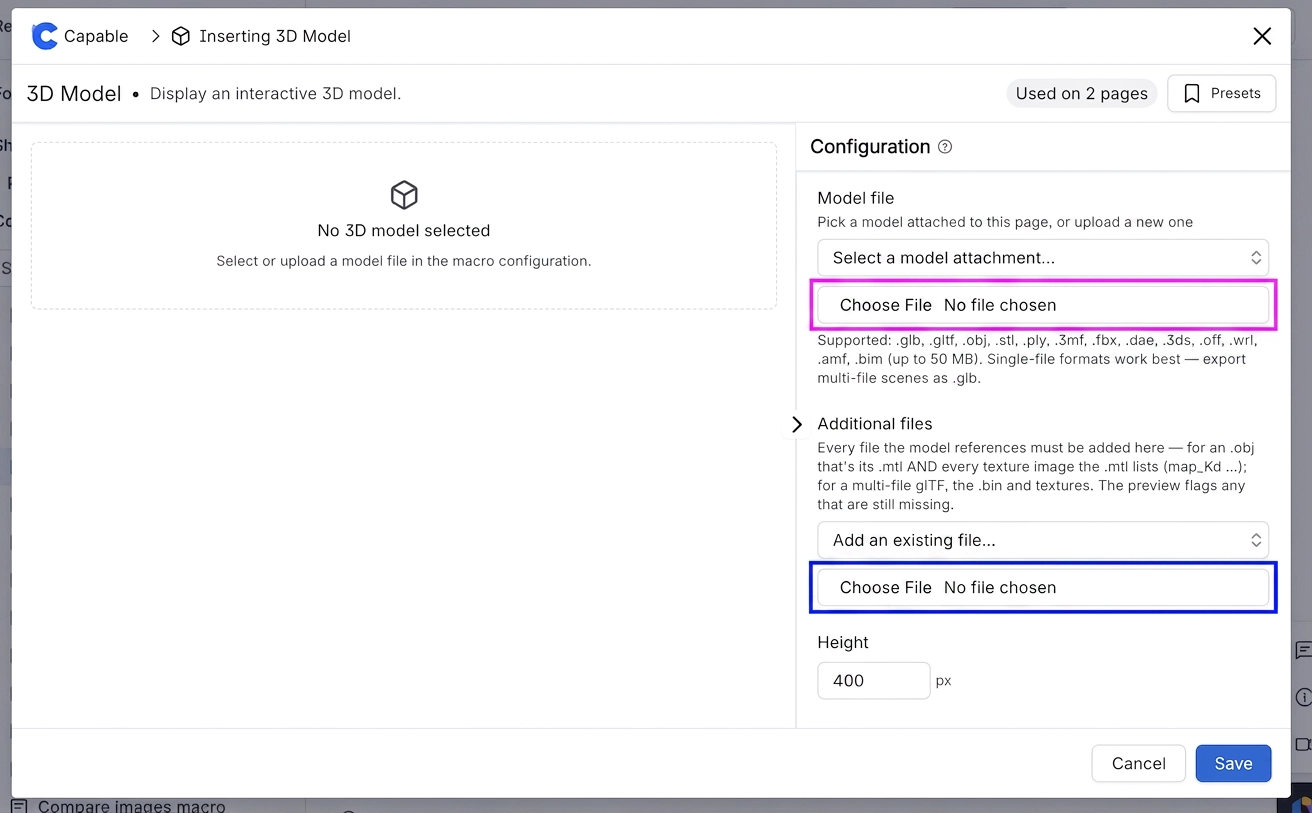
Model file | A model attachment on this page, or upload a new one. Supported extensions: .glb, .gltf, .obj, .stl, .ply, .3mf, .fbx, .dae, .3ds, .off, .wrl, .amf, .bim | Chooses the model to render. Selecting a file also stores which page owns it, so the viewer keeps working from the original attachment. |
Additional files | Any other attachment on the page (added one at a time, or uploaded) | Companion files the model references - an .obj's .mtl and every texture image the .mtl lists (map_Kd …), or a multi-file glTF's .bin and textures. They are downloaded alongside the model and matched by file name. The preview shows |
Height | 160–1200 px | Fixed height of the viewer box on the page. |
Background | A brand or custom colour, or cleared | Fills the viewer canvas behind the model. Left unset, the canvas is transparent and the page background shows through, so the viewer follows light and dark mode automatically. |
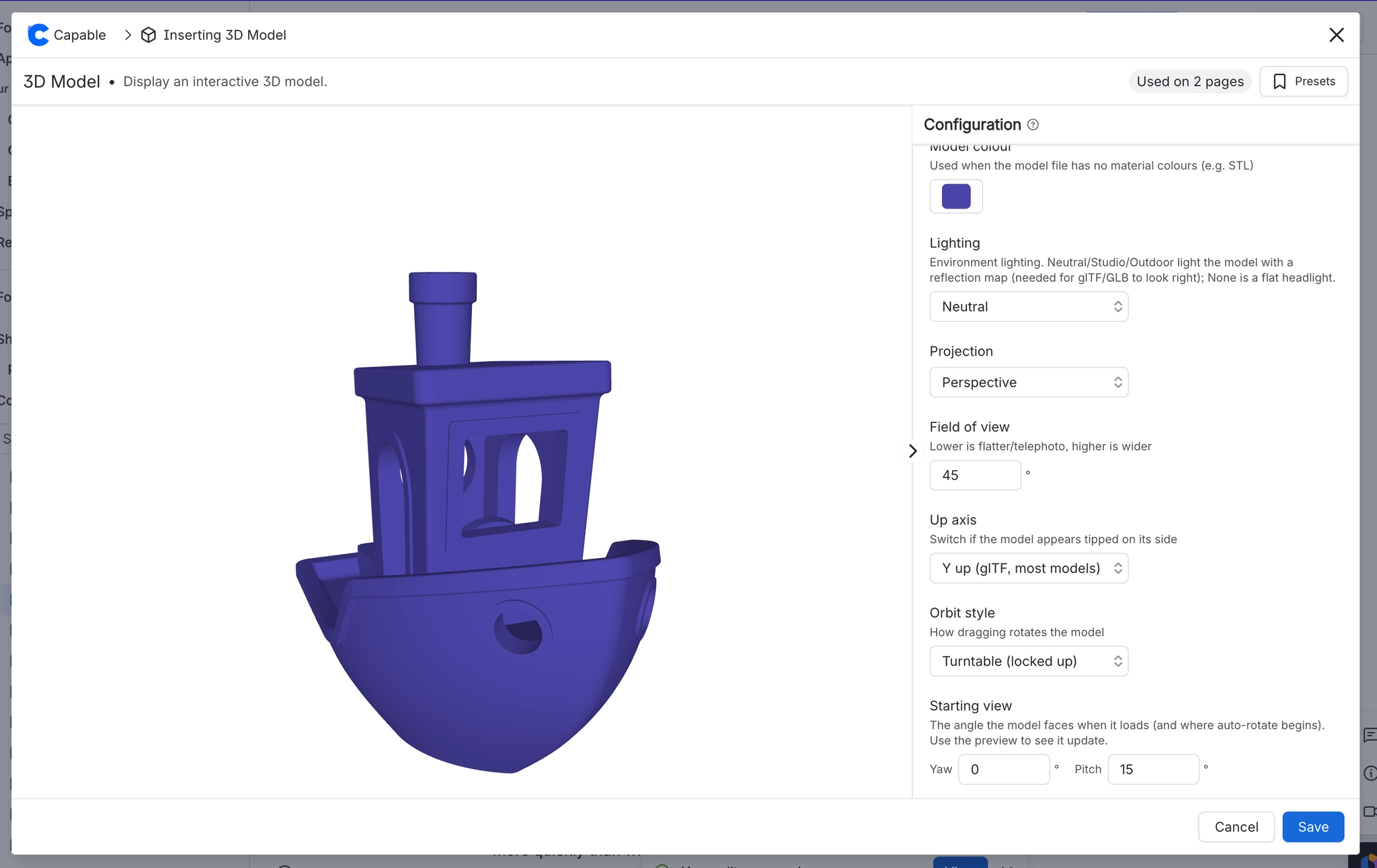
Model colour | A brand or custom colour | The surface colour used when the model file carries no material colours of its own - which is the normal case for STL. A model that does carry materials (most glTF/GLB) ignores it. |
Lighting | Neutral / Studio / Outdoor / None (flat) | Environment lighting. Neutral, Studio and Outdoor light the model with a reflection map, which is what stops glTF/GLB models rendering flat and dark. None uses a plain headlight only. |
Projection | Perspective / Orthographic | Perspective is a natural camera. Orthographic removes foreshortening, which is what CAD and engineering drawings expect. |
Field of view | 20°–90°, in steps of 5 | Lower is flatter and more telephoto, higher is wider and more dramatic. |
Up axis | Y up (glTF, most models) / Z up (CAD / 3D print) | Which axis the viewer treats as vertical. Switch it if the model loads tipped on its side - CAD and 3D-print exports are commonly Z-up while glTF is Y-up. |
Orbit style | Turntable (locked up) / Free (trackball) | Turntable keeps the model upright however far you drag. Free lets readers tumble it into any orientation, including upside down. |
Starting view - Yaw | 0°–359°, in steps of 15 | The horizontal angle the model faces when the macro loads, and where auto-rotation begins. Applied after the viewer auto-fits the model. |
Starting view - Pitch | -85°–85°, in steps of 5 | The vertical camera angle at load. 0 is level with the model; positive values look down on it. |
Starting view - Zoom | 0.3×–3×, in steps of 0.1 | How close the camera starts, as a multiple of the automatic fit distance. 2 is twice as close as the auto-fit. |
Auto-rotate | On / Off | Starts the model spinning as soon as the macro loads. |
Rotation speed | Slow / Normal / Fast (10 / 25 / 60 degrees per second) | How fast the automatic spin turns. |
Rotation direction | Clockwise / Counter-clockwise | Which way the automatic spin turns, seen from above the up axis. |
Show edges | On / Off | Draws black feature edges over the surfaces, which makes faceted or mechanical geometry far easier to read. |
Show viewer controls | On / Off | Shows the floating control bar in the bottom-right: play/pause rotation, zoom in, zoom out, fit to view. |
Allow download | On / Off | Adds a download button to the control bar that hands the reader the original model file. |
#Related
A landing page, not a document.






















