
Compare images
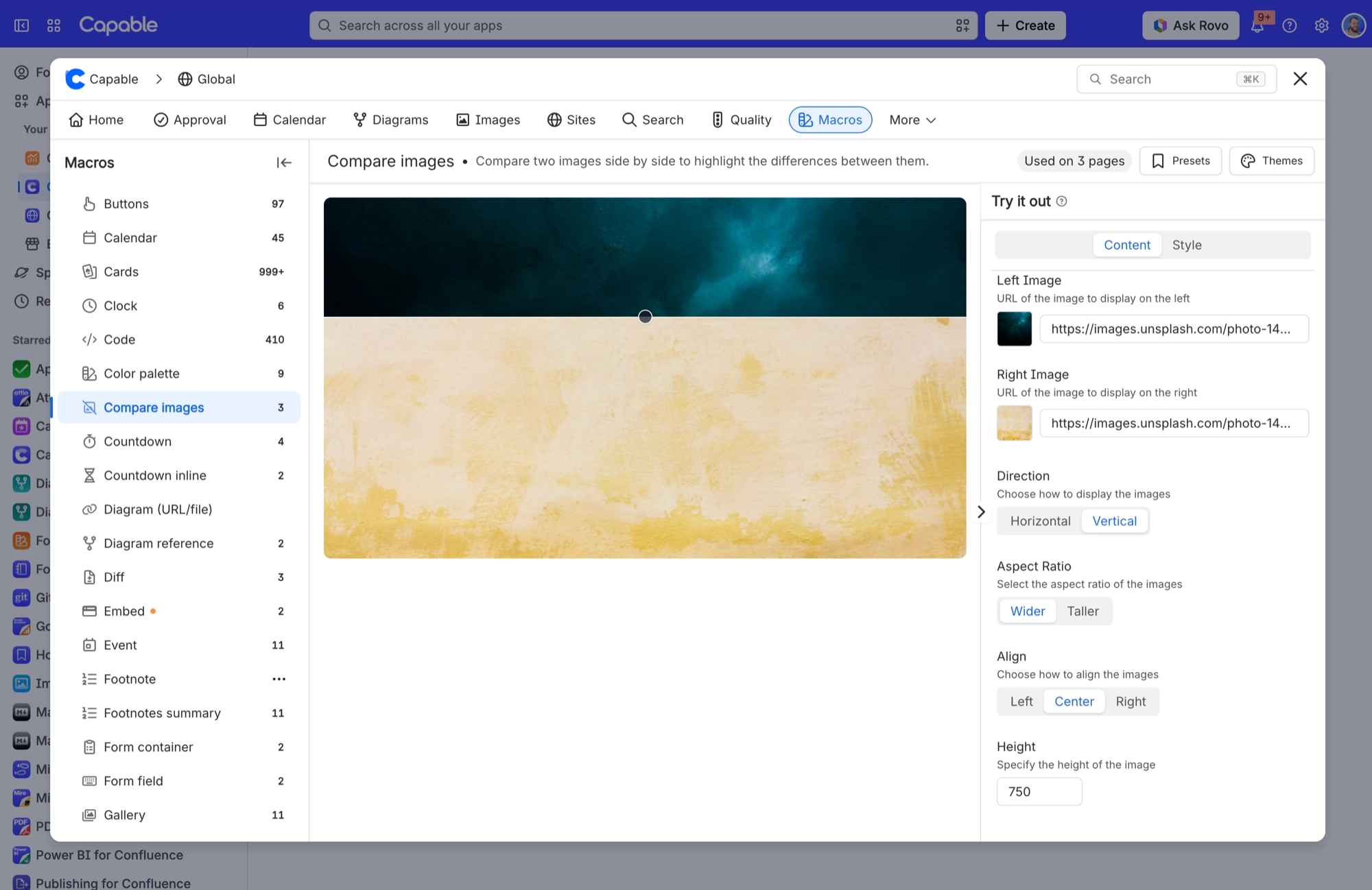
Two images stacked in one frame with a draggable wipe handle, so a reader can slide between a before and an after.
Compare images is for showing a change rather than describing it – a light and a dark theme of the same screen, a before and after of a redesign, two revisions of a diagram, a retouched and an original photo. The reader drags a divider across the frame (or up and down, if you set it to vertical) and the second image is revealed underneath. You pick the two pictures, choose the wipe direction and the shape of the frame, and set how wide it should be.
#See it
The example below is a live macro on this page, not a screenshot, set up as it was on a real page. Drag the handle to try it, or open this page in the editor to see how it's configured.
#Horizontal, center, wider


#Settings
Setting | Values | What it changes |
|---|---|---|
Left Image / Top Image | Pick an attachment, upload a file, choose a recently used URL, or paste a URL. | The image revealed by the wipe – the one the divider clips. When Direction is Vertical, this setting is called Top Image. |
Right Image / Bottom Image | Same choices as above. | The image underneath, which fills the rest of the frame. When Direction is Vertical, this setting is called Bottom Image. |
Direction | horizontal, vertical | Which way the divider wipes. Horizontal wipes left and right, with a side-to-side cursor. Vertical wipes top to bottom, with an up-and-down cursor. |
Aspect Ratio | wider, taller | The shape of the frame: wider is 16:9 and taller is 3:4. This is what sets the frame's height, because Height (below) actually sets its width. |
Align | left, center, right | Where the frame sits across the page. |
Height | A number from 100 to 2000, in steps of 50. The default is 600. | Despite its name, this is the frame's width in pixels. The height follows from Aspect Ratio: width × 9/16 for wider, or width × 4/3 for taller. So the default of 600 gives a 600 × 338 frame with wider, or 600 × 800 with taller. |
Corner radius | Slider, 0 to 24 px | Rounds the corners of the frame. |
Border | Off or On. Turn it on and you can set a width (0 to 6 px) and a colour. | Draws an outline around the frame. |
Image fit | Cover, Contain | How each image sits inside the frame. Cover fills it edge to edge and crops the overflow, which keeps the wipe clean. Contain shows the whole picture and may leave empty bands at the edges. Comparisons added before this setting existed use Contain. |
#Related
A landing page, not a document.






















