Knowledge bases
Knowledge bases and technical documentation are among the most demanding test cases for any Confluence add‑on. Pages are often extremely long, mixing prose, code examples, screenshots, diagrams, and sometimes mathematical notation.
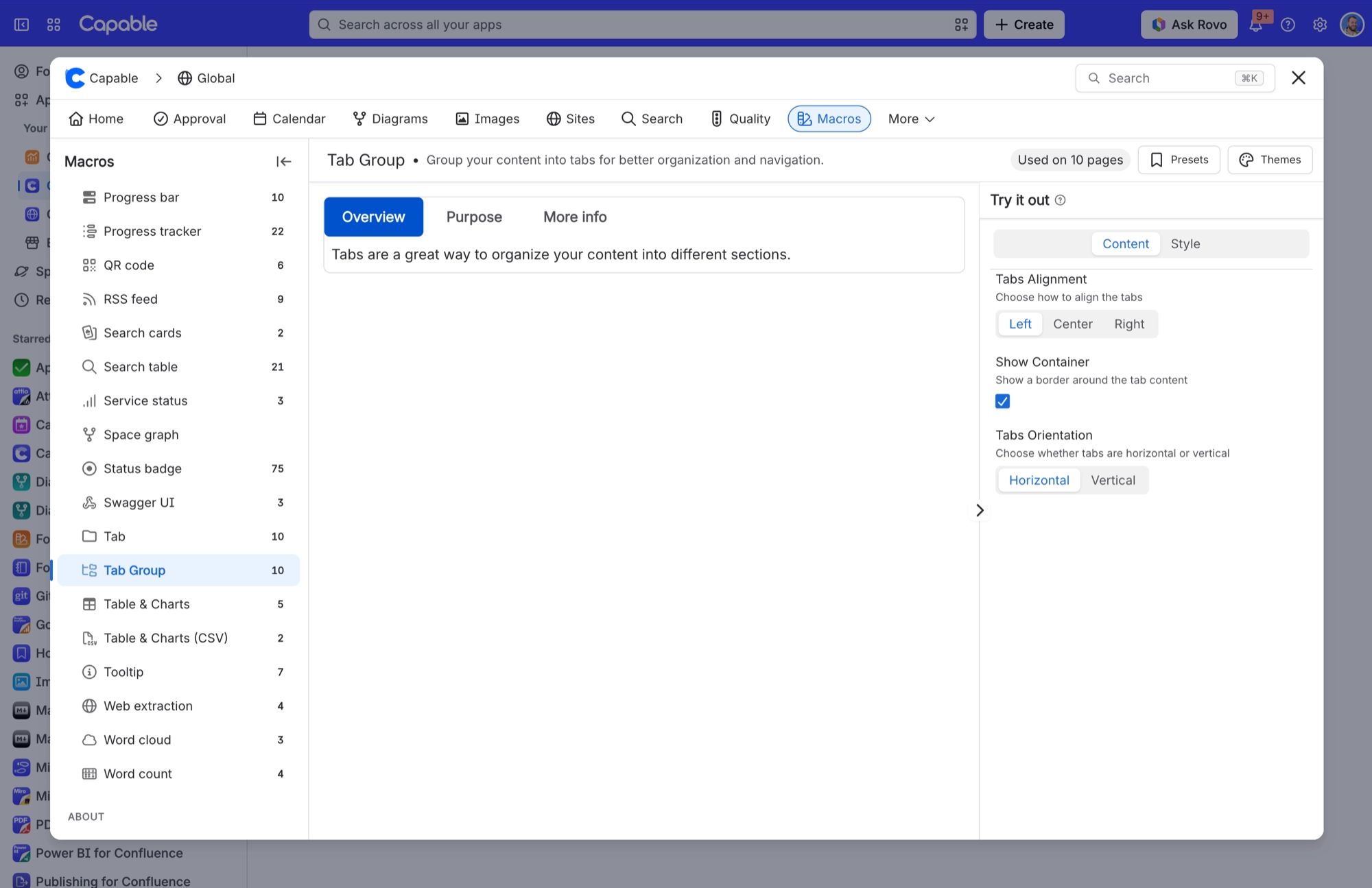
Capable Formatting tackles documentation problems on two fronts: structure and emphasis. Structurally, macros like Tabs, Panels, and accordions (expanders) allow authors to break long content into digestible chunks without spreading it across multiple pages. A common pattern is to have a “Concept / How‑to / FAQ / Troubleshooting” tab set at the top of a product or feature page, with each tab focusing on a different aspect. While Tabs are in beta and should be used judiciously, even a few high‑value tabs can significantly improve navigation for readers.
For emphasis, macros like Callouts, Alerts, and Tooltips can highlight warnings, best practices, and definitions within a dense page. For instance, all “Caution” messages can be implemented using a standard Alert style, while “Pro tips” use a different Panel variant. This not only makes pages easier to skim, but also gives documentation leads a way to enforce visual consistency by defining which macro styles should be used for each type of note.
#Footnotes
Use footnotes to add supporting detail, citations, or extra context without interrupting the main reading flow [1]
You can have multiple footnotes spread through a page and they will appear with a tooltip [2] and in the footnote summary macro [3].
#Tabs
Use tabs to segment dense documentation into clear Concept, How‑to, FAQ, and Troubleshooting sections.
Welcome aboard!
You can include formatting, tables and images, panels etc.
Here is a panel
Table | Table | Table |
|---|---|---|
Cell | Cell | Cell |
This is the first tab.
This is some cards - we are working to align the styling.
You can include macros like diagrams within tabs too!
We’re a small, cross‑functional team focused on making complex tasks simple. Our aim is to deliver clear, reliable solutions that help people get work done with confidence.
#Banners
#Animations
#Panels/Alerts/Callouts
Use panels, alerts, and callouts to highlight warnings, tips, best practices, and other important guidance consistently.
Built-in panels:
This is an info.
This is a warning panel.
This is an error panel.
Custom panels:
#Code macros
Use code macros for syntax‑highlighted examples and for documentation imported from repositories or templates.

#LaTeX Math
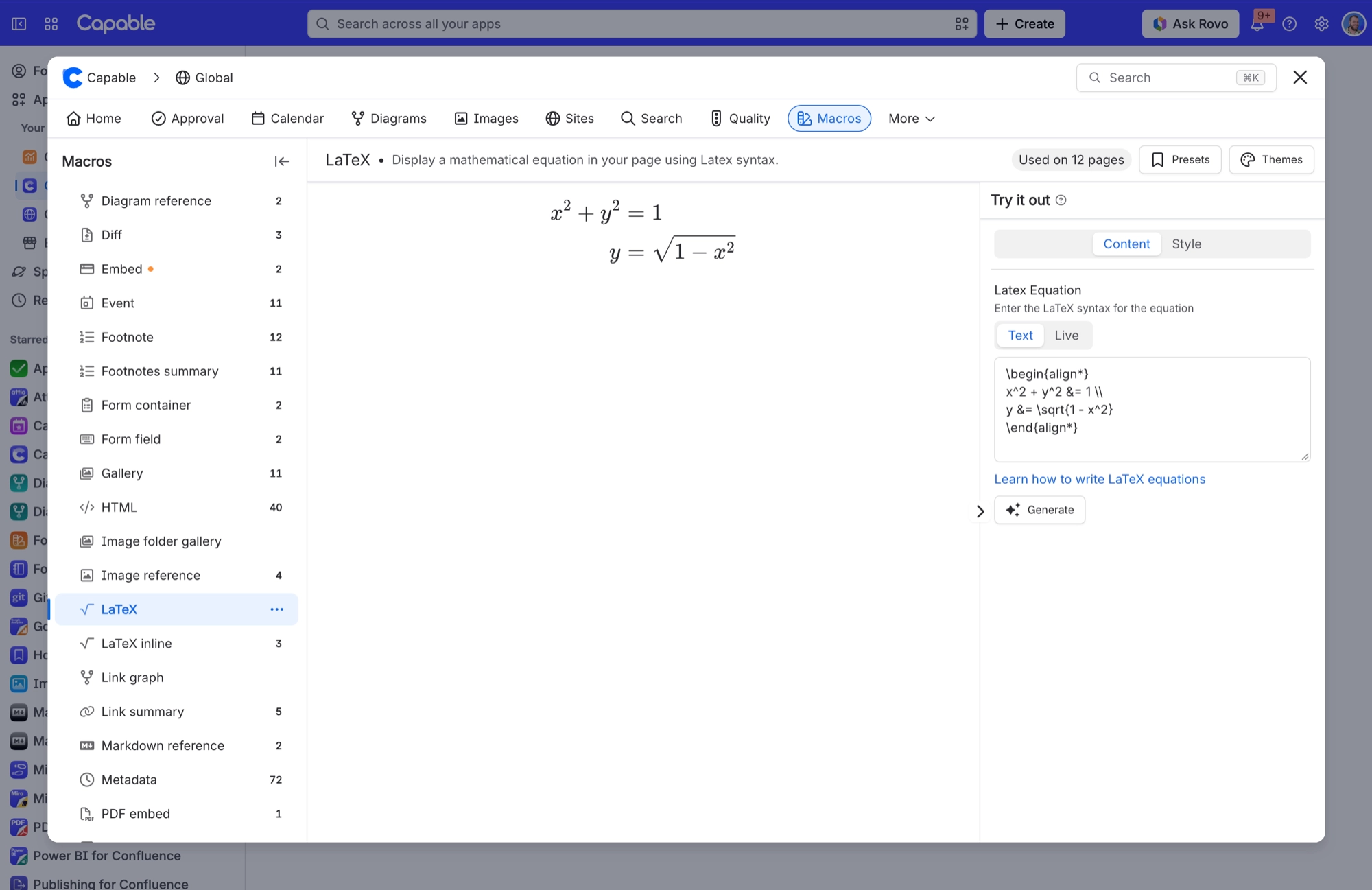
Use LaTeX Math to present equations clearly in technical, engineering, or scientific documentation.
#Diagram macros (suite or diagram app required)
Use diagram macros to embed architecture, sequence, workflow, and process diagrams directly alongside the relevant explanation.
#Example knowledge structures
To make documentation patterns concrete, the use case page should outline three archetypal structures: Product documentation hub, API reference overview, and Internal runbook library.
Knowledge structure | Layout & macro highlights |
|---|---|
Product documentation hub | Hub page with Banner and Cards for each area (“Getting started,” “User guides,” “Admin docs”); Cards link to concept/how‑to templates |
API reference overview | TOC + Tabs for “Overview, Authentication, Endpoints, Errors”; Code/Markdown for examples; LaTeX for formulas; diagrams for flows |
Runbook library | Index page with Cards by system or severity; each runbook uses standard sections (Symptoms, Diagnosis, Resolution) with Panels and Diagrams |
Each structure benefits from consistent tagging and naming conventions, which Capable’s Search explorer can leverage to filter by product, version, or domain. For example, all runbooks might include a “Runbook” label and system name, making it easy to build a dynamic index page.
The documentation use case page should also show how these structures can be published externally via Capable Sites or Scroll Viewport integrations, preserving macros like Banners, Cards, and Buttons to create customer‑facing help centers that reuse the same content.
#Implementation tips
First, invest in page templates with built‑in macros, not just style guides. For example, a “Runbook” template might pre‑populate sections with Panels labeled “Symptoms,” “Checks,” “Workaround,” and “Permanent fix,” plus placeholders for diagrams. This makes it easy for engineers to fill in content without worrying about design. Templates should live in a clearly labeled “Documentation templates” space or section and be linked from the use case page.
Second, align macros with documentation governance. Use Approvals to enforce review of high‑risk content (e.g., security procedures, compliance policies), and Calendars to schedule periodic reviews. Publishing rules can ensure that only approved versions appear in official knowledge base spaces. The use case page can outline a simple “draft → review → published” flow that documentation teams can adopt without needing Comala‑level workflow complexity.
Third, plan macro migration explicitly. For organizations using Just Add+ to embed Markdown, LaTeX, and diagrams, Capable offers migration tooling that can convert many macros to Capable equivalents. The use case page should recommend running a macro inventory, mapping each macro family to Capable alternatives, and then updating templates and style guides to reflect the new patterns.