
Cards
A grid of up to six coloured cards, each with a title, description, optional image and optional link to a page or a website.
Reach for Cards when a page needs a visual index rather than a list: a landing page for a space, a 'start here' hub, a set of feature highlights, or a row of team or product tiles.
Every card has its own background and text colour, so you can colour-code a grid by theme without touching the page's styling. A card can link to a Confluence page, to a website, or nowhere at all. The look of the grid (columns, spacing, corners, shadow, images, hover) is set once for every card, so the grid stays tidy while each card says something different.
#See it
Every example below is a live Cards macro, not a screenshot, and each one copies a configuration from a page somebody actually built. Open this page in the editor to see how any of them is set up.
#6 cards, 3 columns, with images: Approval

Approval
Request approval and feedback on your pages.

Calendars
Manage important schedules spread across pages.

Diagrams
Insert over 20 types of diagrams with visual or text editors.

Github
Securely embed code, diagrams, markdown

Headings
Automatically number your headings.

Images
Upload and share images to a shared library.
#3 cards, responsive columns, left: Banana


#3 cards, 3 columns, left: Banana
#3 cards, 3 columns, with images: Dragon Fruit

Dragon Fruit
Dragon fruit is a tropical fruit known for its unique appearance and sweet flavor.

Rambutan
Rambutan is a juicy, hairy-skinned fruit native to Southeast Asia, offering a sweet and slightly acidic taste.

Durian
Known as the 'king of fruits', durian has a strong aroma and creamy texture that divides opinions.
#Build a grid
Type
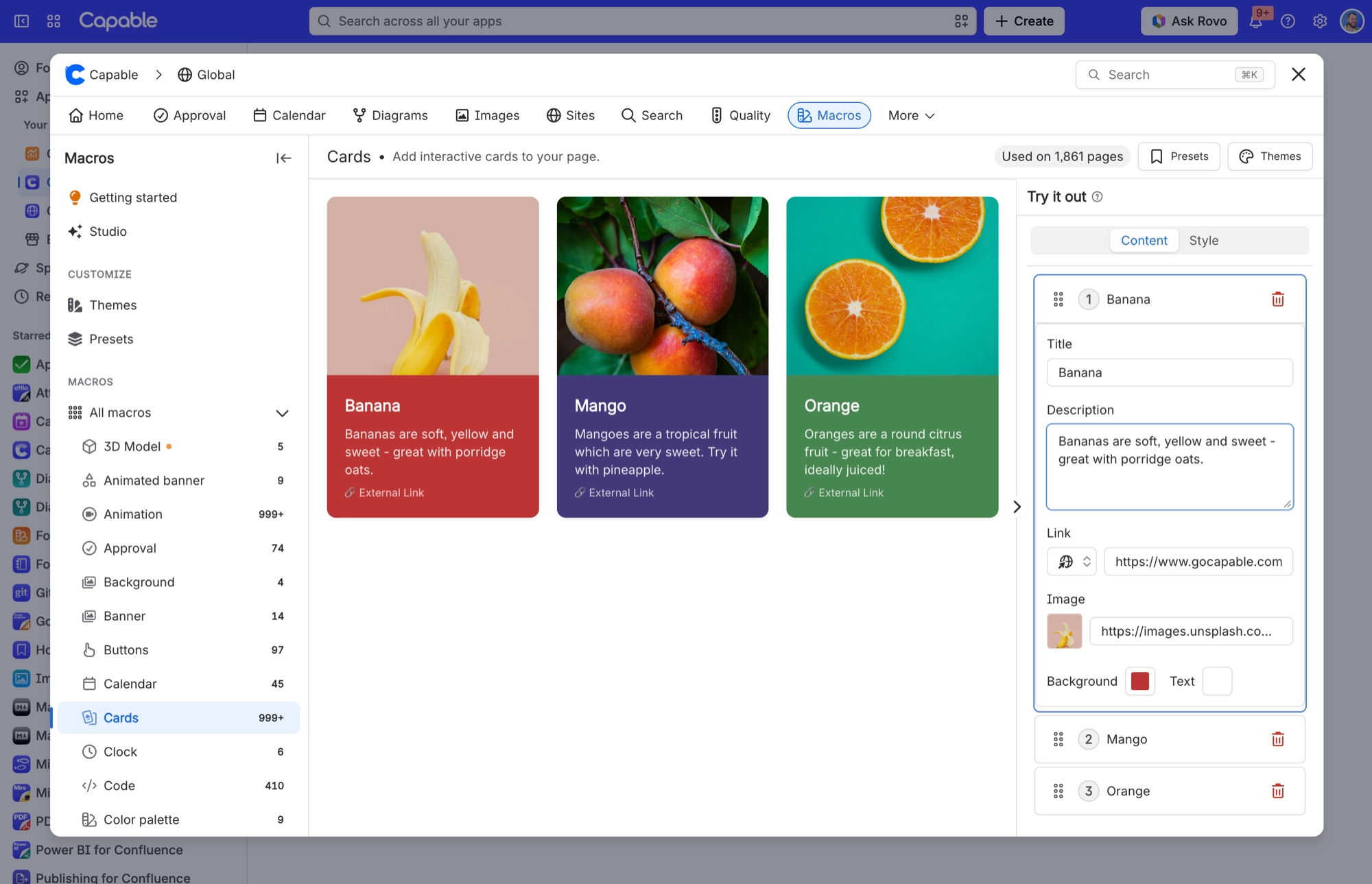
/cardsand choose Cards (Capable).On the Content tab, open a card and give it a title, a description, a link and an image. Then pick its background and text colours.
Select Add card for the next one, up to six. Drag the handle to reorder cards, or use the bin icon to remove one.
Switch to the Style tab to set columns, spacing and image behaviour for the whole grid.
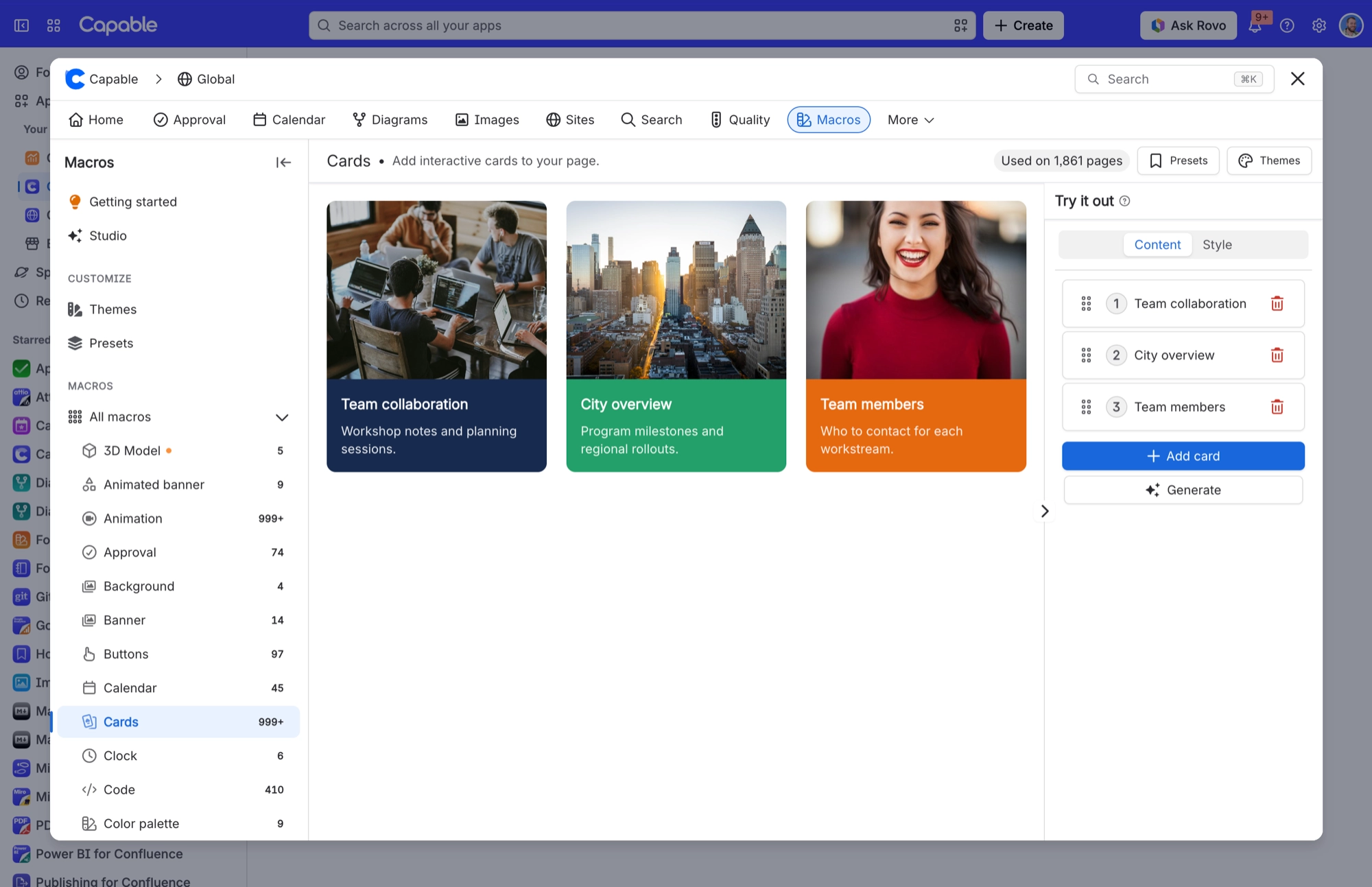
Short on time? Start from a preset with the Presets button, or let Generate draft the cards for you. Either way you get a normal grid you can edit.
#Settings
Settings live on two tabs. Content holds each card's own details. Style sets the look of the whole grid, so every card matches.
#Content tab: each card
Setting | Values | What it changes |
|---|---|---|
Title | Free text | The card's heading. Up to two lines show on the page; anything longer is cut off. It's also the card's name in the list on the Content tab. |
Description | Free text, over several lines if you like | The line under the title. Up to three lines show. Hidden on every card when Show descriptions is off on the Style tab. |
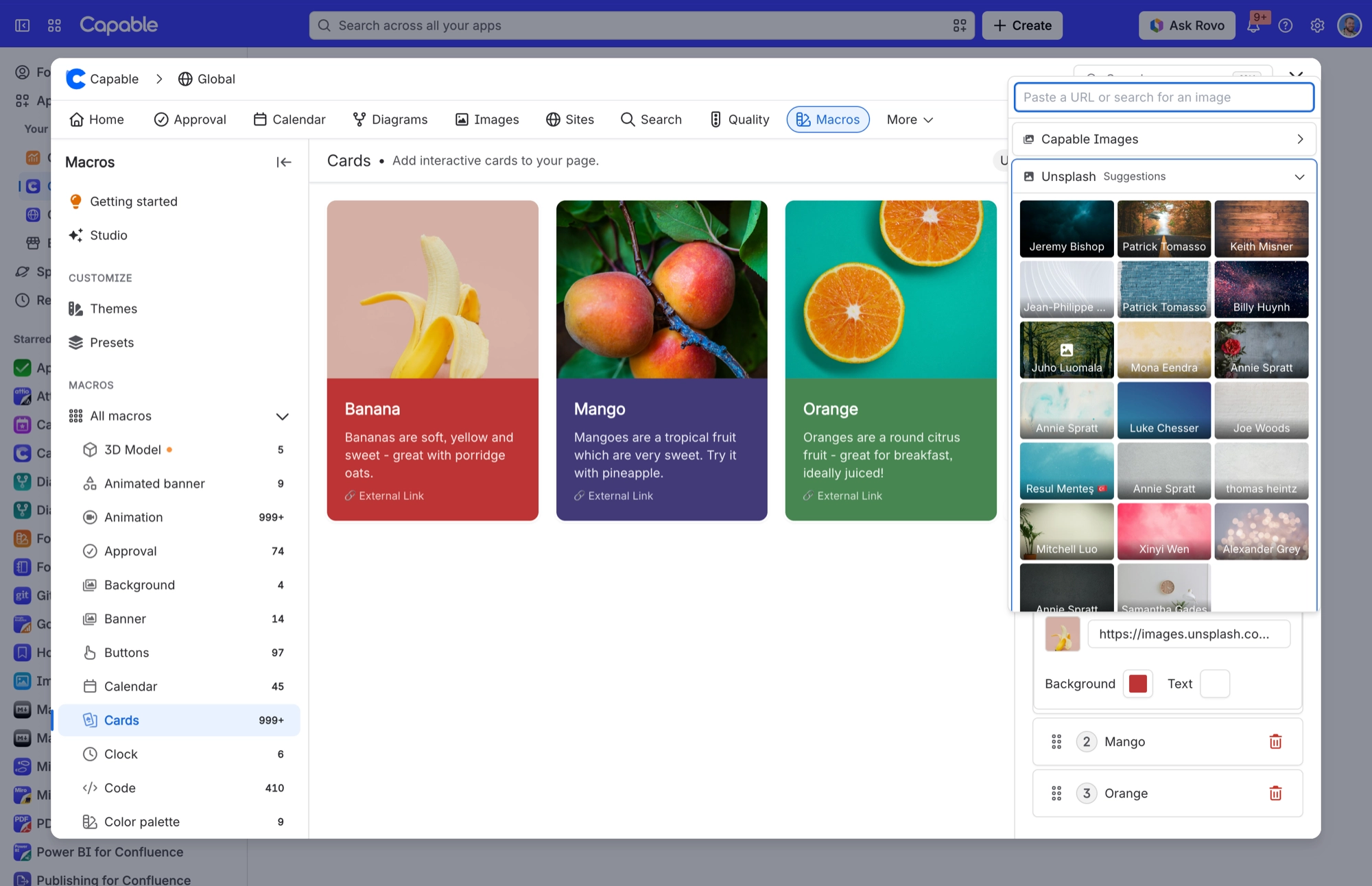
Image | Paste a URL, search for a photo from Unsplash, or pick a page attachment, an uploaded file or one you've used recently. Until you choose one, the field reads "No media selected". | The card's picture. Page attachments show for everyone, including readers who aren't logged in. If an image from another website won't load, see Images in macros. |
Image Alt Text | Free text | What screen readers announce in place of the image. If it's empty, the card's title is used. There's no field for it in the editor. It's filled in by starter templates, by AI-generated content, or by an AI agent that edits the page. |
Link (Link Type) | URL, Page or None, chosen from the small dropdown beside the link box | Where the card goes when someone clicks it. URL opens a website in a new tab. Page opens a Confluence page in the same tab. None makes the card plain: no pointer, and it's skipped when tabbing through the page. |
Link URL | Any web address, such as https://… | The website a URL card opens, in a new tab. Only appears when Link Type is URL. |
Page (Page ID) | A Confluence page. Start typing its name and pick it from the list. | The page a Page card opens, in the same tab. Only appears when Link Type is Page. A picked page keeps working if it's moved or renamed, so prefer it to pasting a Confluence URL (more in Links from macros). |
Background | One of your brand colours, or any colour if your admin allows custom colours | The card's fill colour. In dark mode, Capable works out a matching darker shade for you, so the card still stands out from the page. |
Text | One of your brand colours, or a custom colour | The colour of the title and description. In dark mode it switches to near-white or near-black, whichever reads best on the darker card. |
#Style tab: the whole grid
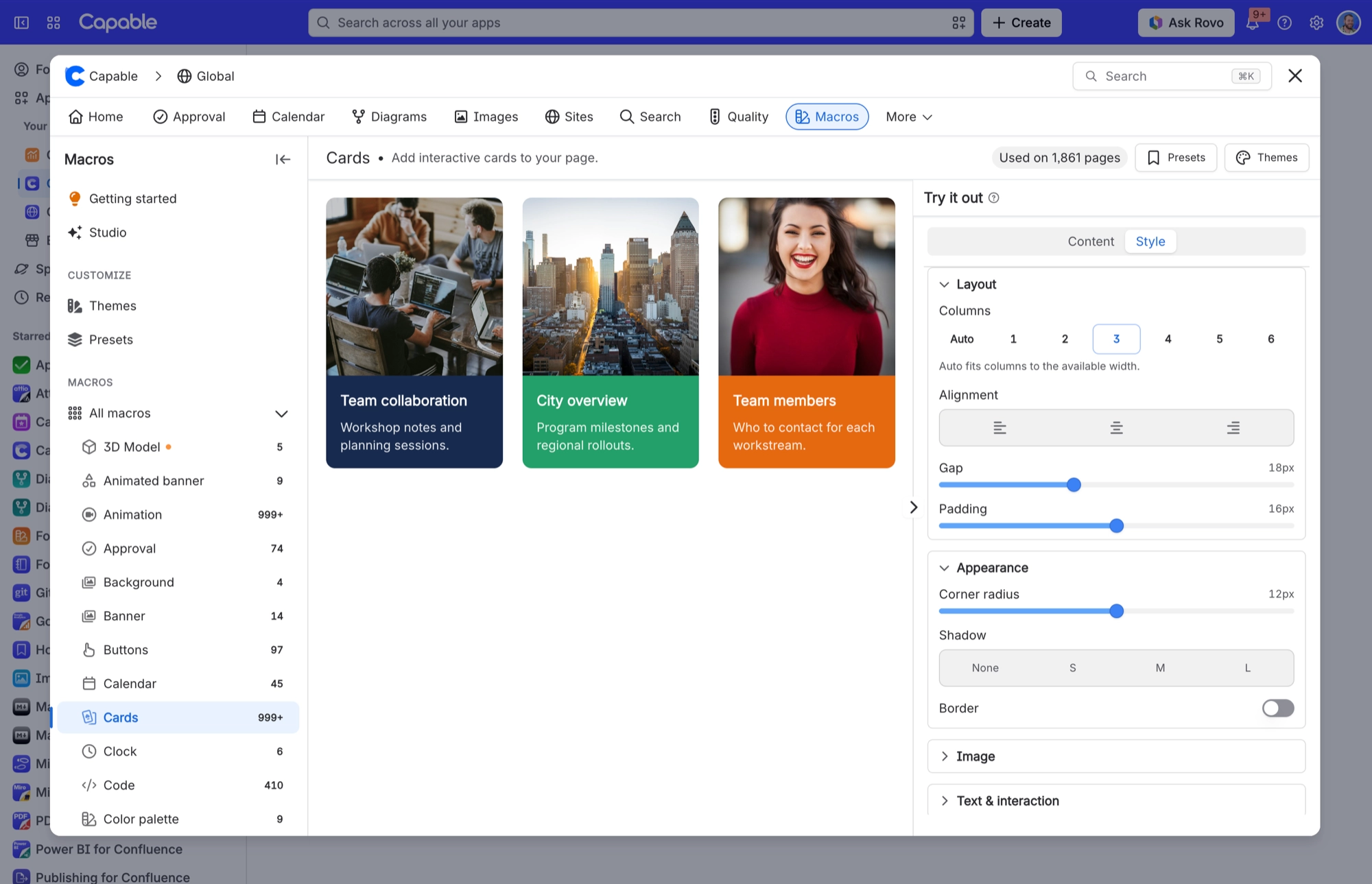
Setting | Values | What it changes |
|---|---|---|
Columns | Auto, or a fixed count from 1 to 6 | Auto fits as many columns as the width allows (about three on a normal page, about two when there's less room) and stretches the cards to fill the row. A number gives you exactly that many columns, and each card keeps a sensible maximum width rather than stretching. |
Alignment | Left, Centre, Right (the three alignment icons) | Where the whole grid sits across the page. |
Gap | Slider, 0 to 48 px | Space between cards, across and down. |
Padding | Slider, 0 to 32 px | Breathing room around the text inside each card. |
Corner radius | Slider, 0 to 24 px | How rounded each card's corners are. |
Shadow | None, S, M, L | The drop shadow under each card. |
Border | Off / On. When On, a Width slider (0 to 6 px) and a colour swatch appear. | Adds an outline to every card. Switching it on or off doesn't shift the layout. |
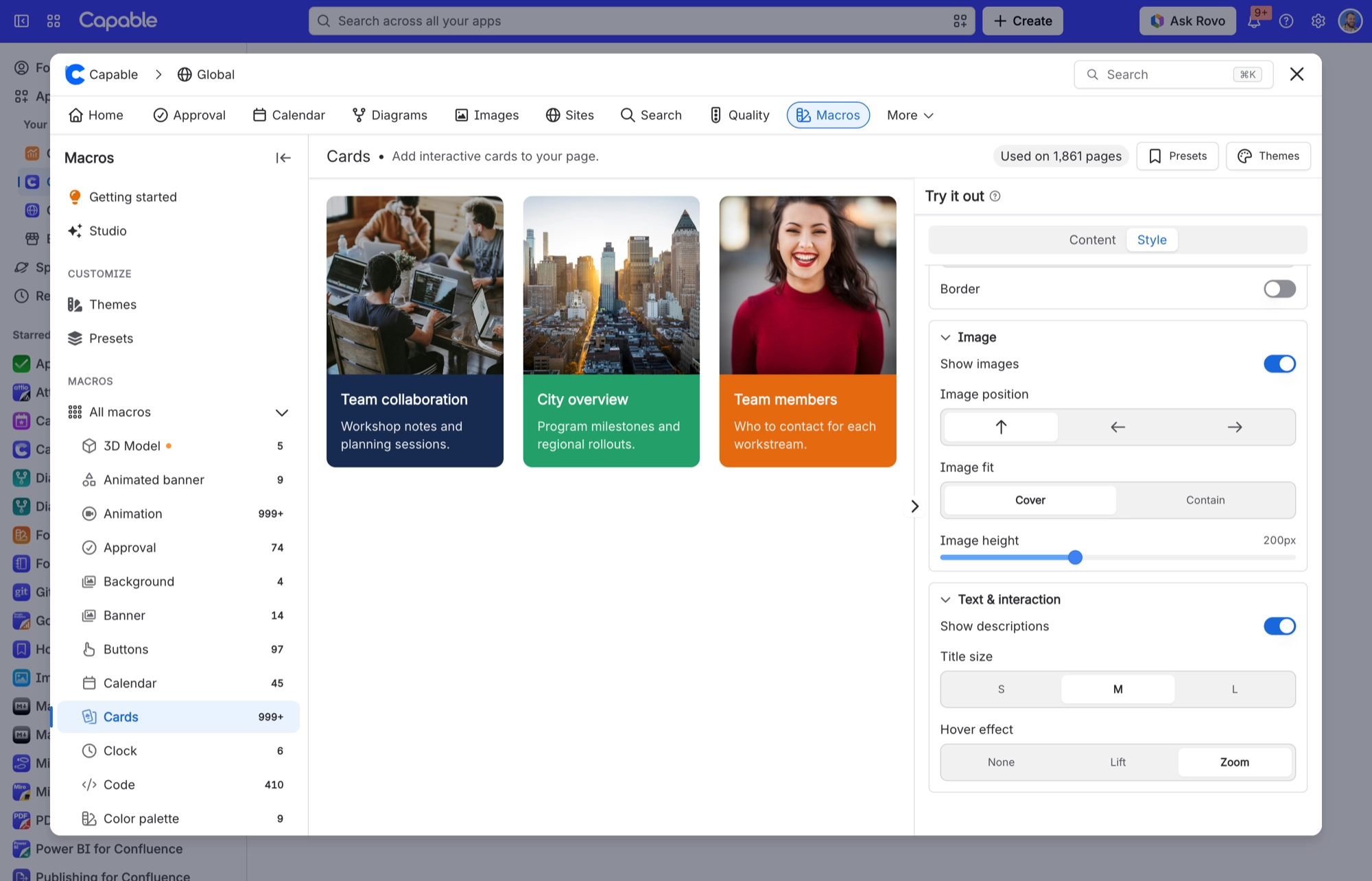
Setting | Values | What it changes |
|---|---|---|
Show images | On / Off | Hides the images on every card at once. A card without an image never shows an empty space for one. |
Image position | Top, Left, Right (the ↑ ← → buttons) | Top puts the picture above the text for a tall card. Left or Right puts it beside the text for a wide card, taking up about 38% of the card's width. |
Image fit | Cover, Contain | Cover fills the image area and trims whatever doesn't fit. Contain shows the whole picture, which may leave bands at the sides or top. |
Image height | Slider, 80 to 400 px, in steps of 4 | How tall the image is on a Top card. On a Left or Right card it's the image's minimum height instead. |
Show descriptions | On / Off | Hides the description on every card, leaving title-only cards. Your descriptions are kept, so turning it back on brings them back. |
Title size | S, M, L | Size of the card heading (S = 14px, M = 16px, L = 18px). |
Hover effect | None, Lift, Zoom | What a linked card does when the pointer is over it. Lift deepens the shadow and nudges the image slightly (5%); Zoom enlarges the image by 10%. Only cards with a link react, and the effect doesn't play in the editor preview. |
#Related
A landing page, not a document.






















