View diagrams on pages
Find diagrams from Confluence pages in one centralized location, making sure you can quickly locate and access your diagrams.
With Capable Diagrams for Confluence, managing and finding your diagrams is easier than ever. Whenever you add a diagram to a page, our app automatically indexes it, making sure you can quickly locate and access your diagrams—even if you don't remember the exact page where they were added.
Unlike other diagramming tools that bury your content in individual pages, Capable Diagrams for Confluence keeps everything organized and easily accessible. This unique capability ensures that your diagrams are never out of reach, saving you time and improving your workflow - this powerful feature sets our app apart, ensuring that your visual content is always within reach and never lost in the depths of your Confluence spaces.
Every time you insert a diagram into a Confluence page using Capable Diagrams, our app catalogs it in an index. This index allows you to view, search, and retrieve all your diagrams across different spaces and pages, providing quick access when you need to reference or edit them.
No need to remember the page: Simply search for the diagram, and our index will show you all diagrams associated with your account or space.
Centralized access: View all your diagrams in one place, no matter how many pages they are spread across.
#1. Open ‘Diagrams on Pages’
To view all diagrams across your Confluence pages:
Open the Capable Diagrams section from the Confluence sidebar.
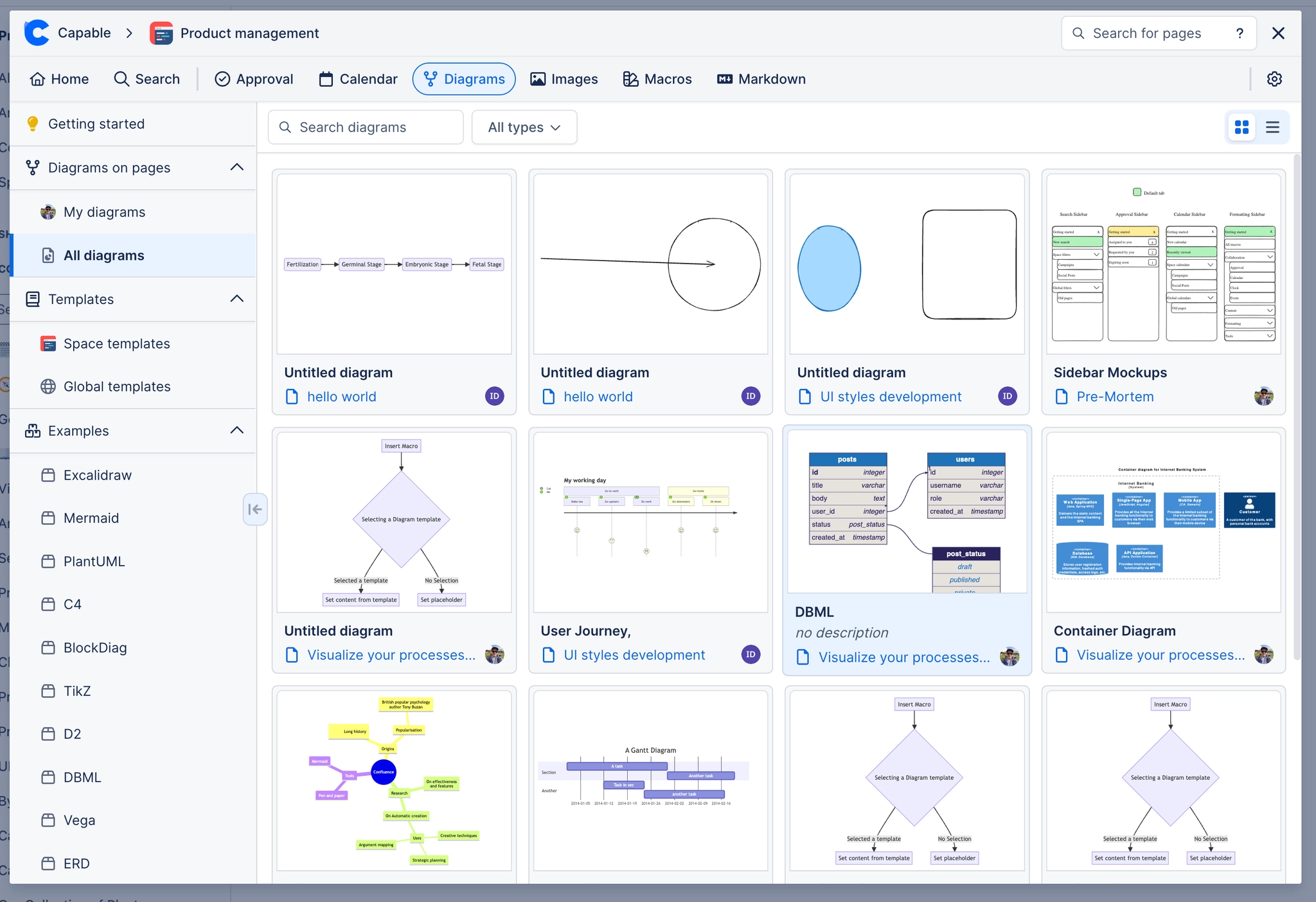
Click on "Diagrams on pages" to access the list of all indexed diagrams.
You can filter and sort diagrams by date, type, or title to quickly locate the one you need.
#2. Search and Filter Diagrams
In addition to viewing the full list, you can search for specific diagrams using keywords or filters:
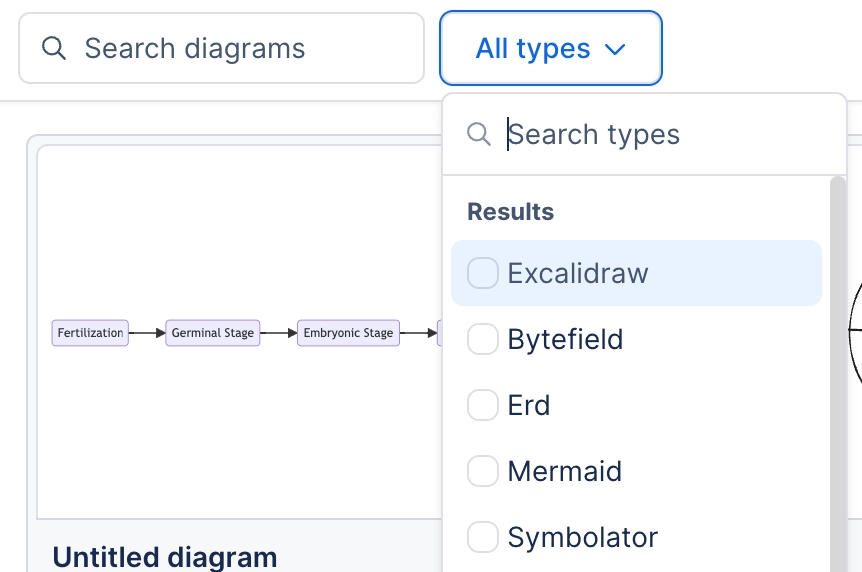
Search by Diagram Type: Filter by Mermaid, Excalidraw, flowcharts, Gantt charts, and more.
Search by Space or Page: Narrow down diagrams by the Confluence space or page they were created in.
Custom Tags: Use custom tags (if added) to group and locate diagrams based on themes or projects.
#3. Click on a diagram to view it
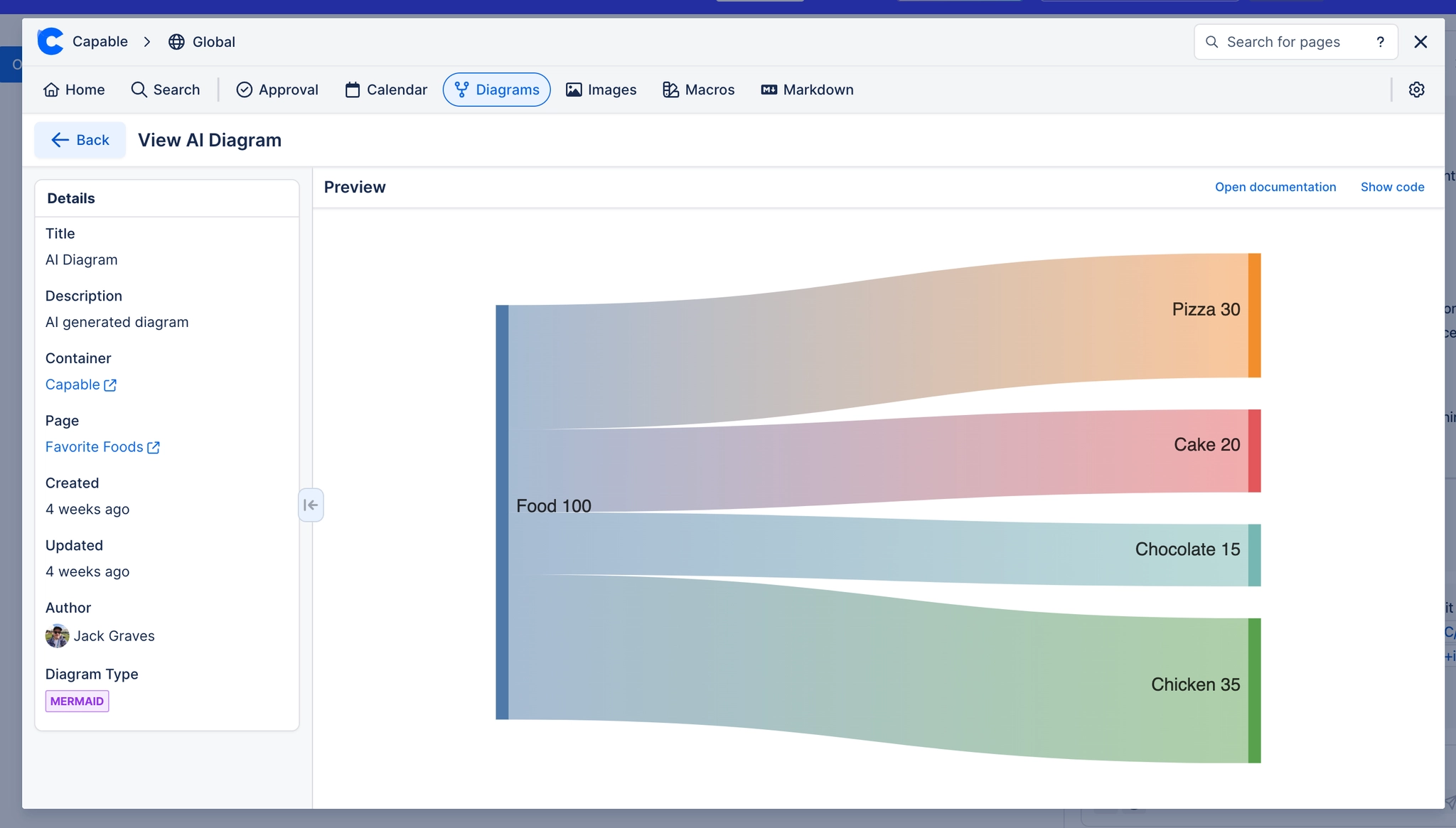
Open a diagram in view mode and see it’s details and a full-screen view of the diagram with panning.