Shared Icon Sets
Upload custom Capable (drawio-compatible) icon sets and libraries to Capable Diagrams for organisation-wide access via the icon library sidebar.
Upload custom Capable (drawio-compatible) icon sets and libraries to Capable Diagrams so they are available organisation-wide via the icon library sidebar. Doing this ensures that all teams have access to the same visual assets, which helps maintain your organisation's visual standards and brand consistency. It also makes it much easier for users to locate and insert the required icons when building diagrams, reducing time spent searching for assets and minimising inconsistencies across documents.
#Guide
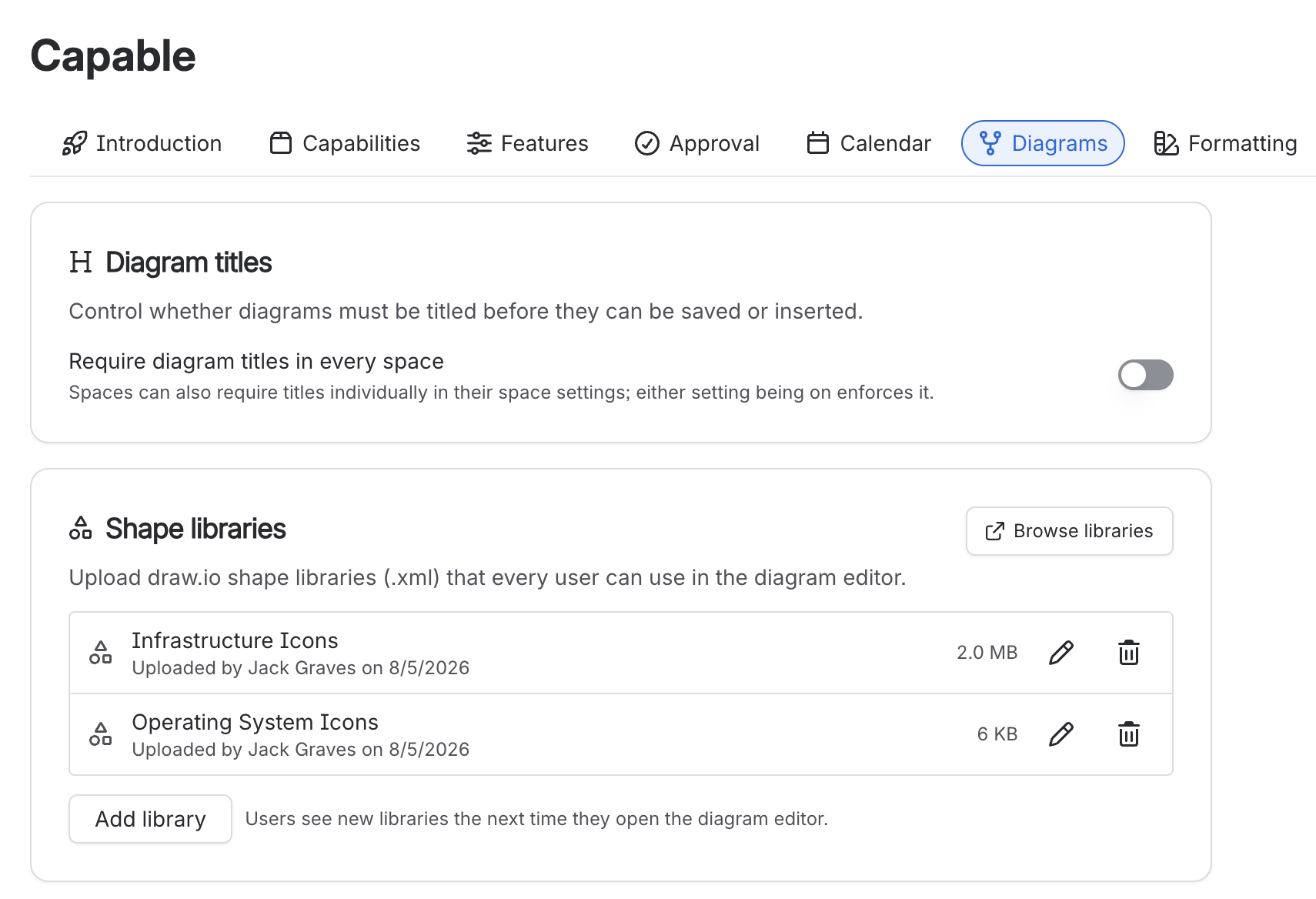
Open the Capable Global Settings page in the Confluence administration interface, select the 'Diagrams' tab, and upload XML files of the shape libraries to Capable. These will then be available to all users across the system.
#1. Create or download a Shape Library
You can create shape libraries from within the diagram editor and export them as XML.
You can find readily available libraries online from github and here, or follow these instructions to create your own:
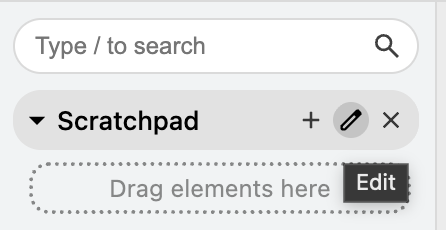
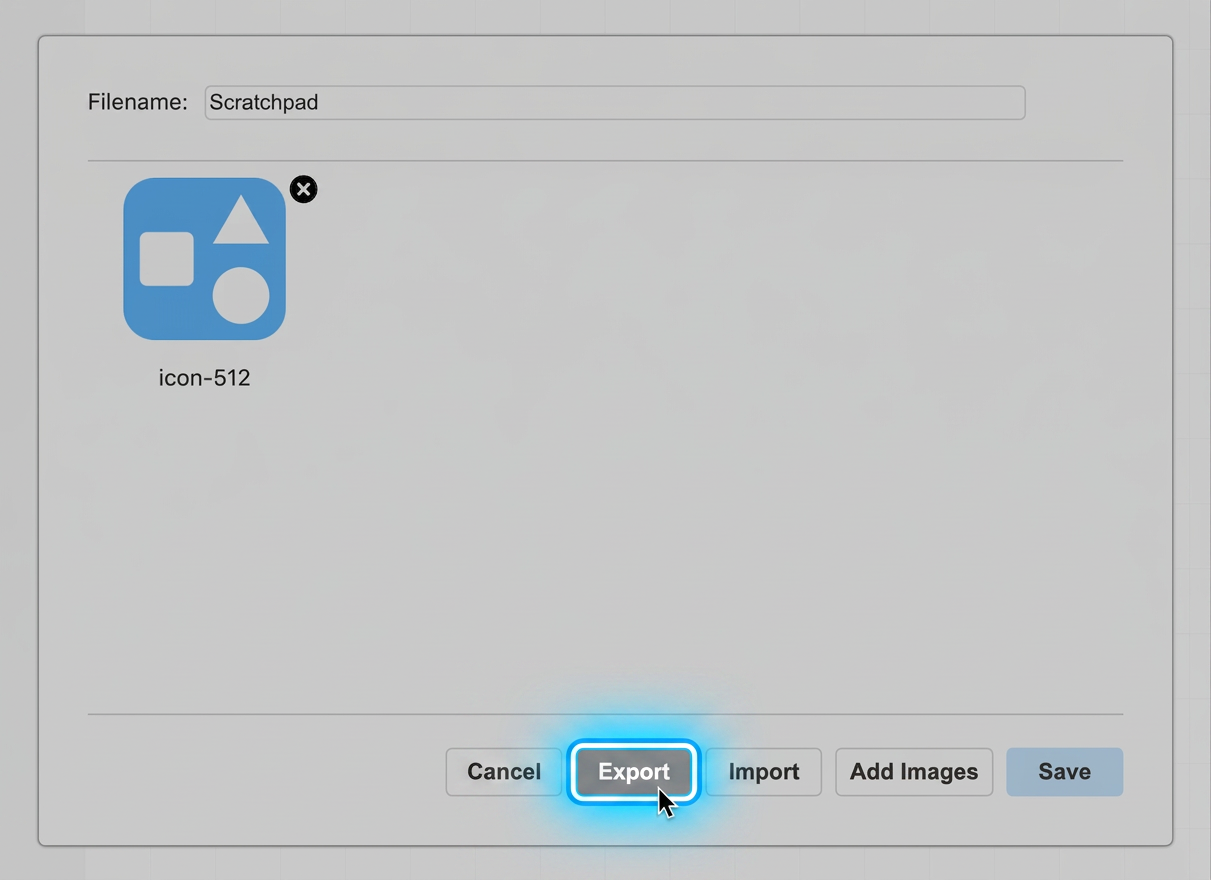
a. Click on the edit button on the ‘Scratchpad’
b. Upload the icons you want in the Shape Library
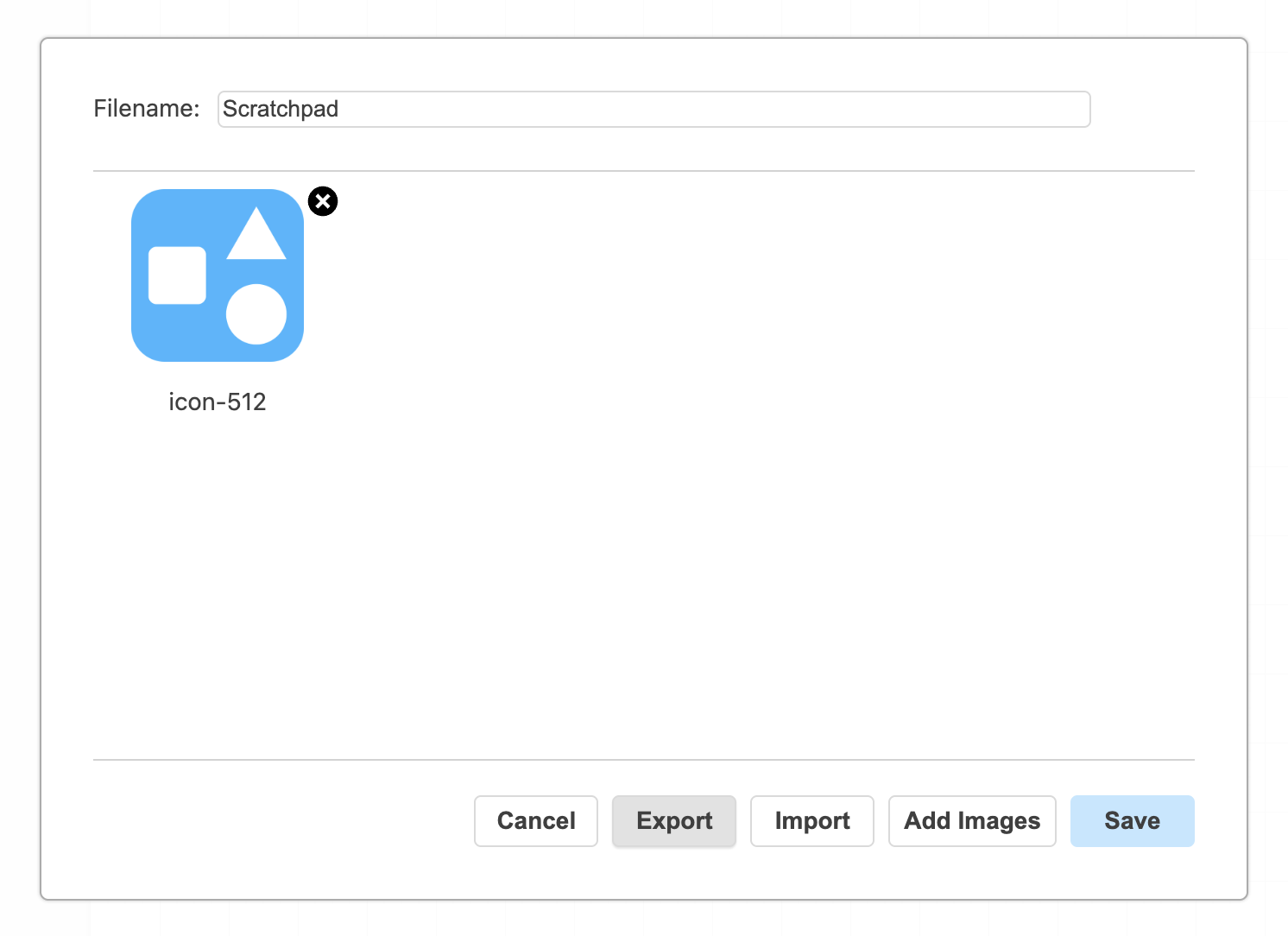
c. Click ‘Export’ to download the library as an XML file
#2. Upload shape libraries to Capable Global Settings
#Troubleshooting
#Other users cannot see the shape libraries
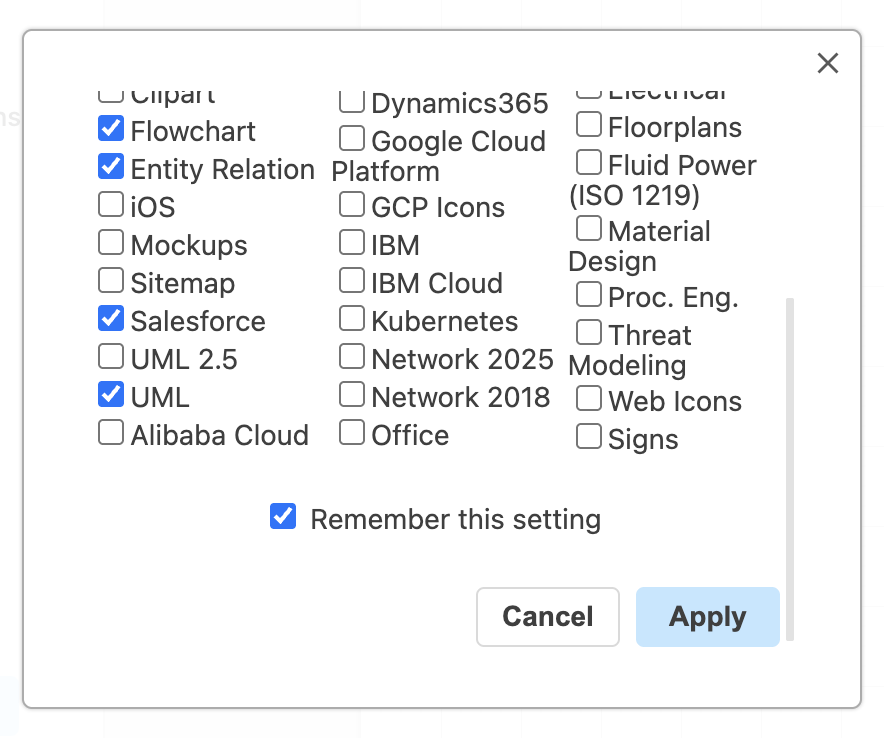
If users cannot see the shape libraries in the sidebar, they may not be visible to them.
Simply click on ‘More shapes’ and select the libraries you want available, then click ‘Apply’.