Create Mermaid diagrams
Find out the easiest way to insert Mermaid diagrams into your Confluence pages.
Mermaid diagrams are an awesome tool to visually represent complex information using simple text syntax. Whether you're creating flowcharts, sequence diagrams, Gantt charts, or entity relationship diagrams, Mermaid makes it easy to convert plain text into professional-looking diagrams with minimal effort.
This guide will walk you through the process of creating and inserting Mermaid diagrams into your Confluence pages using Capable Diagrams for Confluence.
#Step 1: Open Capable Diagrams Macro
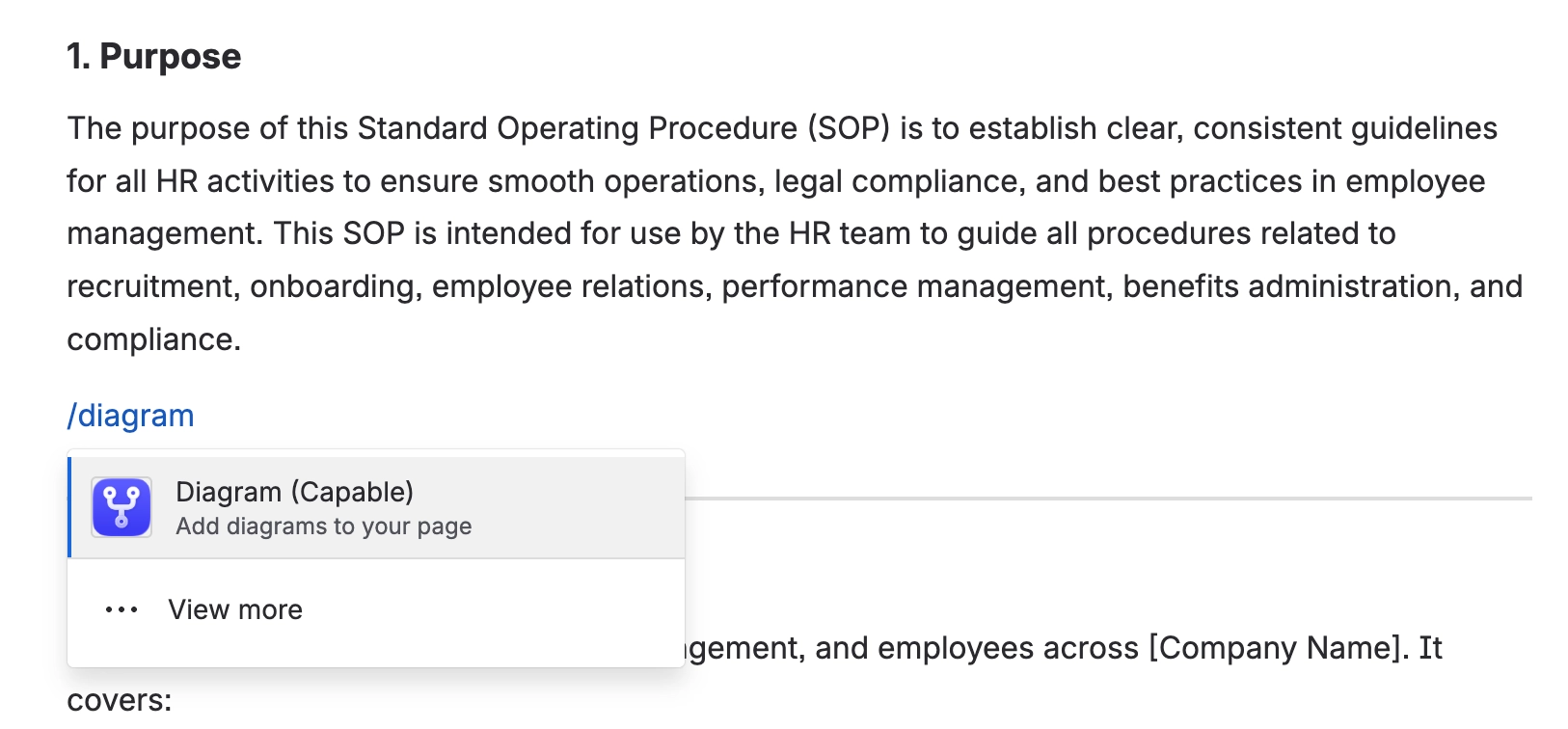
Open the Confluence page where you want to insert a Mermaid diagram.
Type
/diagramwhere you’d like to insert the diagramPress enter to insert the diagram macro
#Step 2: Select Text Editor
Choose the text editor option to view templates.
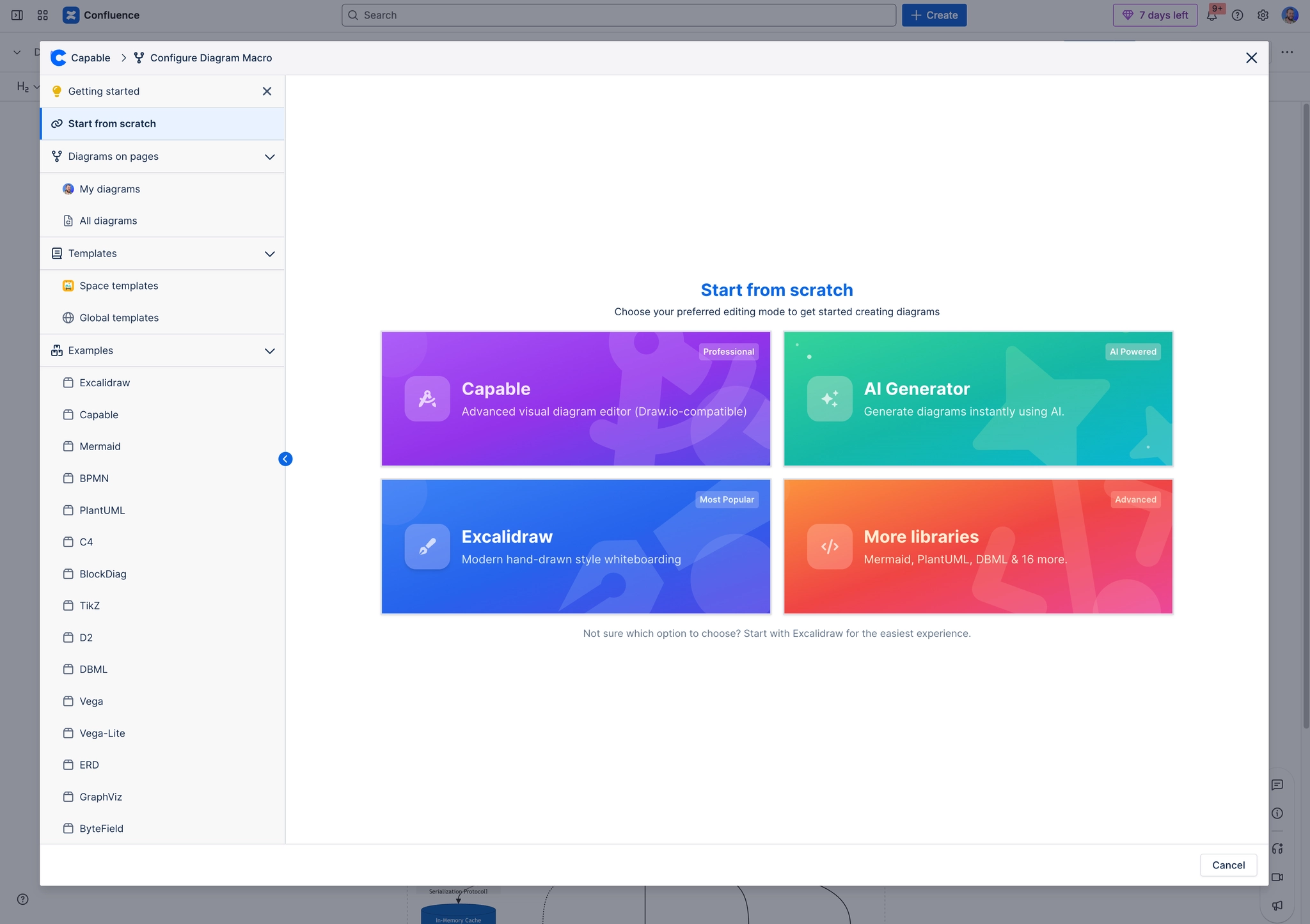
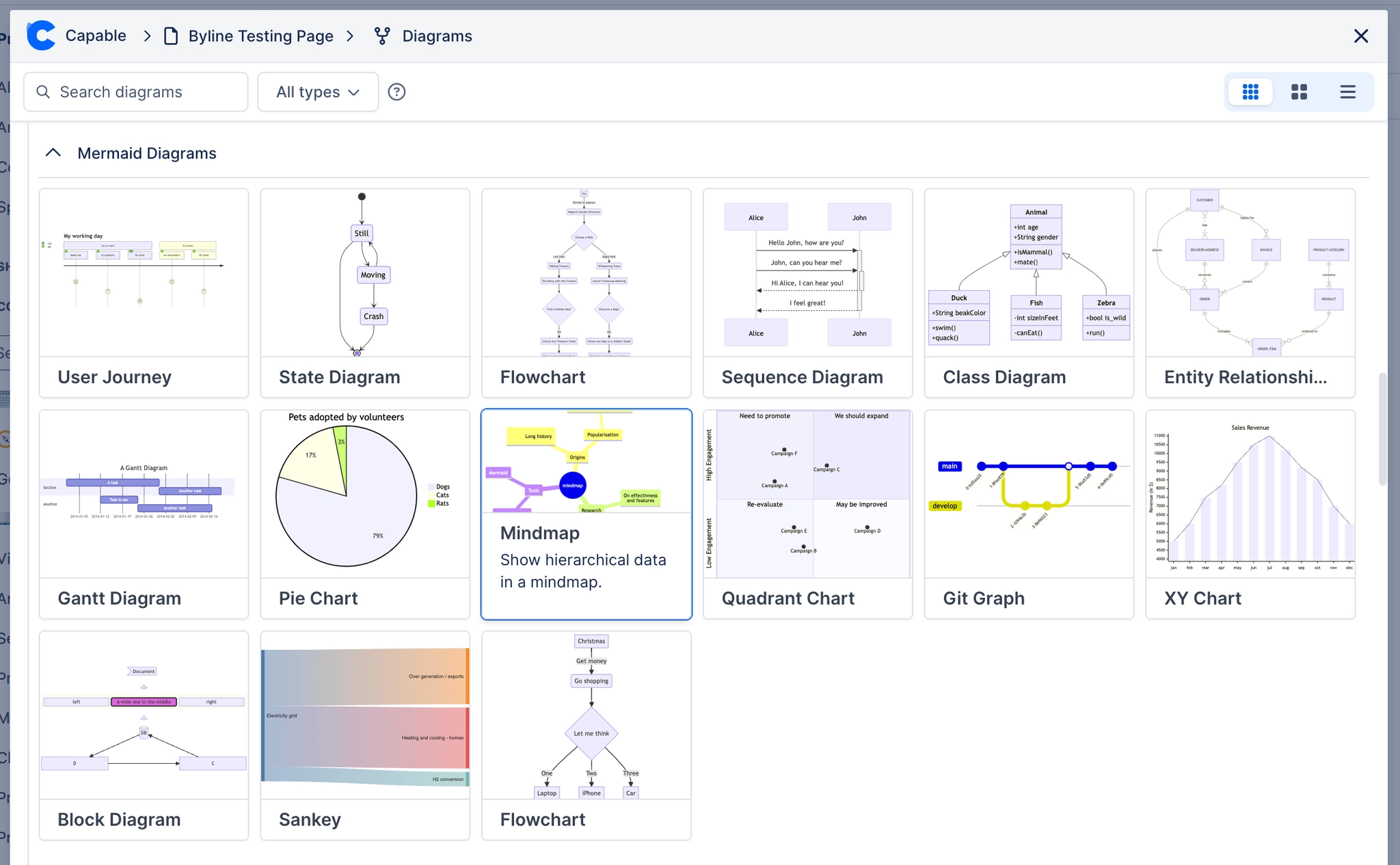
#Step 3: Choose from a template
Either start from scratch or select a template to start from.
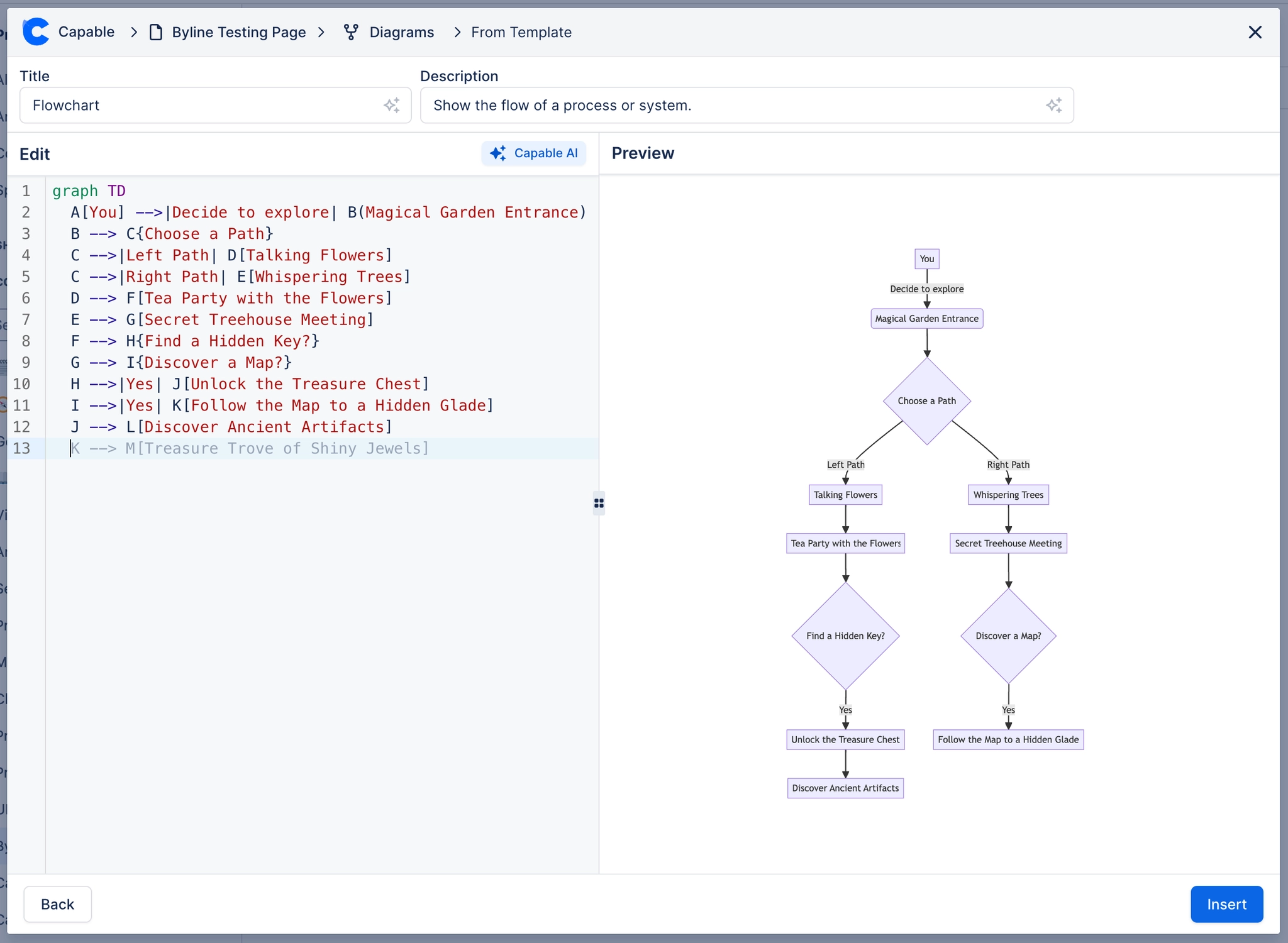
#Step 4: Add Your Mermaid Diagram Syntax
In the Mermaid editor, simply write the syntax for your diagram with a number of useful features that our competitors don’t offer.
#Manual Editing
Write your own Mermaid syntax to customize the diagram exactly as needed. This gives you full control over the structure and design.
#AI-Generated Diagrams
Use the ‘Capable AI’ button to automatically generate diagrams. Provide a brief description, and the AI will create the corresponding Mermaid syntax for you, saving time on complex diagrams.
#AI Suggestions (Press Tab)
As you type, the AI offers smart suggestions to complete your diagram. Press Tab to accept these, making it quicker to build.
#Auto-Naming and Descriptions
Capable AI can also suggest names and add descriptions to your diagrams, helping maintain clarity and consistency across your Confluence pages.
#Step 5: Insert the Diagram
When you're satisfied with your Mermaid diagram, click Insert.
The diagram will automatically appear within your Confluence page at the location of your cursor.