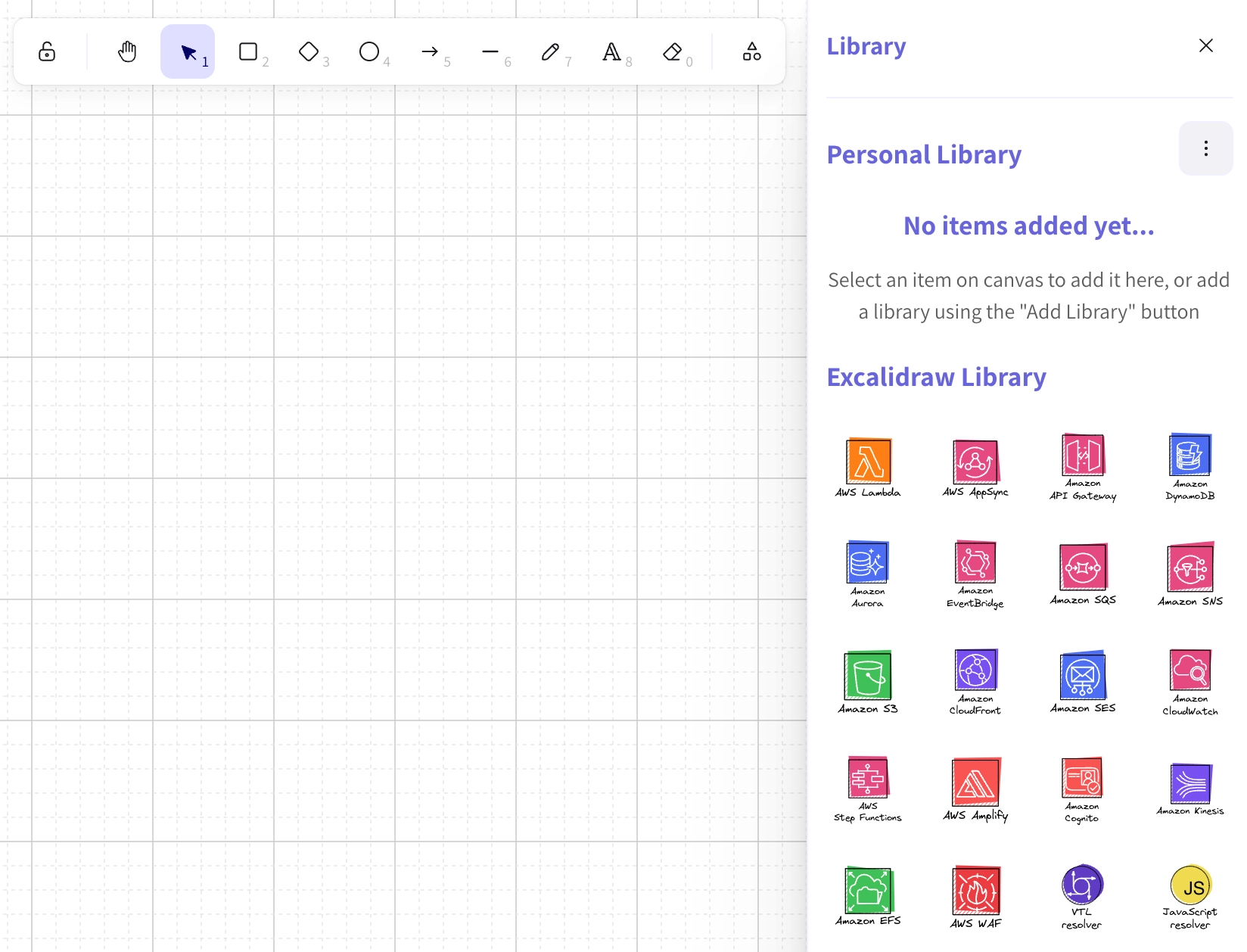
Using shape libraries in Excalidraw
Add libraries of shapes that you can use in your diagrams from a vast array of available icon and shape sets.
Add libraries of shapes that you can use in your Excalidraw diagrams from a vast array of available icon and shape sets, providing you with the versatility to design any type of visual content.
With an ever-expanding library that includes technical icons, flowchart elements, and creative symbols, Excalidraw empowers you to build clear and effective diagrams for brainstorming, software architecture, or team workflows. Whether it's AWS, Azure icons for architecture diagrams, or mockup frames for UI sketches, you'll find the perfect elements to visualize your ideas with ease and precision.
Check out our blog post on the new editor, our favorite libraries and tips and tricks:
#1. Open the Visual Editor
Insert a new macro or create a template to open the visual diagram editor.

#2. Click ‘Add Library’
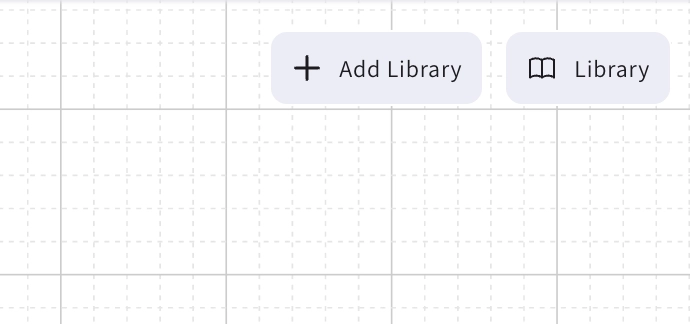
#3. Add Libraries
Choose the libraries you’d like to import.
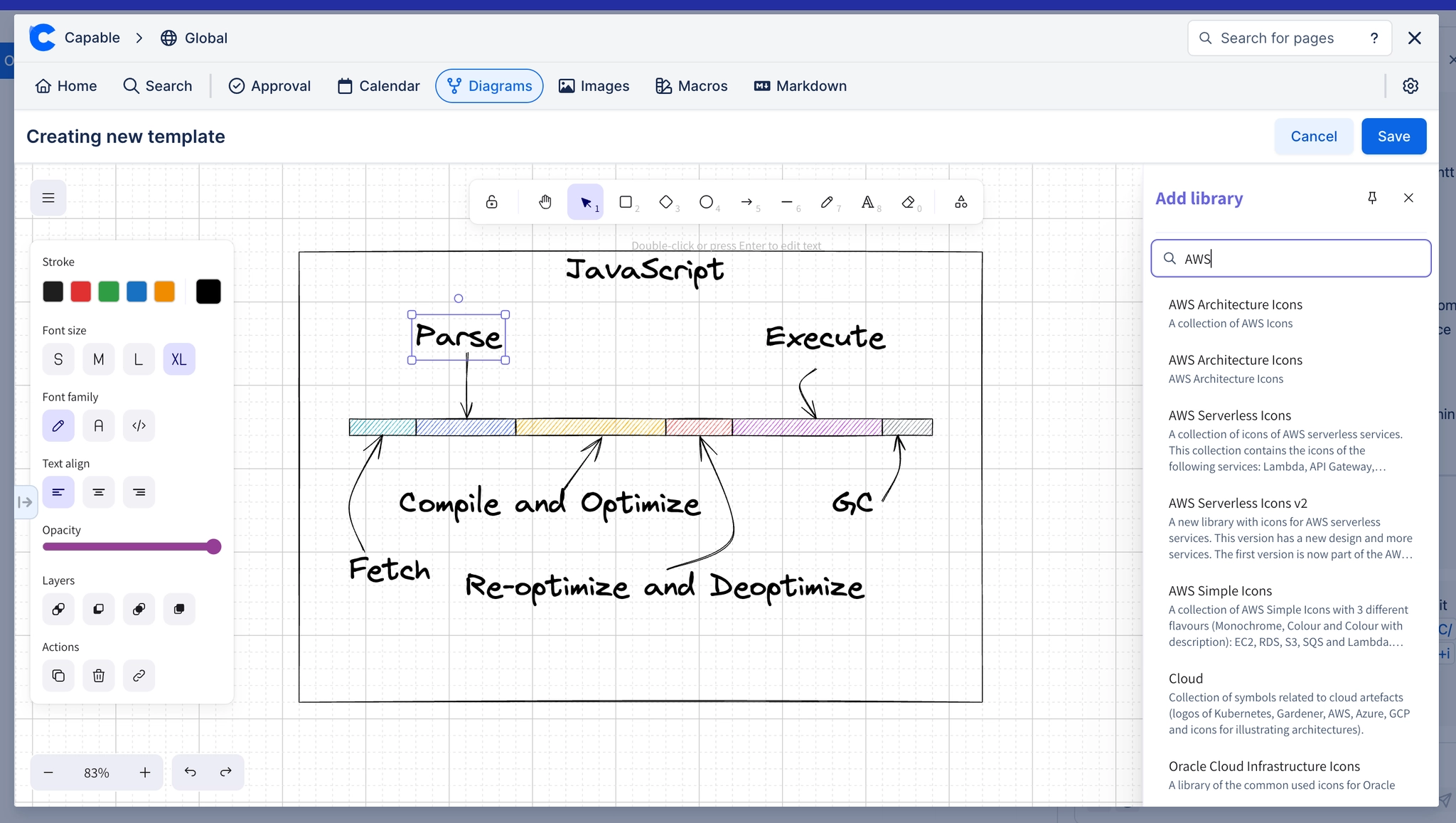
#3. Use Shapes from Libraries
Drag shapes that you’ve imported from the library to the canvas to add them.