Using the Capable editor
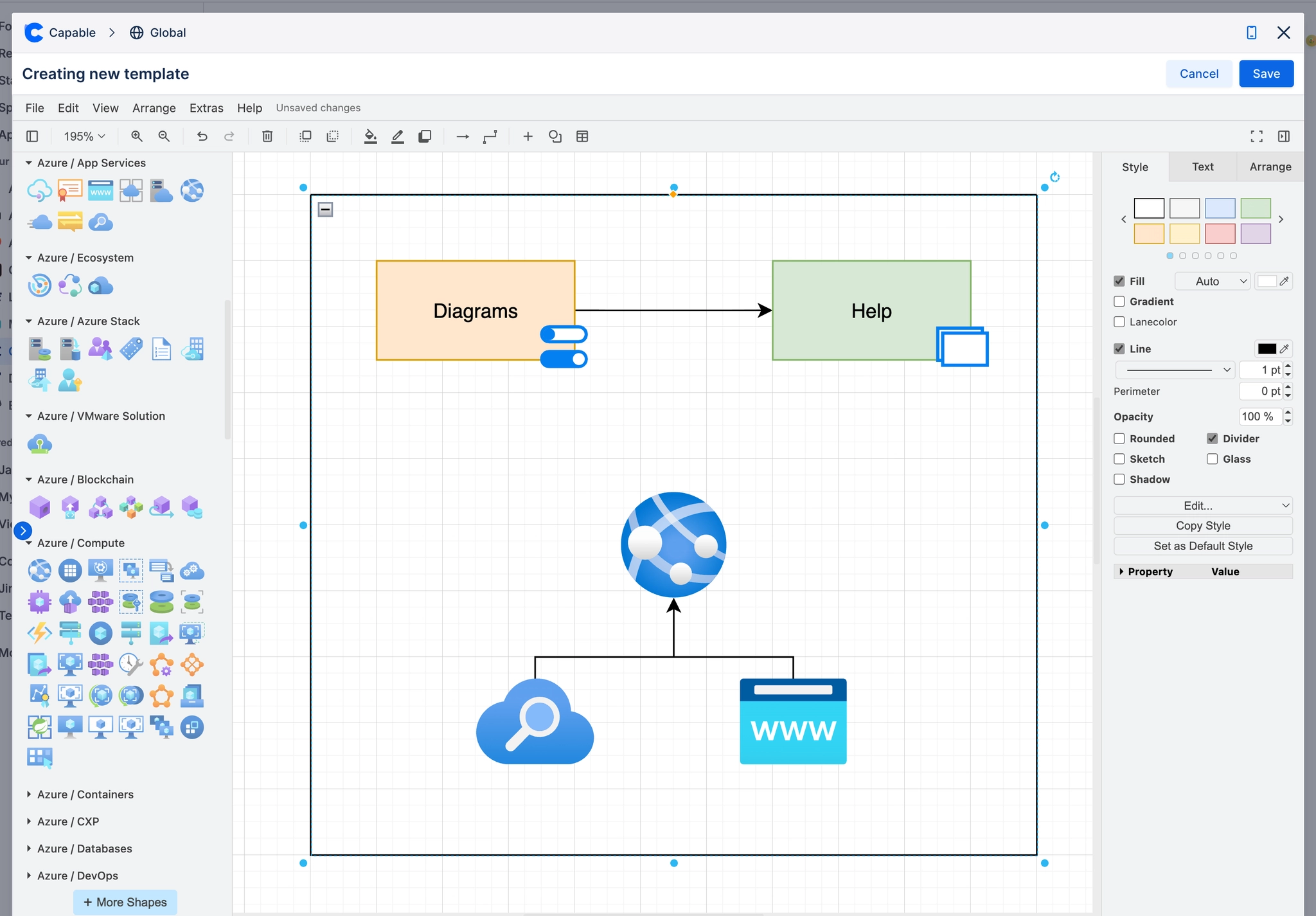
Add diagrams using the Capable Diagram Editor, compatible with drawio files.
Using our new drawio-compatible diagram editor allows you to create more advanced diagrams with ease.
Here’s a guide to help you get started:
Access the Diagram Editor:
Navigate to the section of your document where you want to insert a diagram.
Select the option to add a diagram, which will open the draw.io-compatible editor.
Creating Diagrams:
Use the various shapes and connectors available in the editor to build your diagram.
You can drag and drop elements onto the canvas and resize them as needed.
Customising Diagrams:
Each shape can be customized in terms of colour, border, and text.
Use the formatting options to adjust the appearance of your diagram to fit your needs.
Saving and Inserting Diagrams:
Once you are satisfied with your diagram, save it.
The saved diagram will be inserted into your document automatically.
Editing Existing Diagrams:
Click on any existing diagram to open it in the editor for further modifications.
Make your changes and save again to update the diagram in your document.
Exporting Diagrams:
You can export your diagrams in various formats, such as PNG or SVG, for use outside the document.
Collaboration:
Share your diagrams with team members for collaborative editing. Ensure everyone has access to the diagram editor for seamless teamwork.