How to insert diagrams
Learn how to insert diagrams in Jira issues.
#1. Open a Jira work item
Open a Jira work item.
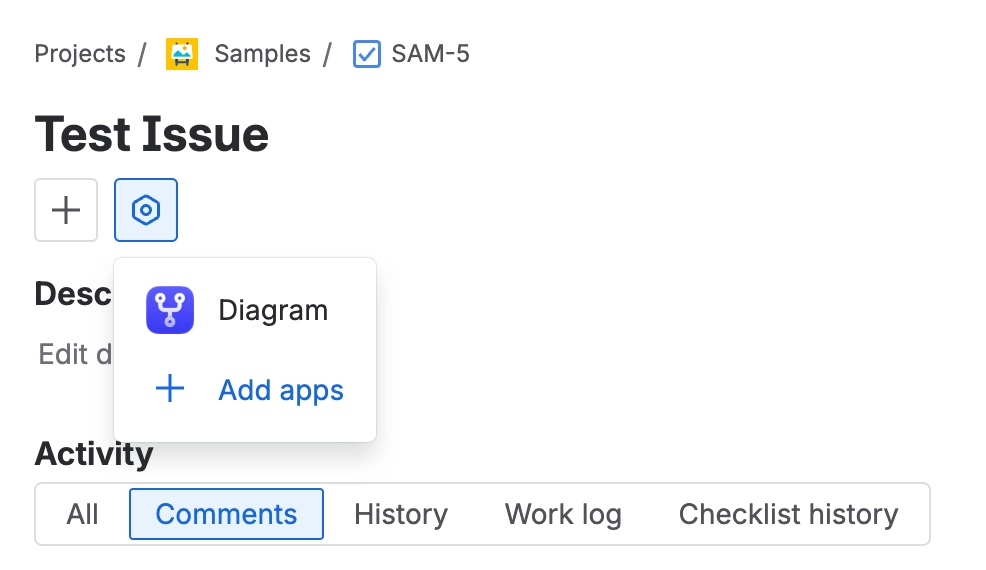
#2. Click on the ‘Apps’ icon and select ‘Diagram’
Click on the Apps icon that is just under the Jira work item summary.
#3. Click ‘Add diagram’
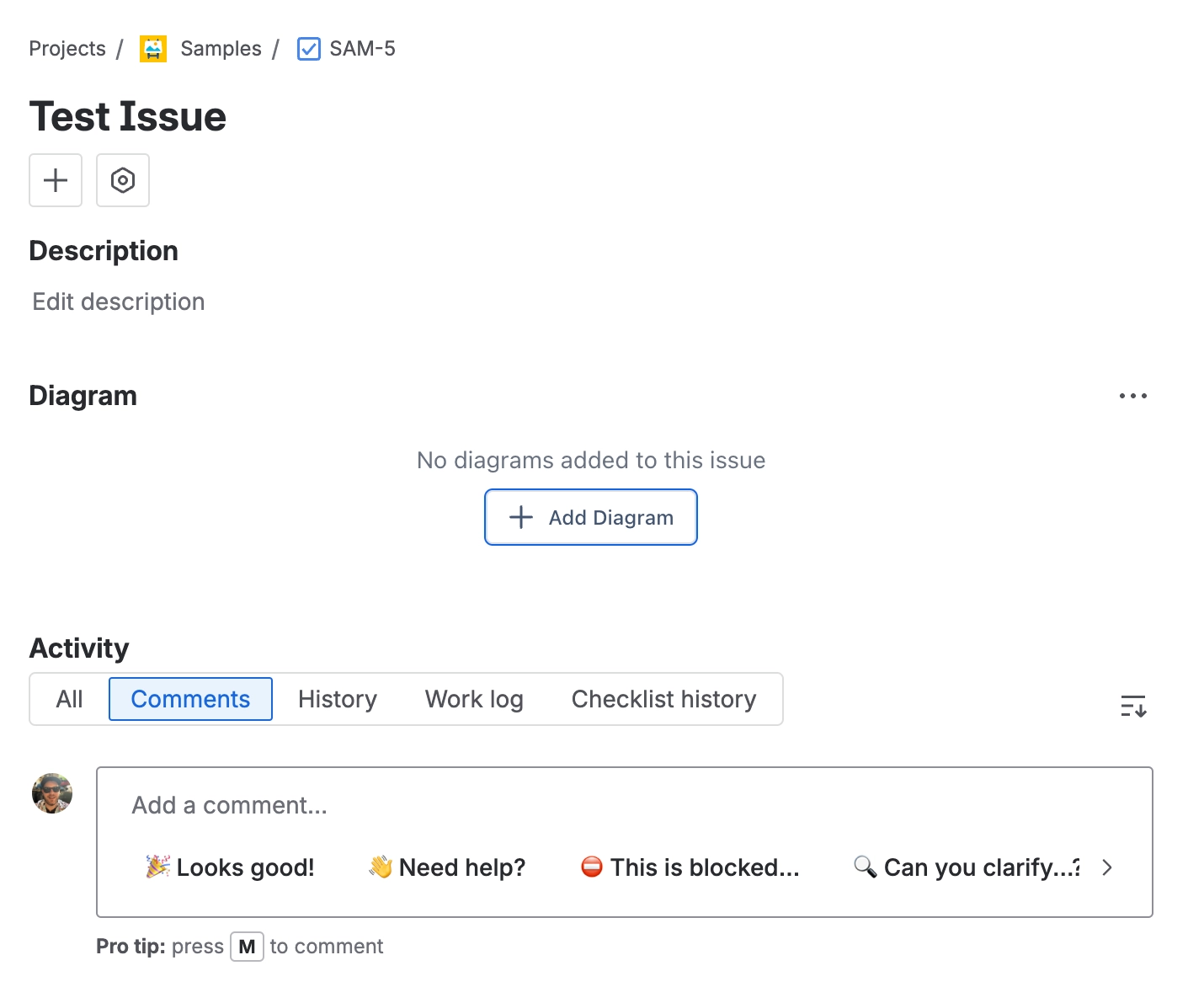
Click on the ‘Add diagram’ button in the diagrams panel.
#4. Create your diagram and click insert
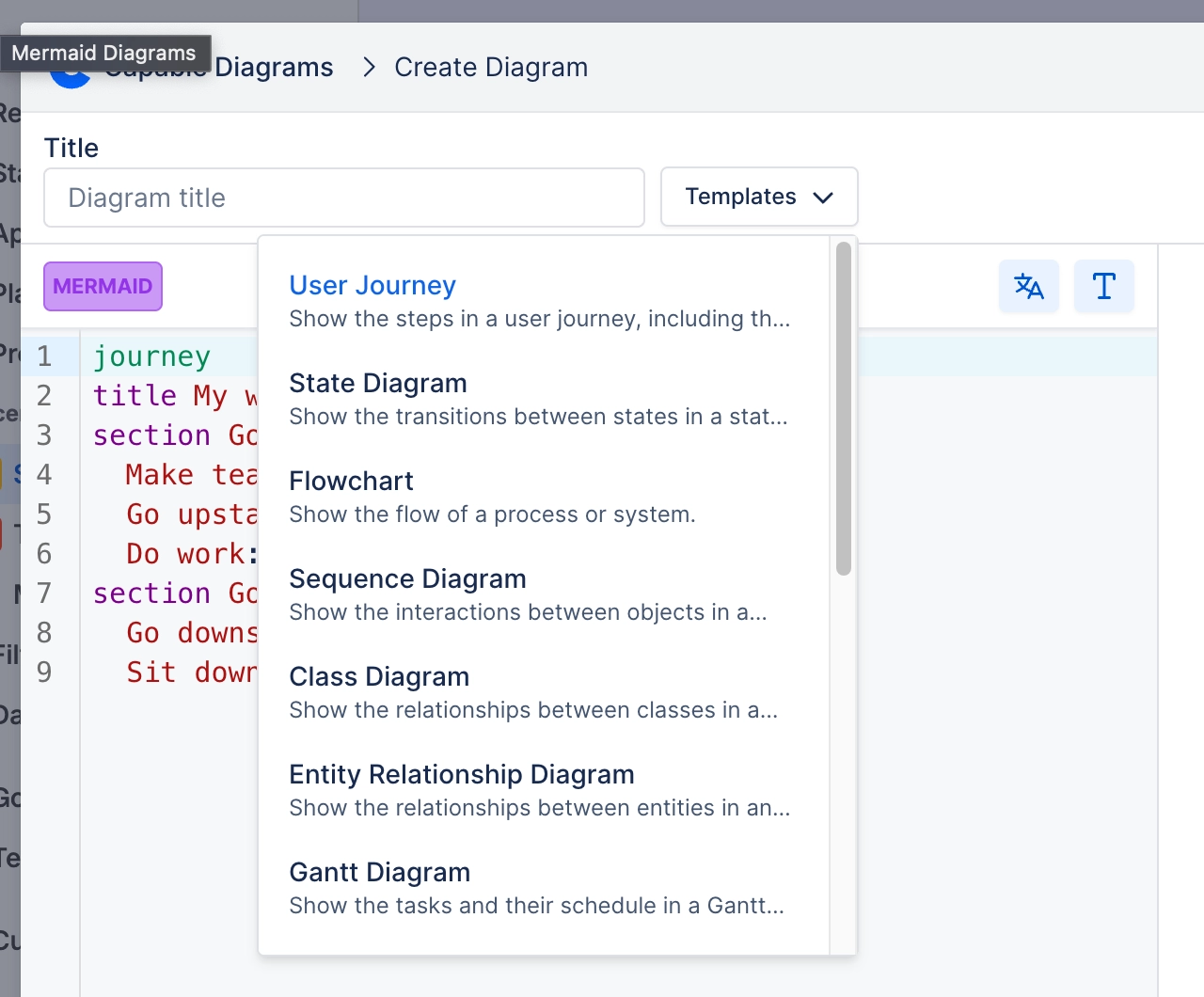
Choose the diagram type you’d like to use.

You can use templates that are included in the app from the templates dropdown:
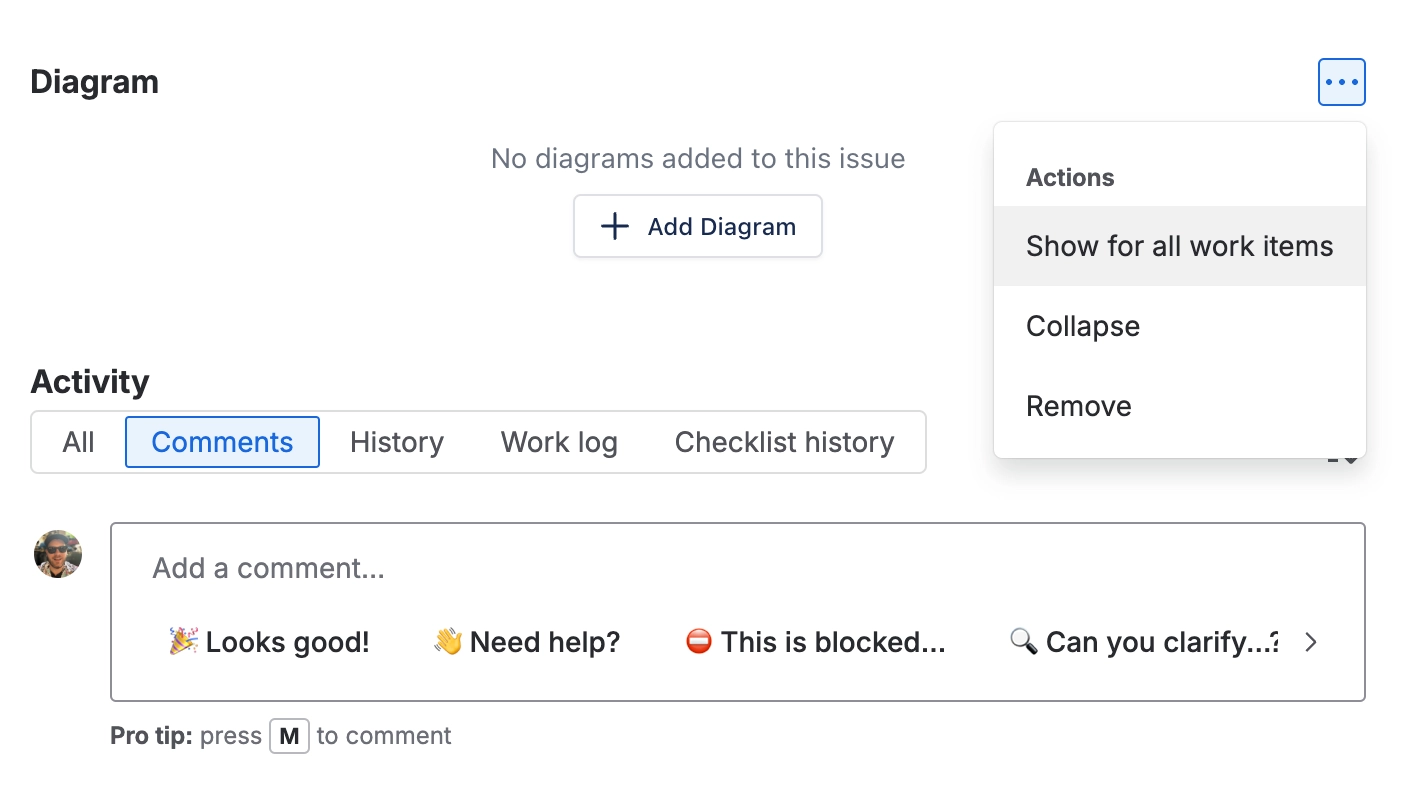
#5. (optional) Make the panel show on all Jira work items
Click on ‘Show for all work items’ to make the Diagrams panel show on Jira issues by default.