
Folders
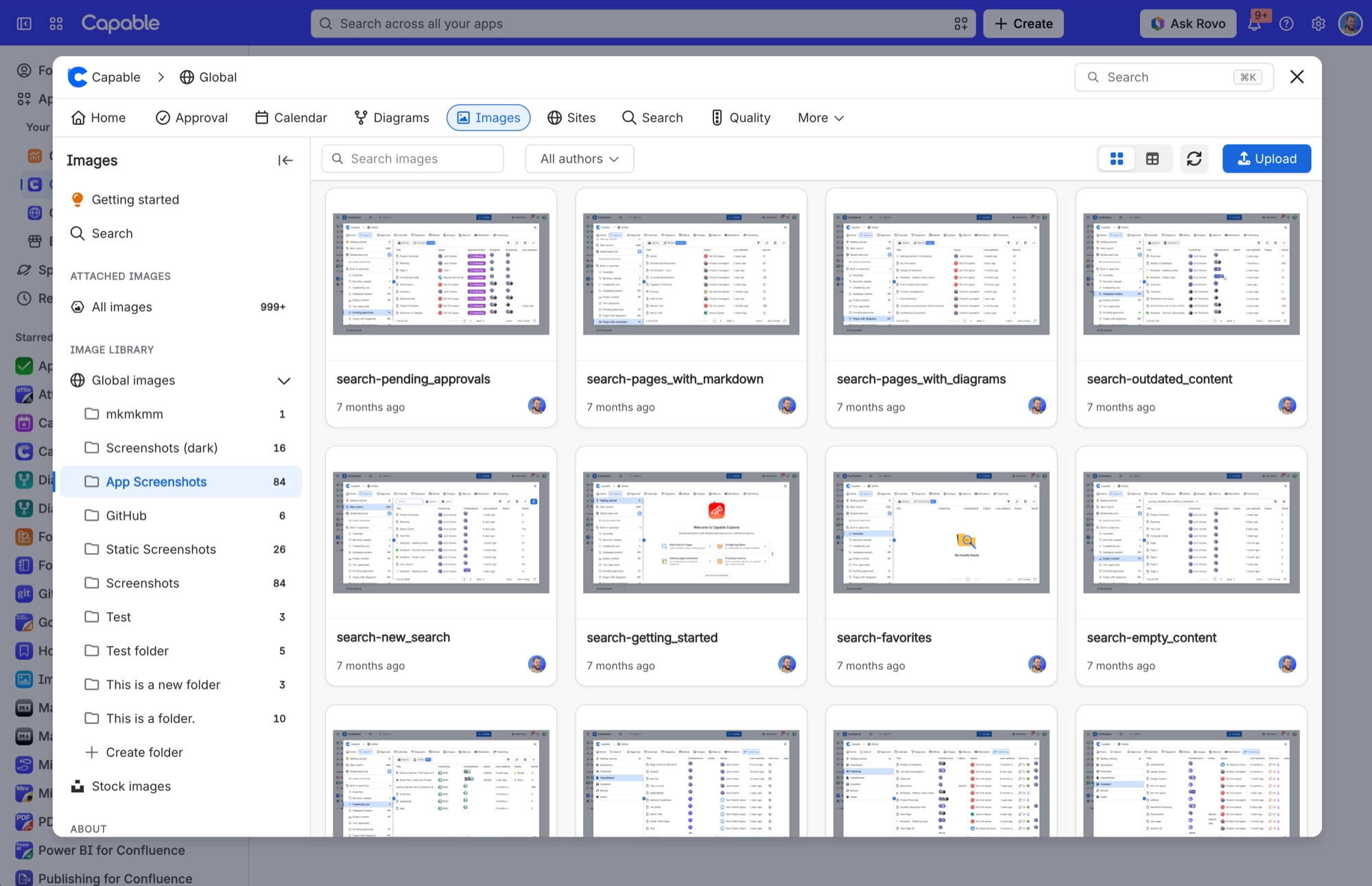
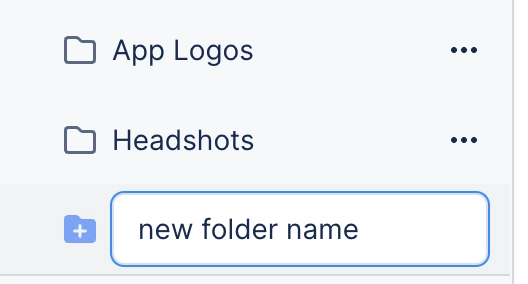
Folders keep your library tidy. Each library has a single flat level of folders. You can create, rename and delete them, and drag images between them. All three folder actions need the same permission as uploading.
#Where you do it
Task | Where |
|---|---|
Create a folder | Images library → Space images or Global images → Create folder |
Move an existing standalone Images library into the Suite | Capable (Suite) settings → Migration |
#Settings that affect this
Setting | Where | What it does |
|---|---|---|
Upload permission (comes from Confluence, not a Capable setting) | Confluence space permissions | Controls who can create, rename and delete folders, as well as who can upload. |
#Worth knowing
Folders are flat, so you can't put one folder inside another.
#Related
How it actually behaves.






















