
Images settings
Images doesn't always have a settings tab of its own. Some settings live in the shared Capable settings, and some follow your Confluence permissions. Here is the complete list.
#Every setting
Setting | What it does |
|---|---|
Global settings → Capabilities | A Visible or Hidden switch for each capability. Hiding one removes it across your whole Confluence site. Saving shows the message 'Global capability settings saved'. Images appears in this list because it has a page byline entry. |
Global settings → Asset access (Permissions) | Who can edit the assets in the shared Capable asset store. This screen is read-only. It explains the rule and has a 'Manage in Confluence' button that takes you to the permissions of the CAPABLEASSETSTORE space. Capable doesn't change anything here itself. |
Global settings → Egress | Lets an admin approve their own domains, so images from those domains load directly instead of through Capable's proxy. |
Global settings → Indexing | Reindex your images and watch progress. Indexing is what fills the 'Used on Pages' panel and the library catalogue. |
Global settings → Migration | The wizard that moves you from the standalone app to the Suite. The source app is listed as 'Images for Confluence (Capable)'. |
Space settings → Capabilities | Per-space visibility for each capability. You can't set Images here. Its row shows a read-only 'Available from Capable Menu' badge, because Images can't be pinned to the navigation. |
Global image library space | Holds everything in the Global images section. Capable creates it automatically the first time it is needed, with the description 'DO NOT DELETE! This space is used by the Capable addon for storing assets you and other users upload.' |
Upload permission (follows your Confluence permissions, not a Capable setting) | Decides whether you can upload images, or create, rename and delete folders, in a given library. You need both permission to add attachments and permission to create pages or blog posts in that space. If either is missing, you see a 'You don't have permission' message. |
Standalone byline off-switches | Two off-switch lists control the standalone app's byline. If either contains 'images', the Images entry in the byline is hidden. The macros themselves still work. |
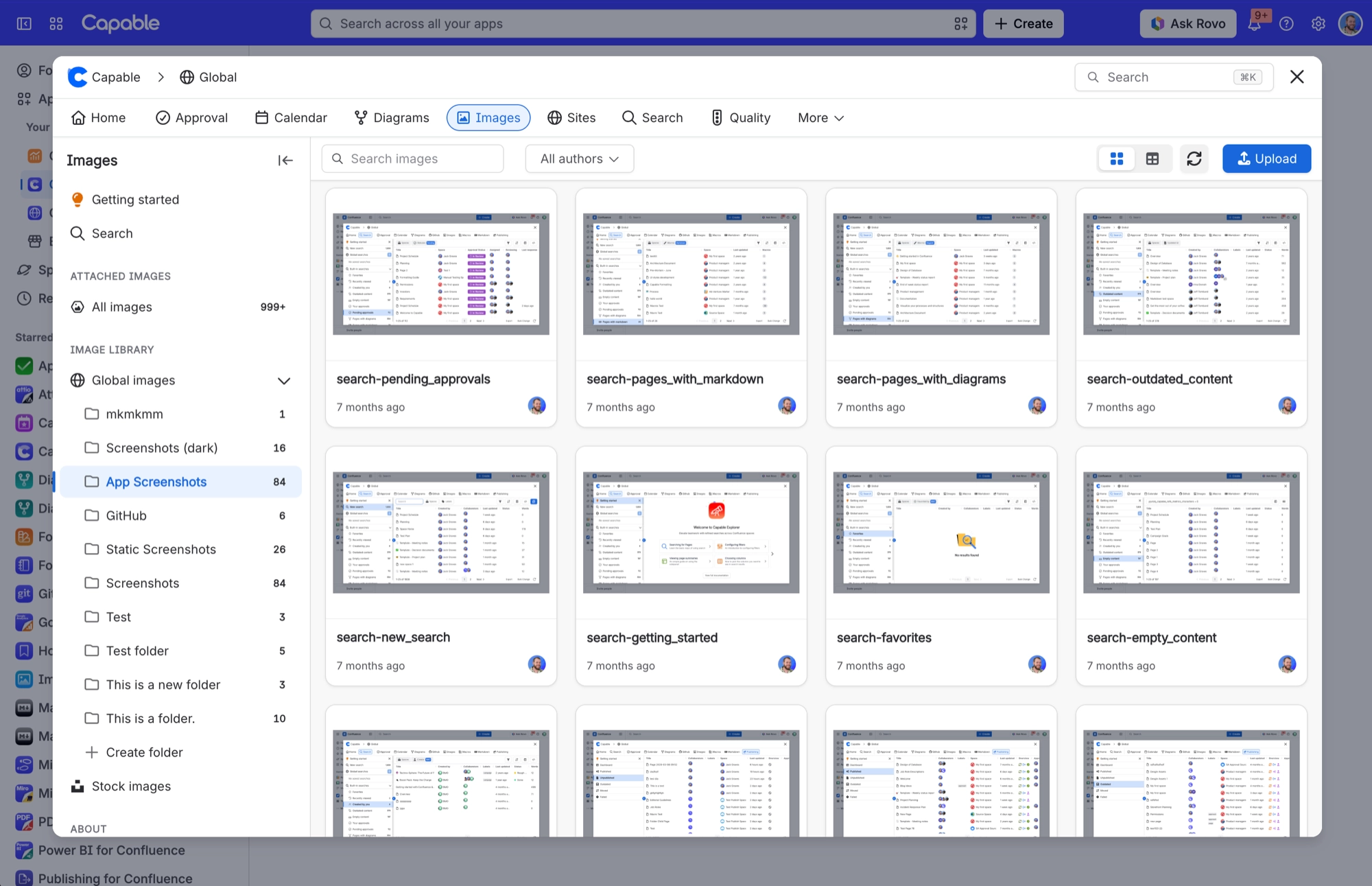
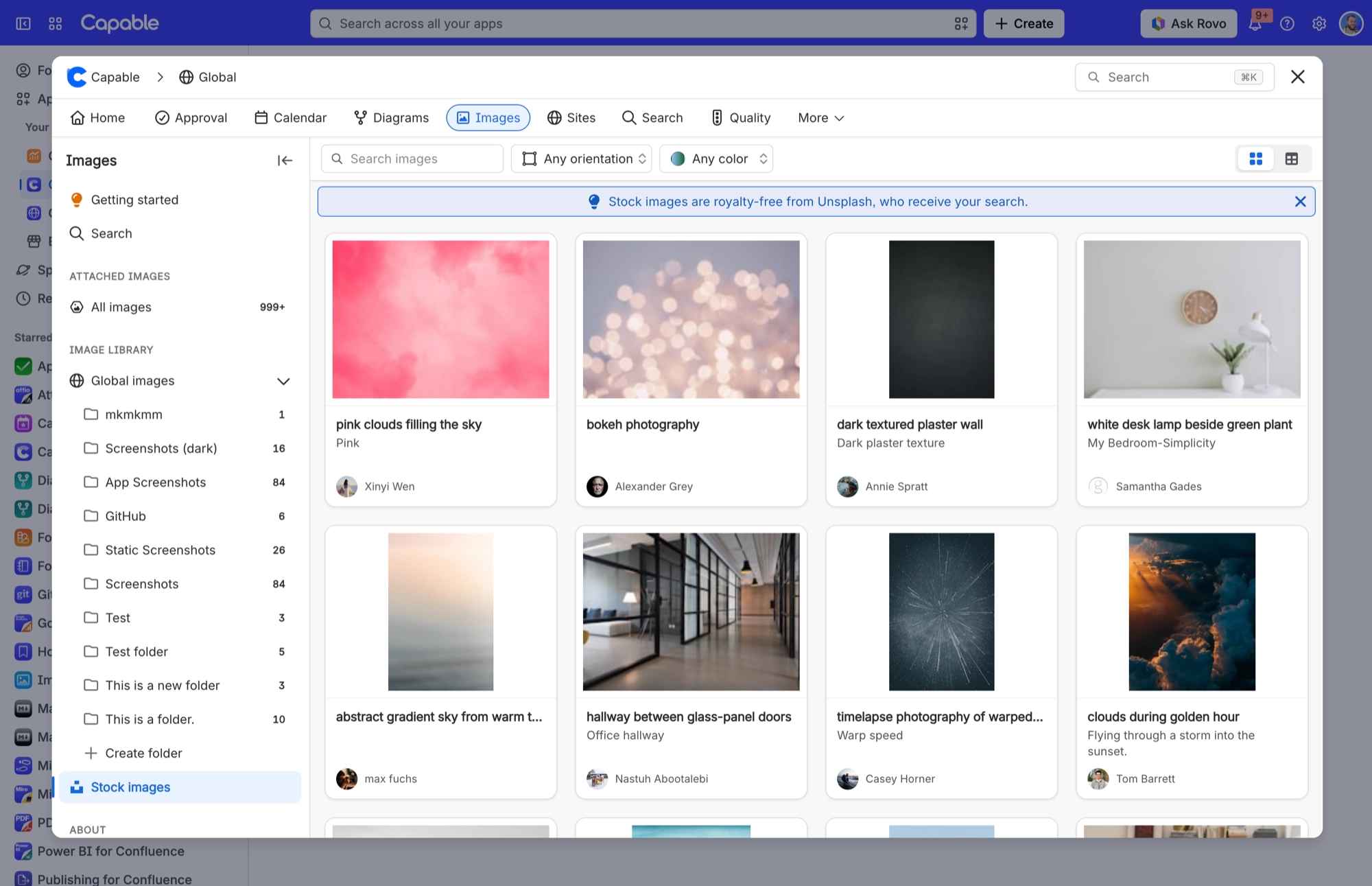
Library catalogue sections | Getting started (you can dismiss it, and it links to https://help.gocapable.com/confluence-images), Search ('Search across all images in this space and global'), Attached images, and Image Library (Space images, Global images, Stock images). |
Catalogue view modes | Each section shows as a grid of tiles or a list of rows. |
Stock image filters | Stock images get an orientation filter and a colour filter beside the search box. Other sections get an author filter instead. |
Per-image actions | Open, Copy share link, Copy as macro (gives you a link you can paste to reference the image), Open source page (for page attachments), Download and Delete. 'Copy as macro' is only offered for library images. |
Image detail panels | 'Image Details' (File size, Height, Width, Orientation, Make, Model, Create Date, Lens Model, Creator Tool), a version panel with 'Upload new version', and 'Used on Pages'. |
#Where these settings show up
The library catalogue is where most of the per-image settings above appear.
#A few things worth knowing
Settings changes can take a minute to reach other people.
Hiding a capability removes it from the navigation. Macros already on pages keep rendering.
Some settings are per space and need only a space administrator.
#Related
The complete list, in one table.






















