
Common tasks
Rather than a tour, this is the list of things people do, with the route to each.
#What you can do
Task | Where | Notes |
|---|---|---|
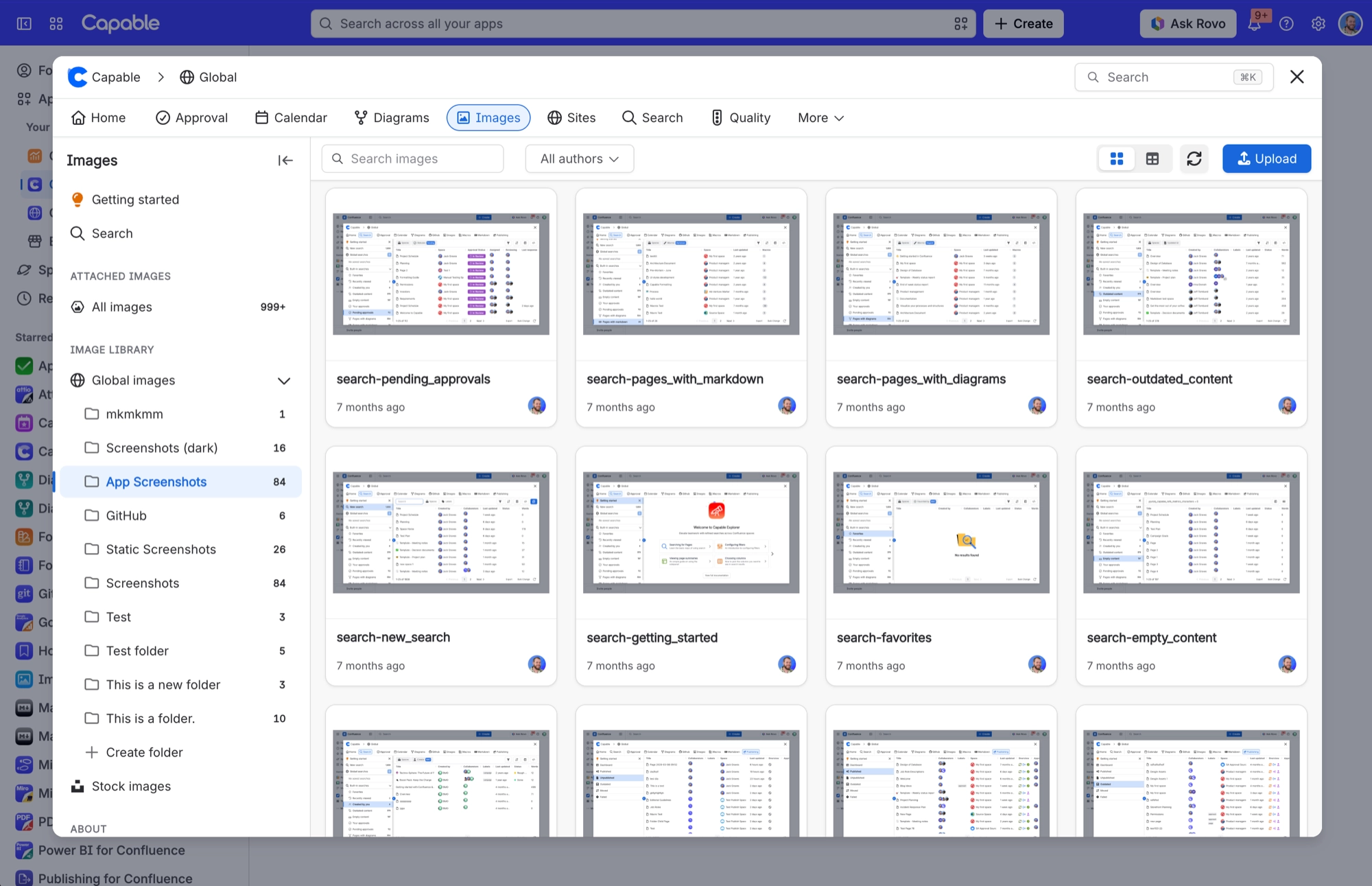
Open the image library | Confluence space or global apps menu → 'Capa | In the Suite the same library is also reachable from the Capable byline on a page, from the Capable home page, and from the Command palette. |
Create a folder | Images library → Space images or Global imag | Only offered when you can upload to that scope. Folders are one level deep. You cannot put a folder inside a folder. |
Rename or delete a folder | Folder context menu in the library navigatio | Same permission gate as creating. Deleting removes only the folder record; the images that were inside it are not deleted with it, and there is no confirmation listing them. |
Upload images | Images library → pick a section or folder → | Needs create-attachment plus create-page permission in that space. Drag-and-drop accepts svg, ico and jfif; the Upload button's dialog does not. |
Add a page attachment to the library | Images library → Attached images → drag a re | Imports a copy. It does not move or link the attachment. Files over 3 MB are made smaller during the import. |
Add a stock photo to the library | Images library → Stock images → search → dra | The caption and an author credit are saved as the description. Stock results cannot be deleted or referenced until they are imported. |
Put a single library image on a page | Editor → type / → 'Image reference (Capable) | Content tab: pick the Image, then set Width, Height, Aspect Ratio, Alignment and Show Caption. The macro always shows the latest version, so replacing the file in the library updates every p |
Put a library image on a page by pasting a link | Editor → paste the image's Capable asset URL | Auto-converts into an Image reference macro with the image already resolved, so it renders without opening the config panel. |
Style a referenced image | Image reference config panel → Style tab | Corner radius (0 to 24, default 8), Shadow (None/S/M/L, default None) and Border (off by default; enabling reveals a 0 to 6 px width slider and a brand colour picker). No theme colours are e |
Show a whole folder of downloadable images | Editor → type / → 'Image folder gallery (Cap | Content tab: pick Library Scope (a space, or Global), then Folder, then Layout. Grid also offers Columns and Thumbnail Height. Readers click any tile or row to download that file. |
Create a gallery by pasting a folder link | Editor → paste the folder's Capable asset UR | Auto-converts with the scope and folder already resolved, but lands on the plain defaults (corner radius 6, gap 12, no shadow) rather than the nicer insert defaults. |
Style a gallery grid | Image folder gallery config panel → Style ta | Layout section: Gap. Appearance section: Corner radius, Shadow, Border. Image section: Image fit. Everything except Image fit applies to Grid layout only. A freshly inserted gallery already |
Upload and insert images directly from the editor | Editor → type / → 'Image (Capable)' (Suite) | A placeholder that immediately opens the insert dialog. Choose images and insert; the placeholder is replaced with the real content. Requires a licence. |
Insert as a live reference or as a plain image | Capable byline or the Images macro → pick im | References follow later library edits but only work for library images. Plain images are frozen copies that render in exports and for logged-out readers. Selecting a single attachment or sto |
Share an image as a pasteable macro | Image or folder context menu → 'Copy as macr | Produces a URL that auto-converts into the reference macro or the gallery macro when pasted onto a page. |
Reuse a library image inside another Capable macro | Formatting Banner / Cards / Gallery / Compar | Suite only. Type to search the space and global libraries. The picker stores a direct URL, not a reference, so the macro will not follow later library edits. |
Insert a library image into a Markdown macro | Markdown editor → image insert menu → 'From | Suite only. Writes a reference that the renderer resolves live, so it does follow later library edits. |
Replace an image everywhere it is referenced | Images library → open the image → Upload new | Pages carrying the reference macro or a markdown reference pick up the new version; pages that took a native copy keep the old bytes. |
See which pages use an image | Images library → open the image → 'Used on P | A page you edited very recently may not be listed yet. Only reference-macro usage is counted, and at most 25 pages are shown. |
Delete an image | Image context menu → Delete, or drag it onto | Check 'Used on Pages' first. Every reference macro pointing at it will start showing 'This image could not be found', and any Formatting macro that took a direct URL will break silently with |
Set an image as a page cover | Images library → image actions → set as bann | You need Edit permission on the page. The cover is set on both the published page and its draft. |
Search or report on the image library | Confluence search → CQL | Library images expose nine searchable fields: Asset title, description, category, author, template, capability, type, feature and tags. |
Control who can edit the shared global image library | Capable settings → Asset access → 'Manage in | Opens the CAPABLEASSETSTORE space's permissions. Clear Add and Delete for anyone who should not change global images, but leave View so they can still place them on pages. Never remove the C |
Hide the Images capability across the whole site | Confluence admin → Apps → Capable → Settings | Suite only. |
Allow images from your own external domains to load without the | Capable settings → Egress | Suite only, maximum 10 domains, and it does not help anonymous readers. |
Move an existing standalone Images library into the Suite | Capable (Suite) settings → Migration | Run 'Image library (Standalone → Suite)'. Selecting either macro migrator pulls the library migrator in automatically. Use what-if mode first. It creates nothing. Re-running is safe: existin |
#A few things worth knowing
Some tasks need an administrator. The Where column says so.
Anything relying on search needs the page to have been indexed first.
Macro names differ slightly between the standalone app and the suite.
#Related
What people actually do.






















