
How it works
Capable Images gives Confluence a proper image library. Images live in two places: a per-space library, and one site-wide "Global" library.
#In this section
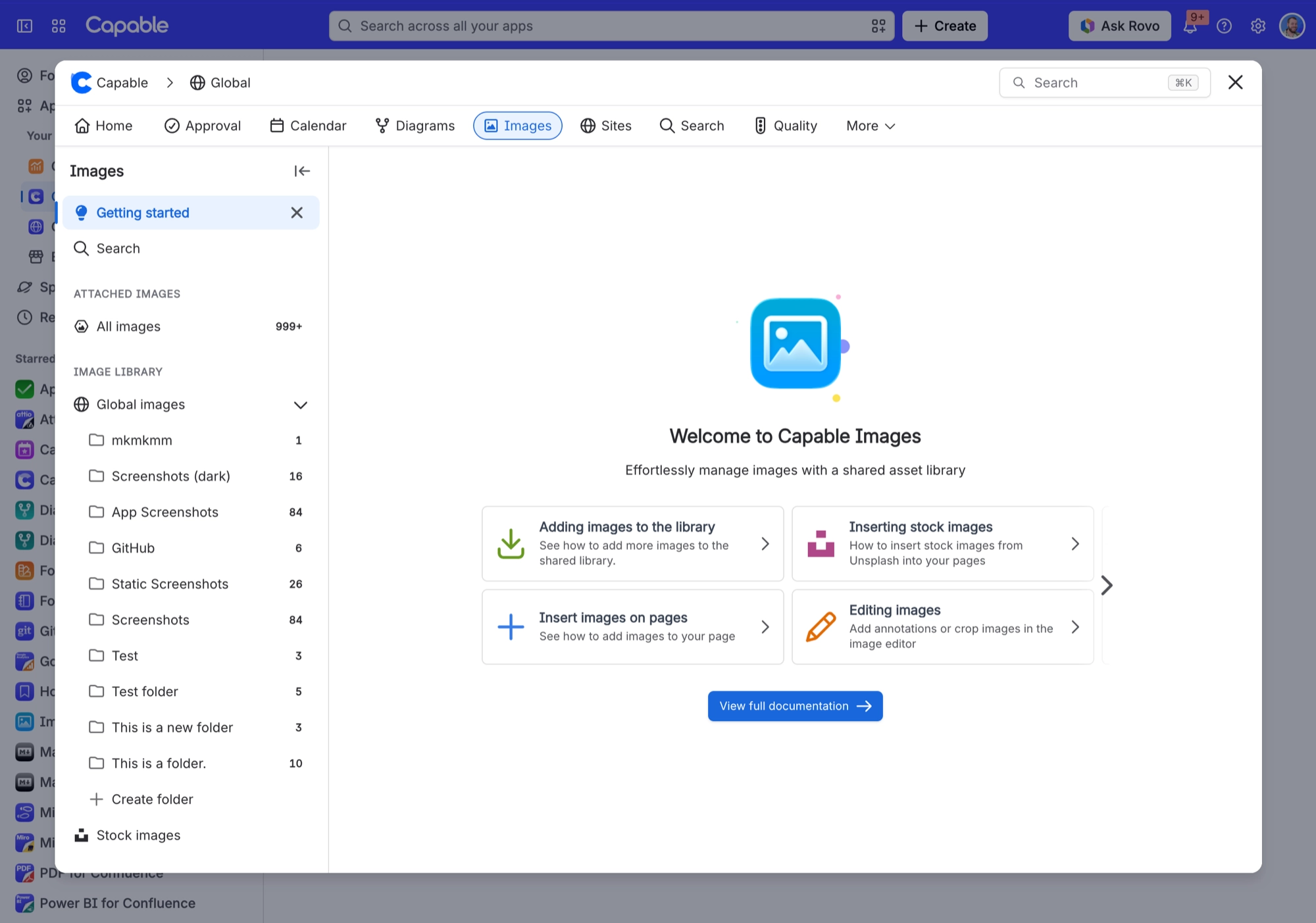
Two-tier libraryA per-space library ('Space images'. 'View images that have been uploaded to this space') and one site-wide library ('Global images'. 'View images that have been uploaded to the global space'), plus a read-only 'Stock images' section from Unsplash.FoldersA single flat level of folders per library. Create, rename, delete, and drag images between them. All three folder actions need the same permission as uploading.UploadUse the Upload button, or drag files onto a library section, to add images to your library.Import a page attachmentDrag a result from 'Attached images' onto a library section or folder. This imports a copy. It does not move or link the attachment.Import an Unsplash stock photoDrag a stock result onto a library folder. The photo is downloaded and stored as a library image, with the caption plus an author credit line ('Photo by <name> on Unsplash (<link>)') saved as the description.Move an imageDragging a library image onto another folder moves it. Dragging a non-library item (attachment or stock photo) imports a copy instead.EXIF and metadata captureWhen you upload an image, Capable reads its photo details (EXIF) and keeps them with the image: camera make and model, capture date, lens model, creator tool, width and height.Version an image in place'Upload new version' on an image's detail page. Every Image reference macro and every Markdown 'From library' reference picks up the new version. Native inserted copies keep the bytes they were given.Used on PagesA panel on each image's detail view listing the pages that reference it, driven by Capable's search index. Only Image reference macro usage is counted.Edit an image before insertingSelecting exactly one page attachment or Unsplash photo in the insert dialog and pressing Insert raises a prompt offering to edit first, opening the 'Edit image' screen ('Annotate or edit before inserting'). Images over 3 MB cannot be editeInsert position controlWhen you insert an image from the byline, Capable shows a heading picker so you can choose where on the page it lands. Insert from the 'Image (Capable)' macro placeholder and there is no picker: the image replaces the macro right where it sits.Two insert modes'Insert N references' places Image reference macros (live links). 'Insert N images' places native Confluence image nodes (frozen copies that render in exports and for logged-out readers). The references button is disabled whenever any non-lCopy as macroAn image or folder context-menu action that copies a Capable asset URL. Pasting an image URL into a page auto-converts into the Image reference macro; pasting a folder URL auto-converts into the Image folder gallery macro.Set an image as a page coverSet an image as a page cover. You need permission to edit the page.Library images are real Confluence contentEach library image is saved in Confluence as its own piece of content, so it is searchable and has a title, description and version history.
#Related
How it actually behaves.






















