
Edit an image before inserting
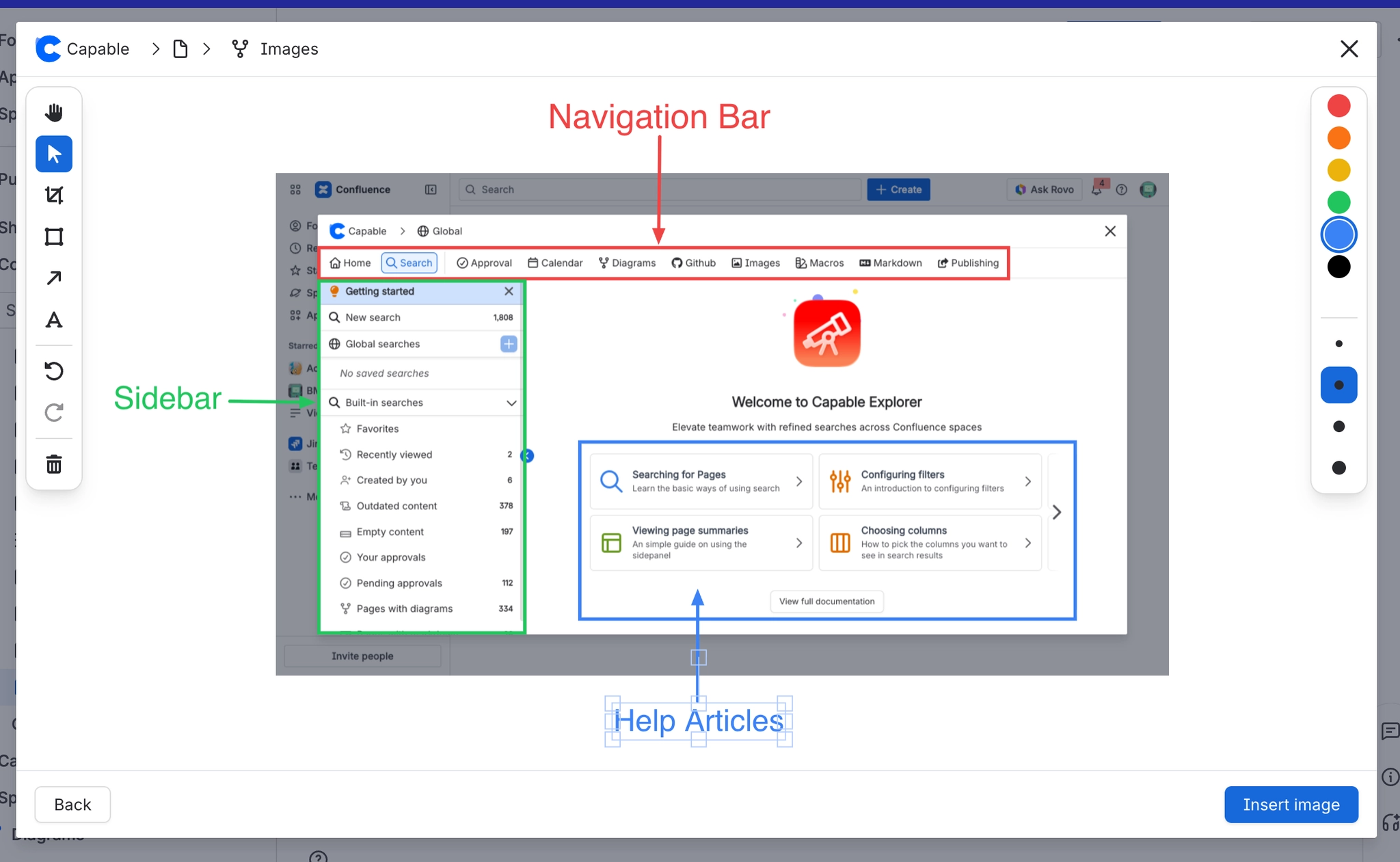
When you select exactly one page attachment or Unsplash photo in the insert dialog and press Insert, Capable asks whether you want to edit it first. Choose Edit first to annotate or crop the image before it reaches the page. Images over 3 MB cannot be edited.
#Edit an image before inserting it
In the insert dialog, select one page attachment or Unsplash photo.
Press Insert. A prompt asks 'Edit before inserting?' and offers Cancel, Insert directly and Edit first.
Choose Edit first to open the Edit image screen. Choose Insert directly to use the original as it is.
Use the tools on the left to crop, draw boxes and arrows, and add text. Pick a colour from the palette on the right.
Press Insert image to put the edited version on the page. Back takes you out of the editor without inserting.
Your changes are applied to a copy that goes onto the page, so the original stays as it was.
#Related tasks in the library
Task | Where |
|---|---|
Open the image library | Confluence space or global apps menu → 'Capable Images' (standalone) or 'Capable' (Suite) |
Create a folder | Images library → Space images or Global images → new folder control |
Rename or delete a folder | Folder context menu in the library navigation |
#Worth knowing
If a reader cannot see the folder's space, they usually see 'No images in this folder' rather than a permission message. Confluence hides what they cannot access instead of refusing the request.
Show Caption prints the library image's own title (or description) on the page, not the Image Title set on the macro. Published sites do the opposite: they prefer the macro's Image Title and fall back to the image's own title.
A new gallery inserted from the macro browser and one created by pasting a folder link do not start out looking the same. Inserting from the macro browser applies the insert defaults (corner radius 8, gap 16, small shadow) plus any brand guidelines set for your site. A pasted link uses the plain defaults (corner radius 6, gap 12, no shadow). This only affects the gallery.
Corner radius, Shadow and Border on the Image reference macro, and Columns, Image fit, Gap, Corner radius, Shadow and Border on the gallery, are only in the custom settings panel.
An image picked through the shared image picker (Formatting Banner, Cards, Gallery, Compare, Background) is saved as a plain URL, not as a reference. Those macros do not follow later edits to the library image. If the library image is deleted, the macro keeps pointing at a dead link and gives no warning.
The 'Capable Images' section in the shared image picker, and the Markdown 'From library' item, only appear if you have the Suite. The standalone Images app does not include them.
#Related
How it actually behaves.






















