
Library images are real Confluence content
Each library image is saved in Confluence as its own piece of content (a 'Capable Image Content' item). That means it is searchable, can't share a title with another image in the same place, and can sit under a space, page or blog post, with attachments and comments beneath it.
Library images also allow unlicensed and anonymous access. That is why a logged-out reader can still see an image you have referenced.
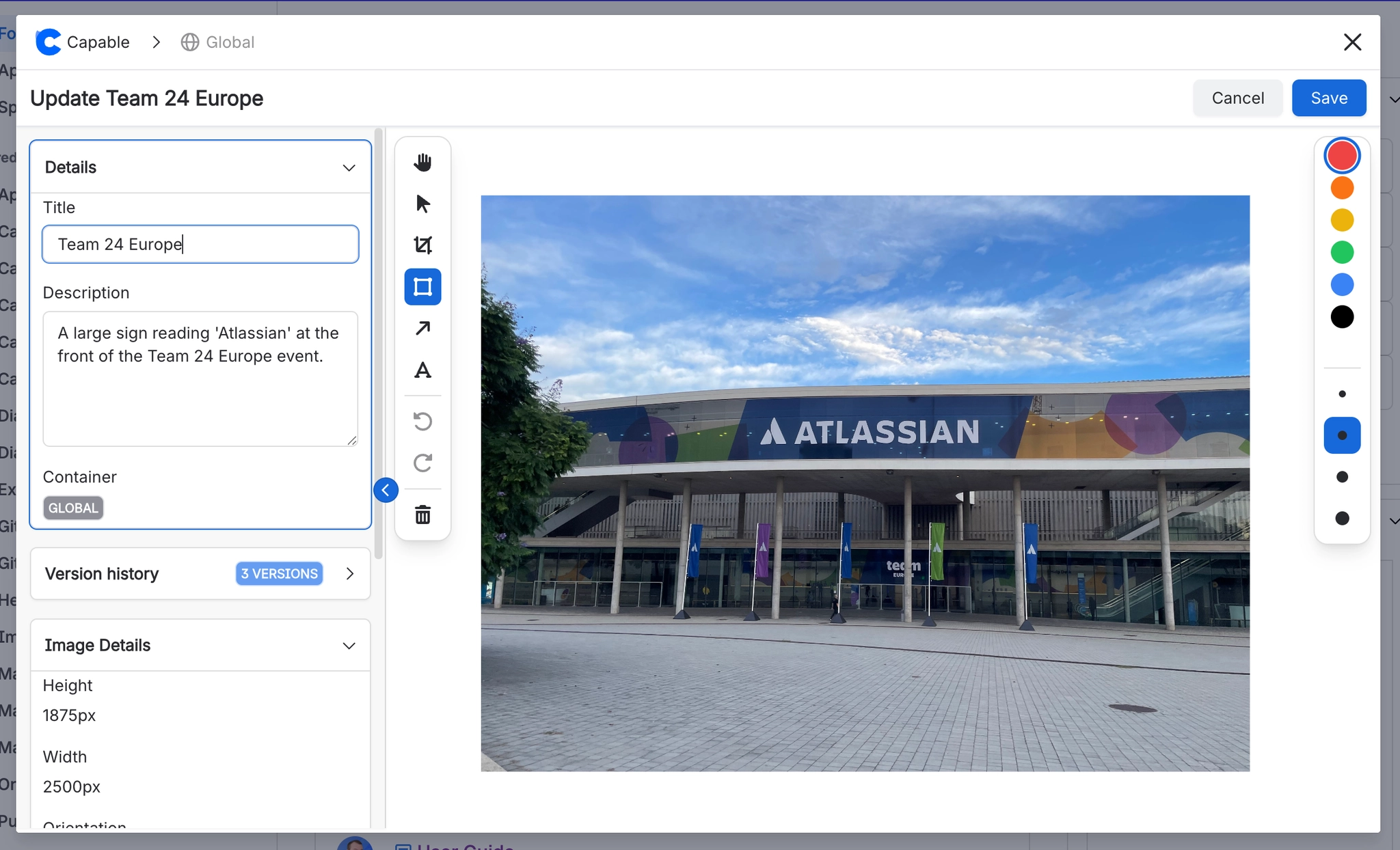
#Where you do it
Task | Where |
|---|---|
Open the image library | Confluence space or global apps menu → 'Capable Images' (standalone) or 'Capable' (Suite) |
Create a folder | Images library → Space images or Global images → new folder control |
Rename or delete a folder | Folder context menu in the library navigation |
#Settings that affect this
Setting | Where | What it does |
|---|---|---|
Global settings → Capabilities | Confluence admin → Apps → Capable → Settings → Capabilities | - |
Global settings → Asset access (Permissi | Capable settings → Asset access | - |
Global settings → Egress | Capable settings → Egress | - |
#Worth knowing
Deleting a folder does not delete or move the images inside it, and you get no warning.
There is no images-only permission setting. All Capable global assets share one Confluence content type in one space, so the Asset access tab governs them together. To change who can edit global images, edit the CAPABLEASSETSTORE space permissions in Confluence. Capable can't change this for you.
The Global images section disappears if the CAPABLEASSETSTORE space is missing or unreadable. If Capable fails to create it, it won't try again until your next session.
The 'Attached images' list only covers jpg, jpeg, png, gif, bmp, svg, webp, tiff and tif files, and only attachments Confluence has already indexed. Avif, heic, ico and jfif attachments never appear. It also leaves out the CAPABLEASSETSTORE space, thumbnail files and Capable's own library images.
Attached images opened in the editor can be up to 3 MB. Larger files are resized first, and if one is still too big you'll see 'Image too large for editor (N MB). Max 3MB.'.
#Related
How it actually behaves.






















