
Get started
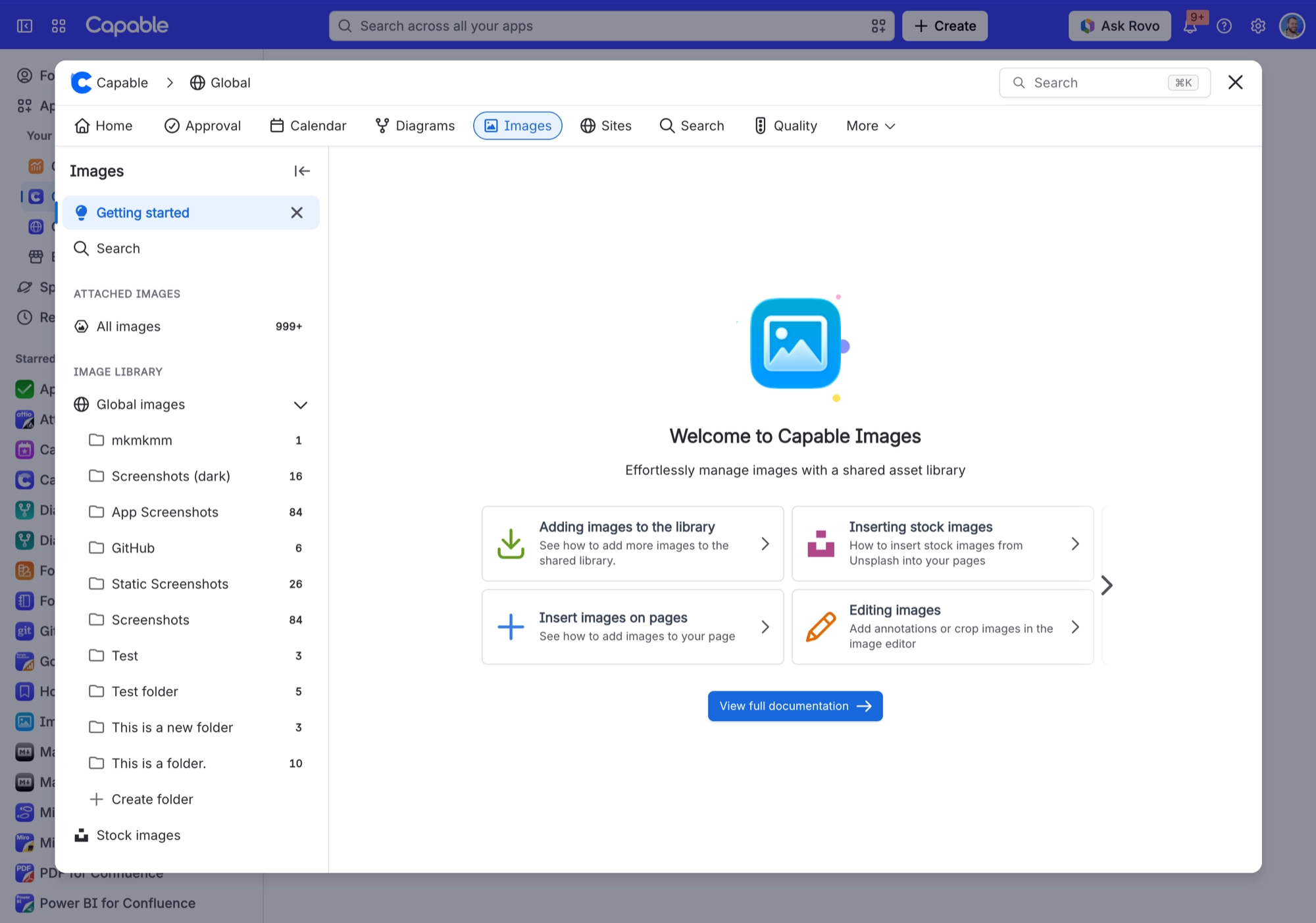
Capable Images keeps your team's images in one place in Confluence. Everyone can find what they need, and you choose whether images are shared across your whole Confluence site or kept to specific spaces.
With Capable Images, your team can work faster, collaborate more easily and make Confluence pages more engaging.
#Why Use Capable Images?
Everything in one place: Keep all your visuals organised and easy to reach in the shared library.
Less hunting: Find the right image quickly with built-in search and filters.
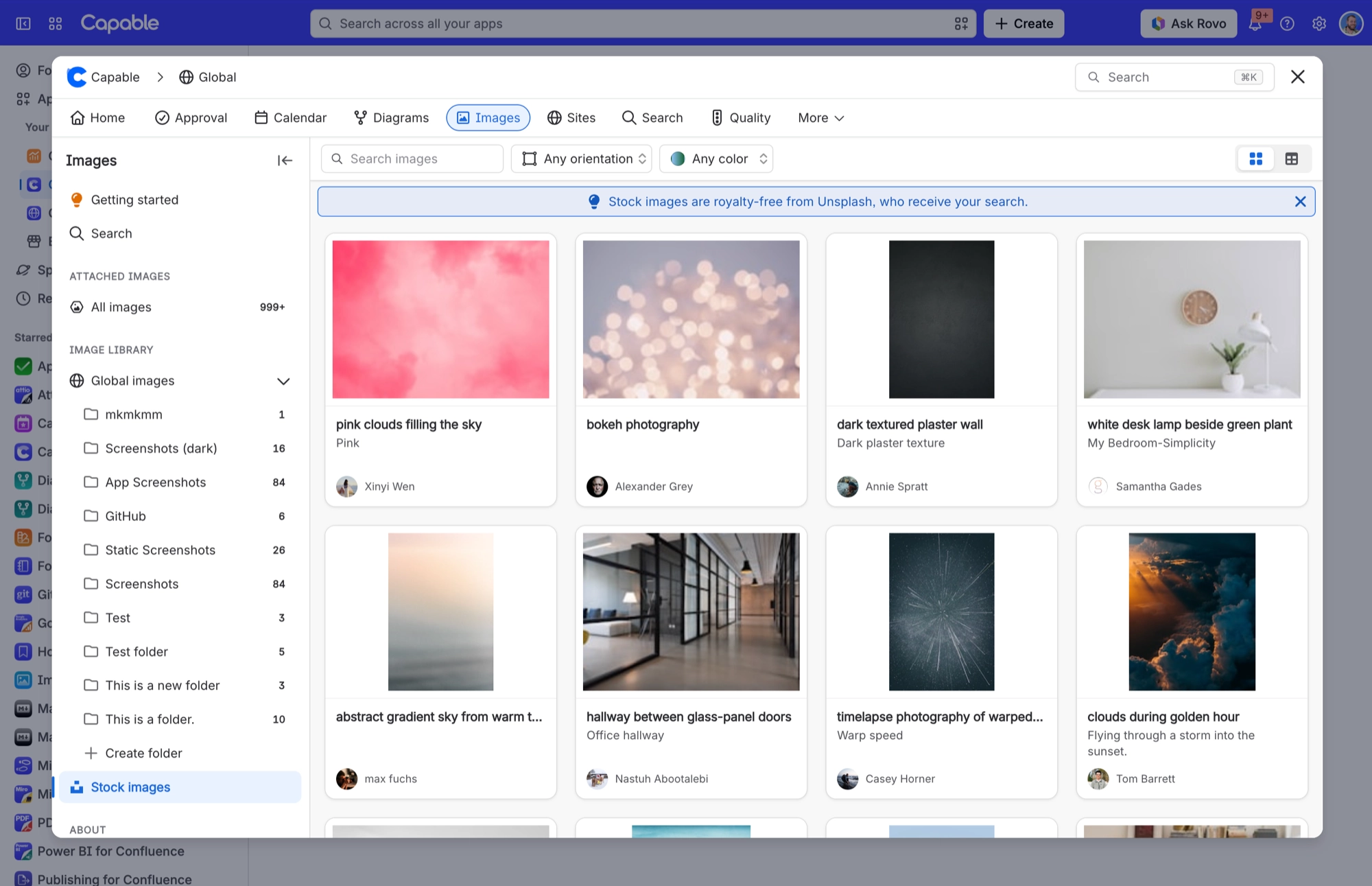
Professional visuals: The Unsplash integration gives you access to millions of images for reports, wikis and presentations.
Adding good visuals to your Confluence pages takes just a few clicks.
#Key Features of Capable Images
Global and space-level sharing: Share images across your entire Confluence site or keep them in a specific space, whichever suits your team.
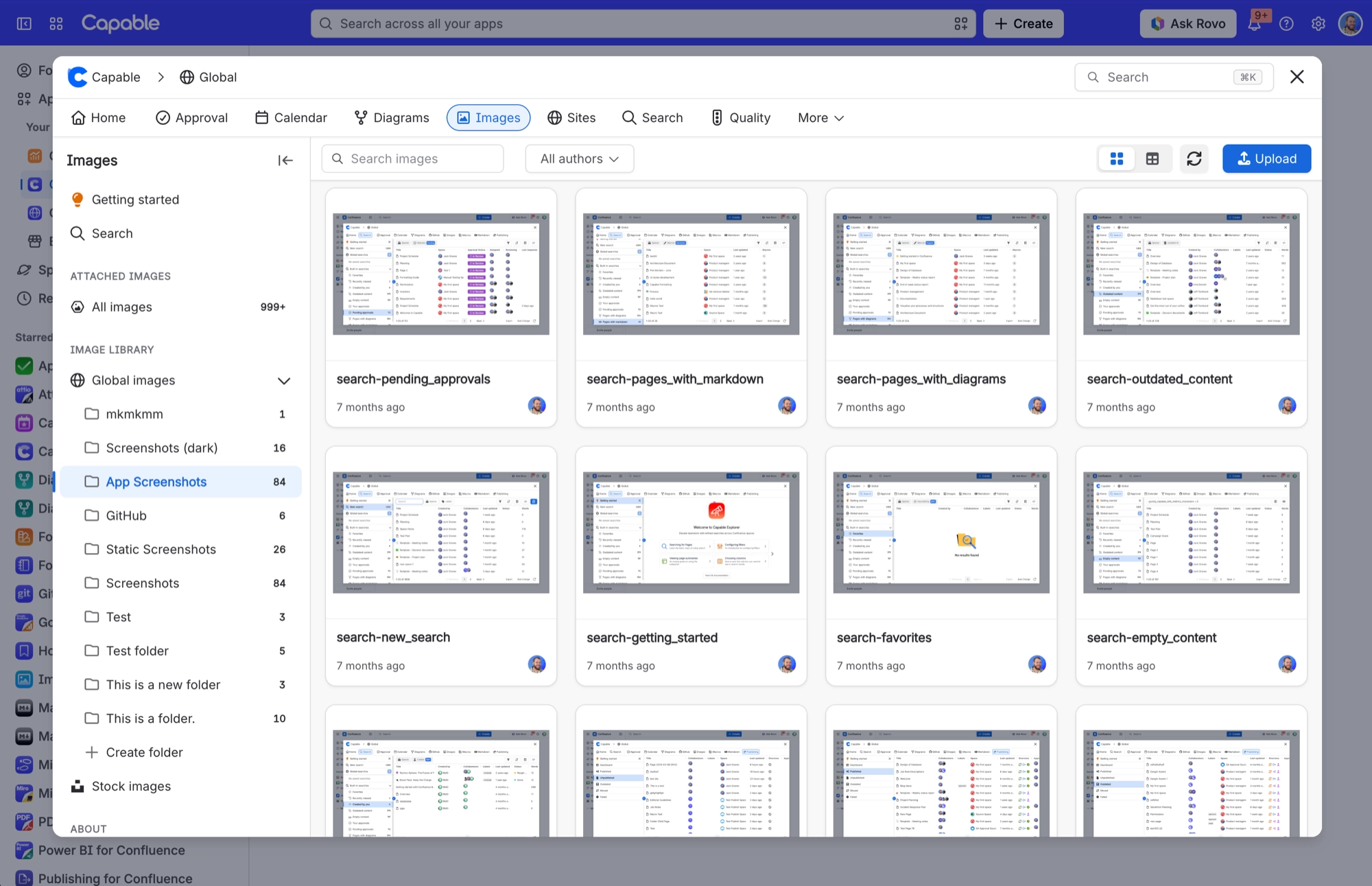
Simple uploads: Drag and drop images into your library or upload them with a few clicks.
Names and descriptions: Add them to images so they are easy to organise and find.
Better collaboration: Marketing, design and documentation teams can keep visual assets in one place without relying on external tools.
Image editor: Crop and annotate images in your library, or before they are inserted on pages.
#Common Use Cases
Marketing and Design Teams:
Share branded assets like logos, templates, and promotional materials to maintain consistency across projects.
Collaborate on campaigns by keeping visuals easily accessible.
Project Documentation:
Add screenshots, charts, and other visuals to document project progress and processes.
Store images in project-specific spaces for secure and organised access.
Knowledge Sharing:
Centralise infographics, process diagrams, and instructional images to make internal knowledge bases more effective.
Ensure employees always have access to the latest visual content.
#Reuse images across pages
You can store a centralised library of images in the Image Library and simply reference them from pages, so they are always up to date.
#Insert images from Unsplash
Add images from a library of over 5 million images to your pages, with search and filtering.
#Add Images to the Library
Upload and share images within Confluence. Adding images to your library keeps them all in one place.
#Insert Images into Pages
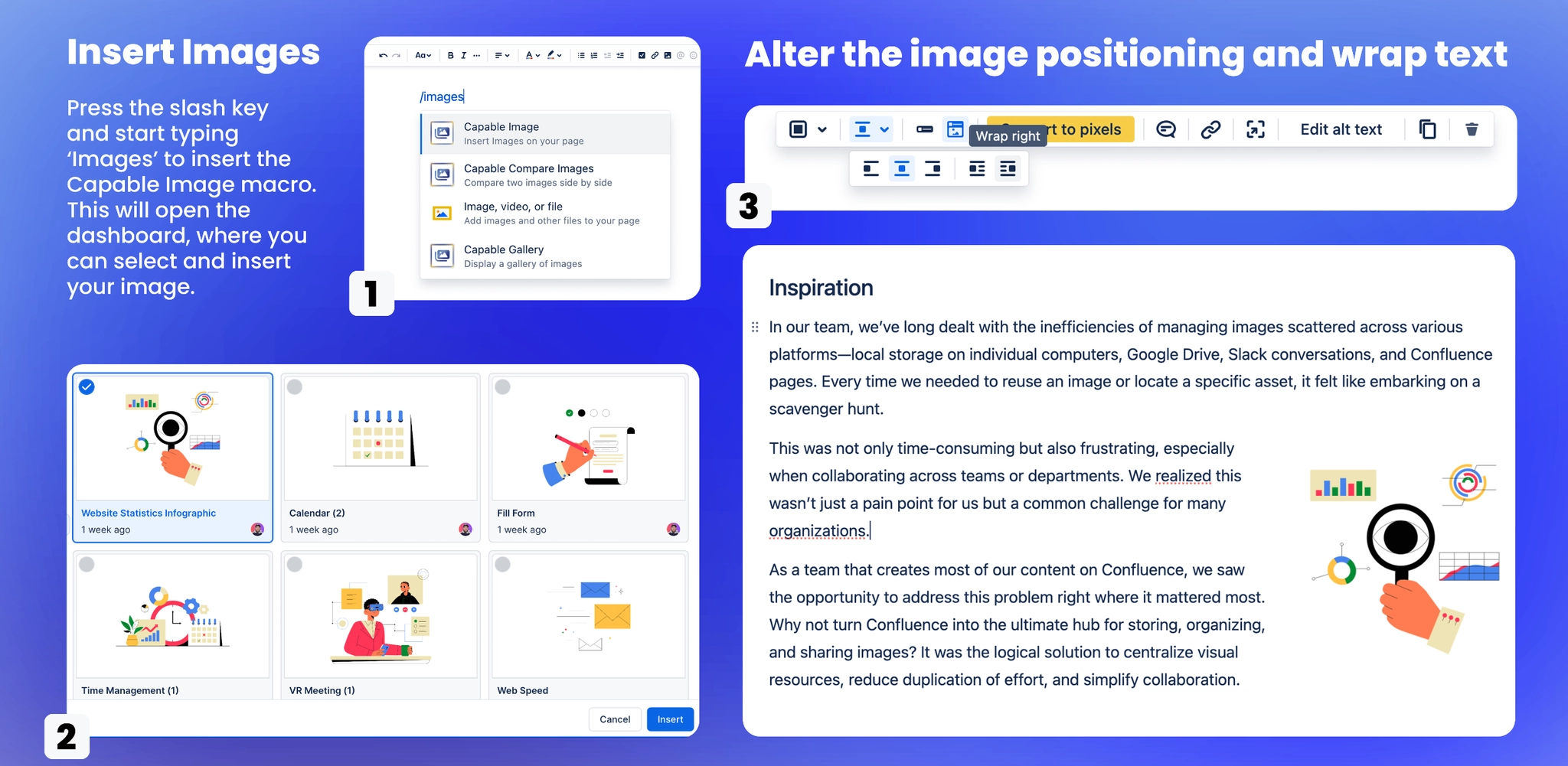
Insert images into your Confluence pages from your shared library or the Unsplash collection.
#Annotate Images
Edit images by cropping and adding annotations such as arrows, boxes, and text.
#Download Images
Download images that have been shared with you using Capable Images.
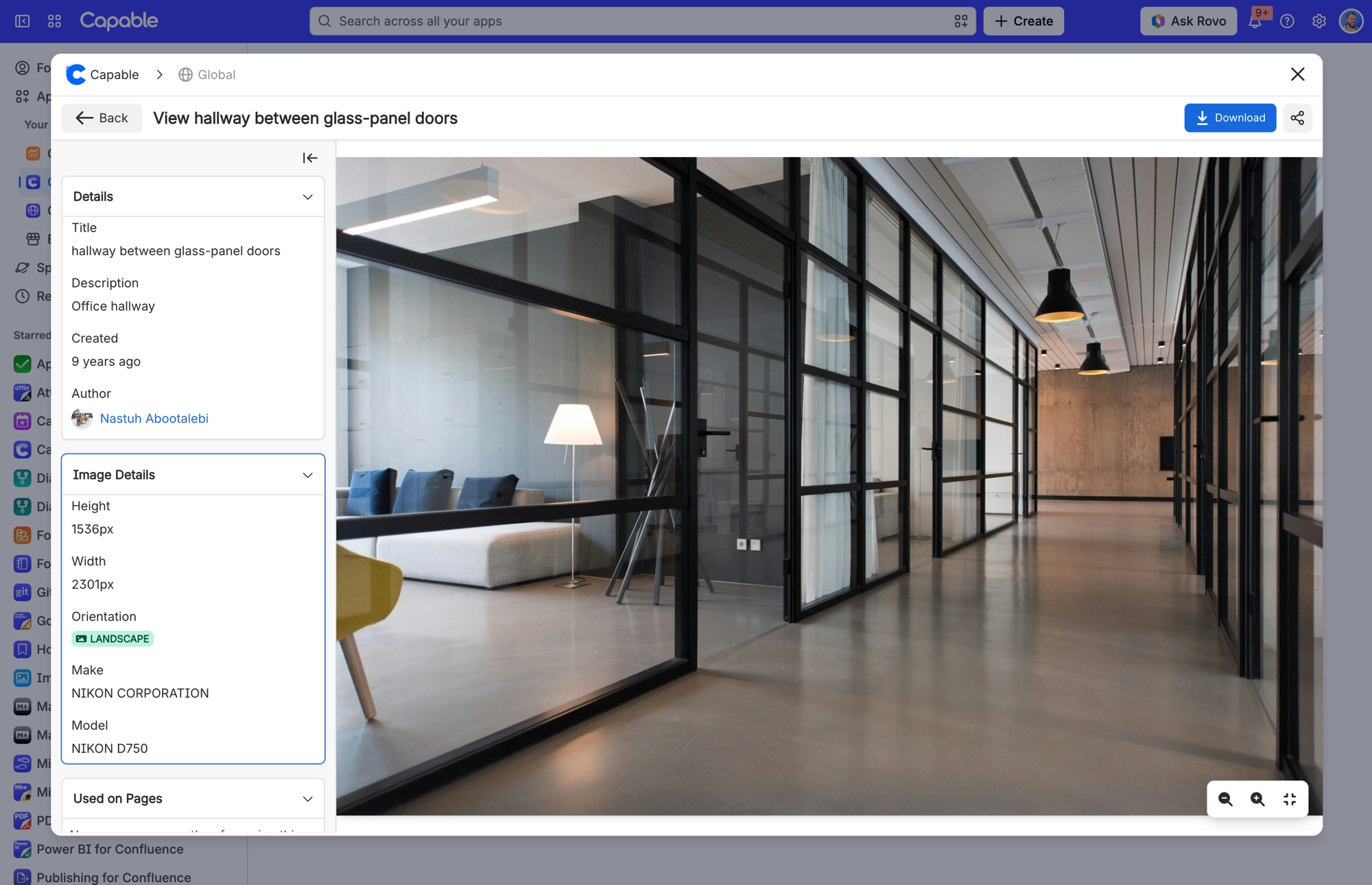
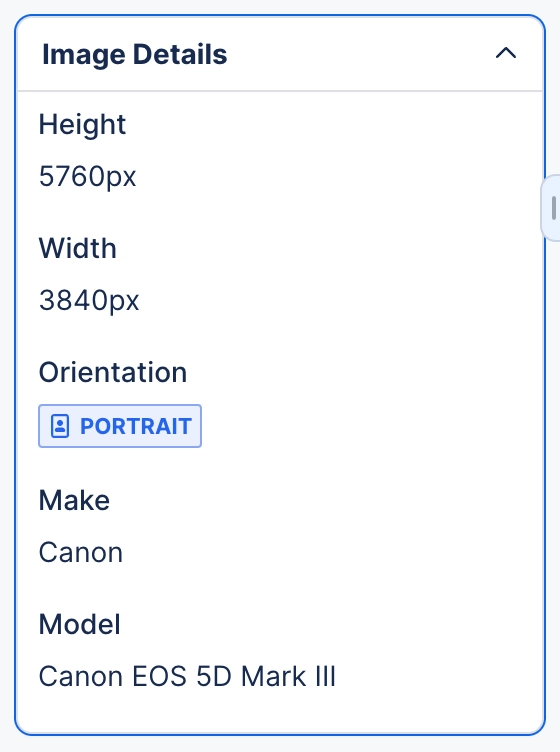
#See Detailed Photo Info
View extended information about photographs, such as camera make, model, and lens used.
#In this section
#Related
Start from the task.






















