
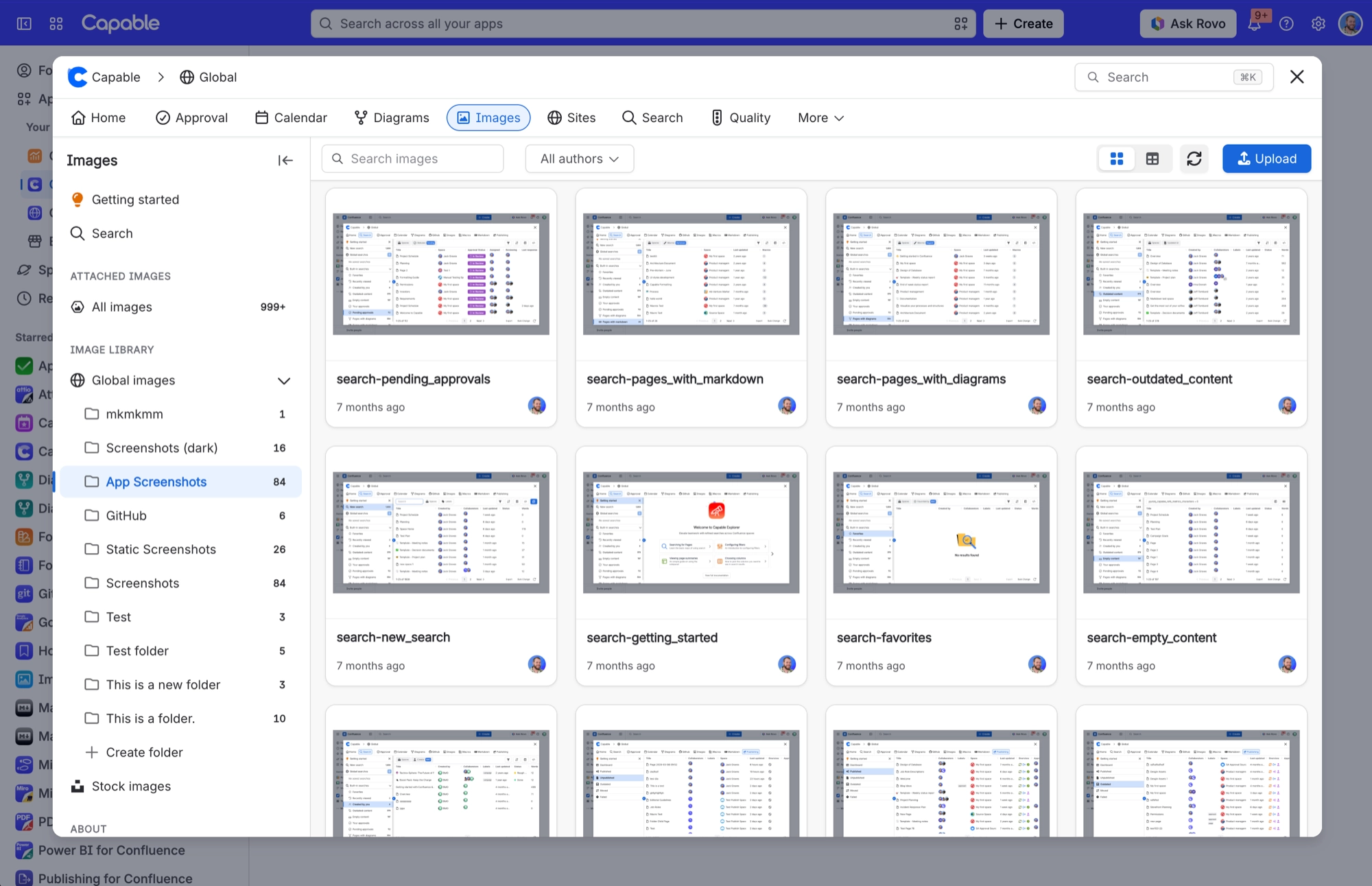
Can drag an SVG into the library but the Upload button will not let me choose one
What you are seeing
I can drag an SVG into the library but the Upload button will not let me choose one
#Why it happens
The Upload button and drag and drop accept different file types. Drag and drop accepts SVG, ICO and JFIF files. The Upload button's file picker does not offer them.
#What to do
Drag your SVG, ICO or JFIF files onto the library section instead of using the Upload button.
#Settings involved
Setting | Where | What it does |
|---|---|---|
Global settings → Asset access (Permissi | Capable settings → Asset access | - |
Global settings → Indexing | Capable settings → Indexing | - |
Global image library space | Confluence space with the key CAPABLEASSETSTORE, named 'Capable Asset Store' | - |
#Limits that apply here
Limit | Value | What happens |
|---|---|---|
Upload. Drag and drop accepted extensions. | Bmp, gif, ico, jfif, jpeg, jpg, png, svg | Anything else raises 'Invalid file type. Only image files are allowed'. |
Upload. Upload button file dialog filter. | .png .jpg .jpeg .gif .bmp .tiff .webp .p | This list leaves out SVG, ICO and JFIF, which drag and drop does accept. |
Editor and attachment import size limit | 3 MB | An attachment loaded for editing or importing into the library can be up to 3 MB. Larger files are automatically resized to PNG to fit. Only if that still fails do you see 'Image too large for |
#A few things that catch people out
The Upload button and drag and drop accept different formats. The button leaves out SVG, ICO and JFIF, which the drop area allows, so you can drag an SVG in but never pick one in the Browse dialog.
Capable does not stop you uploading a very large file. It can upload fine and then fail to open later, because the editor handles up to 3 MB and the chat tools up to 5 MB.
#Related
'Invalid file type — Only image files are allowed' when dragging a file in
The file's extension is not on the drag-and-drop accepted list (bmp, gif, ico, jfif, jpeg,
Global images section has disappeared from the library
The CAPABLEASSETSTORE space is missing, unreadable by this user, or could not be created.
Everything else
The rest of this family.
Found it? Good.






















