
Copy as macro
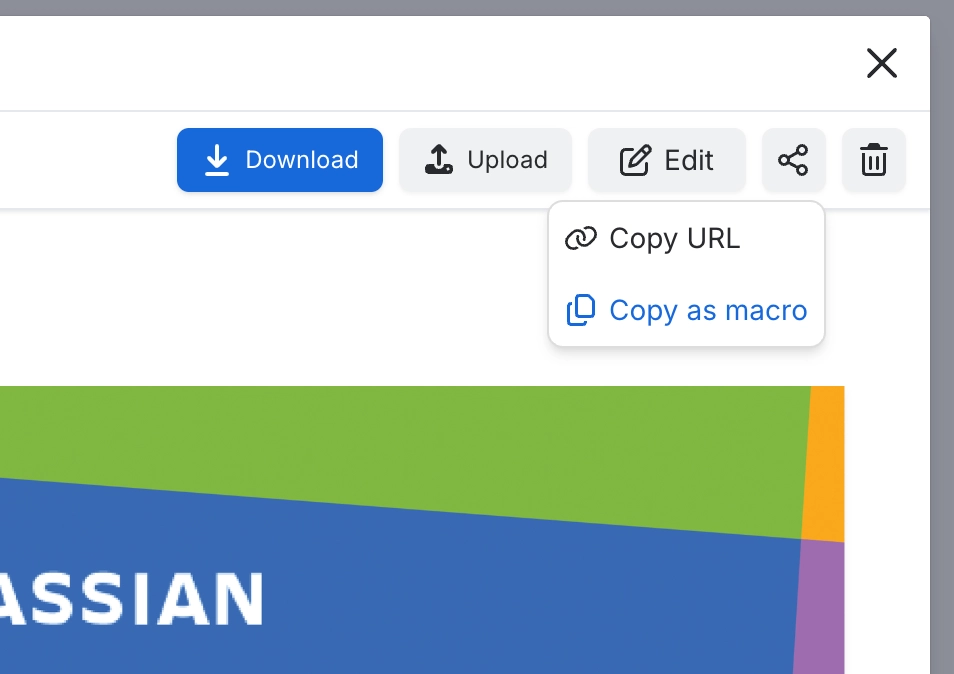
Copy as macro is an action on the menu for an image or folder. It copies a Capable asset URL. Paste an image URL into a page and it turns into an Image reference macro. Paste a folder URL and it turns into an Image folder gallery macro.
#Where you do it
Task | Where |
|---|---|
Put a single library image on a page | Editor → type / → 'Image reference (Capable)' (Suite) or 'Image reference macro (Capable)' (standalone) |
Put a library image on a page by pasting a link | Editor → paste the image's Capable asset URL |
Style a referenced image | Image reference config panel → Style tab |
#Settings that affect this
Setting | Where | What it does |
|---|---|---|
Standalone byline off-switches (properti | App property capable-global-hidden-capabilities.hiddenCapabilities, and space property <ha | - |
Per-image actions | Image context menu | - |
#Worth knowing
A Width or Height of 500 is ignored. It used to mean 'auto-size', so a macro saved with 500 behaves as if the field were blank.
Corner radius, Shadow and Border on the reference macro, and Columns, Image fit, Gap, Corner radius, Shadow and Border on the gallery, are only in the custom config panel.
Anonymous and unlicensed readers can see a referenced image or a gallery. They can never see the library macro, the library page contents or the settings page. The space and global pages let them in but show a visitor notice instead of the library, and the global settings page requires you to be logged in.
If you cancel the picker that opens automatically on an 'Image (Capable)' placeholder, the macro stays on the page showing a 'No Images Selected' card. Readers can see it, not just you, and the picker will not reopen on its own for the rest of that browser session. Unlicensed and anonymous readers see nothing there at all.
There is no migrator for the legacy standalone image library macro. Only three migrators exist: the library, the Image reference macro and the Image folder gallery macro.
#Related
How it actually behaves.






















