
Your first approval
Five minutes, one page, nothing to configure. Do this on a real page you actually want reviewed, because there is nothing here you will need to undo afterwards.
If Approval is not under your page title yet, start at Install Capable Approval.
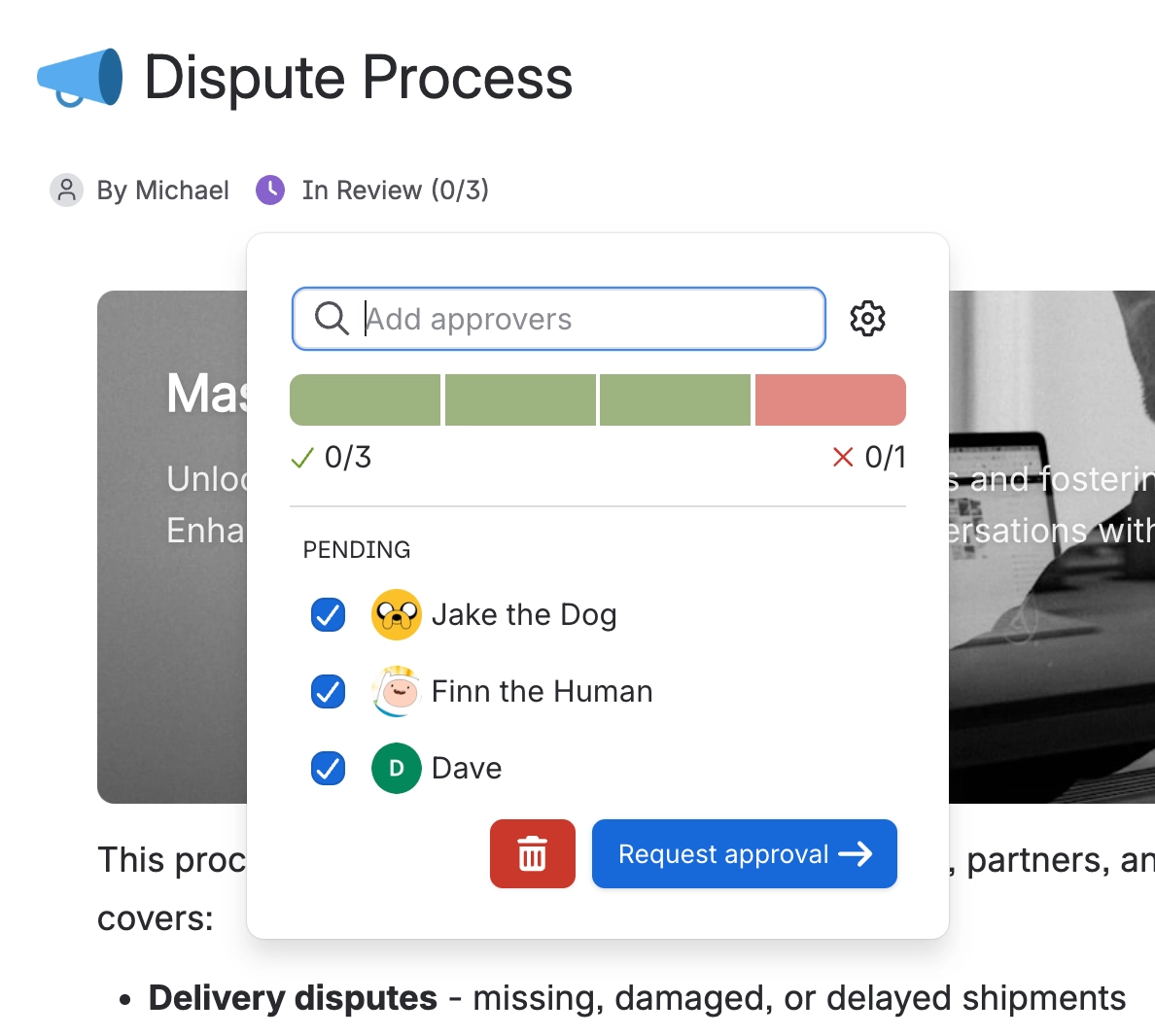
Open a page, click Approval under the title, add a colleague, and click Request approvals. That is the whole thing. They get an email straight away, and a Slack message if your site is connected. Every other option can wait for Request an approval.
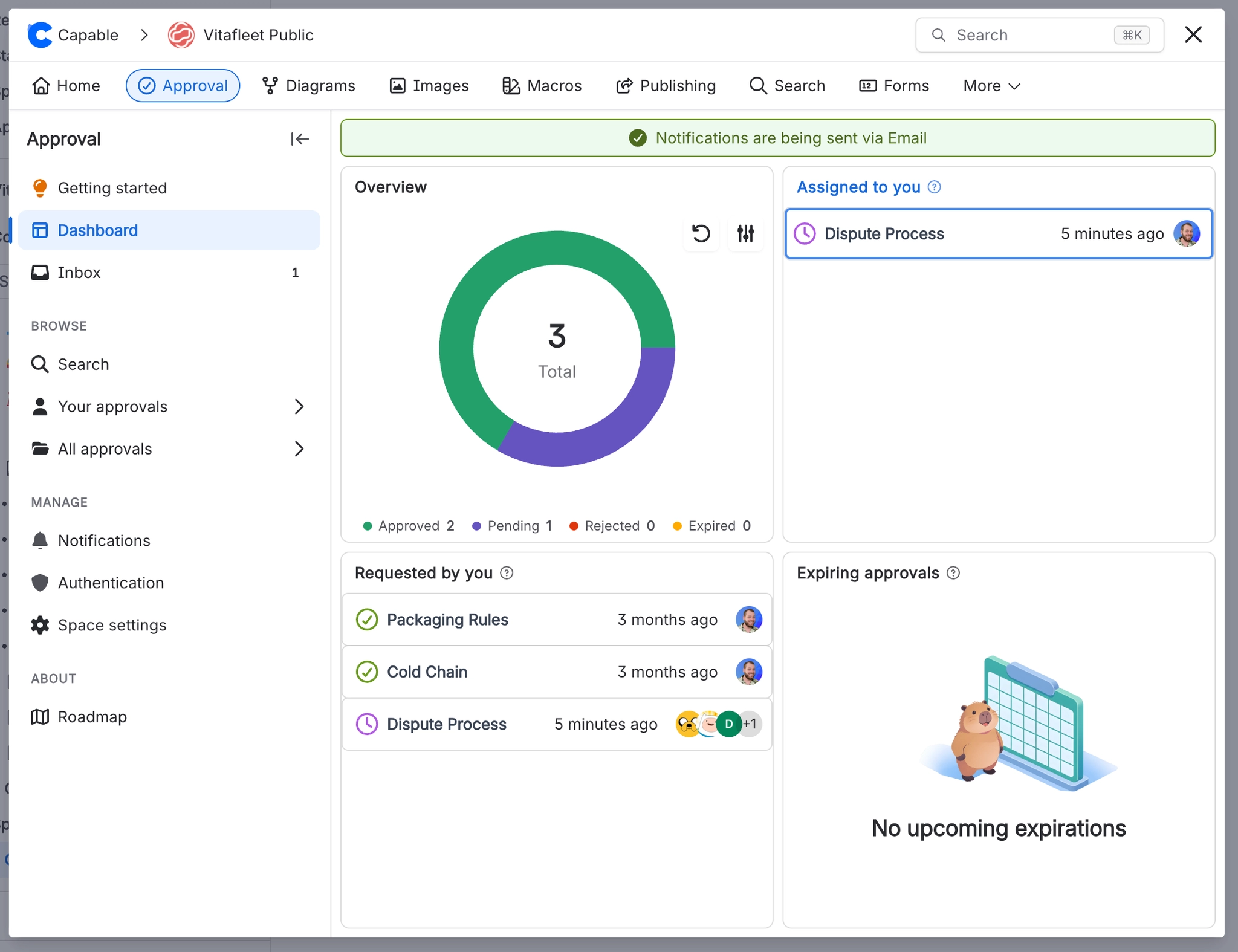
Open Capable, Approval. Your request is under Requested by you, showing who you asked and who has answered.
This is the screen that replaces chasing people in corridors. Leave it open for a day and you will see the point of it. More in Track approvals.
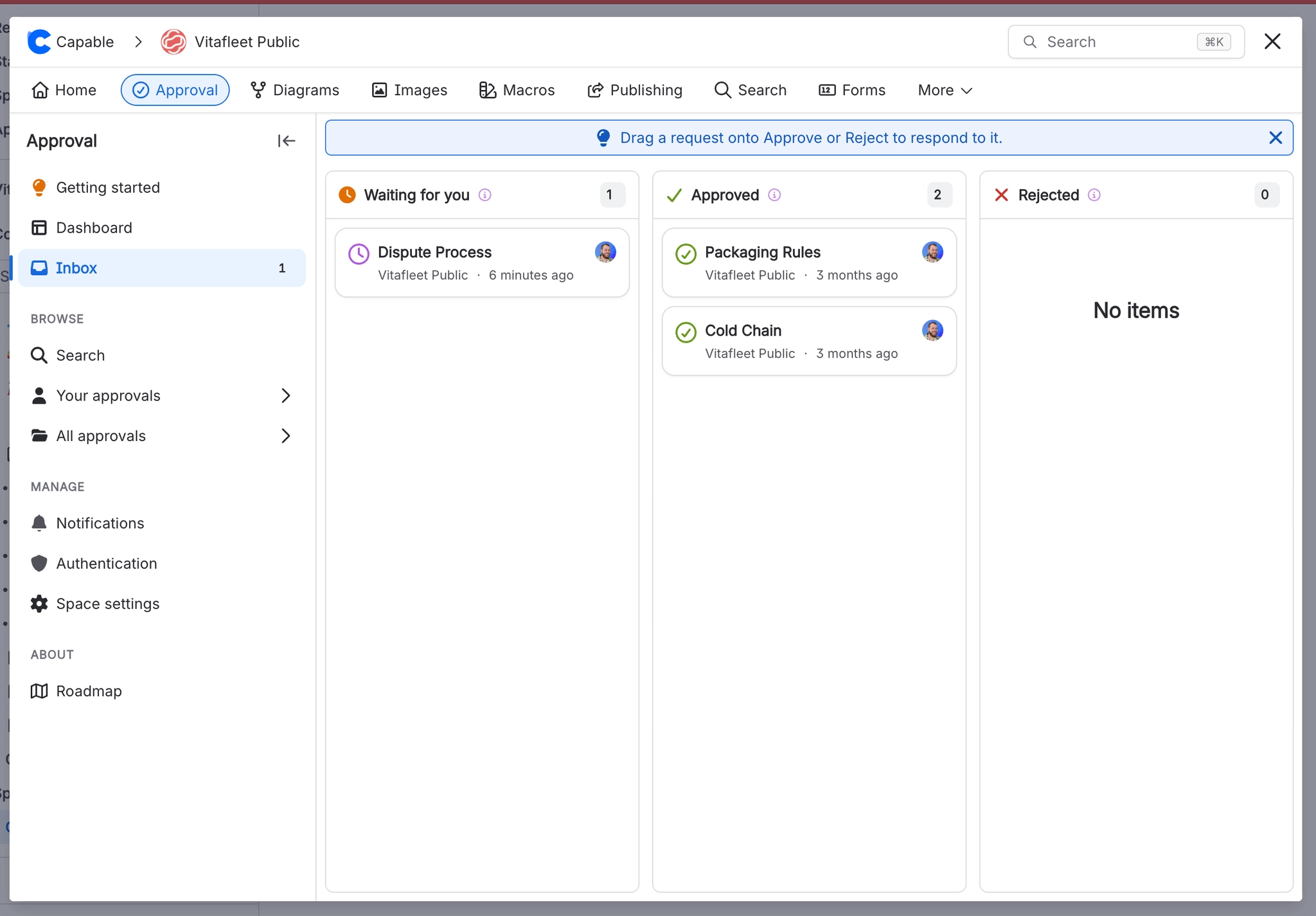
Ask your colleague to send one back to you. It lands in your inbox, and you can approve it by dragging the card into the Approved column, or by opening the page and using the panel.
While you are there, try leaving a comment instead of approving, and watch what happens to the status.
You click | The request becomes | Why |
|---|---|---|
Approve | APPROVED | Your yes met the threshold. |
Comment | IN REVIEW | Comments are recorded, but never count as a yes. |
That second row trips people up more than anything else in the product. If a request ever looks stuck, check whether people commented instead of answering. See Respond to a request.
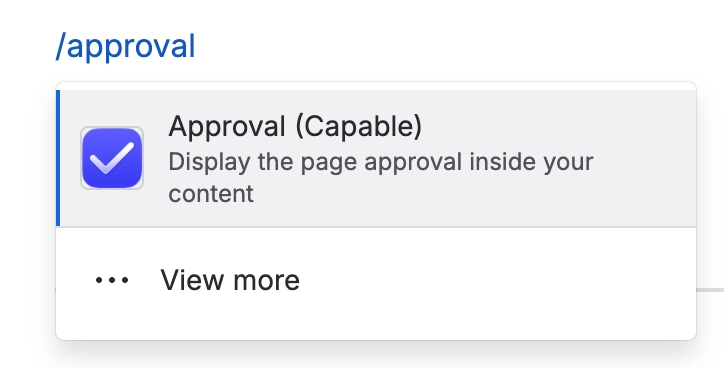
Edit the page, type /approval, and insert the macro in Banner mode. Now anyone reading the page can see it was approved without knowing where to look for the byline. See The approval macro.

#What to set up next
If you want | Go to |
|---|---|
To stop picking the same reviewers every time | |
Pages to come back for review every six months | |
Every new page in a space to need approval | |
Approvals to count as signatures | |
Approved pages published automatically |
#A few things that catch people out
Editing the page after you send restarts the review on the new version.
Sending with nobody selected does nothing at all, and says nothing either.
People who cannot read the page are skipped silently, so check access if someone says they heard nothing.
Approving does not publish the page unless somebody switched that on. See Space settings.
#Related
Request an approval
All the options you just skipped.
How approvals work
What actually happened after you hit send.
Track approvals
The inbox, the board, and never chasing again.
Teams and assignment
Reviewer lists that fill themselves in.
The approval macro
Put the status on the page itself.
Respond to a request
The three answers and what each one does.
That is your first approval done, start to finish. Everything after this is just making it faster.






















