
Get started
Capable Approval lets you ask colleagues to review and approve your Confluence pages, and keeps track of who has responded.
Reviewers hear about requests straight away by Slack and email, so decisions don't sit waiting. You can also set approvals to expire at regular intervals, so pages are reviewed again in line with your organisation's policy and stay current.
#1. Request approval on Confluence pages
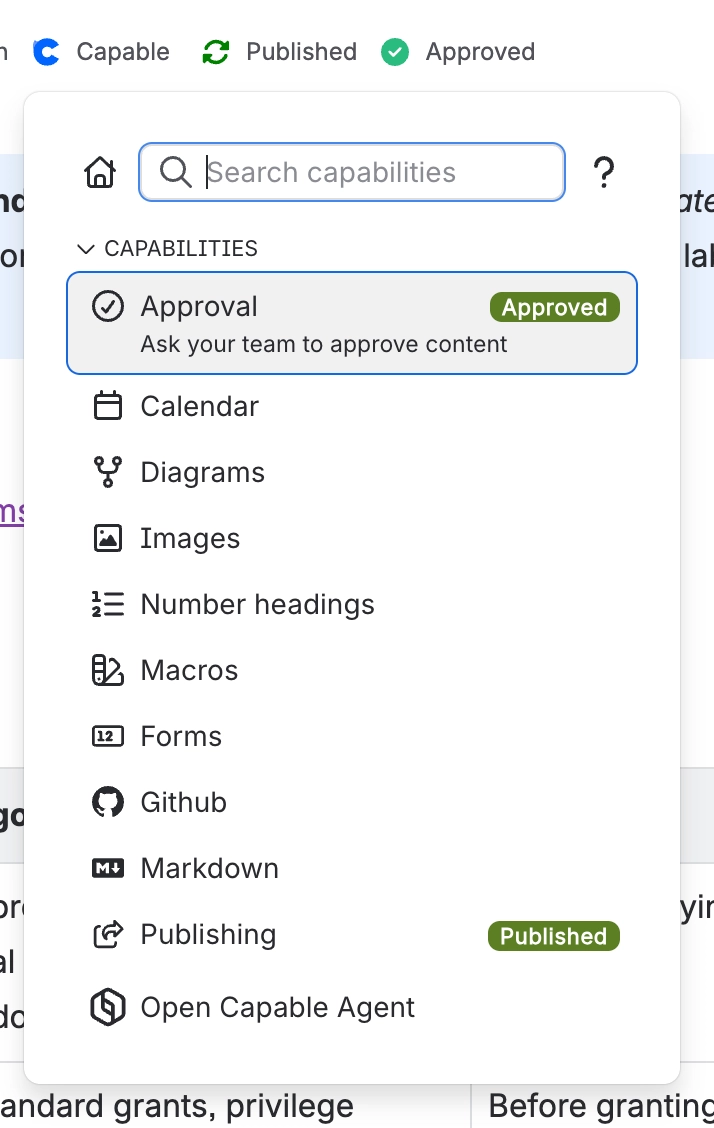
Request approval on any Confluence page from the Capable menu in the page byline.
It suggests people you've worked with recently, and you can search for anyone else you'd like to give feedback on, or approve, your page.
#2. Configure notifications
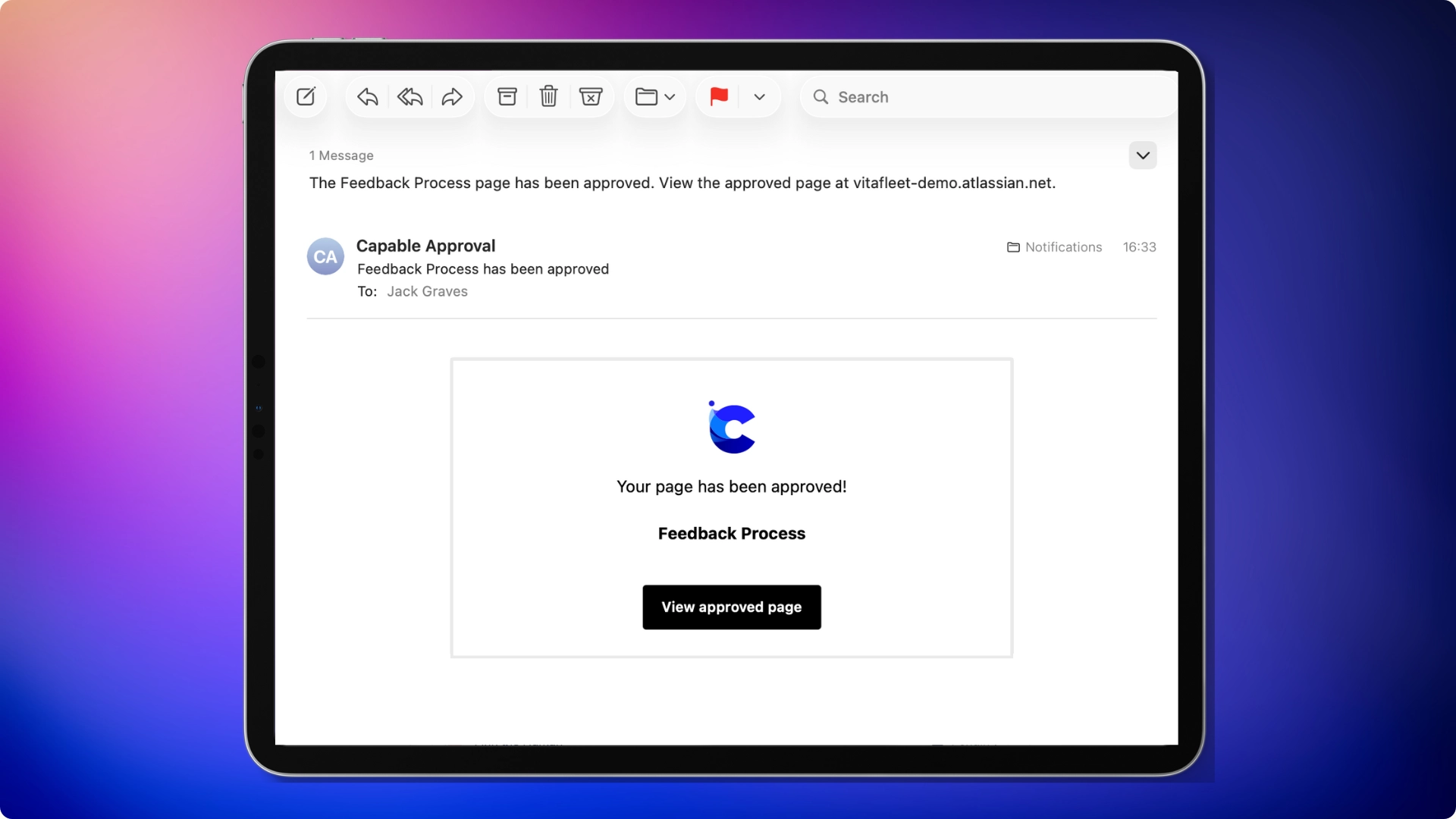
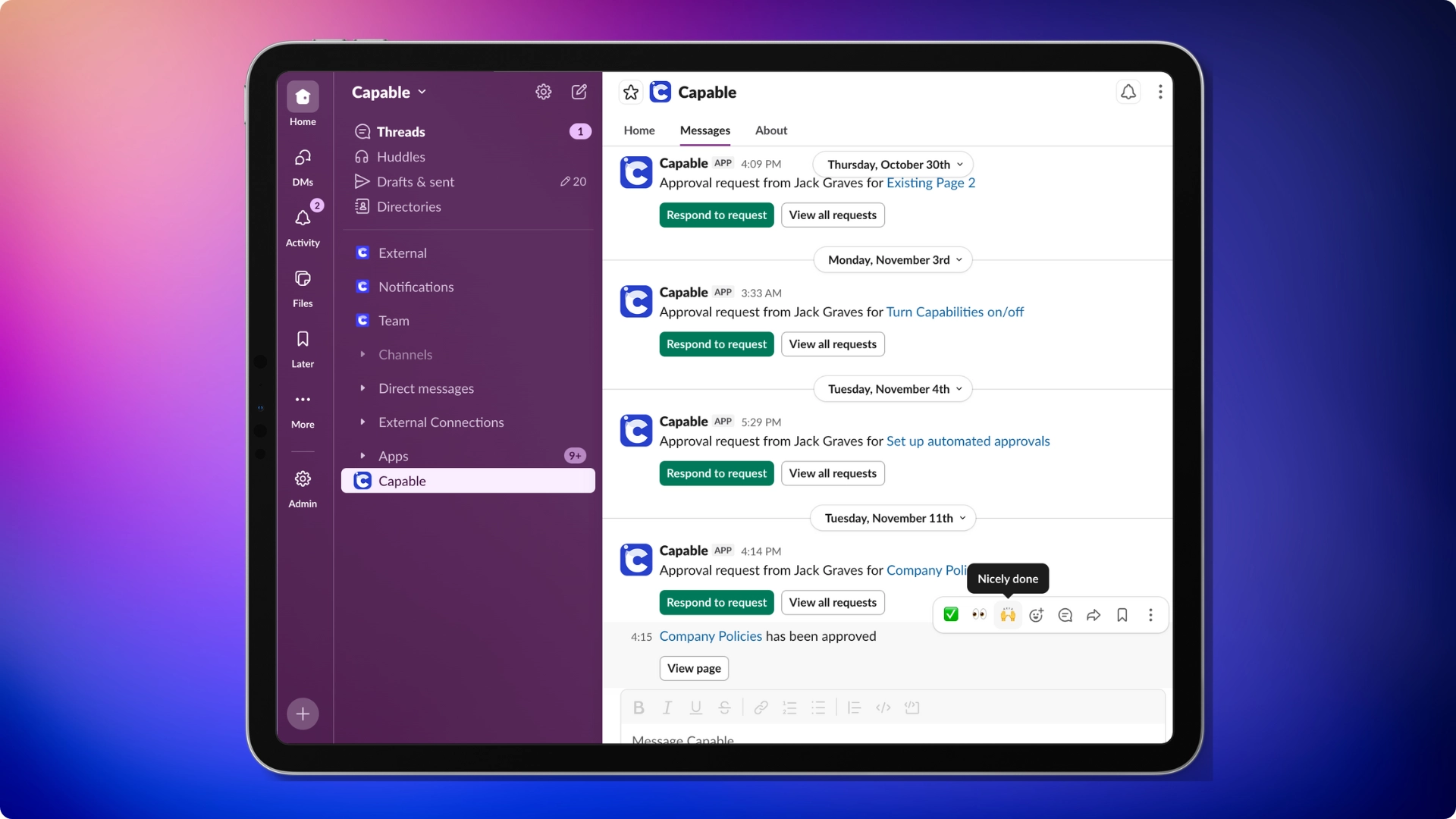
Hear about approvals the moment something happens, by email, in Slack, or both.
#3. Track pending approvals from the Dashboard
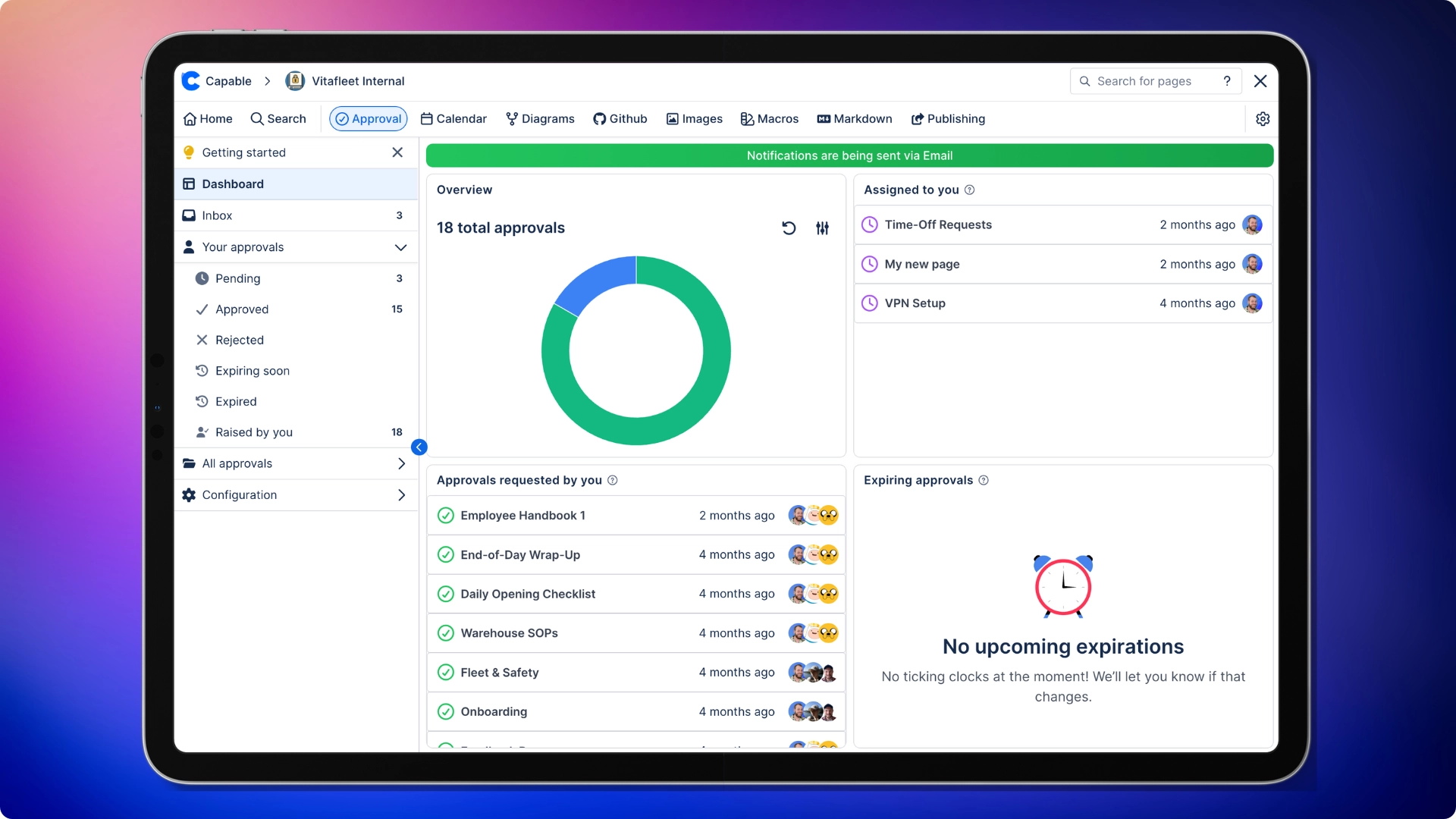
See all your pending and completed approvals in one place, so nothing slips through.
#4. Respond to approval requests in Confluence
When someone asks for your feedback or approval on a page, you can respond from the top of the page.
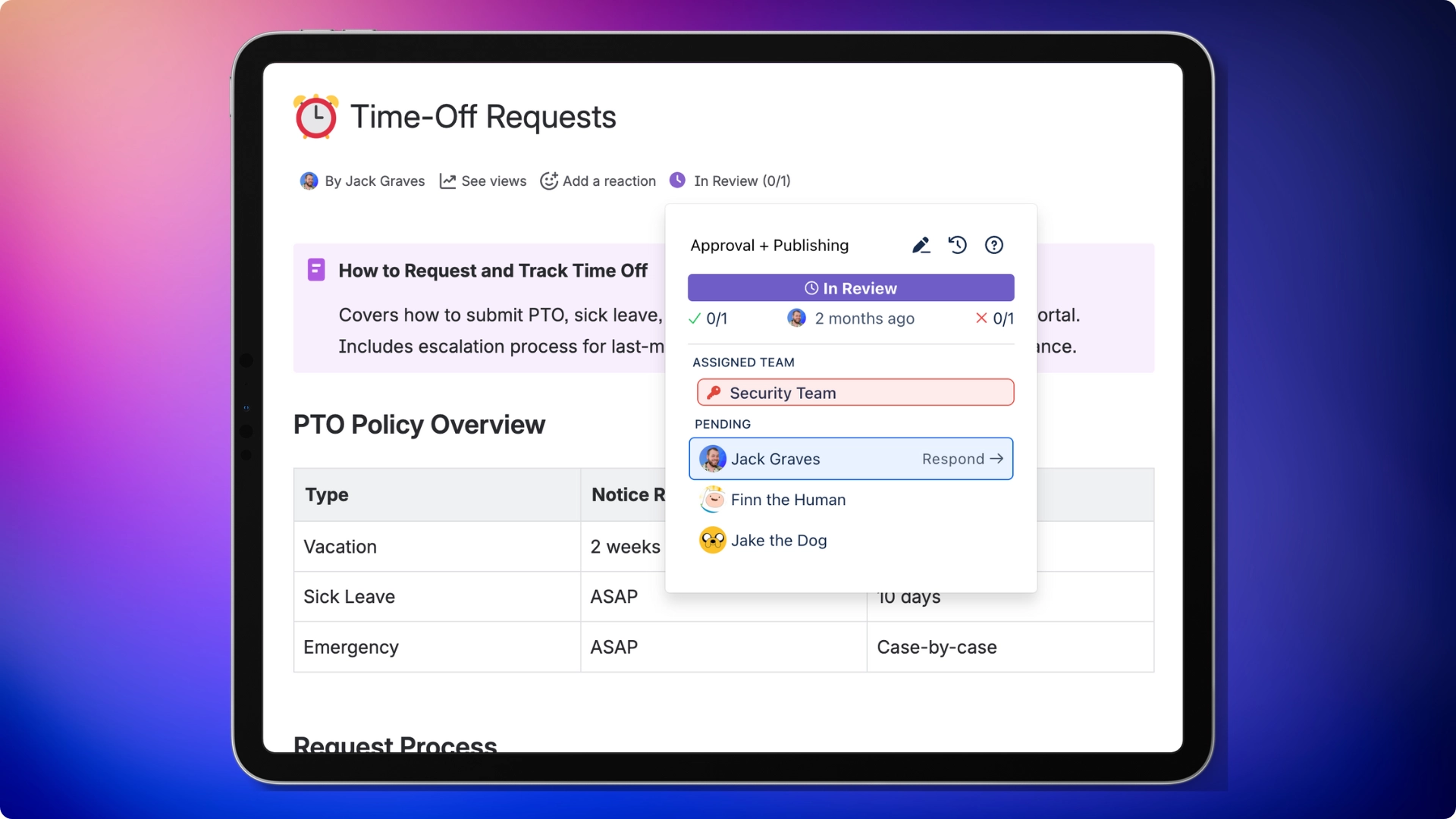
#5. Show approval status with Confluence macro
Add the Approval macro to show a page's approval status, and who has responded, right on the page.
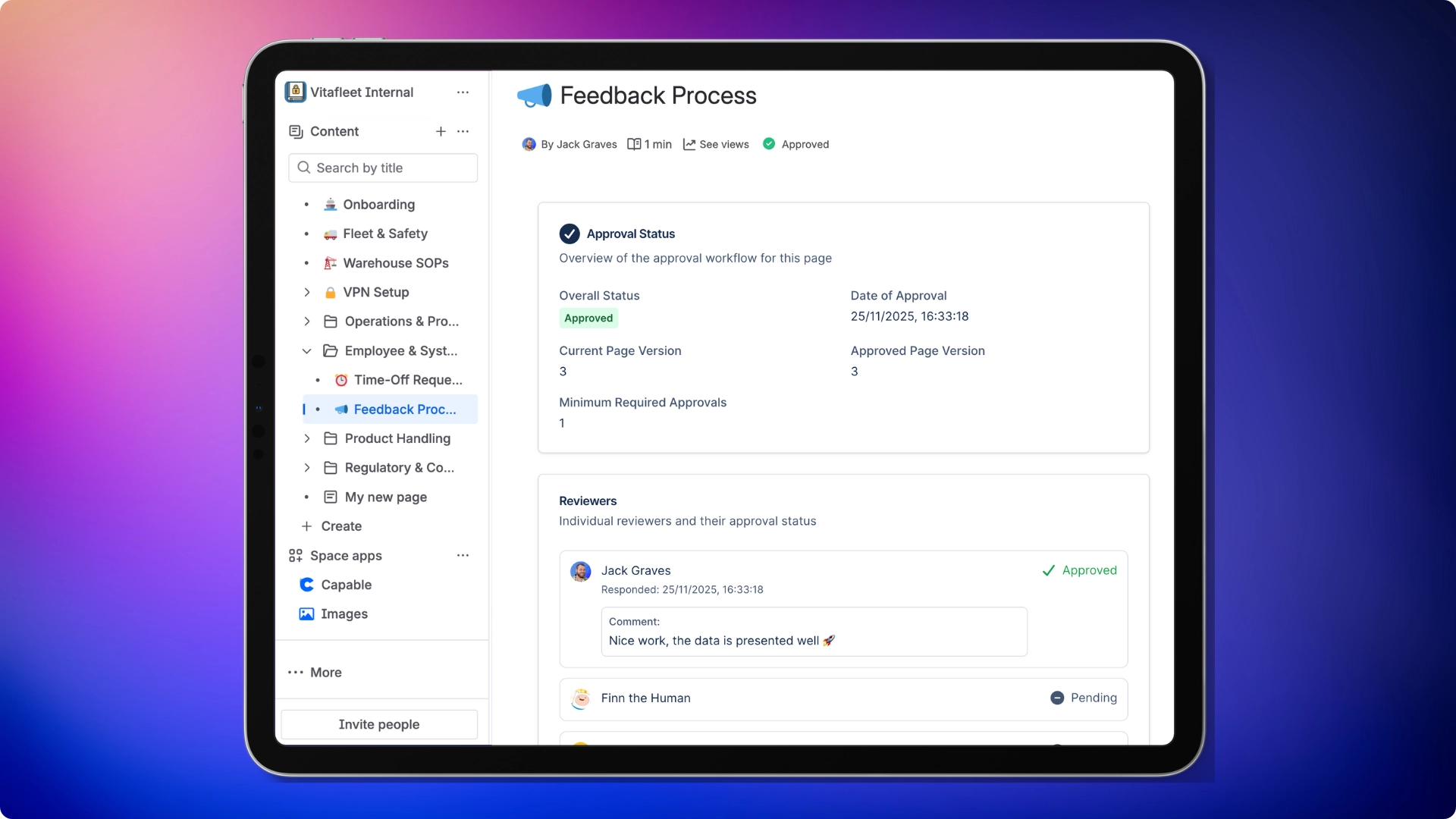
#6. Expire approvals in Confluence
Set approvals to expire when the page is updated, after a set period, or on an exact date, so pages are reviewed again on time and your information stays current.
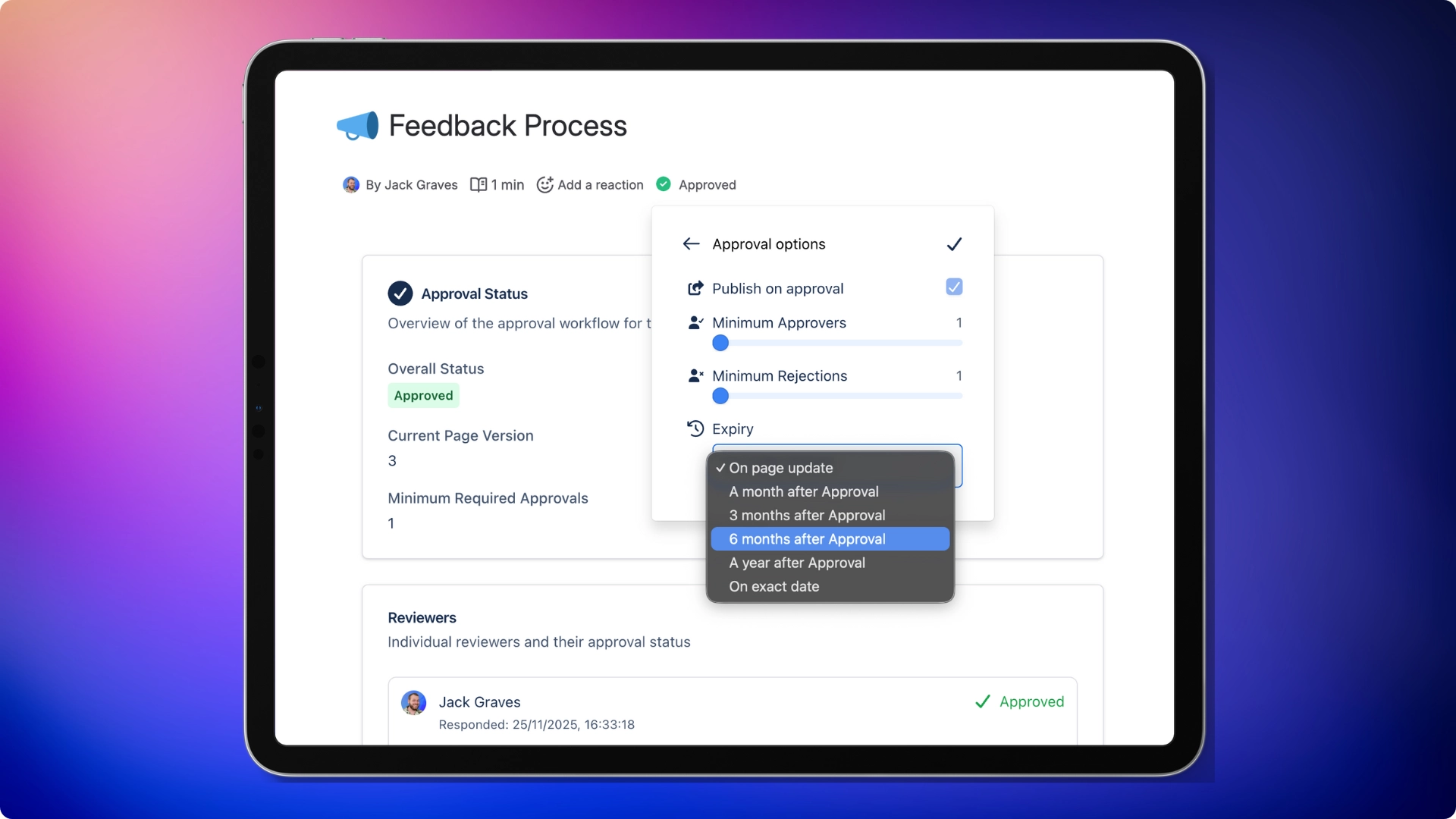
#7. Customize Required Responses and Rejections
Tailor the approval process by choosing how many responses you need. Set Minimum Approvers and Minimum Rejections in the same Approval options panel shown above.
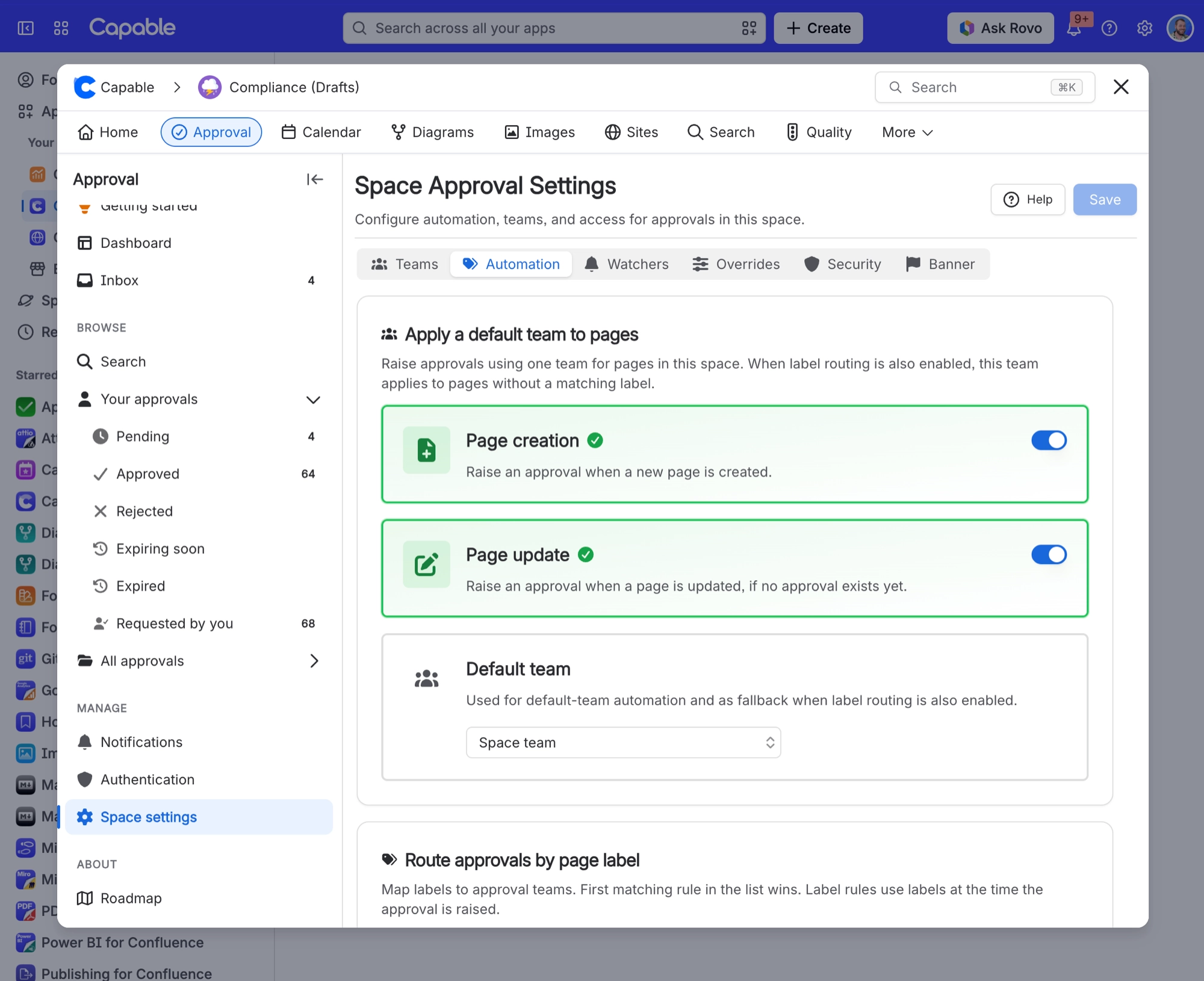
#8. Set up Space Settings
Shape how approvals work in each space. You can restrict who can ask for approval, request approval automatically for every new page, and set up preset teams of reviewers.
#Everything in this section
#Rolling it out to a team
If you are setting this up for other people rather than trying it yourself, go straight to Set up a space for approvals, which puts the steps in the right order.






















