
Teams and assignment
If the same people sign things off week after week, stop typing their names. Save them as a team and they become one click, carrying their own rules for how many need to approve and how often the page comes back for review.
#Two kinds of team
Kind | Available in | Set up by |
|---|---|---|
Global team | Every space on the site | Anyone with team management permission |
Space team | One space only | A space administrator |
A global and a space team may share a name, because names only have to be unique within their own kind. Every space also has a built-in Space team, which holds up to 16 people and is the default choice for automation.
#Build one from a Confluence group
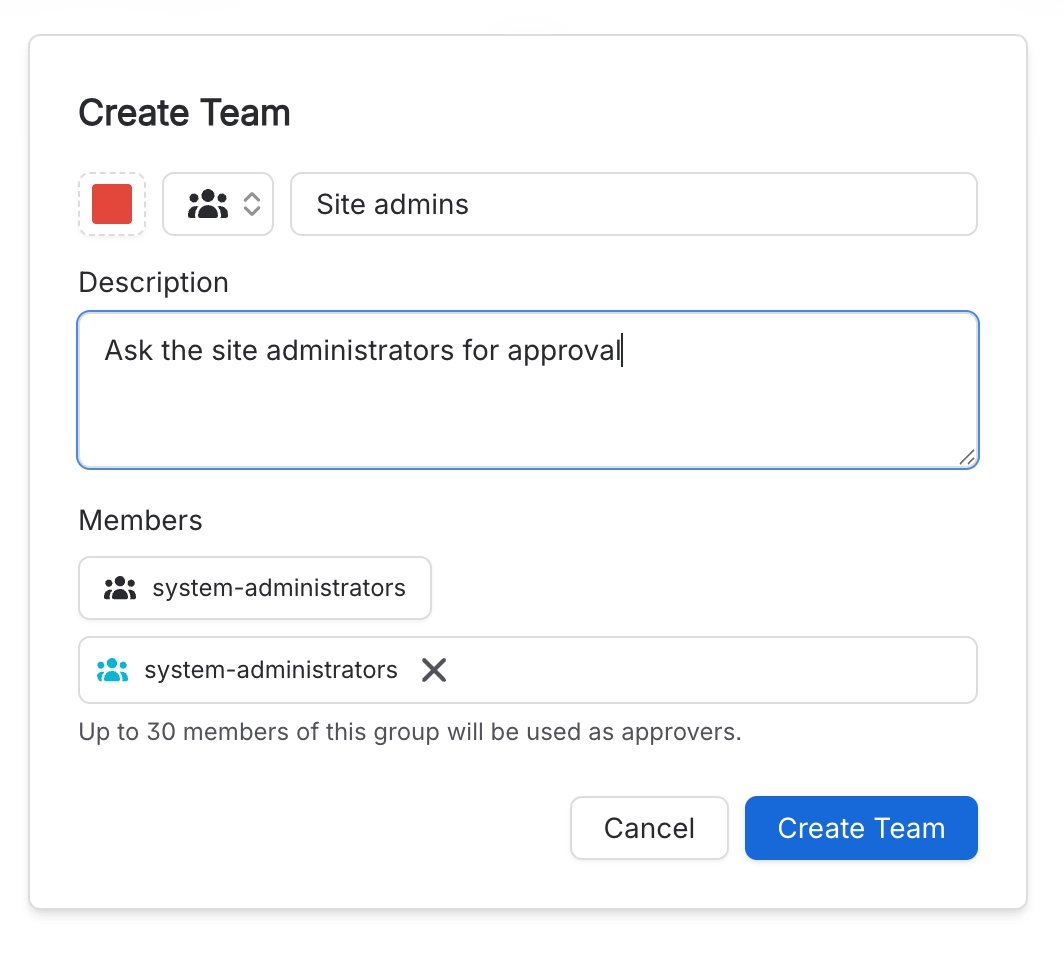
Instead of listing people, point the team at a Confluence group. The reviewers are then whoever is in that group at the moment the approval is raised, and again whenever the page is edited or the approval expires, so a new joiner is included automatically and a leaver drops out. No maintenance.[1]
A team uses either a member list or a group, never both. Choosing a group clears the list, and adding a person clears the group.
#How to set one up
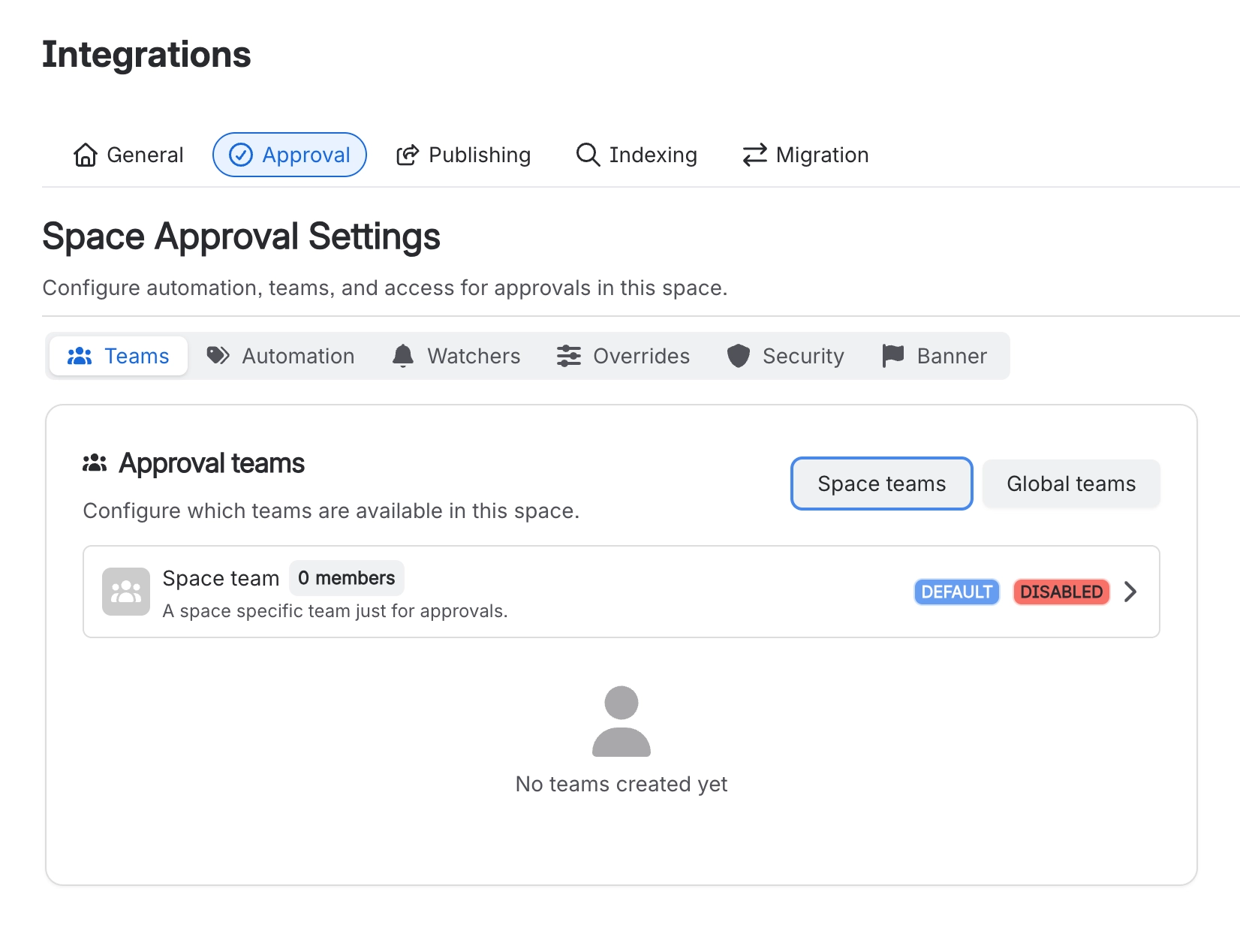
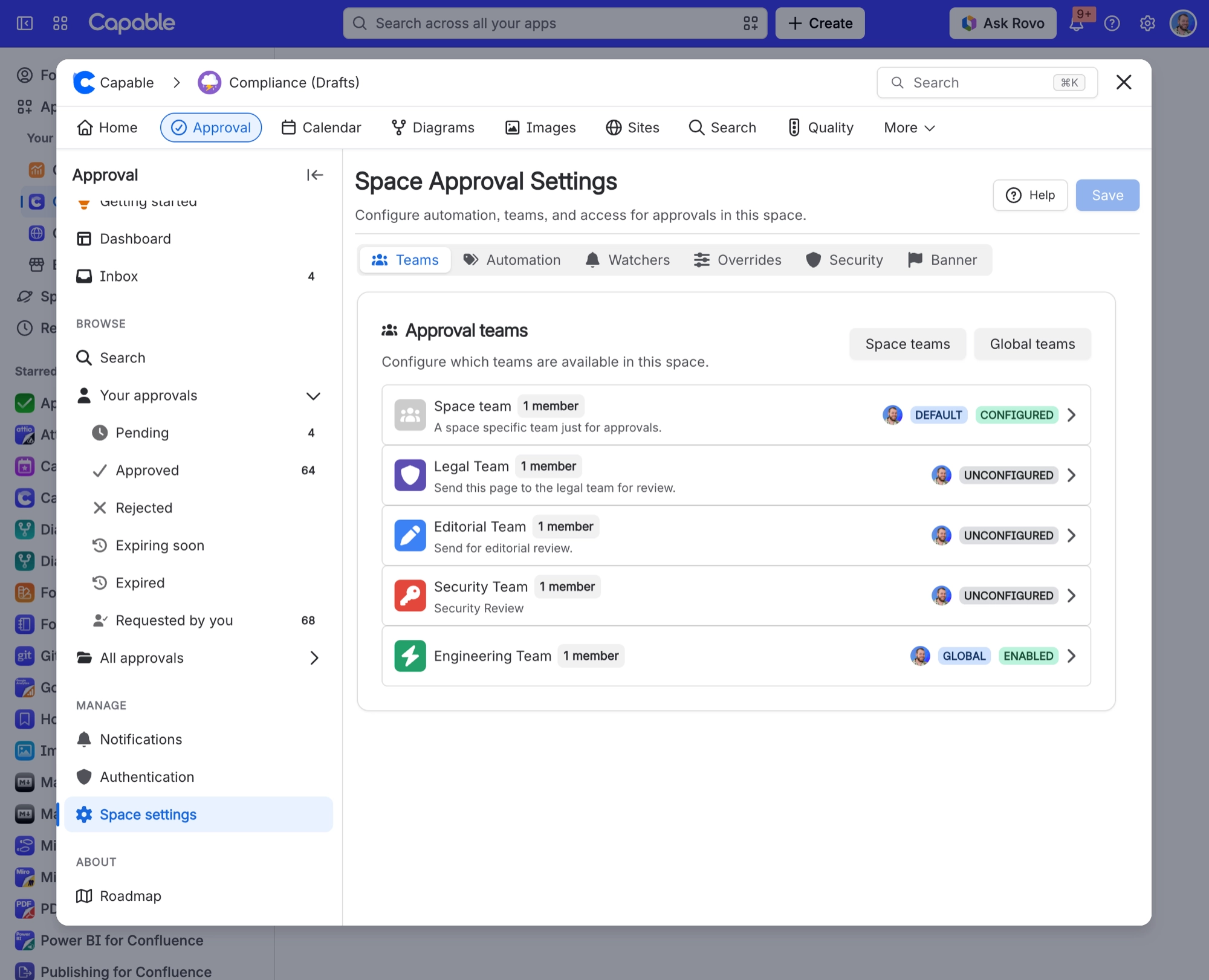
Go to space settings, Capable Approval, Approval teams. Choose Global teams or Space teams, then Create team. Give it a name of 3 to 75 characters, an icon and a colour.
Add up to 32 people individually, or open Add members and pick an entry under Groups instead.
Expand the team row and turn on Enable approval team. Creating a team is only half the job: each space decides which teams may be used there, which is what lets one team need two approvals in one space and four in another.
A team that is not enabled in a space will not appear on pages there, however well set up it looks globally. This is the most common reason a team seems to be missing.
Set how many must approve, how many rejections refuse the page, whether it expires, and whether approval publishes the page. For the full list of options, see Space settings.
#What the badge on a team means
Badge | Meaning |
|---|---|
| UNCONFIGURED | Exists but never set up here. Will not appear on pages. |
| DISABLED | Set up, then switched off. |
| EMPTY | No members and no group, so it cannot be used. |
| CONFIGURED | Ready to use on pages in this space. |
#Using a team on a page
Open the approval panel and pick the team instead of individual people. It brings its members and its rules with it. See Request an approval.
A team replaces everything already on the approval, including answers people have already given. To add one more reviewer to a live request, add them by name instead.
You do not have to pick a team at all. A space can raise approvals by itself and route them by page label. See Automatic approvals.
#When the team changes later
An approval raised from a team keeps following that team. When the page is edited, or the approval reaches its expiry date, Capable reads the team again, whether it is the space team, a named team or a group, and asks its current members using its current minimums. People who joined are asked, people who left are not. If the team cannot be read, or it is empty or switched off, the approval keeps the reviewers it already had. See Expiry and re-approval.
#A few things that catch people out
Teams hold up to 32 members when you list people individually, and use up to 30 from a group.
When someone picks a group-based team by hand, the group is looked up with their permissions, so it can fail if they cannot see that group. Automatic assignment does not have this problem.
Deleting a team configuration in a space removes it from that space but leaves the team itself intact.
Global teams need team management permission; space teams only need space admin. See Manage approval teams.
Changing a team's members does not touch approvals already in progress. The change reaches them the next time the page is edited, the request is saved again, or the approval expires.
- Up to 30 people are used, chosen by display name from the first 150 members of the group. App and service accounts are left out. Anyone beyond that is silently dropped, though the team editor warns you when it spots this. ↩
#Related
Automatic approvals
Use teams without anyone clicking anything.
Manage approval teams
Creating them, and who is allowed to.
Request an approval
Picking a team on a page.
Space settings
Every per-team option and its default.
Set up a space for approvals
Where teams fit in the wider setup.
Expiry and re-approval
What happens to a team approval when it expires.
That is the last time anyone types those five names.






















