
Sign approvals with a code
In a regulated process an approval is a signature, and a signature has to prove the person who gave it was really there. Capable can require a six digit code from an authenticator app on every response, and record on the approval that the code was checked.
It costs nothing extra and takes about a minute to set up.
#Setting up your authenticator
You do this once for the whole Confluence site, not once per space.
Open the setup card from the page actions menu, from your Capable settings, or from the prompt you get the first time you try to approve in a space that requires it.
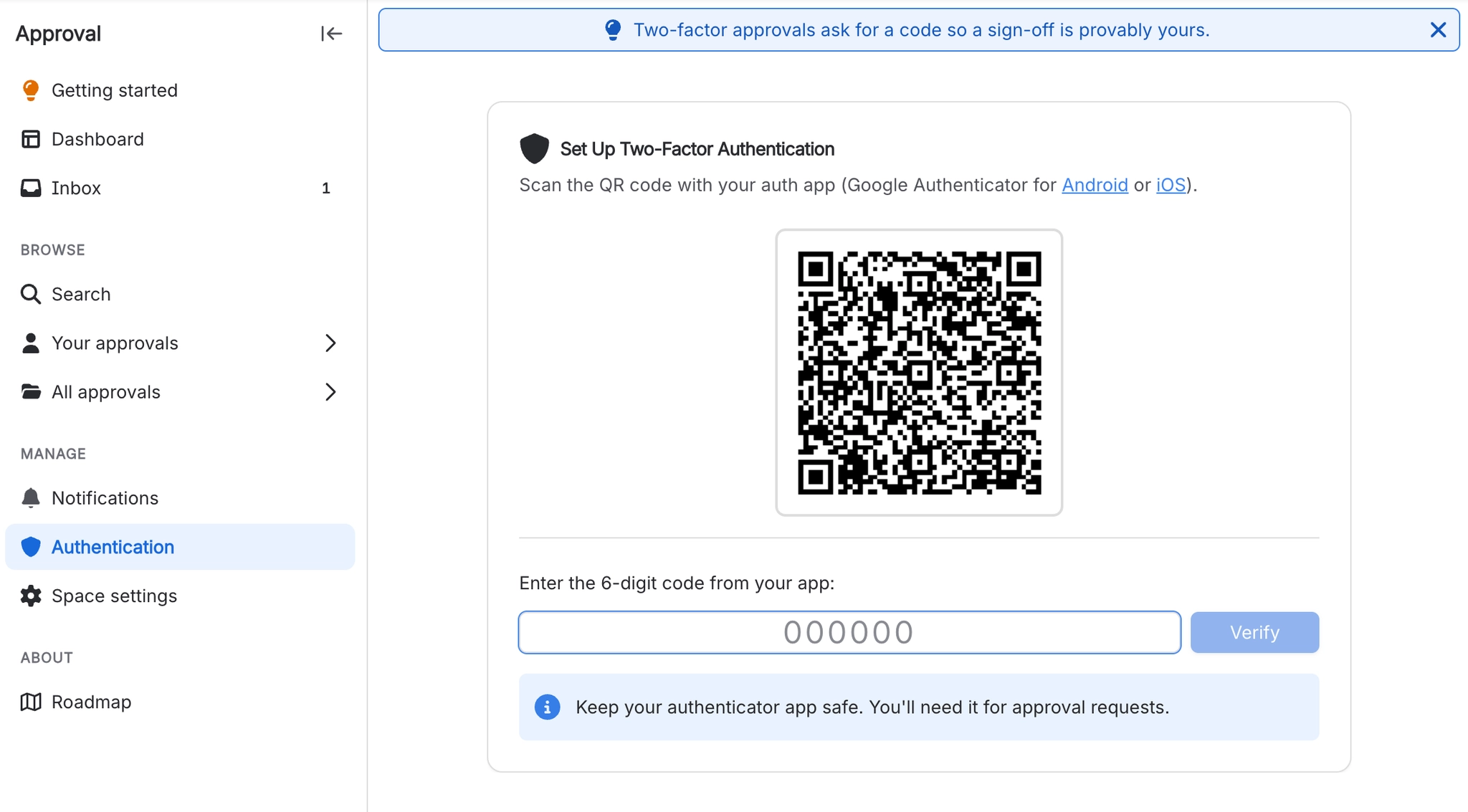
Scan the QR code with your authenticator app. Any standard one works: Google Authenticator, 1Password, Authy, Microsoft Authenticator, or your password manager. The setup screen only links to Google Authenticator, but nothing here is specific to it.
Google Authenticator on Android →
Google Authenticator on iPhone →
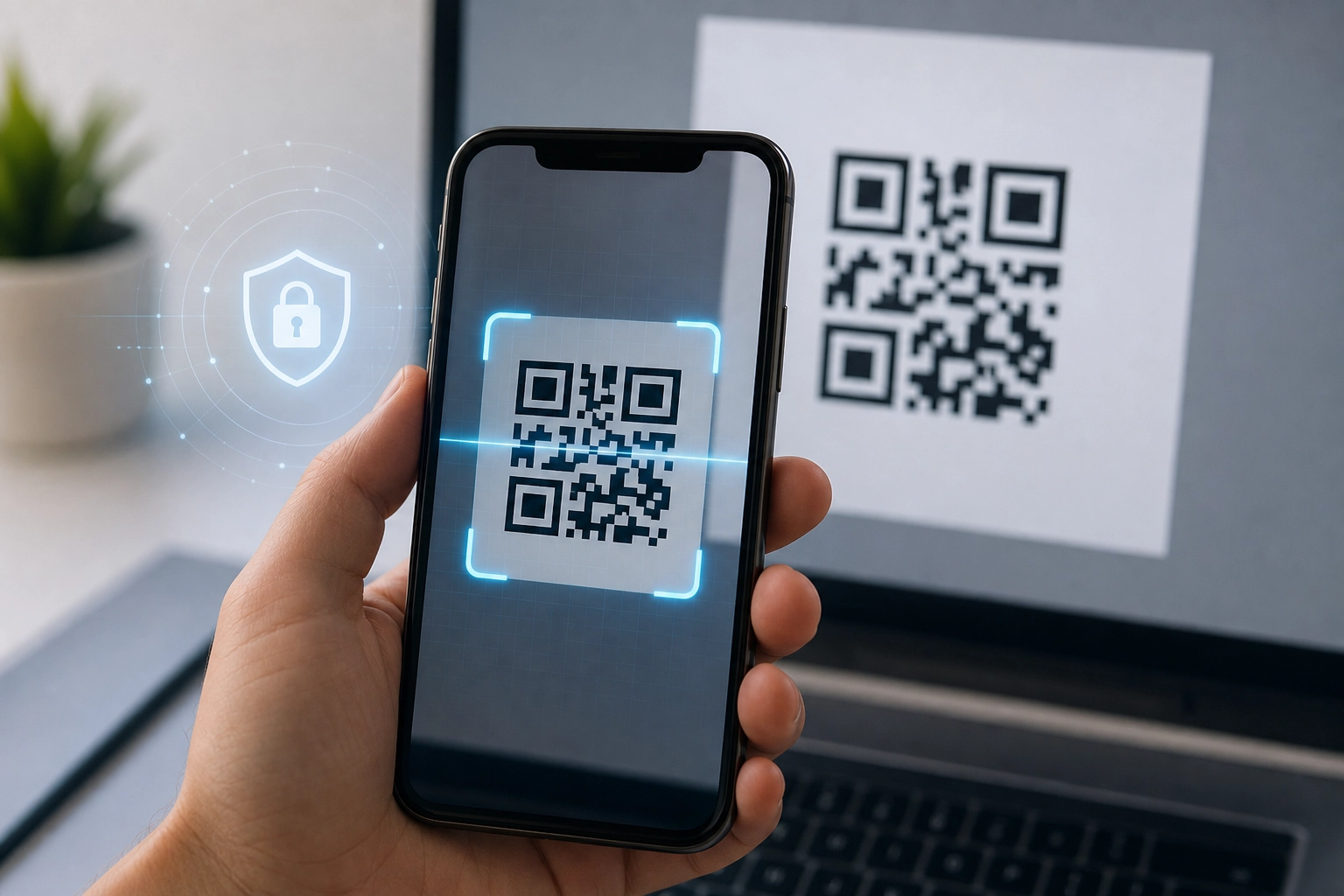
Type the code your app shows to confirm the pairing. That's it. You're enrolled everywhere on this site.
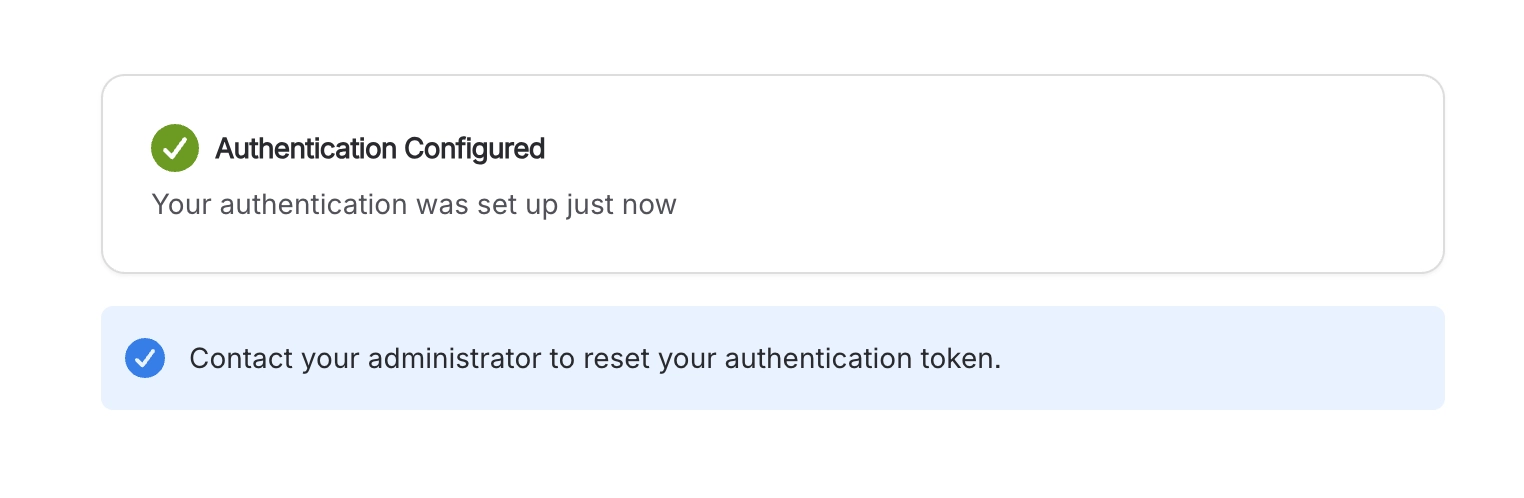
There are no backup codes and no self-service reset. If you lose the device, a site administrator has to clear your enrolment before you can set it up again. Worth knowing before you rely on a single phone.
#If you have more than one Atlassian account
The entry in your authenticator app is labelled with your account ID rather than your name or email, so several accounts look nearly identical in the list. Rename the entry in your app to something you'll recognise at a glance.
#Requiring codes in a space
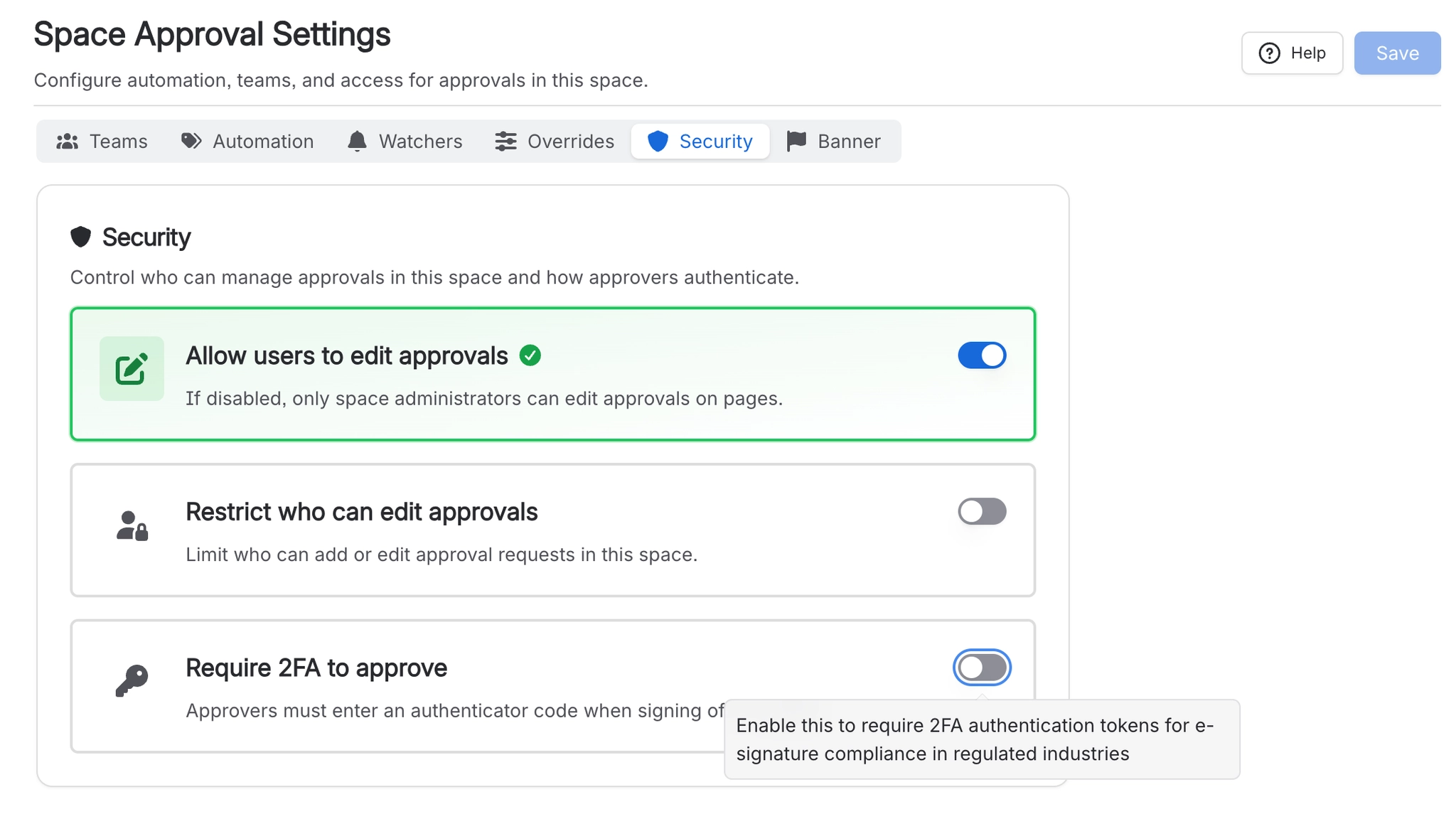
A space administrator turns this on in space settings, Capable Approval, Security, using Require 2FA to approve. It's off until somebody turns it on, and it applies to that space only. There is no site-wide switch. See Space settings.
From then on, every approve, reject and comment in that space asks for a code.
Turning it on does not change anything that already happened. Past approvals are not retroactively marked as signed. Only responses given after you turn it on carry the marker.
#What gets recorded
A response given with a code is marked as authenticated, and a padlock appears next to it in the approval history. That is your evidence that a real person with a second factor gave that specific answer.
The record says that a code was checked. It does not record which device, which browser or which network address. See What is recorded.
#What this means day to day
Situation | Result | What to do |
|---|---|---|
You have not enrolled yet | BLOCKED | Set up your authenticator first. |
You try to approve from Slack | BLOCKED | Buttons are not offered at all in these spaces. Answer in Confluence. See Slack. |
You try to approve several pages at once | BLOCKED | Bulk actions cannot carry a code, so the whole batch fails. Respond one at a time. See Search and reporting. |
Your code is a few seconds old | WORKS | Fine. Codes are accepted for about ninety seconds around when they are issued. |
#For administrators
From Confluence settings, Capable Approval, Auth tokens you can check whether somebody has an authenticator set up, see when they enrolled, and clear it if they have lost their device. One person at a time. See Site settings.
You can clear an enrolment but you cannot create one for somebody, and clearing is not written into the approval history. Keep your own log if your standard needs one.
#A few things that catch people out
Enrolment is site-wide, but the requirement is per space. You may only ever be asked in one space.
Commenting needs a code in these spaces too, not just approving and rejecting.
Nothing is retroactive. Old approvals stay unsigned.
The padlock does not survive a CSV export, which matters for Compliance.
#Related
Enrolled, and every sign-off from here on is provably yours.






















