
Site settings
Microsoft Teams support is coming soon.
These are the things only a Confluence administrator can do, and they are the ones that save every space administrator repeating themselves. They live in Global settings, which you can open two ways: from Global settings under Manage in the Approval sidebar, which only site administrators see, or from Confluence administration.
Where | What is there |
|---|---|
The Approval tab | Teams, Team permissions, Auth tokens, Migration and Slack channels |
The Notifications tab | Email, Slack and Microsoft Teams: connecting them and their site-wide switches |
The Features tab | On and off switches for features, including the approval status banner |
Opened from inside Approval, the same settings appear on one page: the feature switches first, then each section.
#Teams
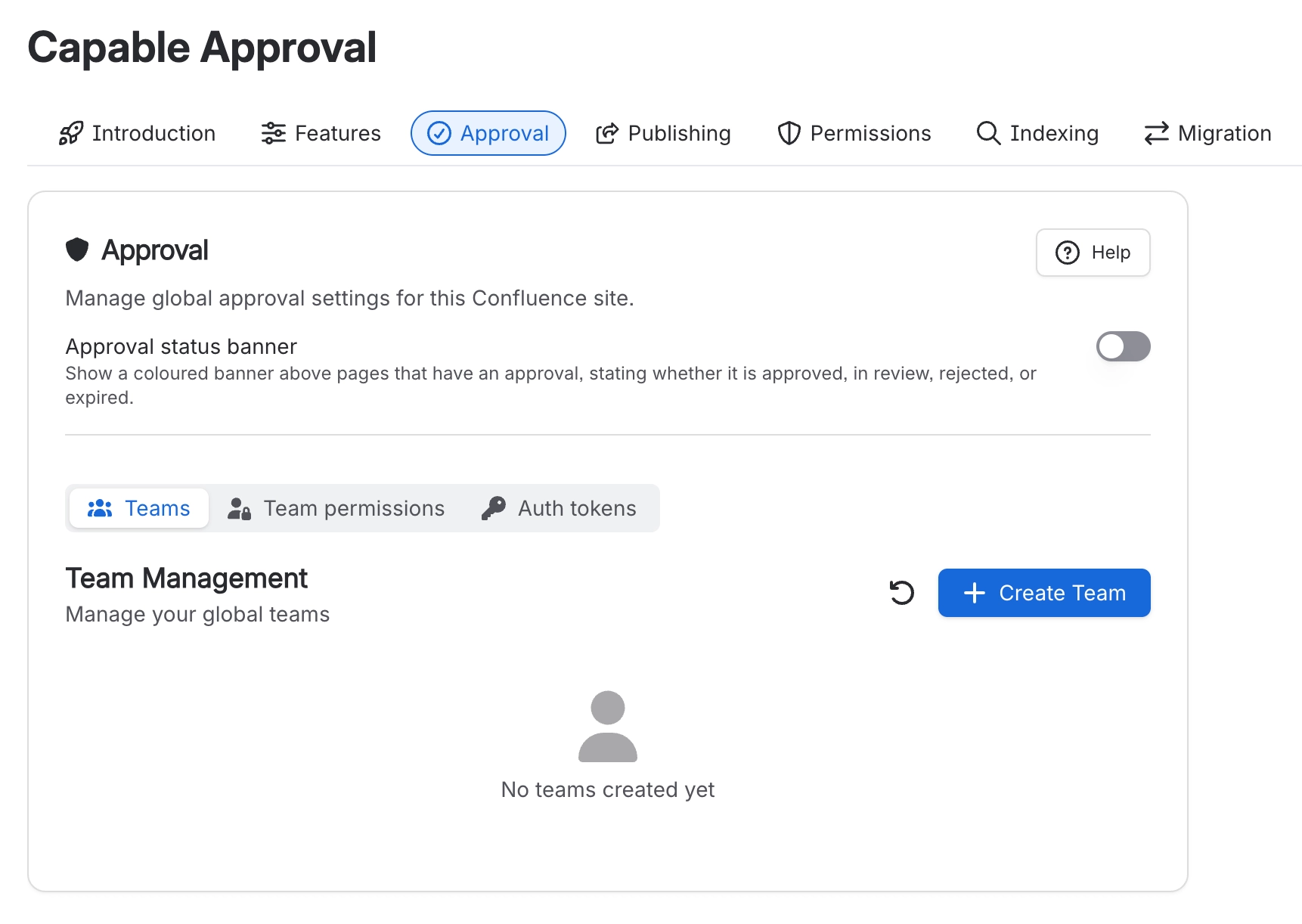
Create and edit global approval teams, available in every space on the site. See Manage approval teams for the day to day of running them.
Turning on show in all spaces for a team makes it usable everywhere without a space administrator lifting a finger, using these defaults.
Setting | Value when shown in all spaces |
|---|---|
Enabled | ON |
Minimum approvers | The team size |
Minimum rejections | 1 |
Expiry | None |
Publish on approval | OFF |
A team switched on for all spaces cannot then be configured differently per space. If one space needs its own quorum or expiry, leave the team off globally and let that space enable it in Space settings.
#Team permissions
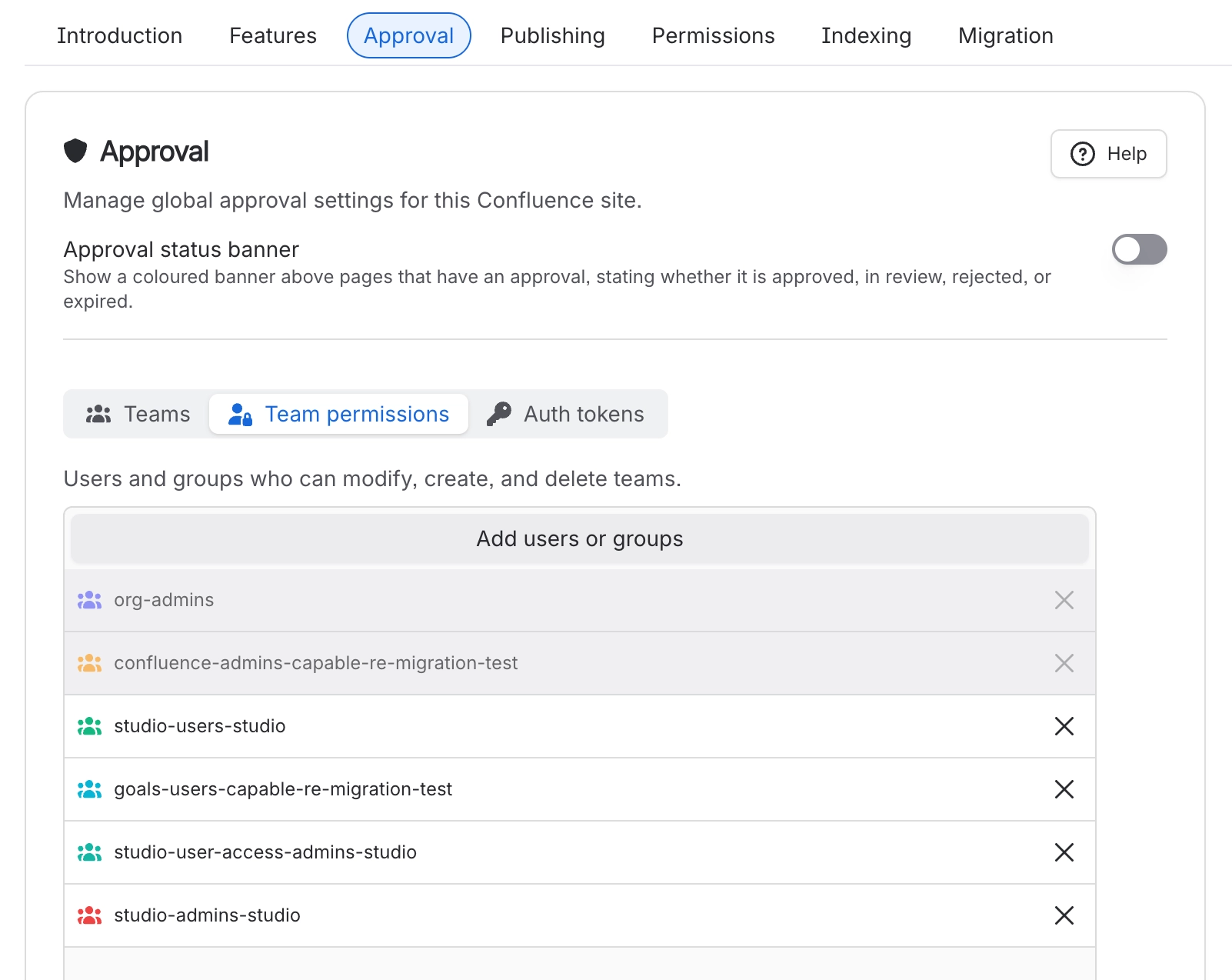
Who may create, edit and delete global teams. Empty by default, which means Confluence administrators only.
The three Confluence administrator groups and your own account are locked into the list and cannot be removed, so it is not possible to lock everybody out of team management.
This list governs global teams only. A space administrator can always manage teams inside their own space, whatever is set here. See Who can do what.
#Auth tokens
Check whether somebody has an authenticator enrolled, see when they set it up, and clear it if they have lost their device. One person at a time.
You can | Notes |
|---|---|
See enrolment status and date | Search by user. |
Clear an enrolment | The person enrols again themselves next time they approve. |
Create an enrolment for somebody | Not possible, deliberately. A signature nobody else could have made is the whole point. |
Clearing an enrolment is not recorded in the approval history, and there are no backup codes. If you are running a regulated space, keep your own log of lost-device resets. See Sign approvals with a code.
#Migration
Bring approvals across from the standalone Capable Approval app, or from another Confluence approvals app. Moving from the standalone app is a guided sequence of steps that starts in that app. See Move from standalone Capable Approval.
#Notifications, Slack and Microsoft Teams
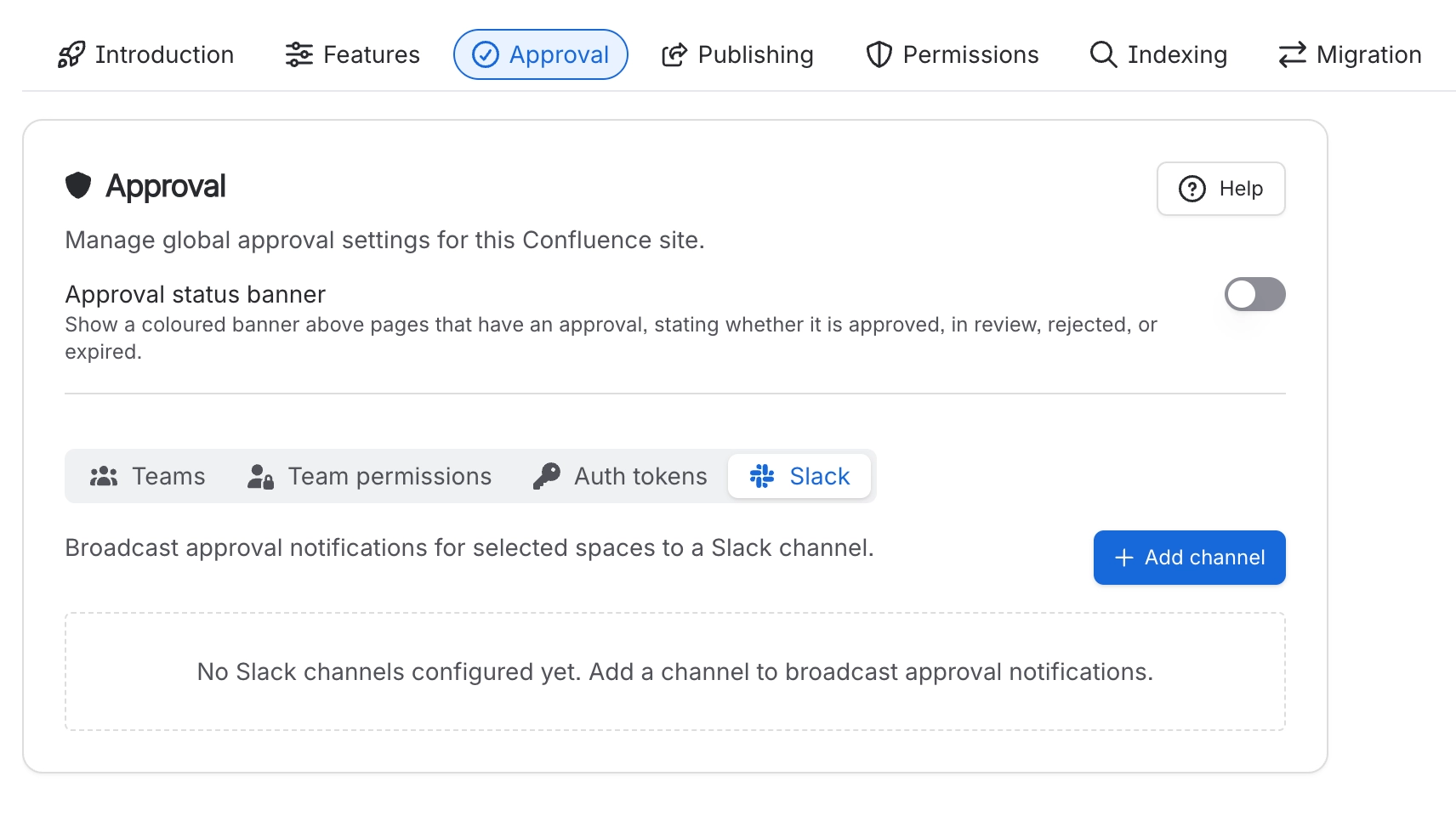
Connecting Slack and Microsoft Teams, and the site-wide switches for email, Slack and Teams, are on the Notifications tab. Channel notifications for Slack are set up in the Slack section of the Approval tab, or from Set up on the Slack card. What your team actually gets is in Slack and Microsoft Teams.
Setting | Default |
|---|---|
Email notifications | ON |
Slack connection | Not connected. One workspace per site. |
Slack approval actions | OFF |
Slack channels | None |
Spaces per channel | None |
Event types per channel | None enabled. Choose from requests, approvals, rejections, comments, status changes and expirations. |
Microsoft Teams connection | Not connected. One Microsoft 365 organisation per site. |
Microsoft Teams approval actions | OFF |
The two approval actions switches put Approve and Reject buttons on messages, and they are the ones people ask for by name. Invite the Capable bot to a Slack channel before adding it. Each person can still turn any channel off for themselves; see Notifications.
#The approval status banner
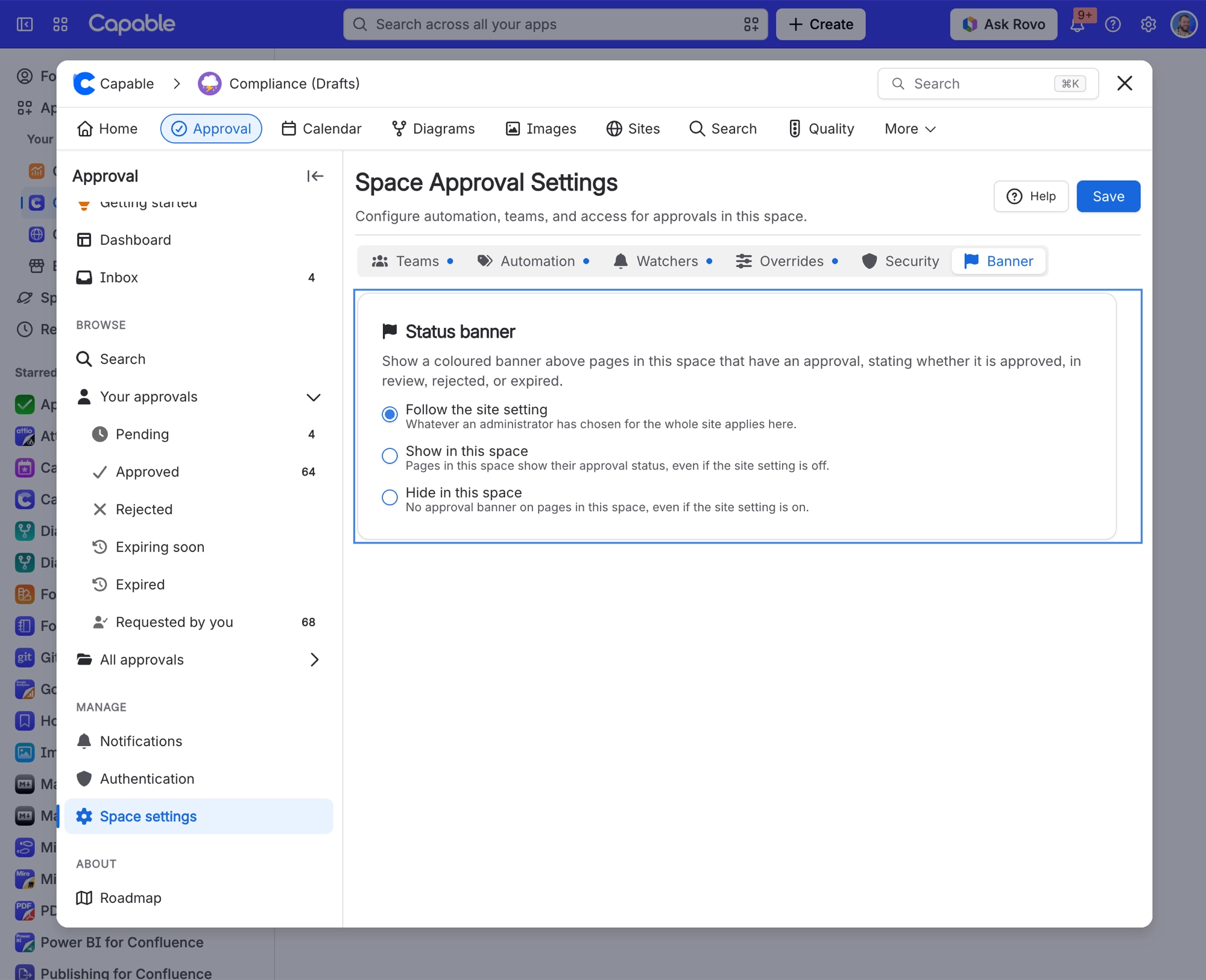
The site-wide switch for the banner across the top of pages is Approval status banner, on the Features tab and at the top of Global settings inside Approval. It is off by default. Individual spaces can follow it, force it on, or force it off from the Banner tab in their Space settings. Banner states are approved, rejected, in review and expired. See The approval macro for the in-page alternative.
#A few things that catch people out
Global and space-level team management are separate permissions. Being a space administrator gives you none of these settings, and the Global settings entry does not appear in your sidebar.
One Slack workspace and one Microsoft 365 organisation per Confluence site. There is no per-space connection.
Requiring a code to approve is a space setting, not a site one. There is no site-wide equivalent.
Show in all spaces is convenient but inflexible. Use it for teams whose rules genuinely never vary.
#Related
Space settings
Everything a space can set for itself.
Notifications
Who hears what, and the switches.
Sign approvals with a code
Resetting a lost authenticator.
Manage approval teams
Global teams, day to day.
Move from standalone Capable Approval
Moving from the standalone app.
The approval macro
The in-page alternative to the banner.
Set these once, and every space inherits them.






















