
Automatic approvals
Relying on people to remember to ask for approval is the weak point in most document control processes. Capable can raise the request for you: on every new page in a space, on every page somebody updates, or routed to different reviewers depending on how the page is labelled.
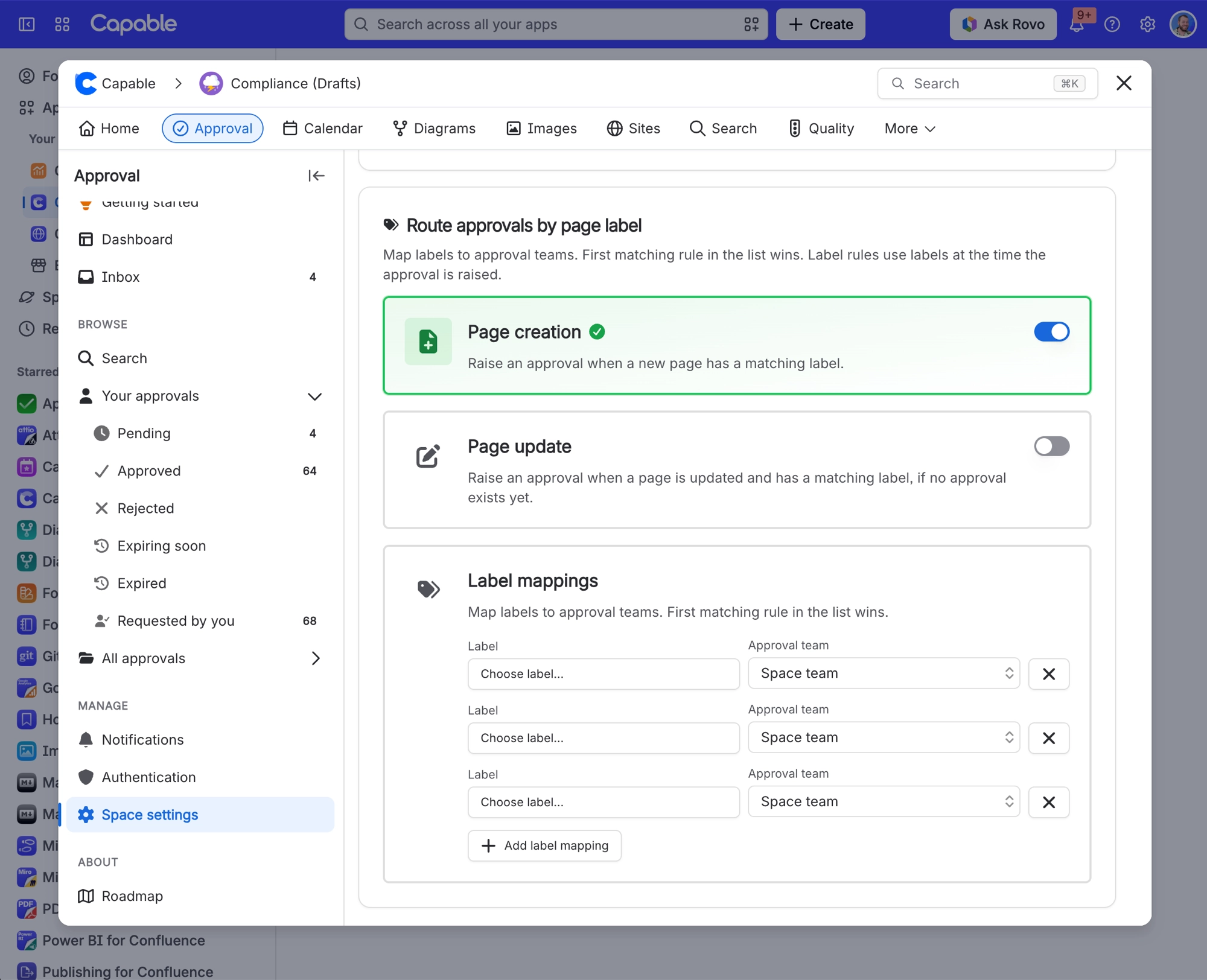
#Two switches, both off until you turn them on
Switch | What it does | Out of the box |
|---|---|---|
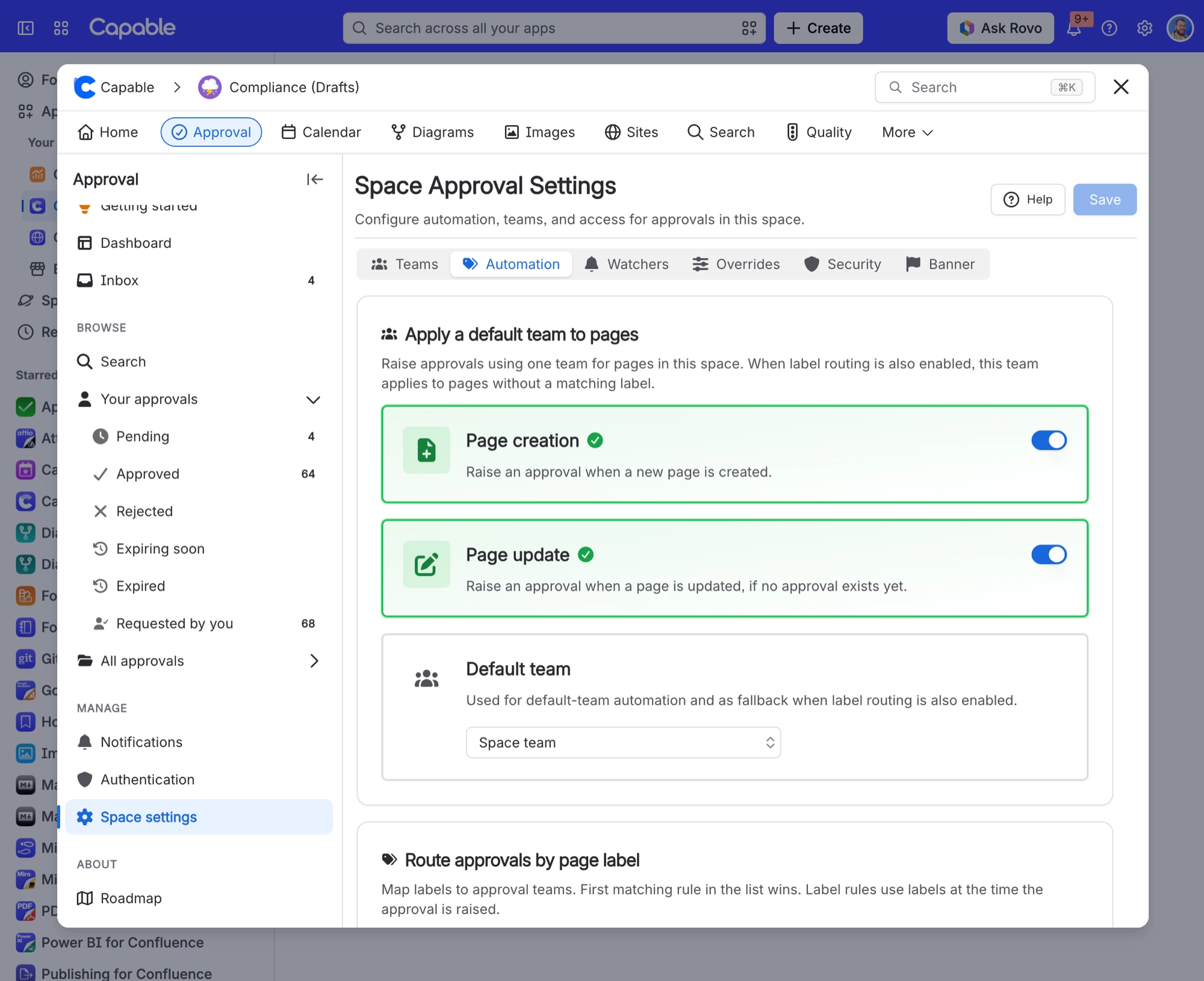
Page creation | Every page created in the space arrives with an approval already waiting, using the default team's reviewers, quorum and expiry. | OFF |
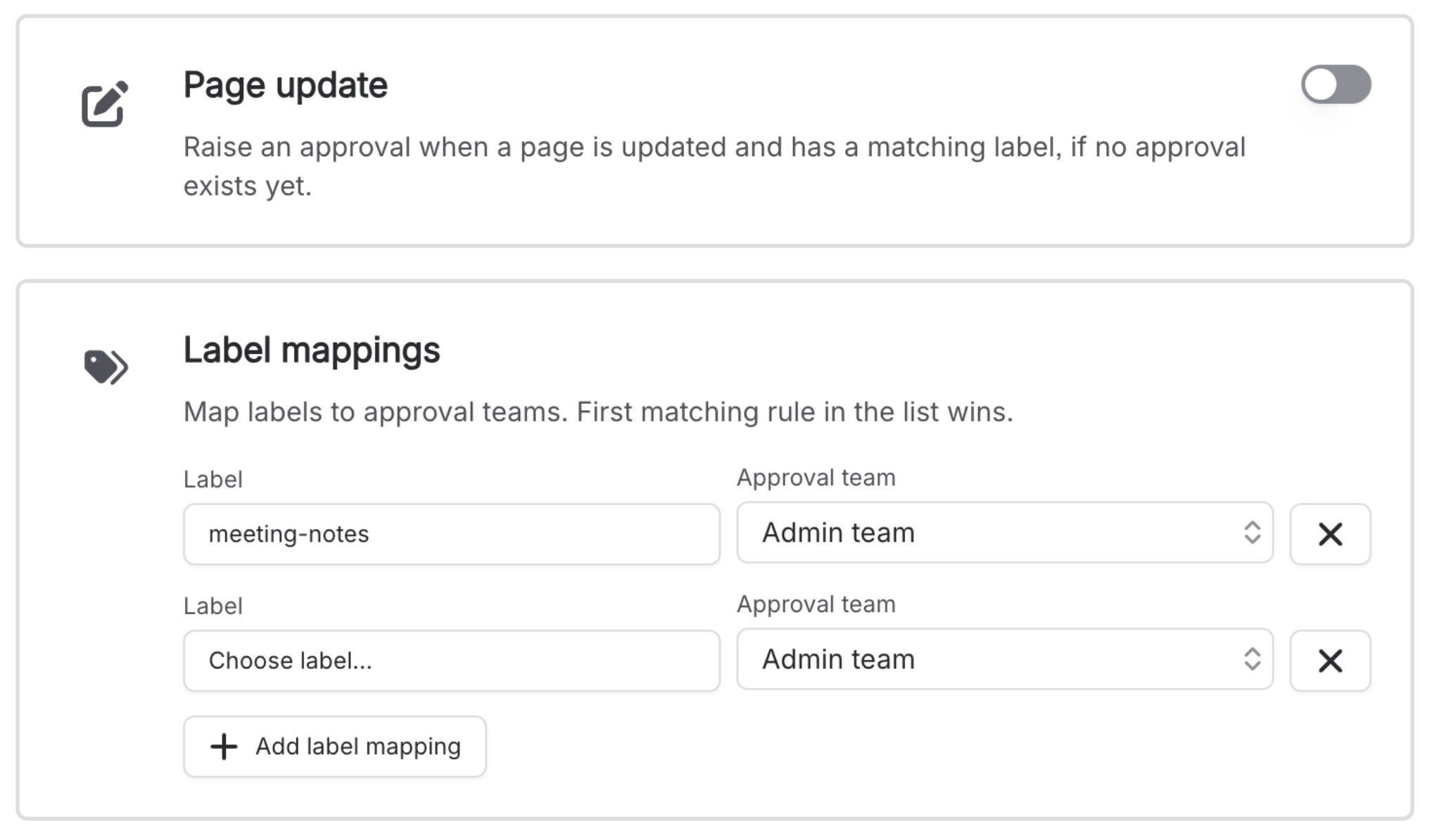
Page update | Raises an approval whenever somebody publishes a change to a page that has never had one. | OFF |
Page creation is the one for a controlled space where nothing should exist unapproved. Page update is quietly the more useful of the two: it brings an existing space up to full coverage without a migration project, because as people naturally edit old pages, those pages get pulled into the process one at a time.
The switches are independent. Turn on either, or both.
#Send different pages to different reviewers
One default team does not always fit. You can map page labels to teams, so a page labelled security goes to the security reviewers and a page labelled hr goes to HR.[1]
Capable uses the first label on the page that matches a rule. If no label matches, the default team is used instead, so nothing falls through the gap.
Label routing has its own switches for creation and update, separate from the plain default-team ones, so you can route on creation but not on update if that suits how your space works.
Adding a label to a page that already has an approval does not reassign it. Label routing decides who to ask at the moment the approval is raised, not afterwards. To move an existing request to a different team, change it on the page. See Request an approval.
#Set it up
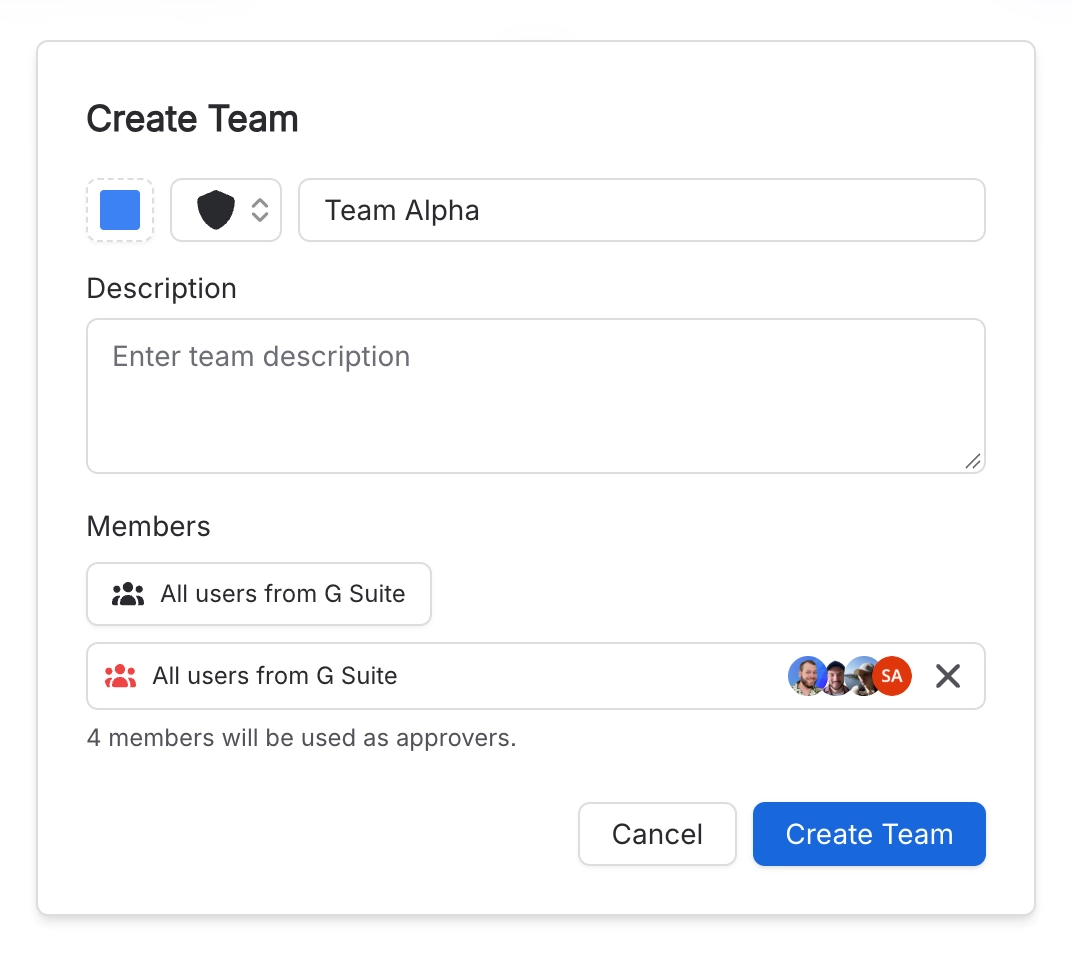
Create the team that will review these pages and add its members. Automation has no reviewer list of its own, so this is not optional. See Teams and assignment.
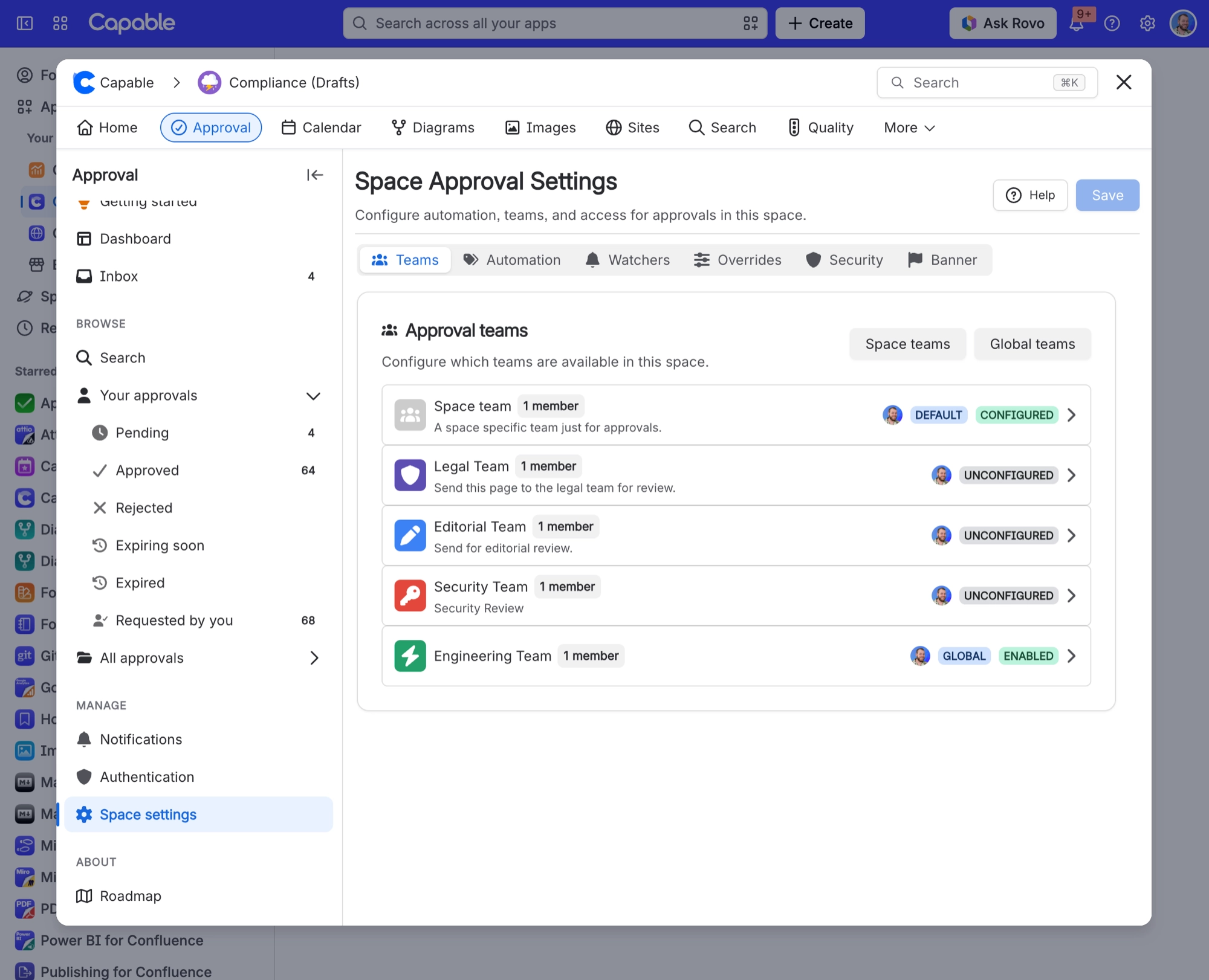
Enable the team in this space and set its quorum and expiry. A team that exists but is not enabled here cannot be used automatically. See Manage approval teams.
Open space settings, Capable Approval, Automation, choose the default team and flip the switches you want. Every option is listed in Space settings.
When a page is created, updated or both, you can:
Request approval from a specific team
Request approval when specific labels are on the page
#A few things that catch people out
Nothing is raised if the default team is missing, not enabled in the space, or has no members. There is no error on the page. The approval simply does not appear.[2]
Automatic approvals are raised on behalf of whoever created or updated the page, so the history still shows who triggered it.
Page update only fires for pages with no approval on any version. It will not re-raise on a page that has been through the process before.
Blog posts are not covered. You can approve one by hand, but automatic raising and automatic reset on edit apply to pages only. See Known limitations.
There is no Capable action in Confluence Automation rules today. Automatic approvals are driven by the space settings above, not by Confluence's own automation engine. If you need a trigger these switches do not cover, tell us what it is and we will look at it.
- A space can hold up to 50 label rules. If you are anywhere near that, it is usually a sign the space wants splitting up rather than another rule. ↩
- This is far and away the most common reason automation looks broken. Check the team is enabled in that specific space and has at least one member before you look anywhere else. ↩
#Related
Teams and assignment
The teams automation depends on.
Manage approval teams
Creating teams and enabling them per space.
Space settings
Every automation option and its default.
Expiry and re-approval
The other way pages come back around.
Publishing
Publish approved pages automatically too.
Compliance
Where automation fits a regulated space.
Your space now looks after itself. Nobody has to remember anything.






















