
Set up a space for approvals
Letting people raise approvals ad hoc works right up until somebody asks you to prove the process exists. This is the order to do things in when you want a space that runs itself. It takes about twenty minutes.
Go to space settings, Capable Approval, Teams.
For one standing group, use the built-in Space team and add up to 16 people. For several groups, or to reuse reviewers across spaces, create named teams. To have membership follow a Confluence group, back the team with that group. See Manage approval teams.
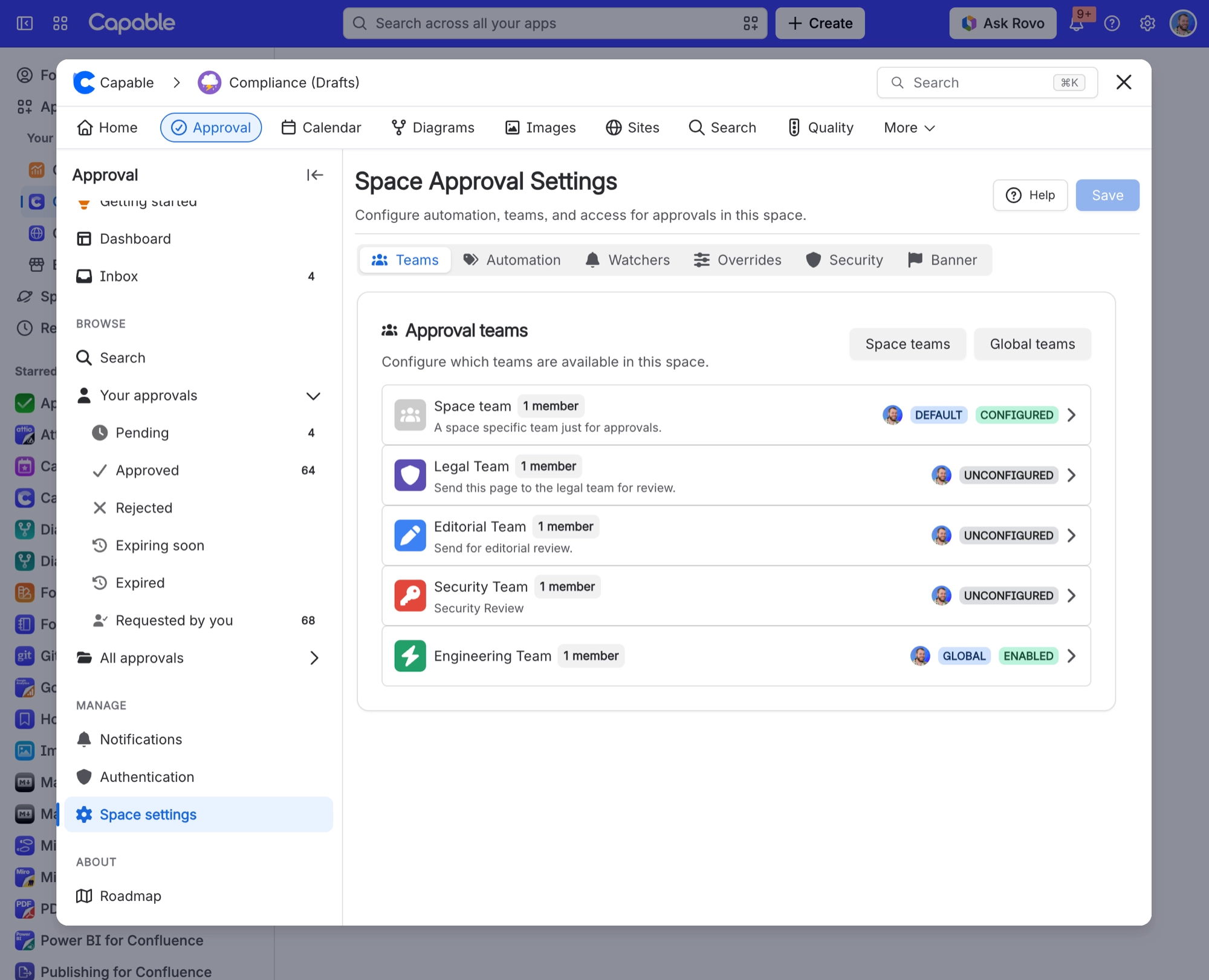
Expand the team and turn on Enable approval team.
A team that is not enabled here cannot be used in this space at all. This is far and away the most common reason a team does not show up on pages.
Setting | What to put |
|---|---|
Minimum approvers | Whatever your written procedure says. Two of four is common. |
Minimum rejections | Leave at 1 unless one objection should not block the page. |
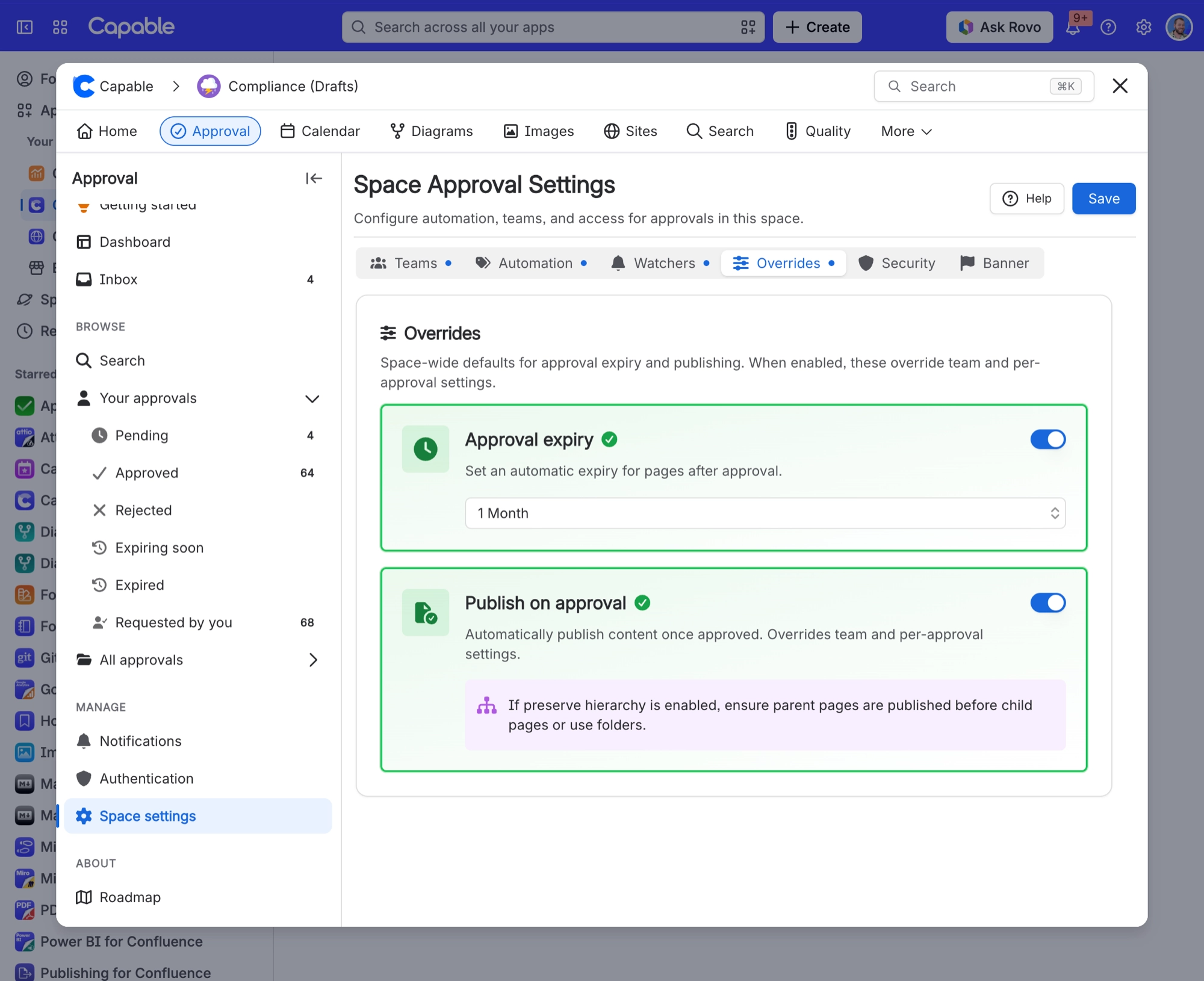
Expiry | Match your review cycle, typically 6 or 12 months. See Expiry and re-approval. |
Publish on approval | On, if approved pages should go live automatically. See Publishing. |
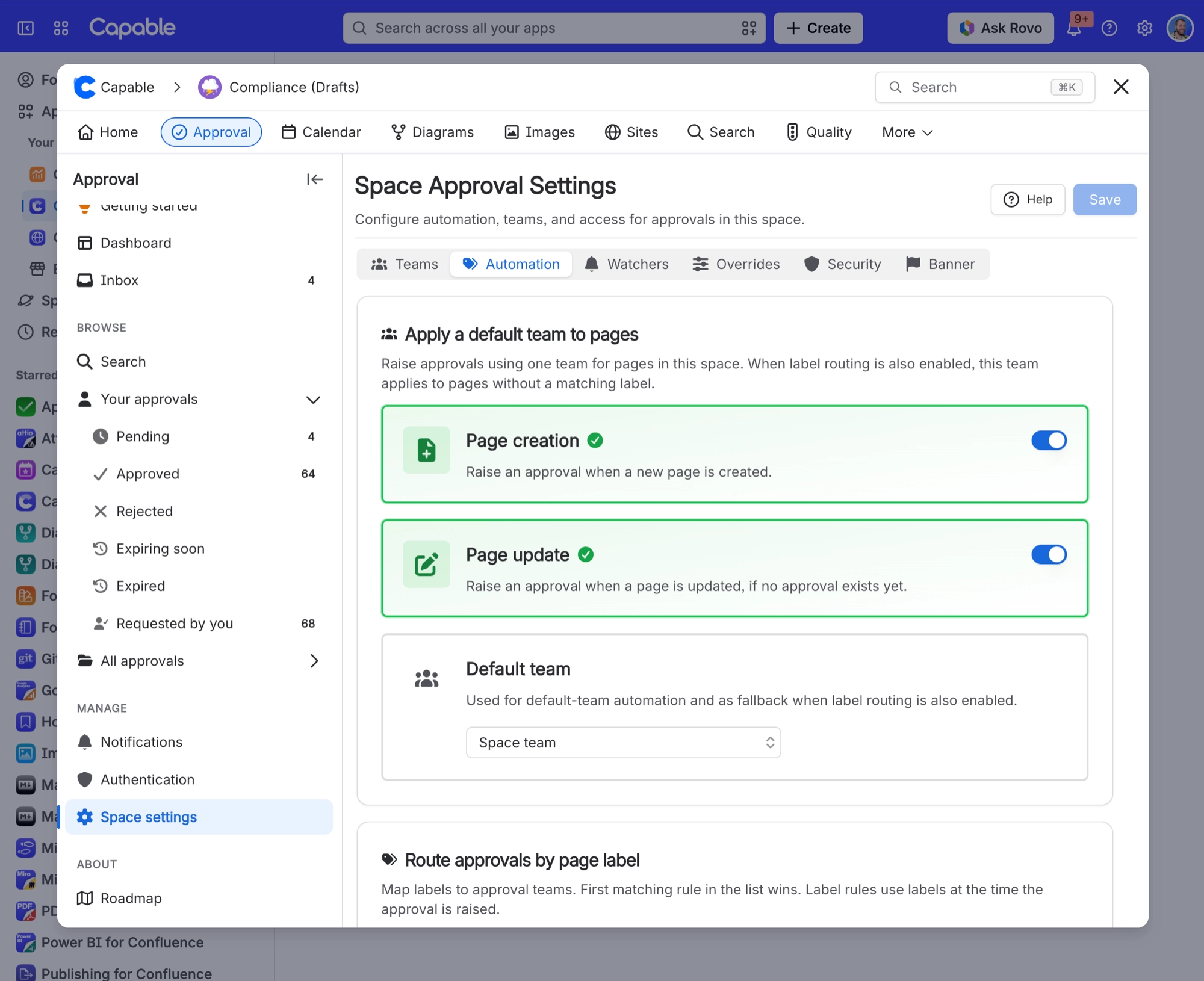
On the Automation tab, turn on page creation so nothing new can exist unapproved. Add page update as well if you want existing pages pulled into the process as people edit them.
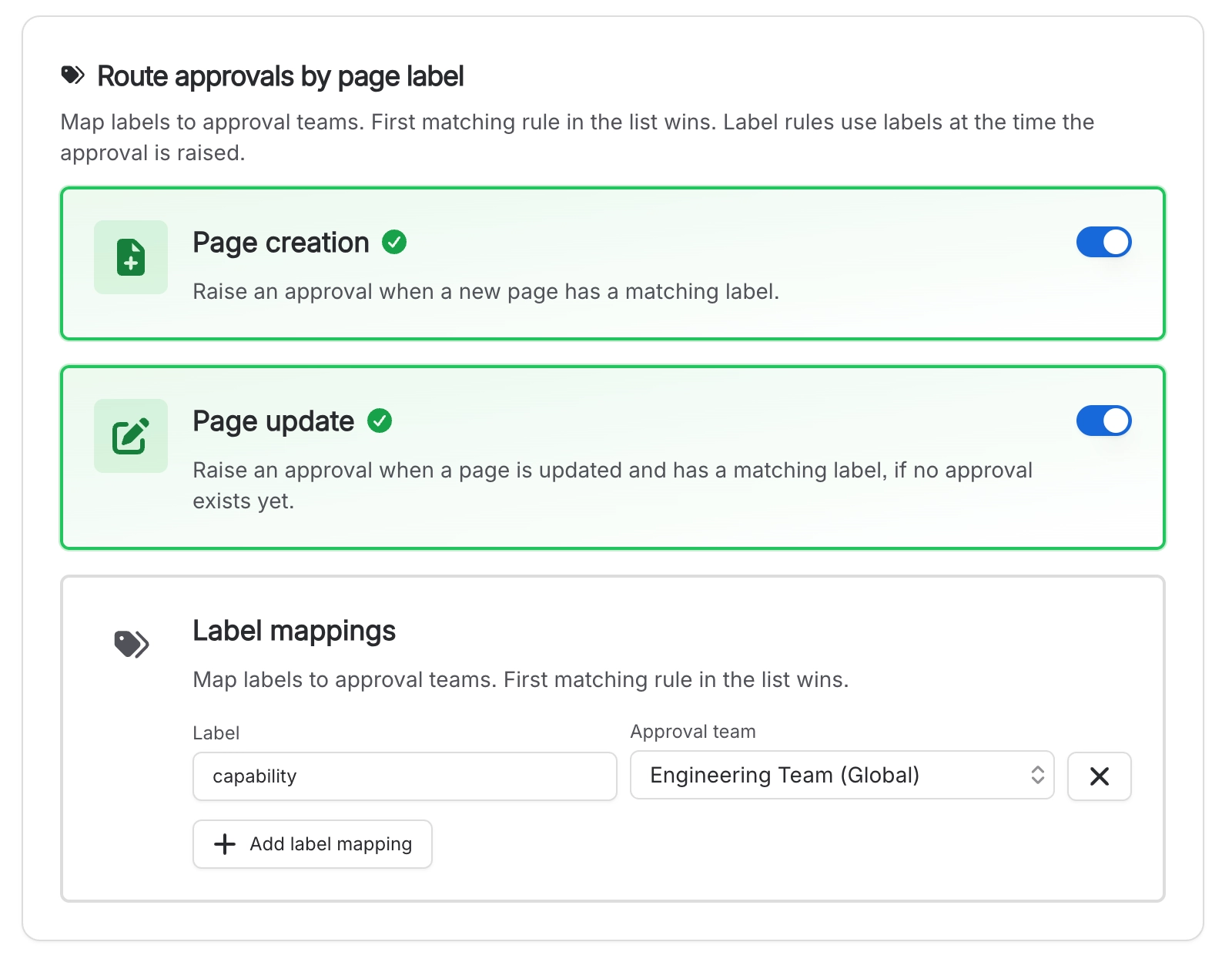
If different documents need different reviewers, add label rules so a page labelled security goes to the security team. Full detail in Automatic approvals.
On Overrides, decide whether everyone may raise approvals. Turning off allow users to edit approvals restricts it to space administrators, and restrict who can edit approvals lets you name specific people and groups instead. See Who can do what.
On Security, turn on Require 2FA to approve if approvals need to count as signatures.
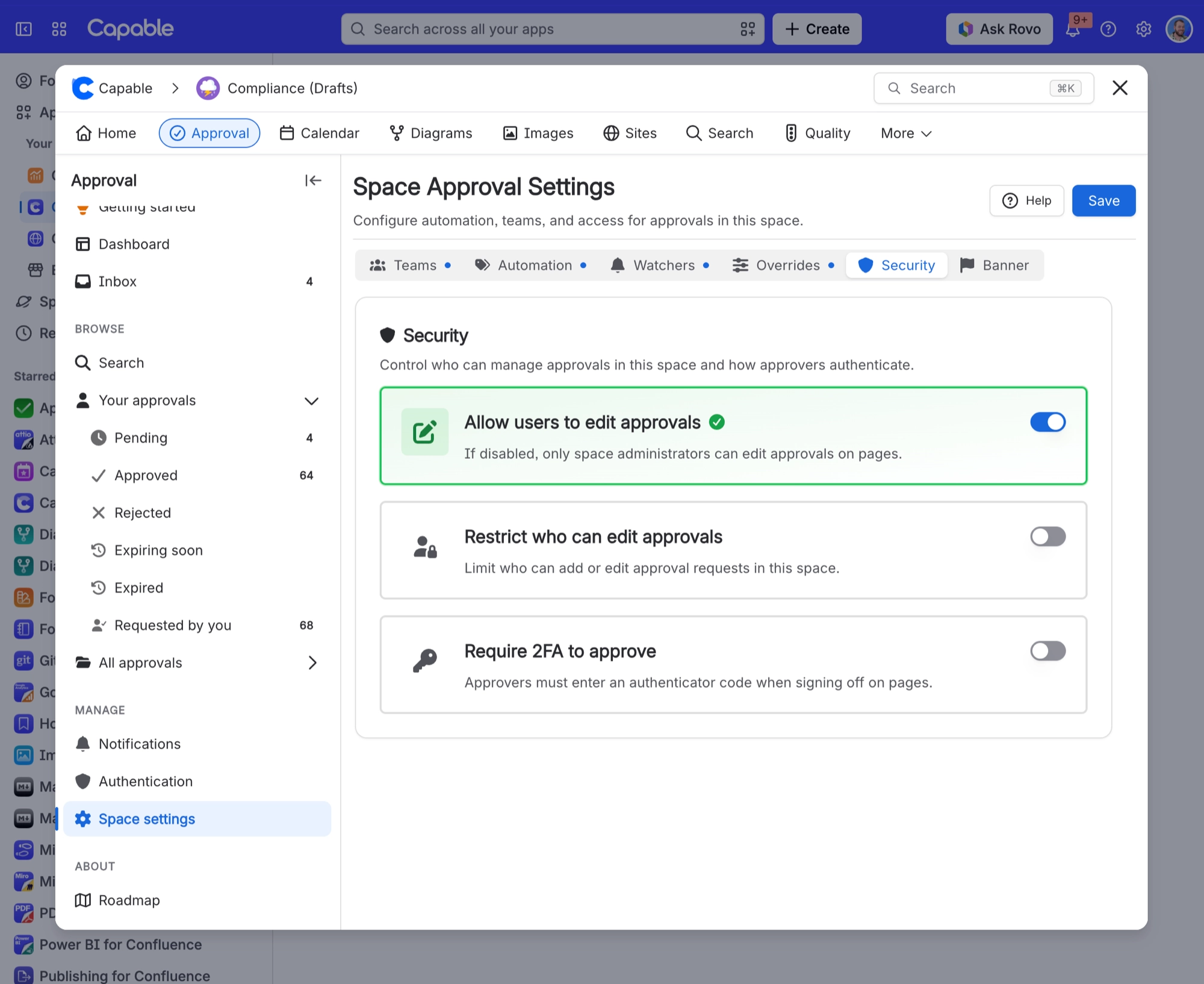
Tell your reviewers before you turn this on. They cannot respond until they have enrolled, Slack buttons disappear, and bulk approve stops working, because neither can collect a code. See Sign approvals with a code.
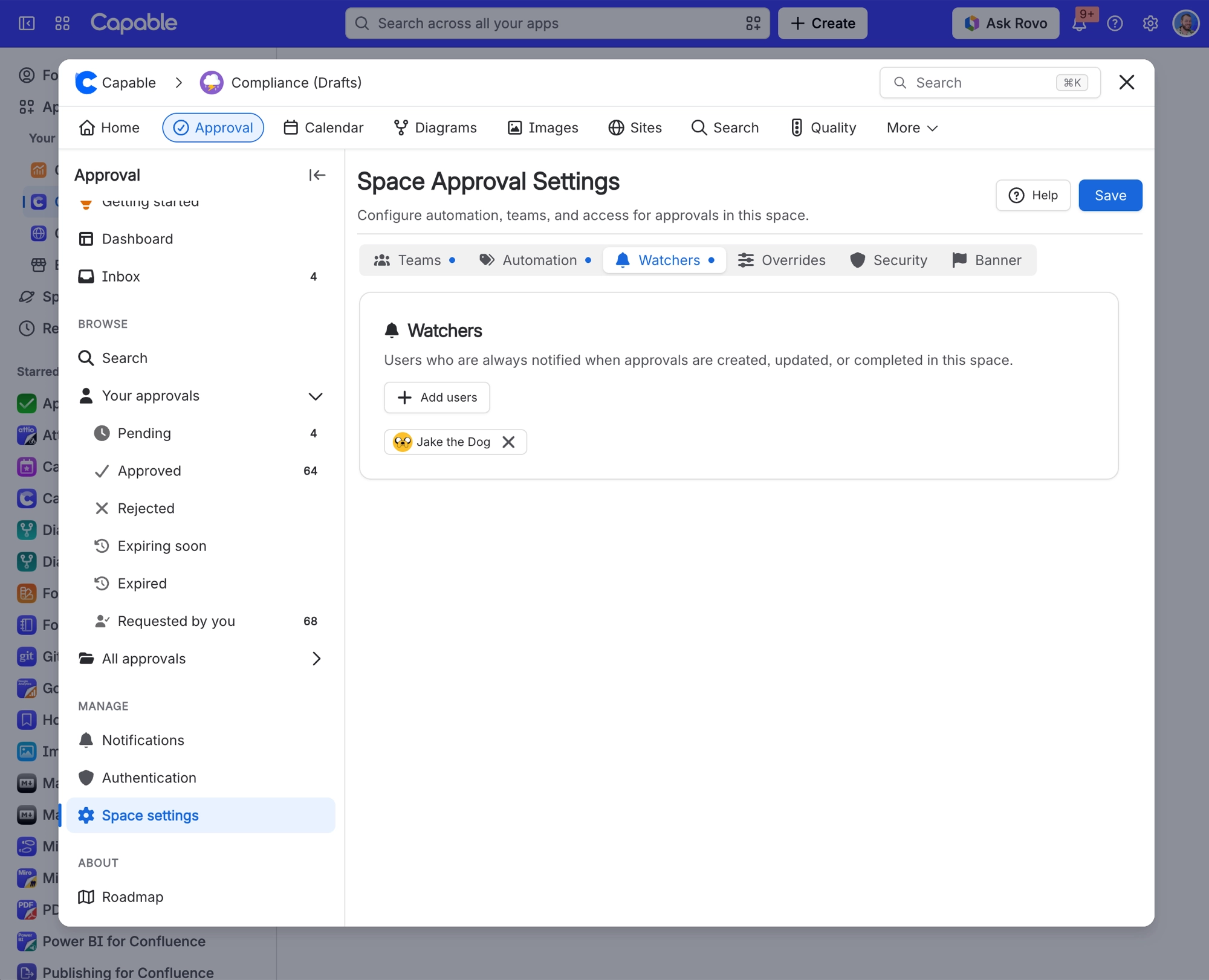
On Watchers, add anyone who should hear about every outcome without being a reviewer, such as a compliance lead.
Then build a saved search of everything expiring in the next month and put it on the agenda of whatever meeting owns this process. That one habit is what turns configuration into an actual control. See Search and reporting.
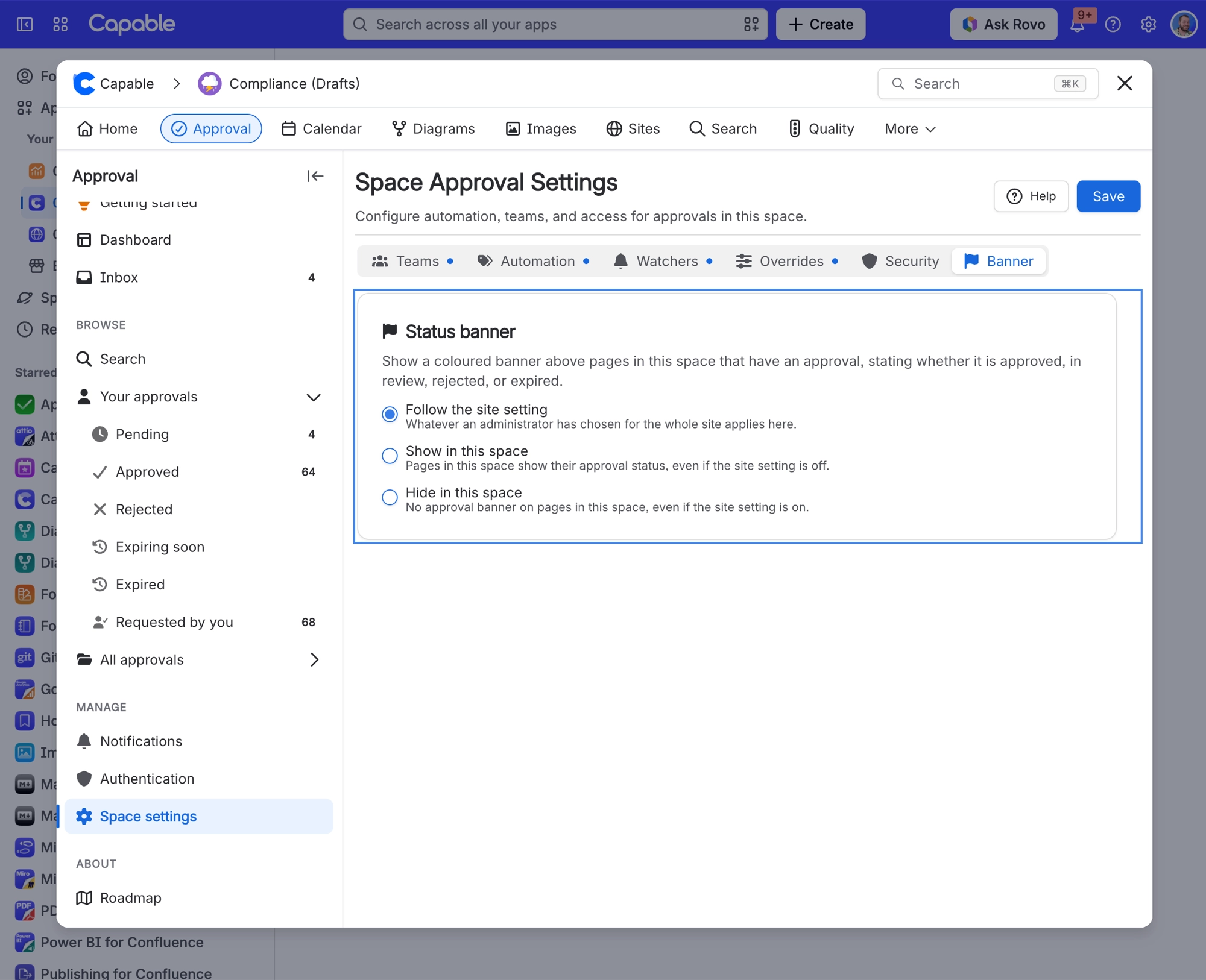
Finally, on Banner, decide whether pages here show an approval strip at the top.
#A recommended starting point
Setting | Controlled space | Ordinary team space |
|---|---|---|
Automatic on page creation | ON | OFF |
Expiry | 6 or 12 months | None |
Require 2FA | ON | OFF |
Restrict who can raise | On, quality team only | Off |
Banner | On | Follow the site |
#A few things that catch people out
Enabling the team is the step people skip, and everything downstream depends on it.
Automation with a team that has no members does nothing, silently.
Requiring codes changes how people answer. Warn them first.
Overrides beat both the team and the individual page. Check them when something surprises you. See Space settings.
#Related
That is a controlled space, running itself. Go and put the kettle on.






















