
Search and reporting
One page at a time is fine until somebody asks what is still waiting on legal, or which policies expire this quarter. Capable Search turns approval state into something you can filter, sort, report on and export, across every space at once.
This needs the Search capability, which the suite includes and the standalone app does not. See Plans and pricing.
#Two searches you get for free
Two ready-made views appear in the catalogue as soon as Approval is installed.
Search | Shows |
|---|---|
Your approvals | Everything you raised. |
Pending approvals | Everything still waiting for a response. |
Both show 25 rows. In a busy space that won't be everything, so build your own view once you outgrow them.
#Building your own view
Add any approval column from the column picker and any approval filter from the filter bar. There are 19 columns and 12 filters.
Group | Columns |
|---|---|
People | Raised by, Assigned, Created by, Approved, Rejected, Reviewing, Commented |
State | Approval status |
Dates | Created at, Expires at, Last response, Completed at, Approved on |
Every people column also has an email version, which is usually what you want in an export going to somebody outside Confluence. They are hidden by default, so add them from the column picker.
#What to sort by
You can sort by four fields: approval created at, expires at, status, and last response. Sorting by expires at gives you a what-lapses-next list, which most quality teams end up running as a standing report. See Expiry and re-approval.
#Responding without leaving the results
Click any row and the side panel opens with an Approval tab holding the same control you get under a page title. You can raise or answer an approval without ever opening the page.
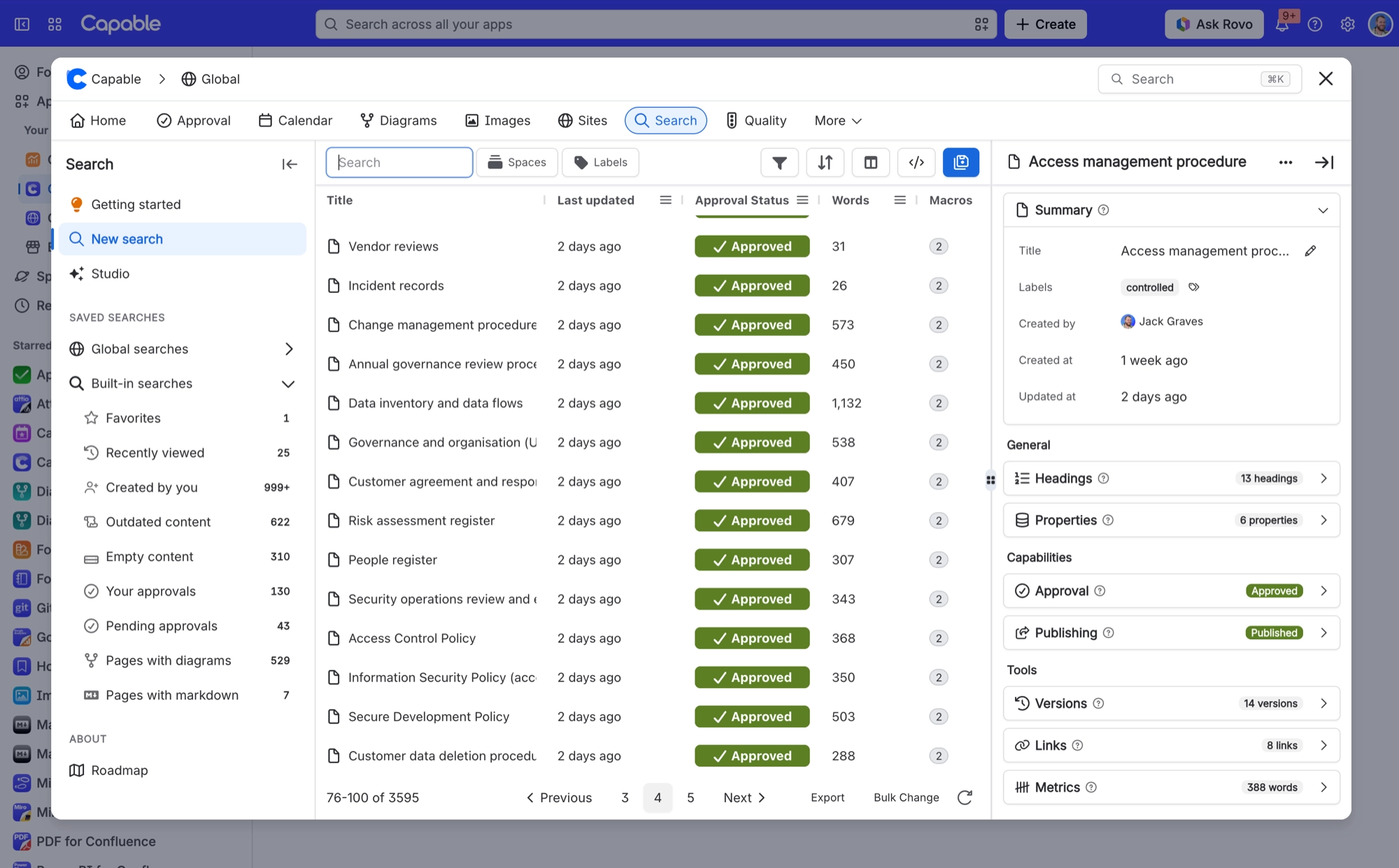
The tab also carries a badge showing the page's state, including whether the approval still matches the page version it was given for. See What is recorded.
#Answering several pages at once
Tick two or more rows and an action bar appears offering Approve, Reject and Comment across the whole selection, with a progress bar and a per-page result at the end.
Situation | What happens |
|---|---|
You are not an approver on some selected rows | PARTIAL |
The space requires a code to approve | ALL FAIL |
The buttons appear for every selected row whether or not you can act on it. Pages you can't answer aren't greyed out up front. Instead they fail one by one and are listed at the end.
Bulk actions can't collect a two-factor code, so in a space that requires one every page in the batch fails. Answer individually in those spaces. See Sign approvals with a code.
#Writing it in CQL
Eleven approval fields are queryable, so you can write exactly the query you want. Or describe it in words in Search Studio and let it write the CQL for you.
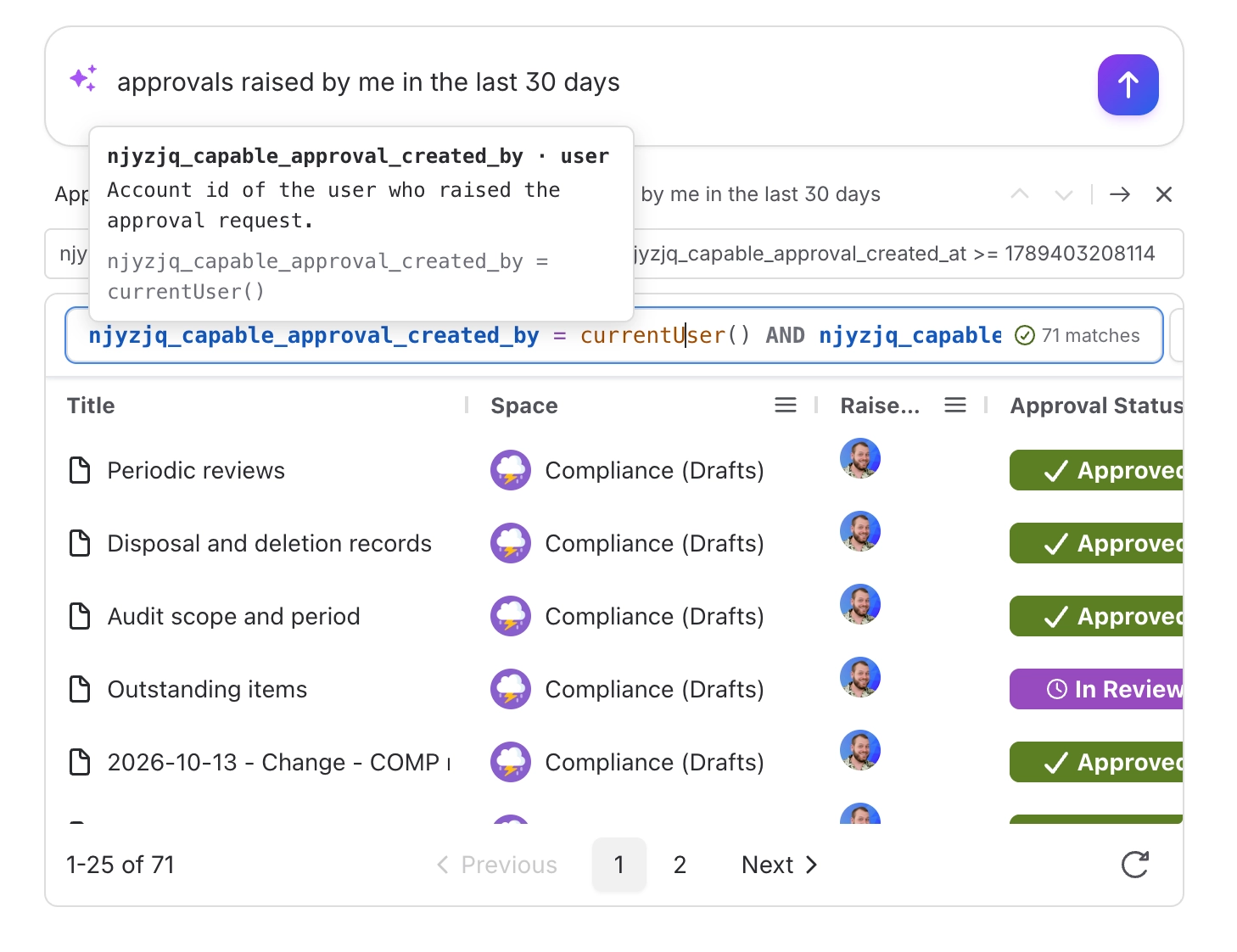
Field type | Values and operators |
|---|---|
Status |
|
People | Account IDs, with |
Dates | Timestamps, with the usual comparison operators |

Field names carry a prefix unique to your site, such as njyzjq_capable_approval_status. A query copied from another Confluence site won't run until you change the prefix to match yours.
#Scanning a space without building anything
The Manage view shows content as a page tree with an approval status column already switched on. It is often the fastest way to see how a space is doing before you go near a saved search. For a dashboard instead, see Track approvals.
#A few things that catch people out
A brand new approval won't appear until Confluence has indexed it. Give it a moment.
The status column is narrow by design, so a long approver list is cut short on screen. The full list is in the export.
Exports write plain text rather than the avatars you see, which is what you want for a spreadsheet.
The export doesn't mark which responses were signed, so on its own it isn't evidence of signature. See Compliance.
#Related
Expiry and re-approval
Building the expiring-soon report.
Track approvals
The dashboard and the inbox.
What is recorded
What the export can and cannot evidence.
Sign approvals with a code
Why bulk actions fail in signed spaces.
Respond to a request
Answering one request properly.
Compliance
What an auditor will ask you to produce.
One query, and the whole site answers you.






















