
Track approvals
Chasing approvals page by page stops working at about three of them. Open Capable, Approval and you get the lot in one place: what needs your answer, what you are waiting on other people for, and what is about to lapse.
#The dashboard
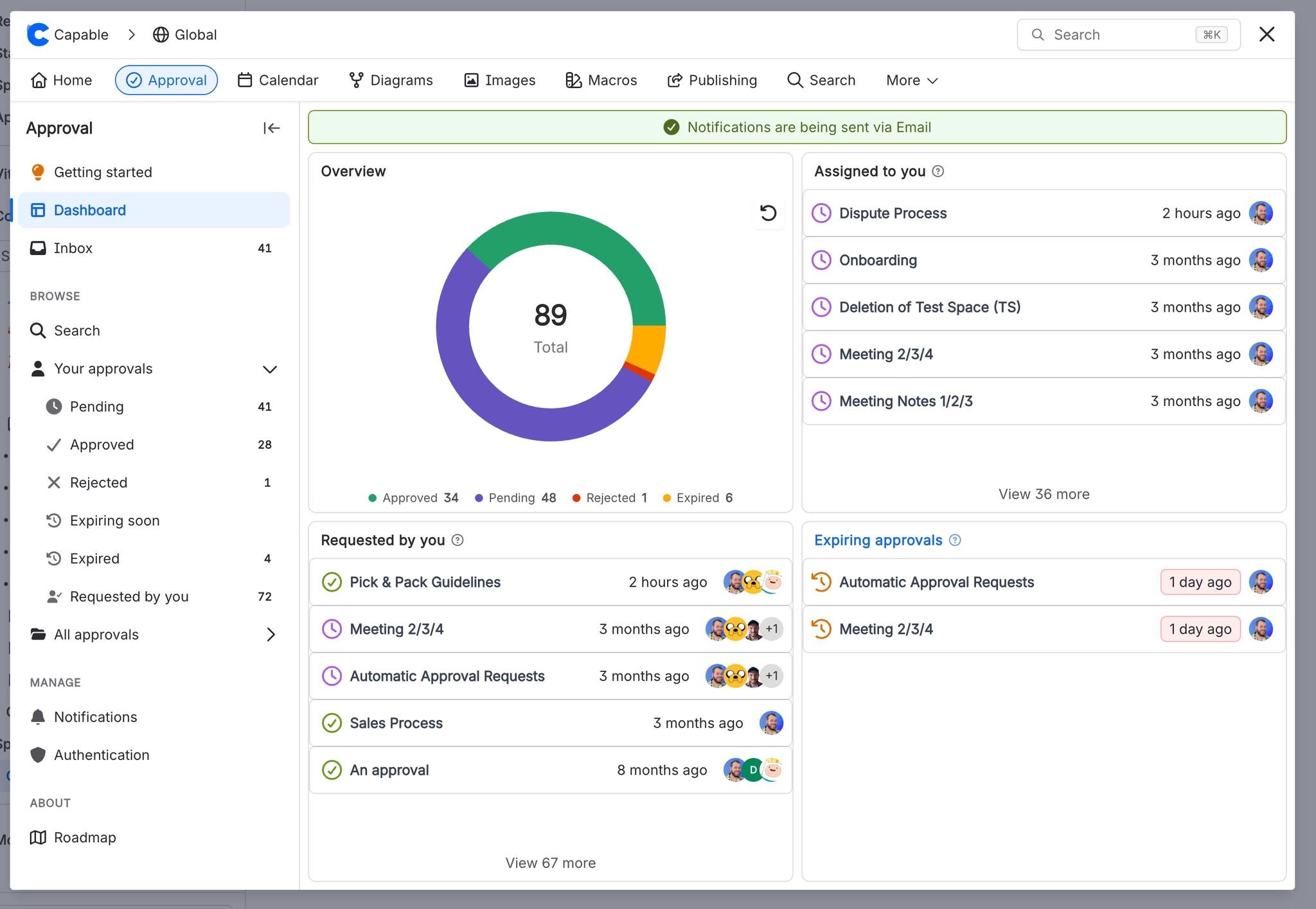
Four panels, scoped either to the space you are in or to the whole site.
Panel | What it shows |
|---|---|
Overview | A ring chart of approved, pending, rejected and expired. |
Assigned to you | Pages waiting on your answer, newest first. |
Requested by you | Approvals you raised, with the reviewers and how far they have got. |
Expiring | A window from one month ago to one month ahead, so recently lapsed and about to lapse sit together. See Expiry and re-approval. |
#The inbox
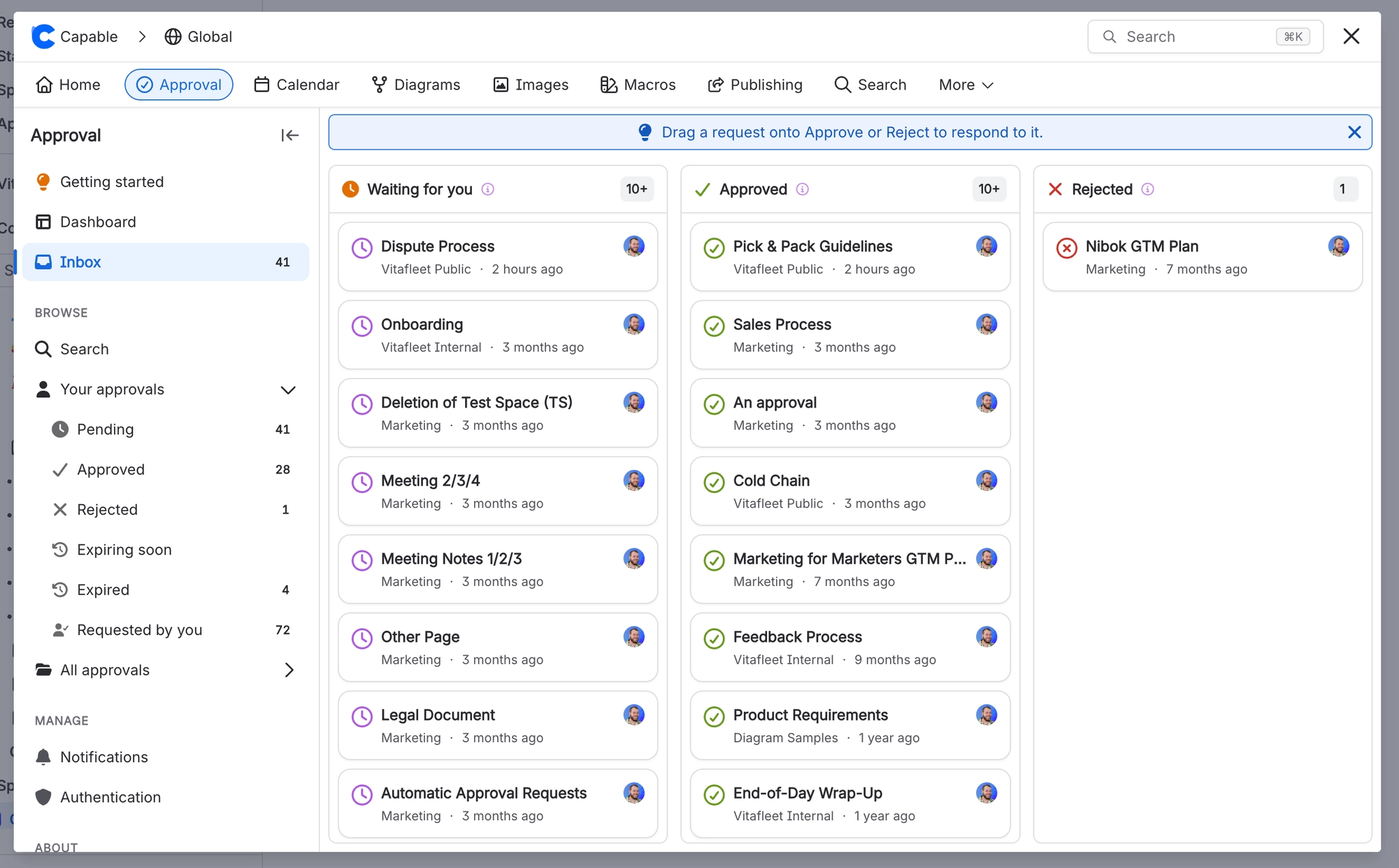
A three column board. On a wide screen you can drag a card straight from the first column into Approved or Rejected to answer it, which is by far the fastest way to clear a backlog.
Column | Holds |
|---|---|
| WAITING FOR YOU | Everything that needs your answer right now. |
| APPROVED | What you have said yes to. Drag a card here to approve it. |
| REJECTED | What you have refused, with your reason attached. |
Counts next to each section tell you how much is in there before you open it, so a glance is usually enough to know whether anything needs you today. What each answer actually does is covered in Respond to a request.
#Ready-made lists
Section | Lists |
|---|---|
Your approvals | Pending, approved, rejected, expiring soon, expired, and everything you raised. |
All approvals | The same across everyone, for whoever needs the whole picture rather than their own corner of it. |
You only ever see approvals on pages you can already read, in both sections. See Who can see what.
#Build your own view
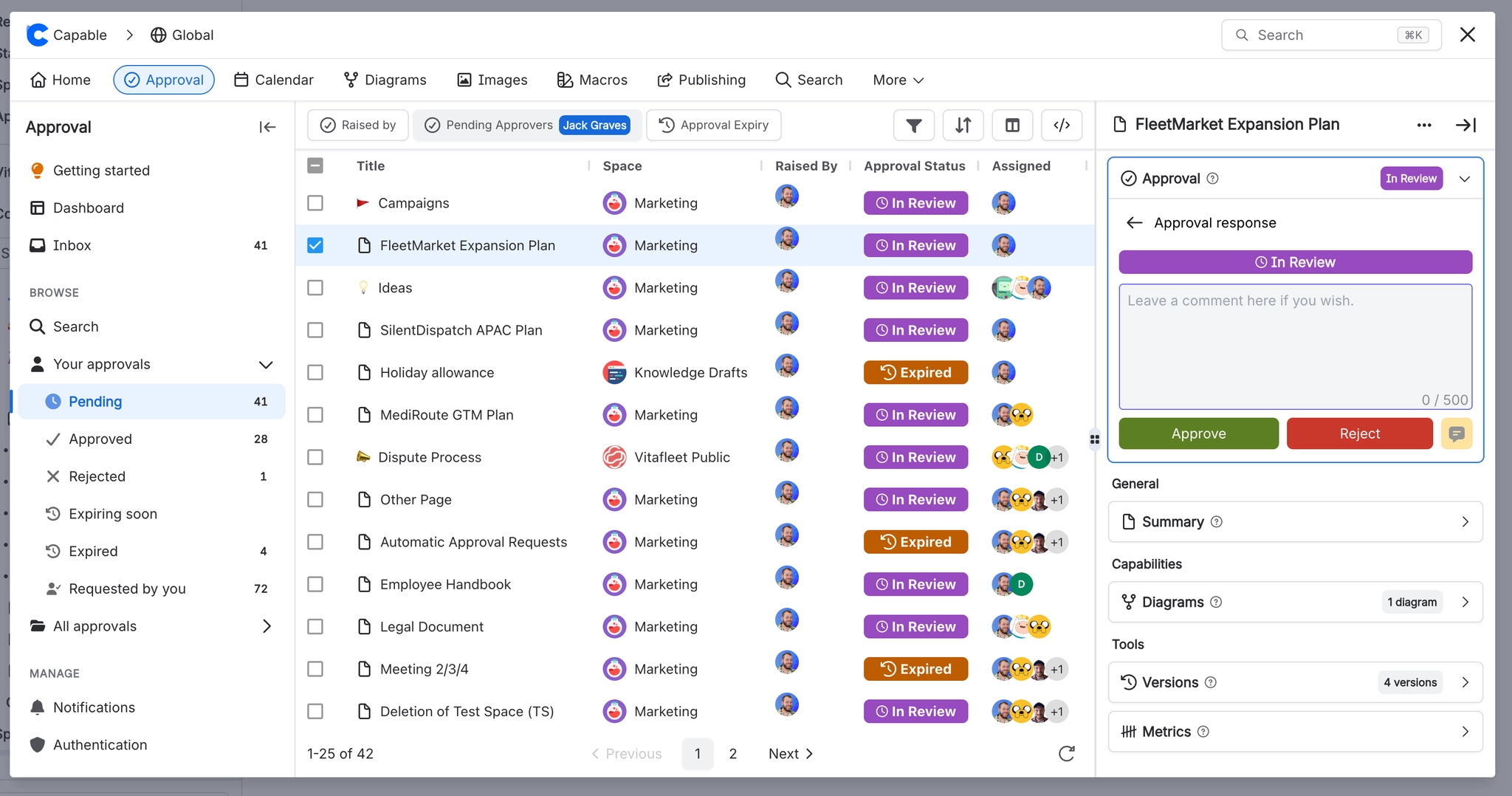
The search section is a table you can shape: change the filters, add or remove columns, change the sort, or drop into CQL and write the query yourself.
For saved searches that keep your criteria, filters, column sorting and sizing, use the Search capability included in Capable for Confluence. That is where standing reports live. The classic one is everything in this space expiring in the next 30 days, opened at a monthly quality meeting and worked through. The full column and filter list is in Search and reporting.
#A few things that catch people out
The dashboard is scoped to the current space by default. Switch to site scope if a request seems to be missing.
Dragging cards needs a wide window. On a narrow one, open the page and use the panel instead.
Commented requests still sit in your Waiting column, because a comment is not an answer. See Approval statuses explained.
The Expiring panel looks backwards as well as forwards, so things you have already missed are in there too.
#Related
Search and reporting
Columns, filters, CQL and exporting.
Respond to a request
The three answers and what each one does.
Expiry and re-approval
What the Expiring panel is watching.
Approval statuses explained
Every label you will see on a card.
View approval history
Every answer anyone ever gave.
Who can see what
Why a request you expected is not listed.
No more corridor conversations about who still owes you a review.






















