
Compliance
Most document control requirements come down to the same four questions. Who approved this? Which version did they approve? How do you know it was really them? And how do you know it is still current?
Capable Approval answers all four inside Confluence, so your controlled documents can live where your team already works, instead of in a separate system nobody opens between audits.
A tool cannot make you compliant. Certification depends on your processes, your evidence and your auditor. What follows is what Capable contributes, stated plainly, so you can see where it fits and where you still need controls of your own.
#The four building blocks
Requirement | What Capable does |
|---|---|
Documented approval | A named list of reviewers, a required number of approvals, and a recorded decision on the page itself. See How approvals work. |
Version control of the approval | Every approval is tied to one page version. Edit the page and the approval resets, so nothing stays approved after it changes. |
Attributable signature | Optional authenticator codes on every response, recorded against that specific answer. See Sign approvals with a code. |
Periodic review | Expiry brings documents back for re-approval on a schedule, and notifies everyone when they are due. |
#ISO 9001 and ISO 27001
Both want controlled documents: approved before use, reviewed and re-approved periodically, with changes and current revision status identified.
You need | Use |
|---|---|
Approval before use | Automatic approvals on page creation, so nothing exists unapproved |
Periodic review | Expiry, typically 6 or 12 months |
Current revision identified | The approval macro on the page, showing the approved version |
Evidence of all of the above | An export from Search and reporting |
#SOC 2
Auditors typically want to see that policies were reviewed and approved by the right people, on a defined cadence, with evidence. Approval teams give you the right people consistently, expiry gives you the cadence, and the export gives you the evidence in one file.
#FDA 21 CFR Part 11
Part 11 is the strictest of the four, because it governs electronic signatures rather than just approvals. Here is an honest scorecard.
Part 11 expects | Capable | Detail |
|---|---|---|
Signatures linked to their records | YES | Each response is bound to the page and the version. |
Signer identity verified | YES | With authenticator codes required for the space. |
An audit trail that cannot be edited | YES | The history is append only. |
Records show the meaning of the signature | YES | Approve, reject or comment, with an optional note. |
Signature manifestation in exported copies | PARTLY | The approval macro carries into PDF and site exports, but the CSV export does not show which responses were signed. |
Administrative actions audited | NO | Not in the approval record. See the gaps below. |
#Where you still need your own controls
Being straight about the gaps is more useful to you than a page of ticks.
Administrative changes are not in the approval history. Turning the code requirement on or off, editing space settings, changing team membership and resetting an authenticator leave no trace in the approval record. If your standard requires that, keep a separate change log.
The CSV export does not mark signed responses. The padlock is visible in Confluence but not in the file, so an export on its own does not evidence which approvals were signed.
There are no backup codes for authenticators, and clearing one is not logged. Have a documented process for lost devices.
An approver can change their answer after completion. The history keeps both, but if your process needs a decision frozen, that has to be a procedural control.
Approvals can be withdrawn, and withdrawing does not notify the people who were asked.
See Remove or restart an approval.
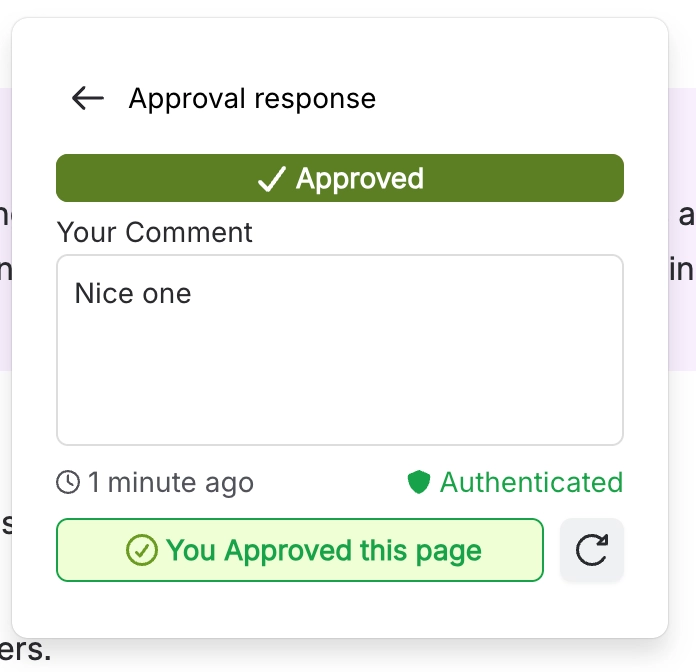
In Confluence, a signed response is marked Authenticated. That mark stays in Confluence, so the CSV export alone will not show which approvals were signed.
#A configuration that fits most regulated spaces
If you want a starting point rather than a menu, set the space up like this.
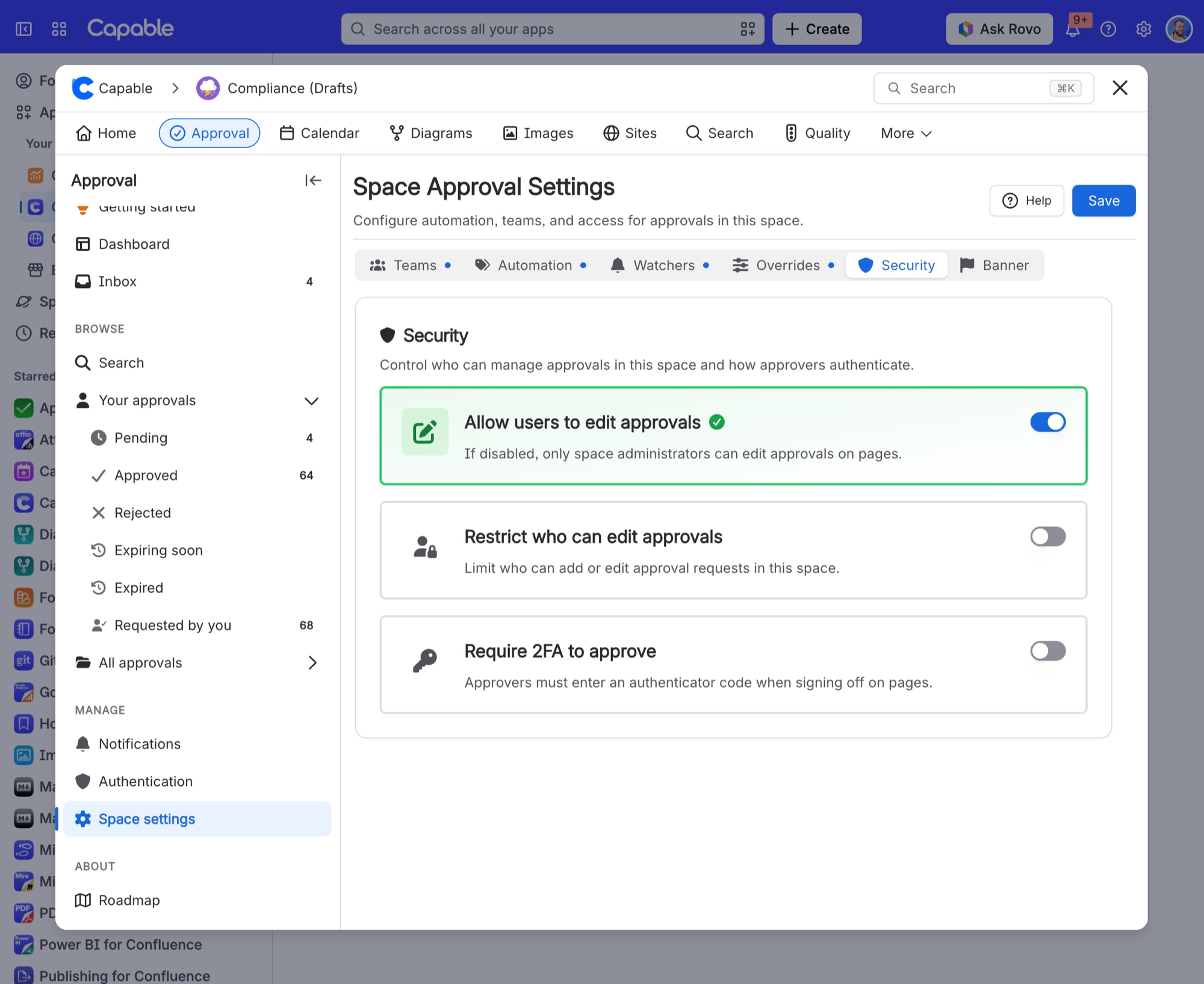
Turn on automatic approvals for page creation or pages with a specific label, so a controlled document cannot exist in the space without a review attached to it.
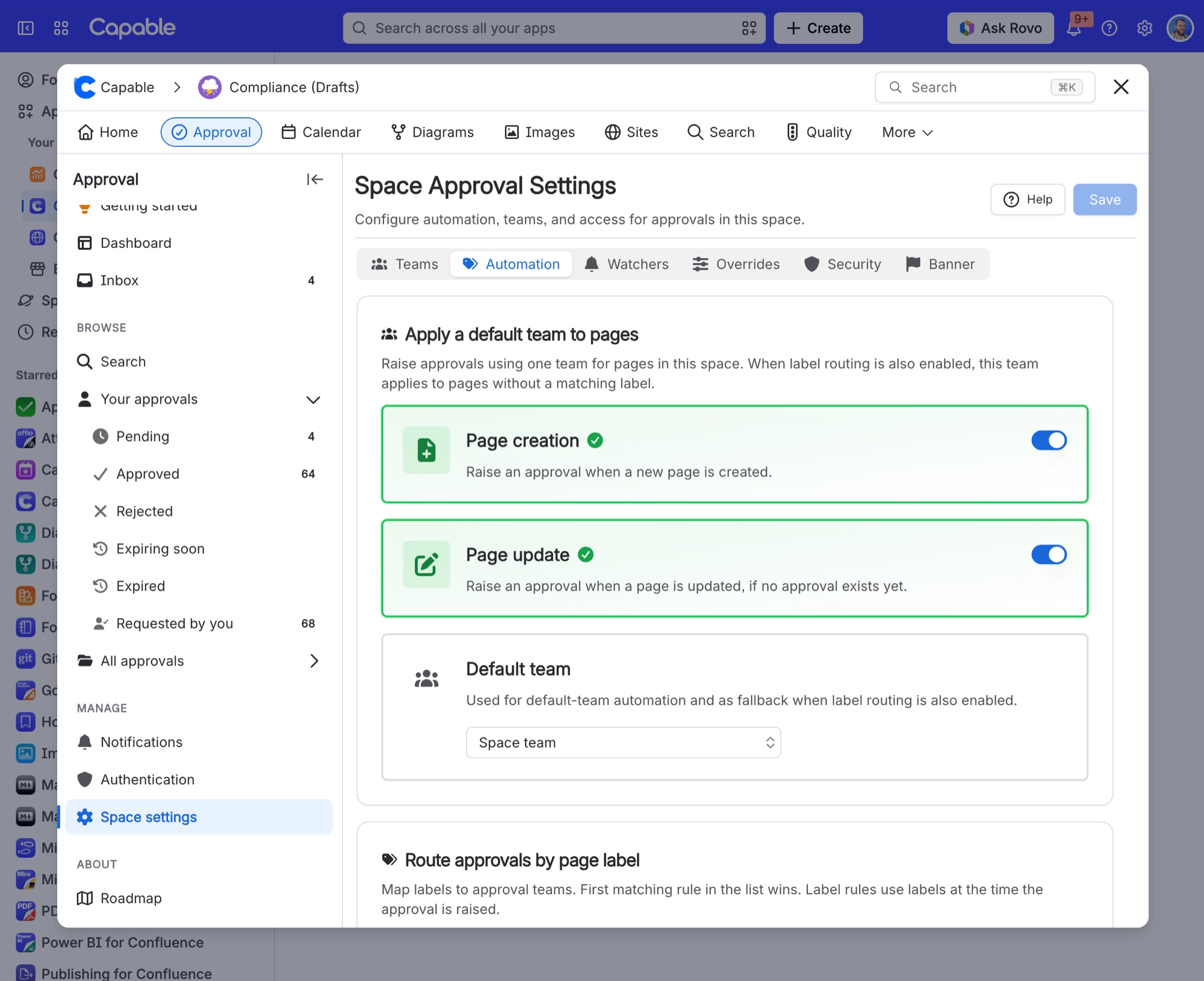
Create an approval team for each document type, with the quorum your procedure actually requires. This is what stops the reviewer list drifting from your written process.
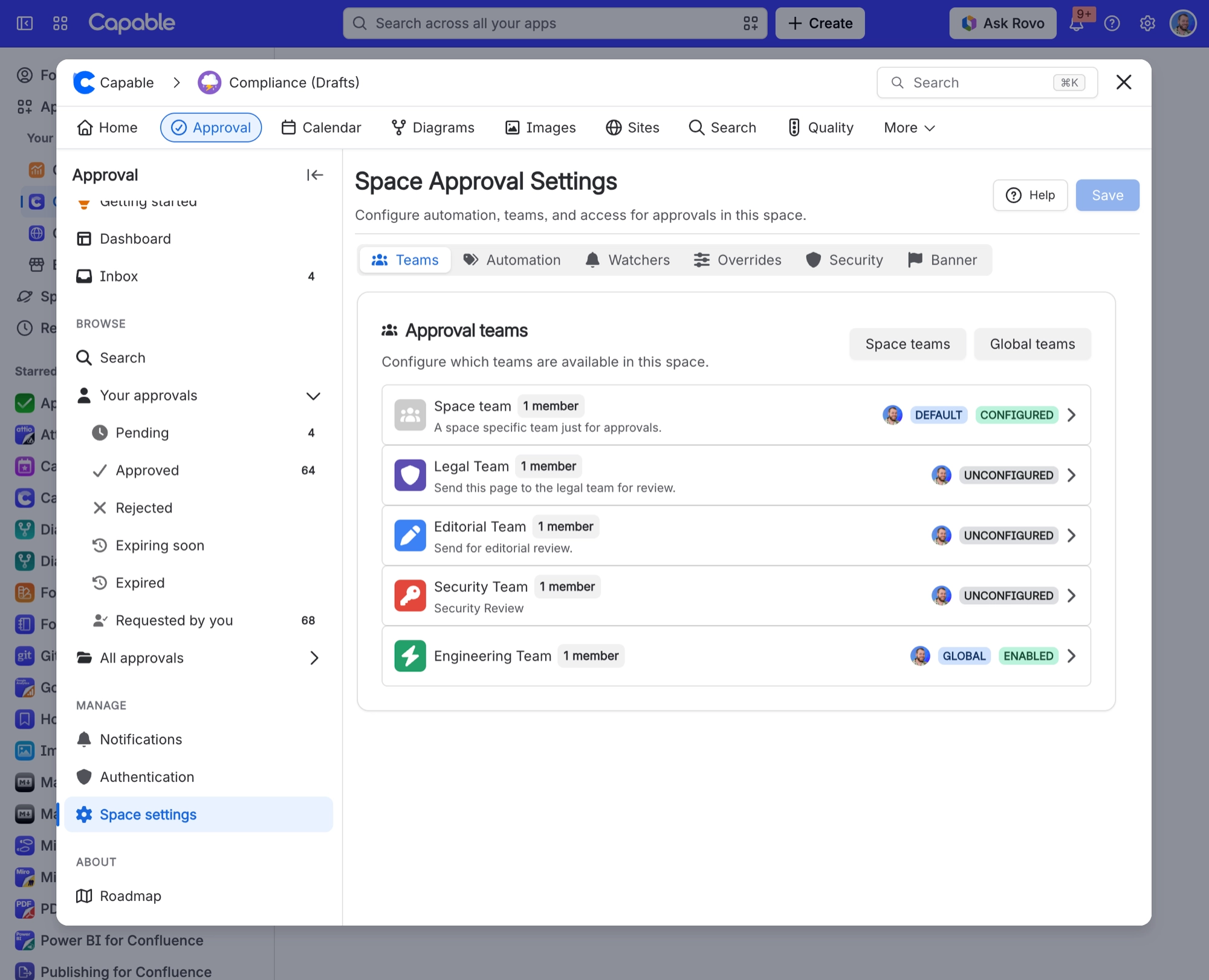
Switch on Require 2FA to approve for the space, which turns every response into a signed one.
Set an expiry matching your review cycle, on the team rather than page by page, so it applies to everything that team signs off.
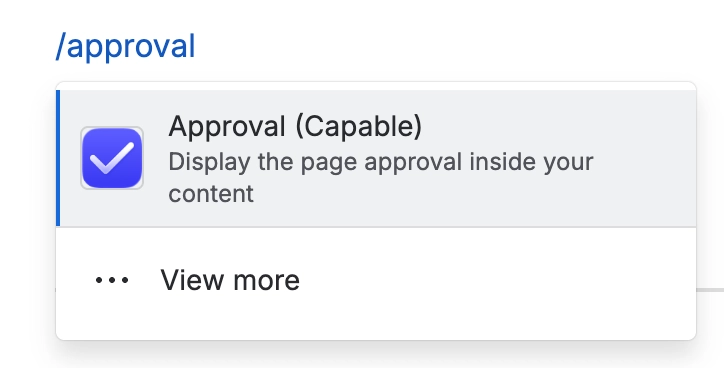
Put the approval macro in banner view at the top of every controlled document, so anyone opening it sees the current revision status without hunting for it.

Save a search of everything expiring next month and review it at your management meeting. That single habit is what turns all of the above into evidence you can hand an auditor.
#Related
What is recorded
The full evidence trail, field by field.
Sign approvals with a code
Authenticator codes on every response.
Automatic approvals
Nothing exists in the space unapproved.
Expiry and re-approval
Your periodic review cycle.
Search and reporting
Producing the evidence file.
Known limitations
What we know does not work yet.
Audit-ready, without a second system to maintain.






















