
View approval history
Six months after a decision, nobody remembers who agreed to what. The history is there so you never have to. Every approval action on a page is kept: who was asked, who answered, what they said, and which version they were looking at when they said it.
Nothing is ever removed, including answers people later changed their mind about.
#Opening it
Click Approval under the page title, then the history icon.
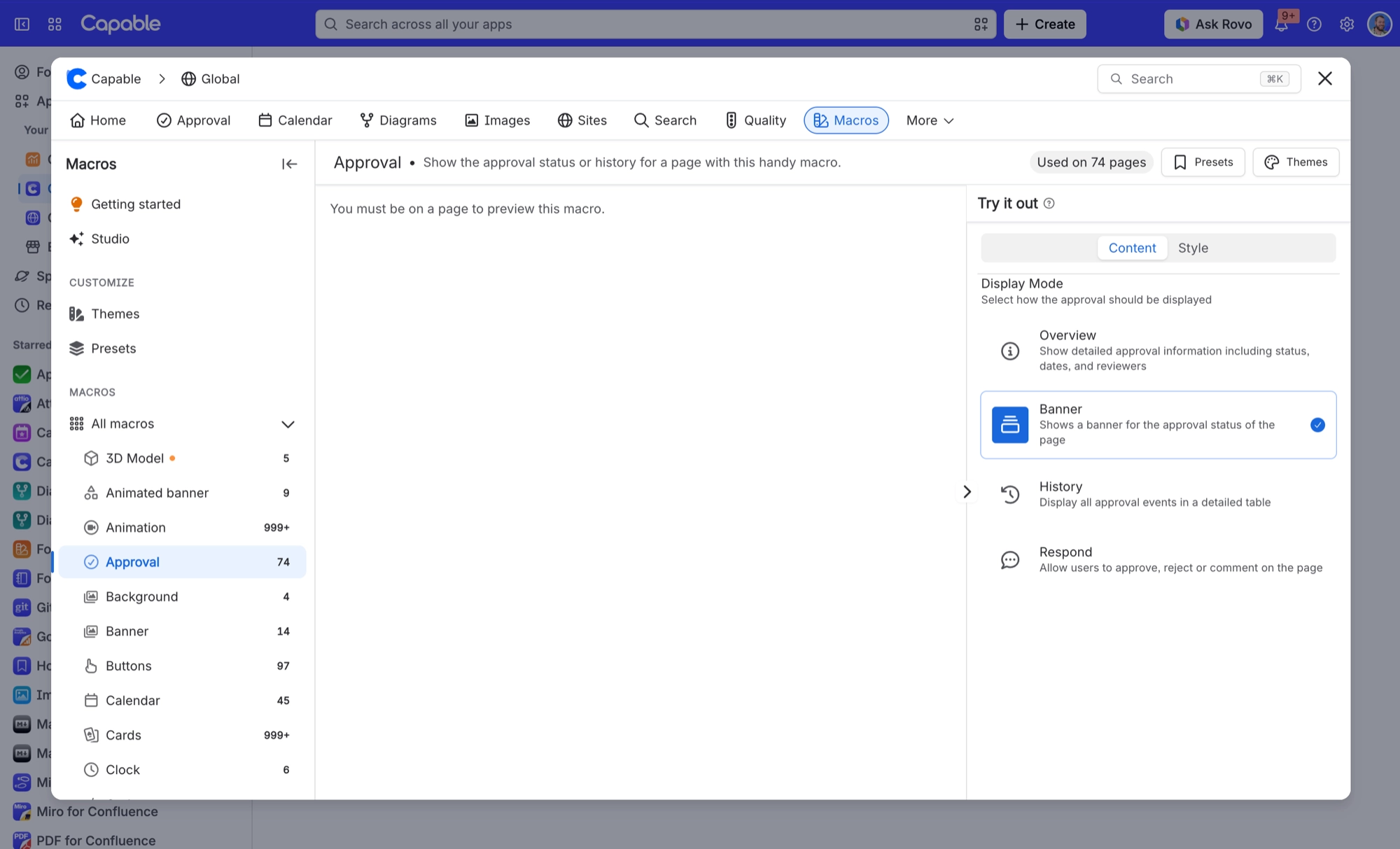
For a controlled document, put the approval macro on the page in History mode instead, so the record is visible to anyone reading it without them having to know where to click.
#What each row tells you
Column | Shows |
|---|---|
Time | When it happened. |
User | Who did it. |
Action | Requested, added, approved, rejected, commented, removed, expired or published. |
Status change | What the approval moved from and to. See Approval statuses explained. |
Comment | Any note left with the answer. |
Version | The page version it applied to, linking straight to that version in Confluence. |
A padlock next to a response means it was given with an authenticator code. See Sign approvals with a code.
Answers given from Slack or Microsoft Teams are recorded exactly like answers given on the page, against the version the message was about.
#Imported approvals
If your site moved its approvals across from the standalone Capable Approval app, those rows carry an Imported badge. Hover it to see where the approval came from, and whether the import replaced an approval the page already had. Two other labels explain the current state: Carried forward from version, when the approval kept its status through the move, and Reset on import, when the page had changed and needed approval again. See Move from standalone Capable Approval.
#Grouped by page version
Because approvals reset when a page is edited, the history is grouped into version cards. Each card shows the approval as it stood for that version, and links to the matching Confluence page version so you can read exactly what was approved.
That answers the question an auditor is usually asking: which version did they actually sign off? More on that in Compliance.
Version card | Typically holds |
|---|---|
| CURRENT | The live approval and everything happening on it now. |
| SUPERSEDED | A closed round of review, kept exactly as it was. This is the audit trail. |
The view refreshes itself every few minutes, so leaving it open during an active review keeps it roughly current without you reloading anything.
#A few things that catch people out
A repaired approval can look bare. If a page was edited after sign-off and then repaired, the new version card holds only a single requested event. The earlier events are safe on the earlier card, and the full table still lists everything.
Comments are capped at 500 characters, so a long rationale belongs on the page rather than in the response box.
Signed-out readers never see the event list. They see the status only, and the History display tells them the log is unavailable. See Who can see what.
Administrative changes are not here. Changing settings, resetting an authenticator and editing team membership leave no trace in this history.
#Getting it out
For one page, the history view is the record. For many pages at once, export from Search and reporting.
The export does not carry the signed padlock. If you need to evidence which responses were signed, the history view is the only place that shows it.
#Related
What is recorded
The full evidence picture, field by field.
The approval macro
Showing the history on the page itself.
Sign approvals with a code
What the padlock means.
Compliance
What an auditor will ask for.
Search and reporting
Exporting many pages at once.
Move from standalone Capable Approval
Where the Imported badge comes from.
Every decision, on the record, for as long as you need it.






















