
Bulk publish progress panel and Audit log
When you publish many pages at once, the work runs in the background. The Dashboard shows a live progress panel while it runs, and Audit log keeps a record of every run afterwards, with the log of each one, so you can see what was published, what was skipped and what failed.
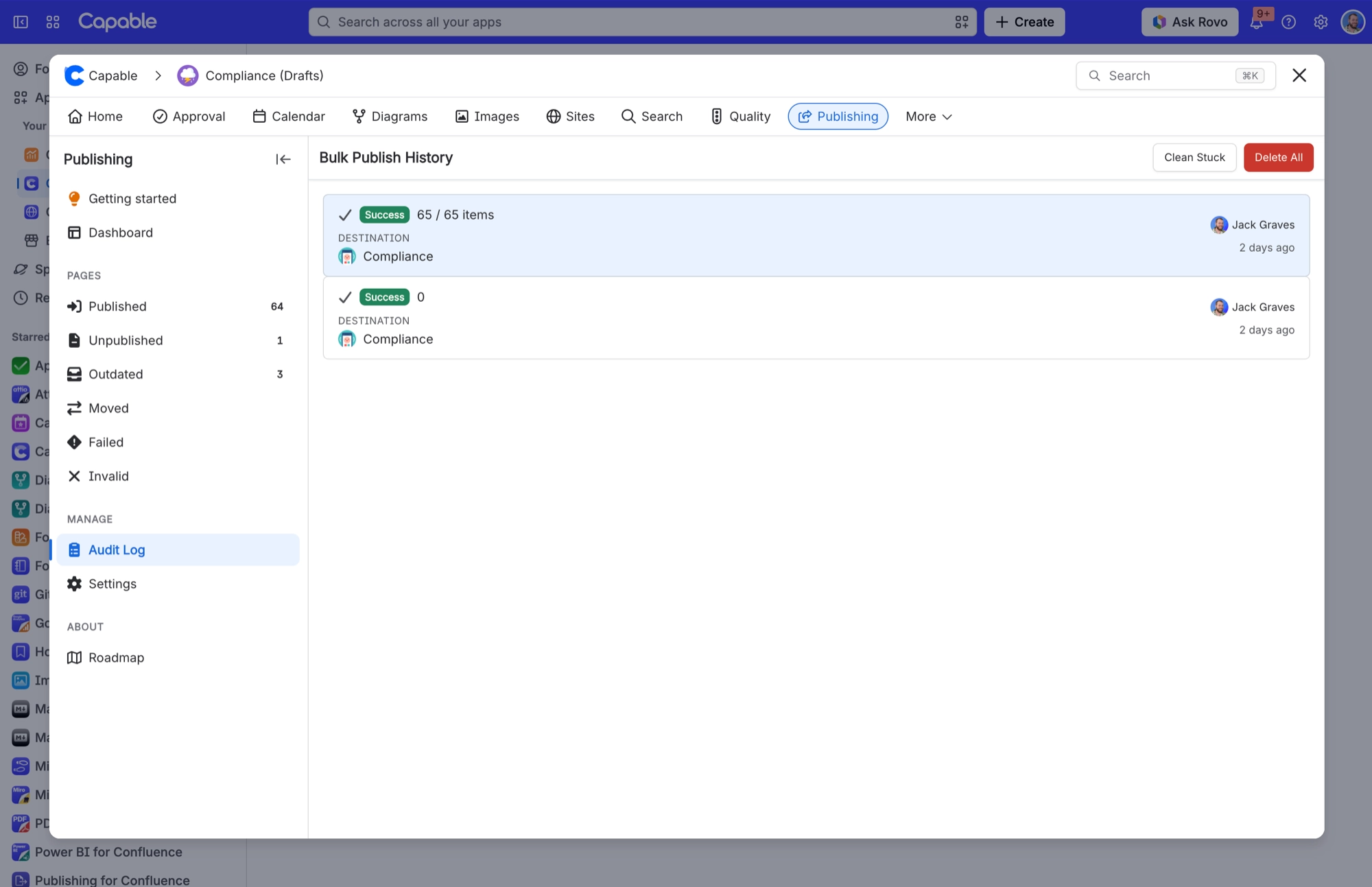
#Where to find it
What | Where |
|---|---|
Live progress of the current run | Publishing space page, Dashboard |
History of past runs and their logs | Publishing space page, Audit log under Manage |
The settings that start a full run | Publishing space page, Space settings under Manage, then the Maintenance tab |
Audit log and Space settings only appear on a space's Publishing page, not on the site-wide one. Space settings is only shown to administrators of the source space.
#What starts a bulk run
Button | Where | What it publishes |
|---|---|---|
Publish all | Space settings, Maintenance tab, Publish all pages | Every page and folder in the space. The homepage only when it is included on the Structure tab. |
Publish approved | Space settings, Maintenance tab, Publish approved pages | Every page whose approval is Approved. Only in apps that also include Approval. |
Publish, Update or Retry with a page count | Dashboard, next to the Unpublished, Outdated, Moved, Invalid and Failed counts | Every page in that group. |
Publish with a page count | The floating button on the Unpublished list | Every unpublished page in the space. |
A rebuild after you change the page structure, and the cleanup after a reset or a change of target space, run the same way and also appear in the Audit log.
#How a run works
A run first lists the pages it will publish, on the server, then publishes them. Folders go first and parent pages before their children, so the tree in the target space is built from the top down. Blog posts are never part of a bulk run.
Every matching page is included. A run pages through the whole Confluence search, 250 results at a time, however large the space is. Before 19 October 2026 a run could stop after the first 250 or 1,000 pages without saying so. If an earlier run left part of your space unpublished, run it again.
You need to be a space administrator of both the source and the target space to start a run. Only one maintenance task runs in a space at a time, so the buttons are disabled with Cannot publish while a maintenance task is running. until it finishes.
#The progress panel
Part of the panel | What it tells you |
|---|---|
Successfully Published | Pages already copied to the target space in this run. |
Currently Processing | Pages waiting or being published right now. |
Needs Attention | Pages that failed or were skipped. Open the run in the Audit log to see why. |
Publishing appears stuck | Nothing has moved for a while. You can cancel the run from here. |
Cancel | Stops the run. Pages already published stay published. |
#The Audit log
Audit log opens Bulk Publish History, one row per run, newest first, with its result and item count. Select a run to open Process Details, which shows who started it, the source and target spaces, when it started and finished, and every log message it wrote.
Confluence administrators also see two housekeeping buttons:
Clean Stuck marks runs that have been queued or preparing for more than 30 minutes as failed, so a new run can start.
Delete All deletes all run history and logs. It does not touch published pages or settings, and it cannot be undone.
#A few things that catch people out
The counts on the Dashboard come from Confluence search, so a page published a moment ago can take a little while to move from Unpublished to Published.
The status lists and counts only include pages. Folders are published and tracked, but never appear in them.
The Dashboard button tooltips still say Limited to 1000 pages. Runs are no longer limited to 1,000 pages.
Nobody is notified when a run finishes or a page fails. Check the Audit log.
A page with the
capable_never_publishlabel is always recorded as failed, with the reason Publishing disabled by label.
#Related
Start it, watch it, check the log.






















