
The Capable dashboard
Home is the suite's own landing page. It collects widgets from whichever capabilities are installed and lays out a getting-started area, the approval inbox and the calendar view.
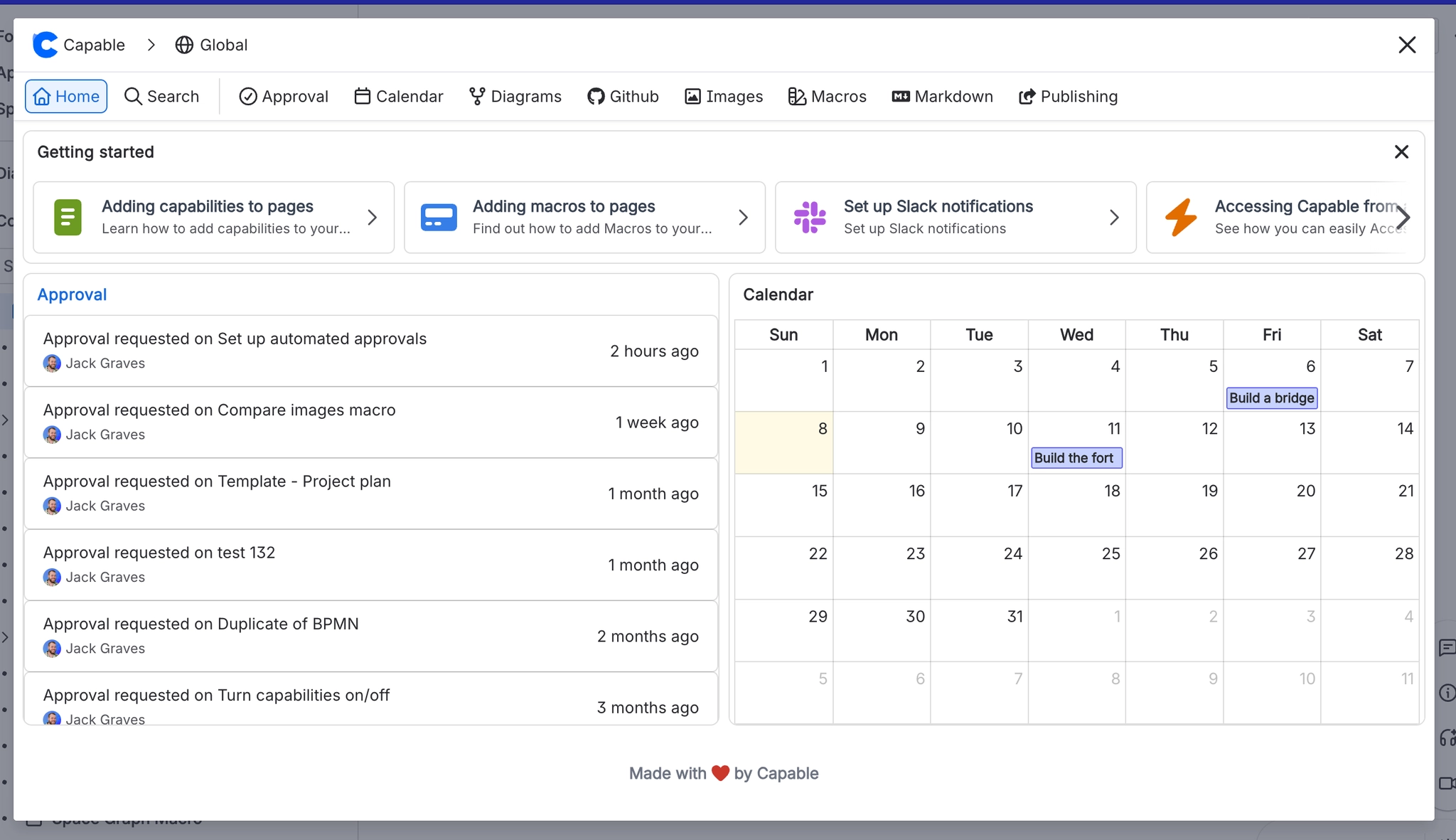
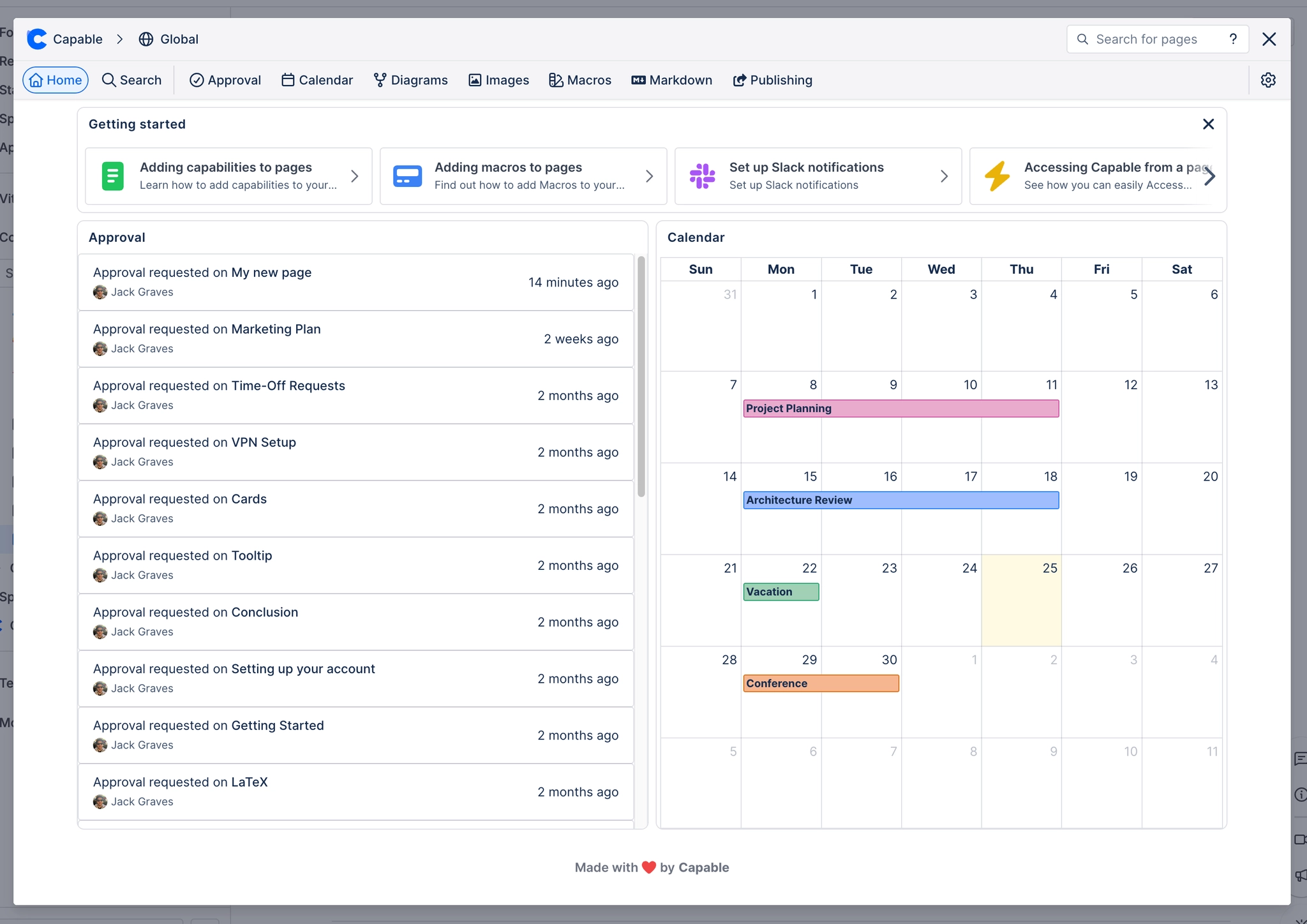
It is a suite feature: standalone apps have no equivalent.
#Four ways to open it
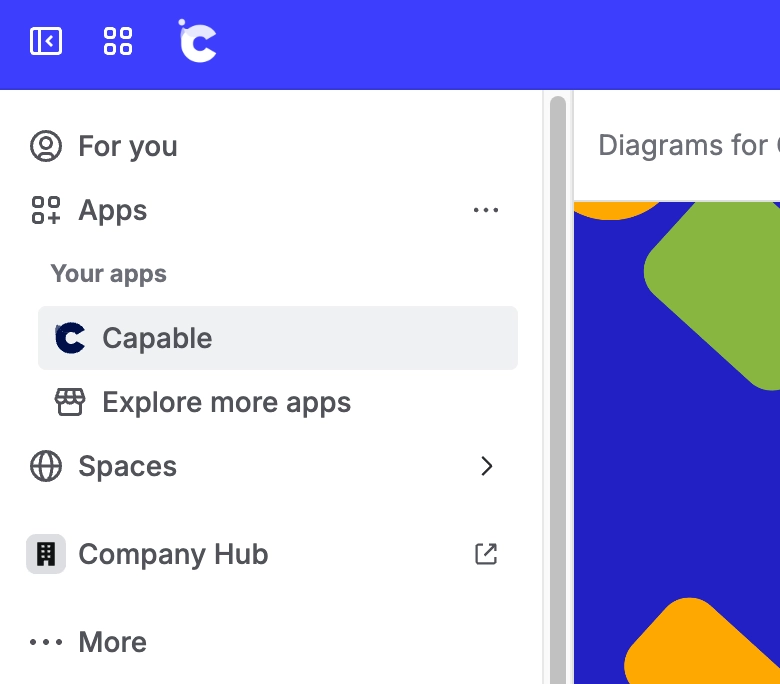
The Confluence top navigation, under Apps, then Capable.
The Home icon in the Capable byline header.
Directly, as a full page.
On a phone, via the QR code under Open on Mobile, which deep-links into the Atlassian mobile app.
Home's widgets are not filtered by hidden capabilities. Hiding Approval or Calendar removes the navigation item, but its widget can still appear on Home. That is a known inconsistency rather than a setting you have missed.
#Opening on a phone
Open on Mobile shows a QR code. Scanning it deep-links into the Atlassian mobile app rather than a browser, which is the difference between a usable phone experience and a frustrating one.
#A few things worth knowing
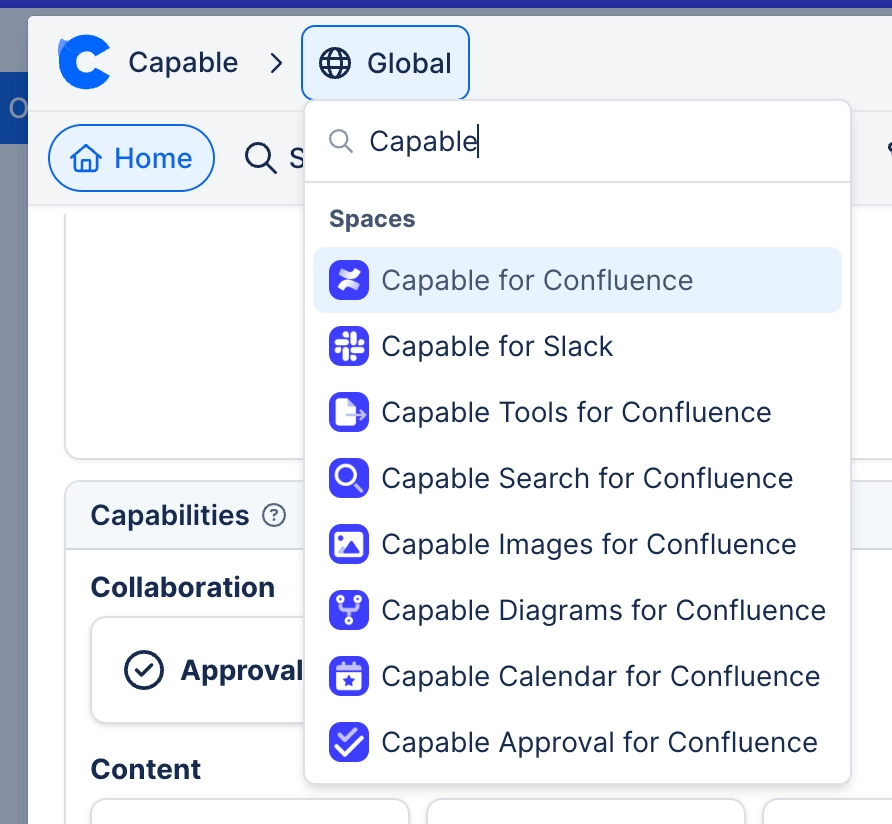
The dashboard opens as a full-screen overlay, and Escape and backdrop clicks are deliberately disabled on it.
Widgets come from installed capabilities, so a smaller install has a shorter Home.
Suite only. There is nothing like it in a standalone app.
#Related
Everything, on one page.






















