
Site settings
Microsoft Teams support is coming soon.
Global settings sit in Confluence administration under Capable. Everything here is site-wide and needs a Confluence site administrator.
There is no Save button. Each switch saves as soon as you change it.
#The tabs
Tab | What it controls |
|---|---|
Capabilities | A Visible/Hidden switch per capability. Hiding removes the capability from the Capable nav, the Capable byline menu, the command palette and the search table's contributed columns and filters |
Features | Site-wide on/off switches: AI integrations (on), Approval status banner (off), Calendar subscriptions (on), Diagram presence (on), JavaScript in HTML macro (off) |
Notifications | A card per channel. Email: the Email notifications switch. Slack: the connect switch, Slack integration, Slack approval actions and Set up for Slack channels. Microsoft Teams: the connect switch, Microsoft Teams integration and Microsoft Teams approval actions |
Approval: Teams, Team permissions, Auth tokens, Migration, Slack | Define approval teams; name who may administer them (org admins and the Confluence admin groups are locked in); check or remove sign-off codes; bring approvals across from another app; and send approval updates for chosen spaces to Slack channels |
Egress | Approve up to 10 external domains the app may reach directly, choosing per domain which uses are allowed (images, fetch client-side, fetch backend-side, frames, media, scripts, styles, fonts) |
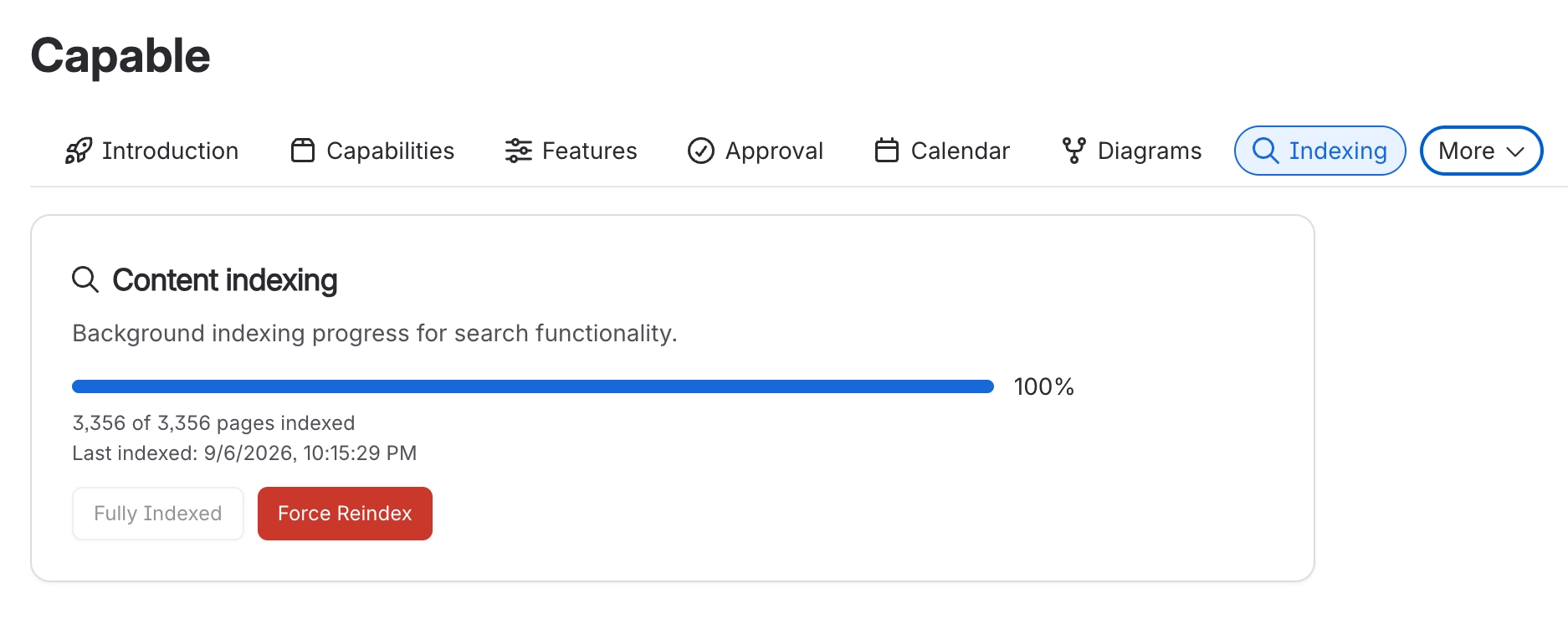
Indexing | Shows index coverage and last run, refreshing every 30 seconds, and can run indexing on demand in batches with a force-reindex option |
Migration | A Find, Verify, Migrate, Undo wizard that converts another vendor's macros or a Capable standalone app's content into Suite equivalents. See the Migrate to Capable space |
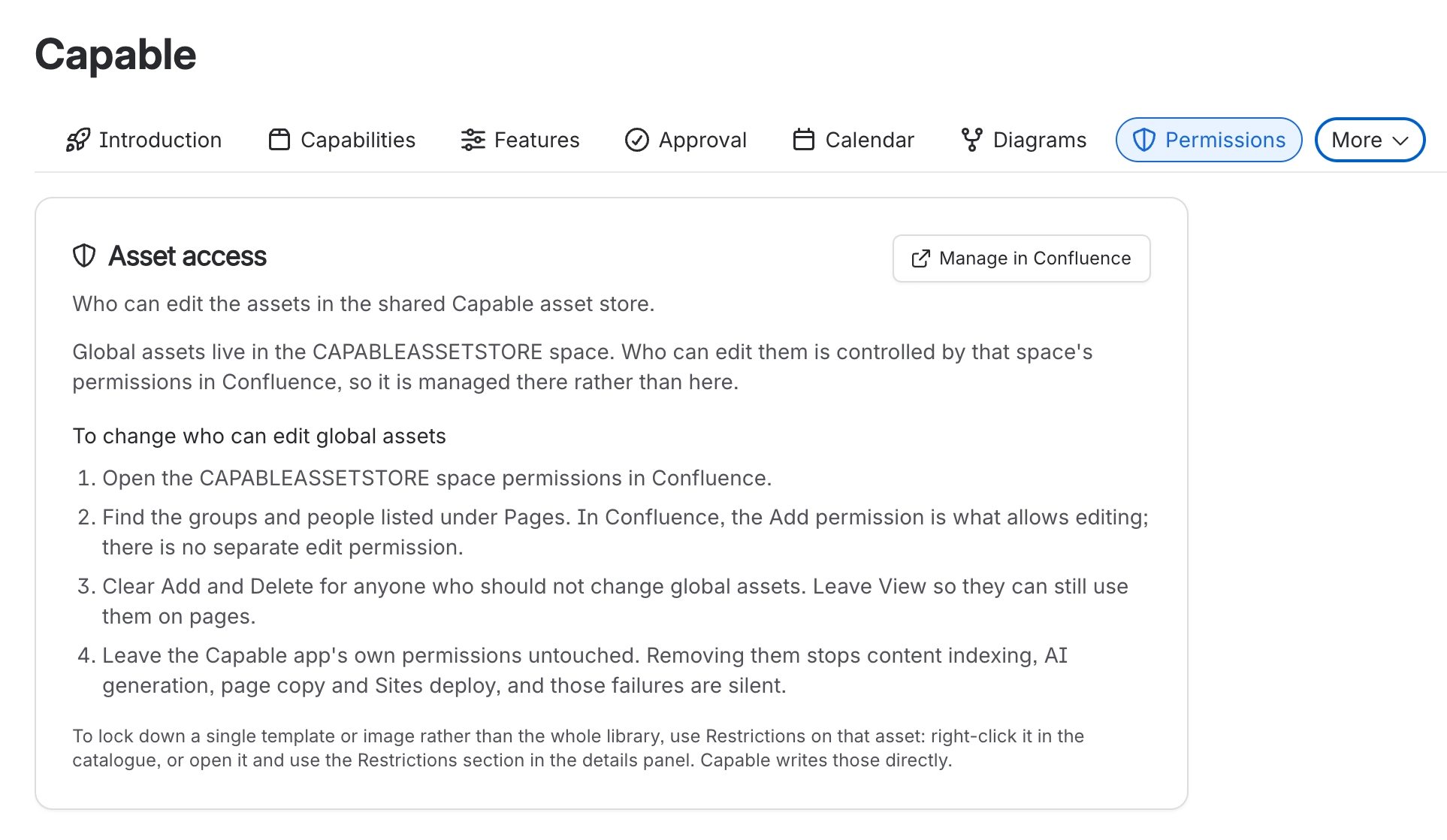
Permissions | Instructions only, not a control. Explains that shared assets live in the Capable Asset Store space and links out to that space's Confluence permissions |
Diagrams: disabled libraries | Turn individual diagram languages off. TikZ is off out of the box. A disabled library disappears from the create picker, examples, AI generation, import and the byline search, but diagrams already on pages keep rendering |
#Global settings from inside a capability
You do not have to go to Confluence administration to change a capability's site-wide settings. In Approval, Calendar, Diagrams and Macros, site administrators get a Global settings entry at the end of the sidebar's Manage group. It shows the same settings as that capability's tab here, plus the Features switches that belong to it, such as Calendar subscriptions in Calendar or Approval status banner in Approval.
The entry appears only once Capable has confirmed you are a Confluence site administrator.
Changes made there and here are the same setting. Neither page overwrites the other.
Diagrams also has a Space settings entry for space administrators. See Space settings.
Publishing has no Global settings entry. Its only site-wide settings are database diagnostics, which stay in Confluence administration.
#Capabilities
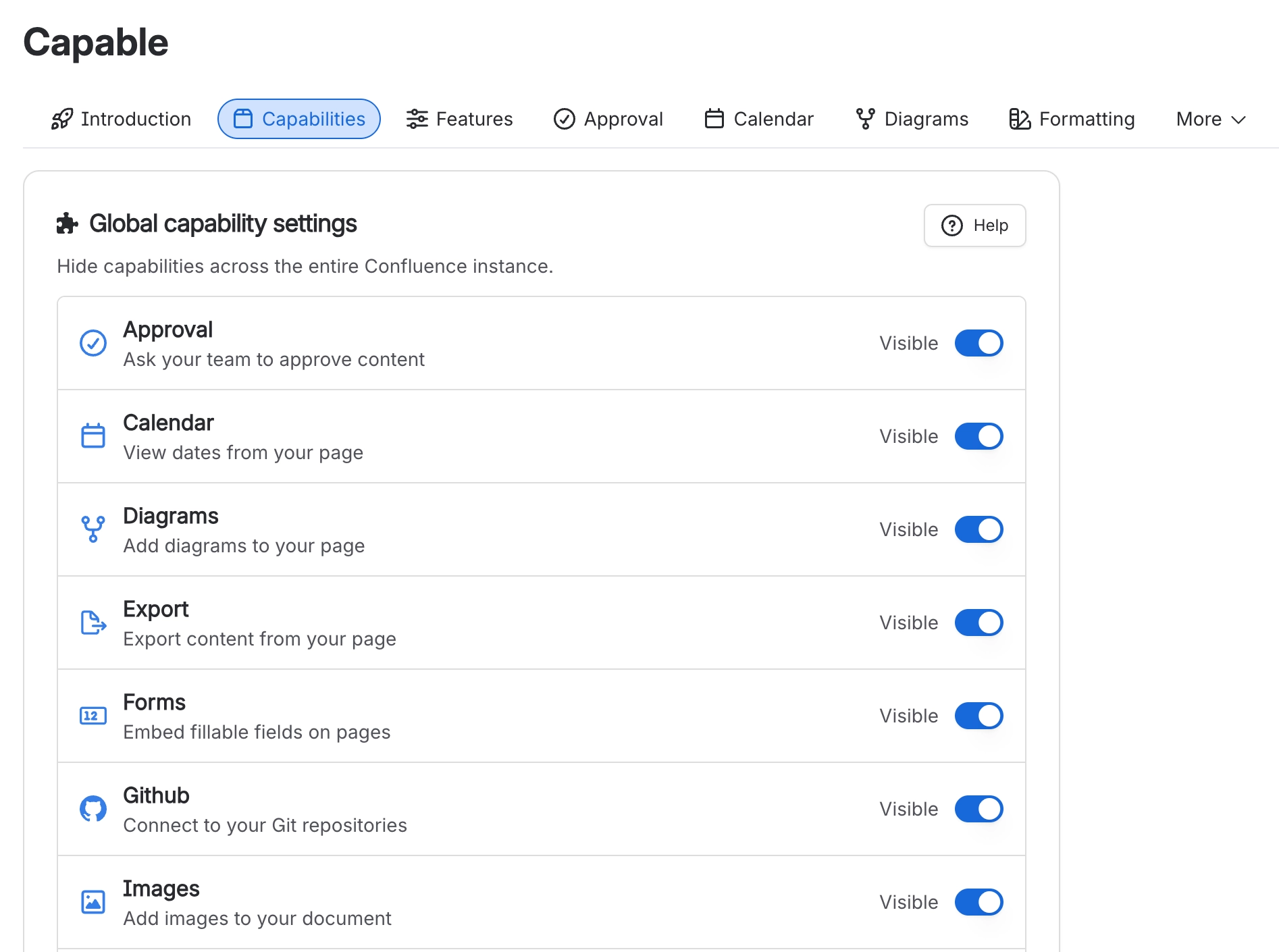
#Features
Site-wide on/off switches: AI integrations (on), Approval status banner (off), Calendar subscriptions (on), Diagram presence (on), JavaScript in HTML macro (off). Rows only appear when an installed capability uses that feature. Each switch saves when you change it. There is no per-space equivalent.
Email, Slack and Microsoft Teams switches are not here any more. They live on the Notifications tab, next to the channel they control.
#Notifications
One card per channel, each saying whether the site is connected. See Notifications for what each switch does.
Card | What it holds |
|---|---|
Email notifications (on): turn approval emails off for everyone | |
Slack | The connect switch, Slack integration (on), Slack approval actions (off) and Set up next to Slack channels |
Microsoft Teams | The connect switch, Microsoft Teams integration (on) and Microsoft Teams approval actions (off) |
Site administrators also get Manage notifications in the Notifications section of their Capable settings, which opens this tab.
#Egress
Approve up to 10 external domains the app may reach directly, choosing per domain which uses are allowed (images, fetch client-side, fetch backend-side, frames, media, scripts, styles, fonts). Available in the Suite and in the standalone Markdown, Formatting and Diagrams apps only.
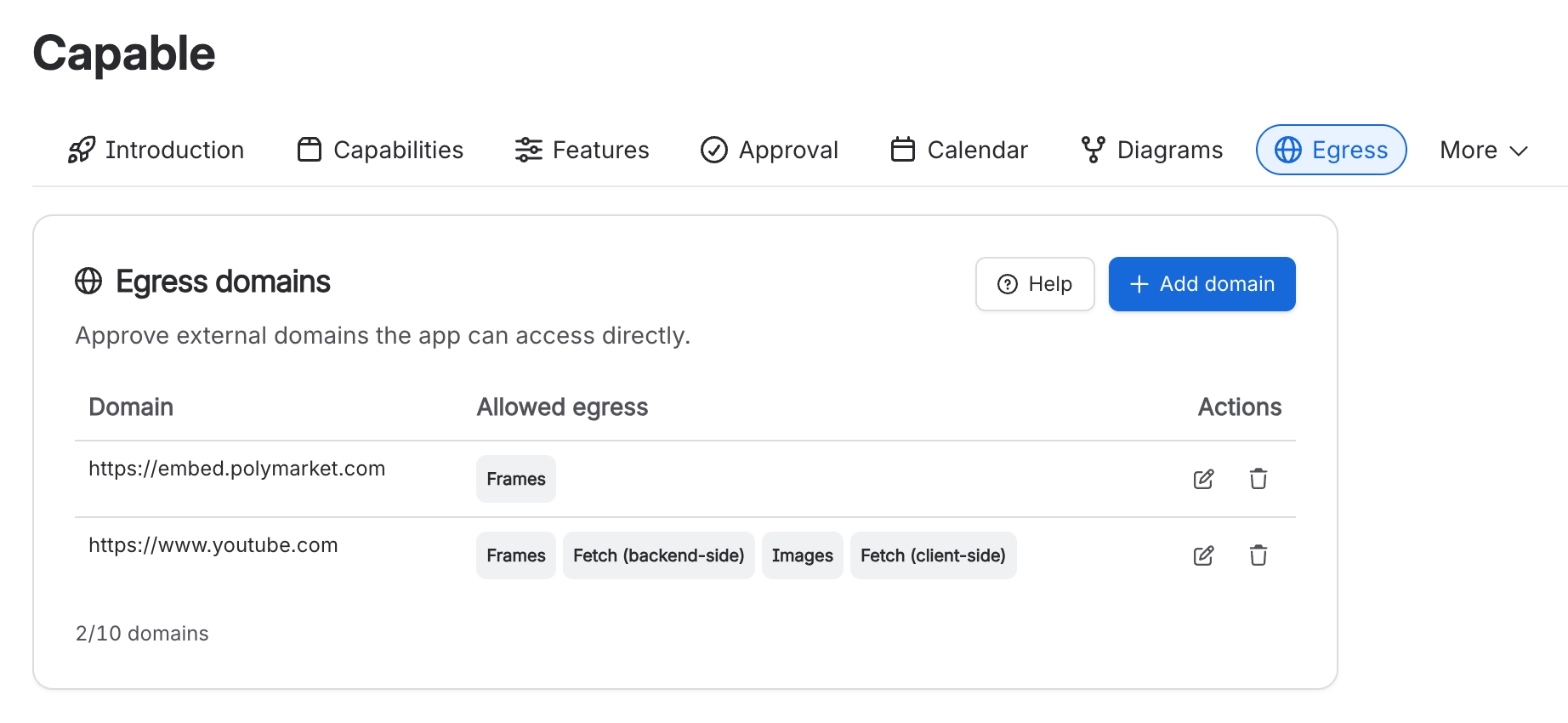
Approving a domain is a security decision. It lets the app reach that domain directly. Approve only domains you control or trust, and review the list periodically.
#Indexing
Shows index coverage and last run, refreshing every 30 seconds, and can run indexing on demand in batches with a force-reindex option. This is what makes search filters, quality reports and "Auto" bylines populate.
#Permissions
Instructions only, not a control. Capable cannot write space permissions, so it explains that shared assets live in the Capable Asset Store space and links out to that space's Confluence permissions screen. Warns that removing the Capable app's own space permissions silently breaks indexing, AI generation, page copy and Sites deploy.
#A few things that catch people out
Changes propagate in about a minute, and up to five in an already-open tab. Do not conclude a setting failed because it has not appeared yet.
While a migration is running the whole settings section is frozen, and the run lives in the browser tab.
The Permissions tab is instructions rather than a control: Capable cannot write space permissions.
Looking for the email or Slack switch on the Features tab? It moved to the Notifications tab.
#Related
Site-wide, saved as you go, and reachable from inside each capability.






















